
Topic
This article covers the new feature allowing for full-text search within the NinjaOne ticketing boards. To enable NinjaOne ticketing, refer to NinjaOne Ticketing: Getting Started.
Environment
- NinjaOne Ticketing
- NinjaOne search tool
Description
Search for text within the content of open, pending, and closed tickets, including the ability to:
- Discover tickets where, if provided multiple terms in a search string, results can match across subject, tags, and description, or a combination of such.
- Sort tickets by relevance, giving a higher weight to matched tags and multiple occurrences inside a ticket.
- Use the getTicketsByBoard as an API endpoint.
Index
Select a topic to continue.
How Full Text Search Works
Technicians can search by relevancy or recency and can only view results for tickets to which they have permission to access. Relevance is ranked in the following order:
- Ticket ID
- Tag(s)
- Subject
- Assignee (first and last name)
- Requestor (first and last name)
- Description
- Comments
- Technician CC
The search can pull derivatives of root words and partial queries; for example, "words" should match "word" and vice versa. Conjunctions and articles like "the" will be ignored. To search for exact matches, put your search into double quotes (quotation marks)—for example, ["test"]. This will search for exact matches instead of derivative matches.
How to Perform a Full Text Search
- Click Ticketing in the sidebar menu and select a board. A full-text search will work best on the All Ticketing board because it will not be filtered by status or assignment.
- Enter your search terms into the search box at the top of any ticket board (not the global search query at the very top of the page). Search queries are limited to 512 characters.
- Use the filters to aid your search.
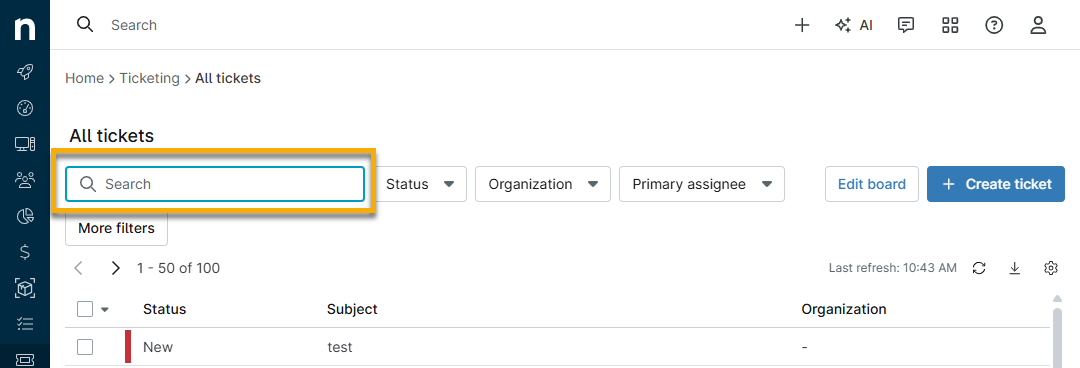
Results will display based on subject, description, comments, and tags for tickets to which your account has permission to access.
- Review the results on the page. Move your cursor over the Subject hyperlink to open a preview dialog with the ticket details.
Additional Resources
Learn more about NinjaOne Ticketing at NinjaOne Ticketing: Resource Catalog.