
Topic
This article explains how to use the Activity Feed in NinjaOne.
Environment
NinjaOne Endpoint Management
Description
The Activity Feed is a chronological audit log for NinjaOne that shows all events from the system level to the device level. New activities are displayed first, along with a timestamp.
/v2/activities or /v2/device/{id}/activities.Select a category to learn more:
Where to View Activity Feeds
The following Figure 1 illustrates the activity log from a device dashboard. This section is also present in the system and organization dashboards, but provides different data depending on the dashboard. Refer to NinjaOne Platform: Navigating the System and Organization Dashboard for more information.
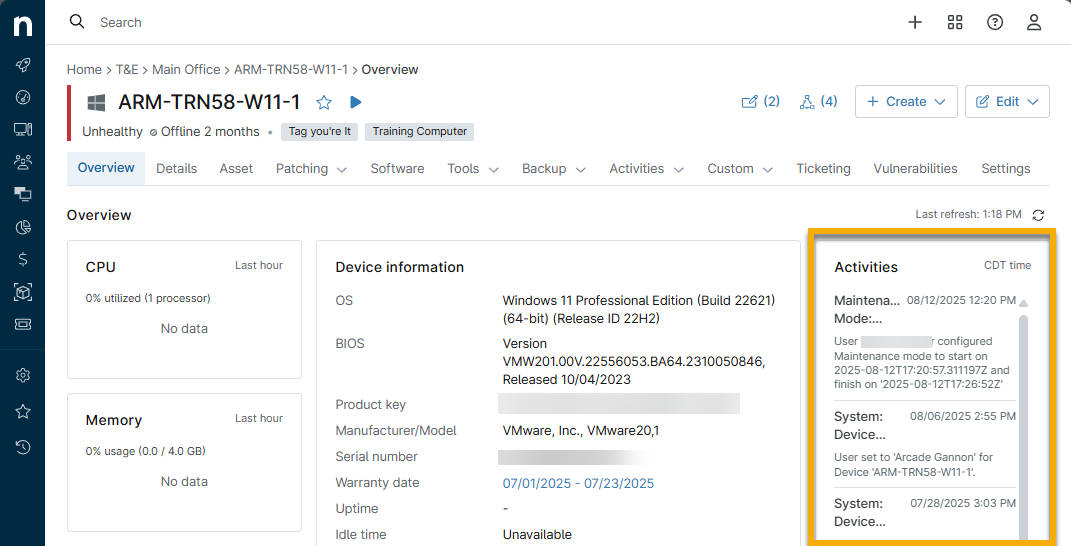
Clicking a listed activity opens an activity dialog that provides more detail about the item listed.
Activity Generation
The following events create activity logs:
- System activities
- Device activities
- Conditions triggered and reset
- Action started or completed
- Remote session started or ended
- Patch management scan started or completed
- Antivirus scan started or completed
- Cloudberry backup started or completed
Activity Management Settings
When managing activities, you can configure settings for the following options:
- Create ticket: Use NinjaOne Ticketing to create a ticket when the activity is triggered.
- Severity and Priority are optional classifications you can use when creating a ticket. When the ticket is created, it will update those fields with the data you selected.
- Channels are outlets you configured to receive notifications. Refer to Notification Channels for more information. When you select an option for this field, the triggered system activity will send a message to the channel.
- Notify Technicians via SMS/Email allows you to notify technicians directly when the activity is triggered if the Severity or Priority matches the technician's notification settings configured for their account. Refer to Create a Technician in NinjaOne for more information.

Configure System Activities
These are activities that happen at the system level, such as creating customers, users, and policies.
- Navigate to Administration → General → System activities.
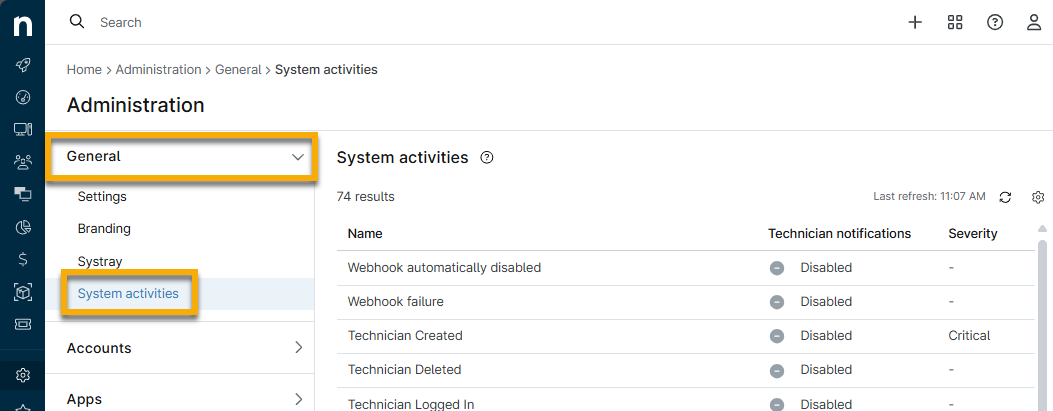
- Select an activity type to configure its settings; refer to the previous section titled Activity Management Settings for details. You can find more information at NinjaOne Platform: Notification Channels.
Configure Device and Policy Activities
Through the policy configuration editor, you can manage activities that occur at the device level. Examples include adding CPU, removing memory, and adding software.
- Navigate to Administration → Policies and select a policy type.
- Click a policy to open the configuration page and then open the Activities tab.
- Select an activity type to configure its settings; refer to the section titled Activity Management Settings for details.
- Click Save. A message displays in the UI indicating that notifications have been activated for this activity.

Repeat these steps for any other activities, then save the changes to your policy.
Additional Resources
Refer to Device Enrollment and Management: Resource Catalog to learn more about device management in NinjaOne.