
Topic
This guide explains the purpose of the different widgets in the Overview tab on a device dashboard.
Environment
NinjaOne Endpoint Management
Description
In the context of this guide, a widget is a component of the NinjaOne dashboard interface that provides up-to-date information for managed devices.
Device dashboards provide different data depending on the type of device (computer, mobile device, virtual infrastructure, cloud monitor, or network management system). This guide uses the computer device dashboard as an example.
For a description of other tabs on the dashboard, refer to NinjaOne Dashboards: Resource Catalog.

To access a device dashboard, click Devices on the left navigation pane within the NinjaOne console and then click any of the devices listed. You can also access the device dashboard from the organization dashboard.
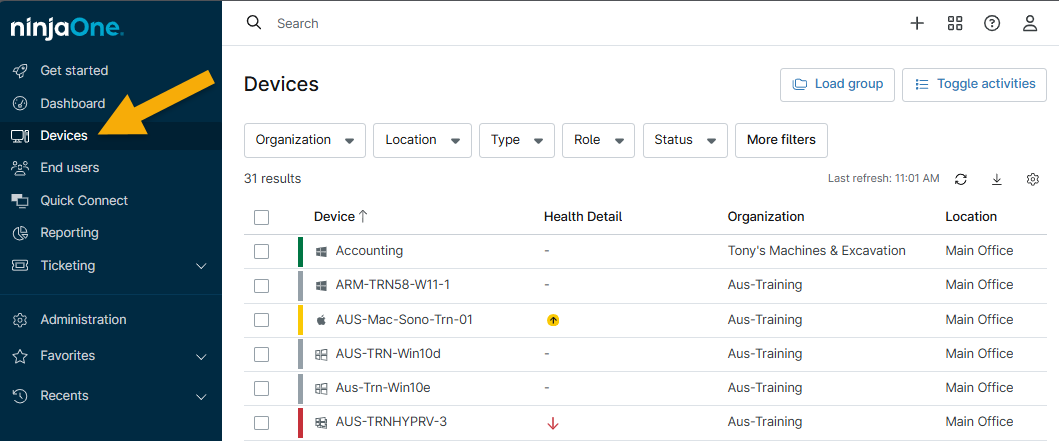
Select a category to learn more:
Device Overview Layout
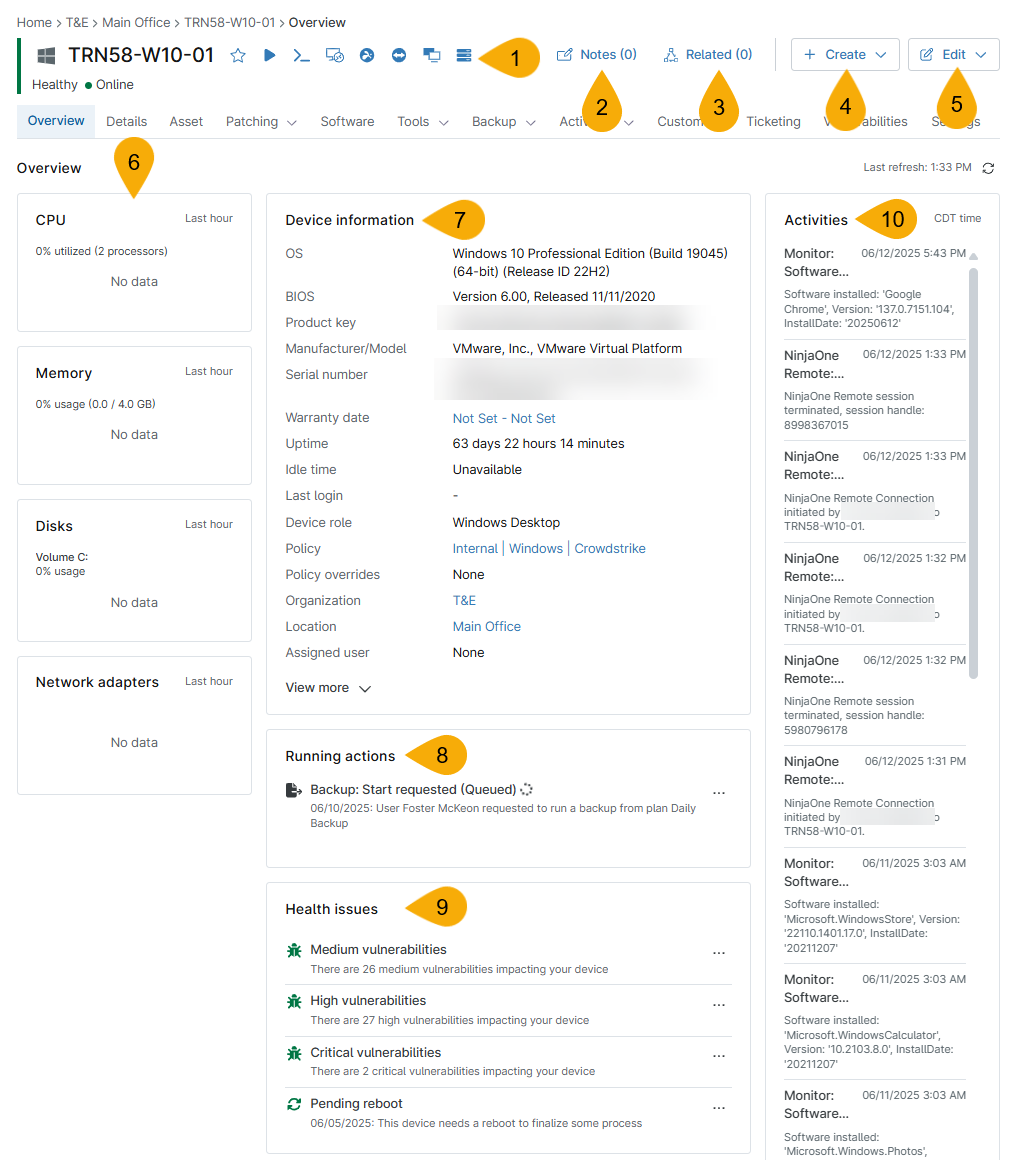
This section explains the purpose of each widget in the Overview tab. To learn how to assign custom fields to the device role, refer to the following table and Figure 3 illustration.
| Figure 1 Key | Description or Purpose |
|---|---|
| The action and integrated application buttons display according to the device type, organization settings, and policy settings. Refer to the Device Actions section of this article to learn more. |
| The device notes feature allows users to create multiple notes on each device to record and track different topics related to a specific device. Refer to Device Notes and Related Items to learn how to use this tool. |
| Related items allow technicians to map devices, fields, organizations, and other objects relationally to a device. Refer to Device Notes and Related Items to learn how to use this tool. |
| Create a scheduled task or ticket related to the device. Resources:
|
| Edit device settings, such as display name, organization or location, and tags. You can also delete the device. |
| The performance widget displays for computers and virtual infrastructure endpoints and provides a graph showing the machine's recent CPU (Central Processing Unit), memory, volume, and network adapter performance. The current CPU, memory, and volume percentages will be listed in parentheses. For other endpoints, you can find this data in the Details tab. Some devices have clickable serial numbers in this widget, and some do not. While most devices in an environment generate a clickable link to the manufacturer's website directly through the serial number, this does not happen for specific brands. The availability of the copy icon and serial number link depends on whether the device's warranty comes from a particular manufacturer, which currently includes Acer, Dell, HP, Asus, and Lenovo. |
| NinjaOne pulls data for some fields, such as system name, from the device's stated location depending on specific criteria for that device type. Most commonly, you will find operating system and model, product key, serial number, IP (Internet Protocol) address, device name, uptime or connected status, organization, policy, antivirus, BIOS (Basic Input-Output System) version, BIOS release date, and patch management information. |
| The Running widget shows active jobs running on the device. It appears under Device information and above Health issues. Click the ellipsis icon in this widget to view available actions, such as "Cancel" or "Details." |
| The Health is in the General section. The color of the health icon may vary depending on its customizations. Refer to Customize Device Health Statuses in NinjaOne for more information about health status icons and definitions. Click the ellipsis icon in this widget to view available actions, such as "Navigate to Vulnerabilities tab" or "Reboot." |
| The Activities widget on the right side of the page shows device-specific events and actions taken on the device, such as installations, scans, automations, patch warnings, and similar. These events are also listed in the Activities tab on the dashboard. |
Device Actions
Next to the device name on the device dashboard, you may find one or more of the icons highlighted in Figure 4. The action and integrated application buttons display according to the device type, organization settings, and policy settings. This section describes each icon.

- Star icon: Click this to add the device dashboard to your Favorites.
- To learn more about the Favorites section, refer to Recent and Favorite Saved Content.
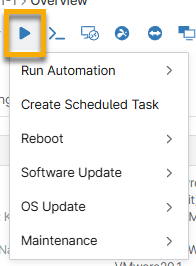
- Action button: Sometimes called the "play" button, click this icon to view actions you can take on the device. Available actions will vary based on policy settings and device type. You can also use this button on the Devices search page. To learn more about each action, click the provided hyperlink:
- Run Automation: Run a custom or native script on the device, install or run an application, or initiate a file transfer.
- Create a Scheduled Task
- Reboot: Schedule or start a reboot.
- Refer to Pending Reboots.
- Refer to Managing scheduled device reboots in NinjaOne.
- Antivirus: Scan the applicable antivirus software.
- Software Update: Scan for or apply software or operating system updates.
- Maintenance: Start Maintenance Mode.
- Remote management: Click to initiate remote access as either
cmd.exeor PowerShell. - Remote desktop: Click to configure remote desktop connection options, including gateway, connection performance, audio and drives, visual styles, and similar.
- Splashtop: Click to launch a Splashtop connection. To learn how to enable Splashtop in NinjaOne, refer to the Splashtop: Integration Guide.
- TeamViewer: Click to launch a TeamViewer connection. To learn how to enable TeamViewer in NinjaOne, refer to the TeamViewer: Integration Guide (Automatic).
- NinjaOne Remote: Click to launch a NinjaOne Remote connection. To learn how to enable NinjaOne Remote in NinjaOne, refer to Getting Started with NinjaOne Remote.
- Backup: Click to run a backup plan, generate an image authorization key, or download the image restore manager. To learn how to set up and configure your backup options in NinjaOne, refer to NinjaOne Backup: Setup Guide.
Dashboards for Apple iOS mobile devices allow you to add apps. Refer to NinjaOne Apple MDM: Application (App) Management for more information.
Dashboards for Android mobile devices allow you to perform the following actions:
- Security actions
- Lock device: Remote Lock immediately locks the device and requires an authorized user to enter their passcode.
- Reset passcode: Set a new device passcode for this device.
- Erase device data: Remove the device from NinjaOne and wipe the storage. Refer to NinjaOne Platform: Delete or Remove a Device for more information.

Edit the Device Dashboard
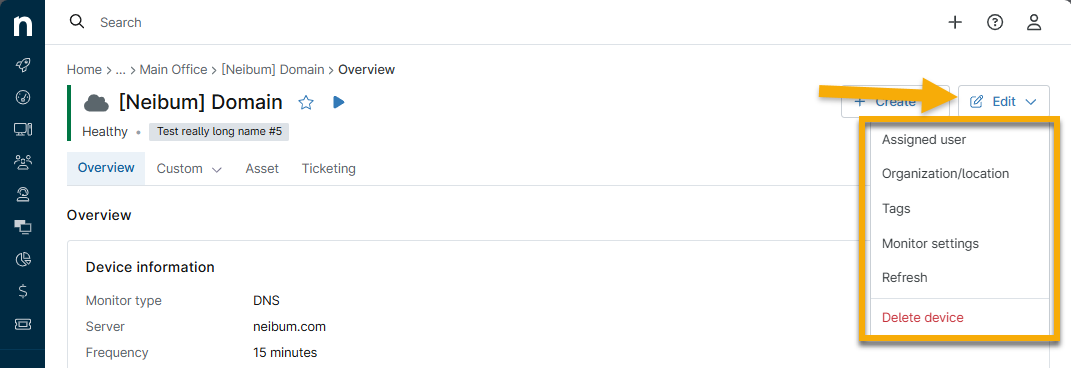
The Edit button may provide different functionality depending on the device type:
- Display name: Change the name that displays for the device in NinjaOne.
- Assigned user: Change the device's assigned user. Refer to Add or Change Device Owner and End User Sharing and Device Access for more information.
- Organization or location: Change the device's organization or location.
- Tags: Create, add, or remove tags related to the device. Refer to Getting Started with NinjaOne Device Tags for more information.
- Monitor settings: Modify cloud monitor configuration settings. Refer to NinjaOne Device Management: Cloud Monitors for more information.
- Refresh: Refresh the data on the dashboard to show the most up-to-date information.
- Delete device: Refer to NinjaOne Platform: Delete or Remove a Device for more information.
Additional Resources
Refer to the following resource to learn more about device management in NinjaOne: Device Enrollment and Management: Resource Catalog.