
Topic
This article explains how to download, configure, and use the NinjaOne Desktop Companion application.
Environment
NinjaOne Desktop Companion
Description
The NinjaOne Desktop companion enables you to quickly view devices and initiate remote access connections from a desktop application separate from the web app.
NinjaOne Desktop Companion (NinjaOne, Inc., 01:37
Select a topic to continue:
- Configure the Desktop Companion
- Filter or Search for Devices
- Run Actions on Devices from the Desktop Companion
- Configure Settings for the Desktop Companion
- Revoke OAuth Tokens
- Additional Resources
Configure the Desktop Companion
To download the NinjaOne Desktop Companion, perform the following steps:
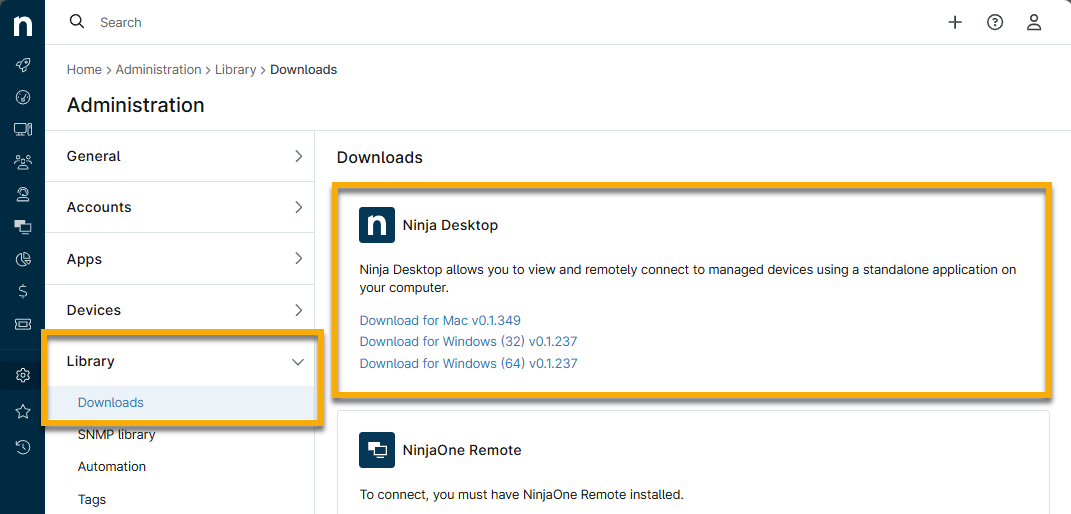
- Navigate to Administration → Library → Downloads to download the installer package for the Desktop Companion application. Select the appropriate download option for your device. Only system administrators may have access to this widget.
- Run the installer package on your machine. If you install the NinjaOne Desktop Companion on an Apple macOS device, you may need to approve the application in your system's Security and Privacy settings to open it.
- On the NinjaOne Desktop Companion Setup dialog, select the checkbox to accept the terms in the license agreement and then click Install.
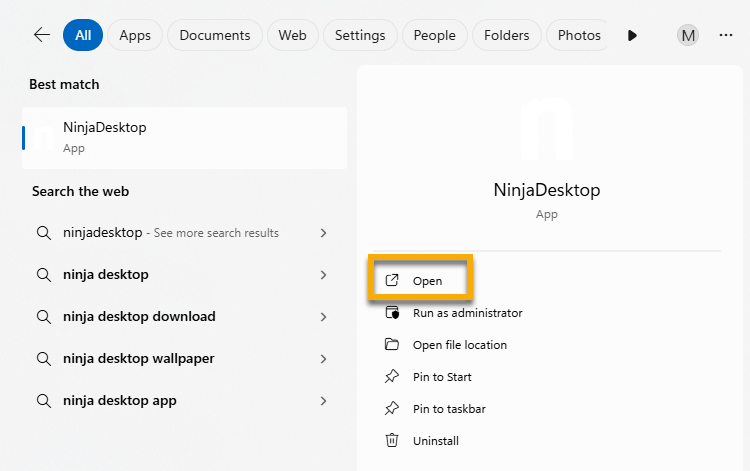
- Click Finish to exit the setup wizard once complete. You can now find and open the NinjaDesktop app on your desktop.
- The first time you open the app, NinjaOne will prompt you to log in. Select the NinjaOne instance that you use (US, US2, EU, OC, or CA) and click Sign in. You will be redirected to your web browser to authenticate via OAuth.
- Enter your NinjaOne credentials. Upon entering your credentials, you will be prompted to authorize the NinjaOne Desktop Companion to access your NinjaOne data.
- To proceed, click Authorize. If you do not want to answer this prompt again in the future, select the Remember my decision checkbox.
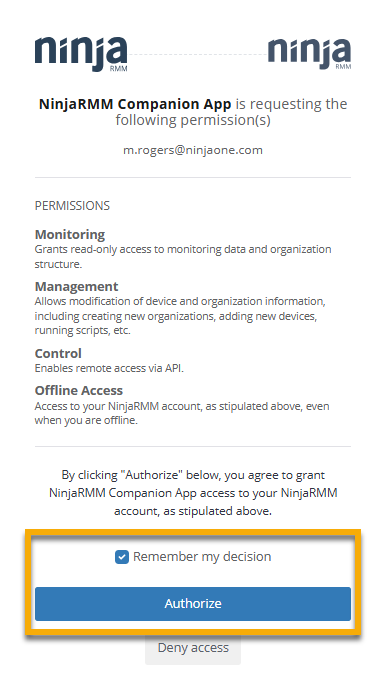
After the authorization is complete, you will return to the NinjaOne Desktop application and should be able to view your NinjaOne organizations and devices.
Filter or Search for Devices
The All folder will be open by default, which lists all devices in your NinjaOne environment. However, you can select a particular organization from the menu, which will filter the device list to reflect only the devices in that organization.
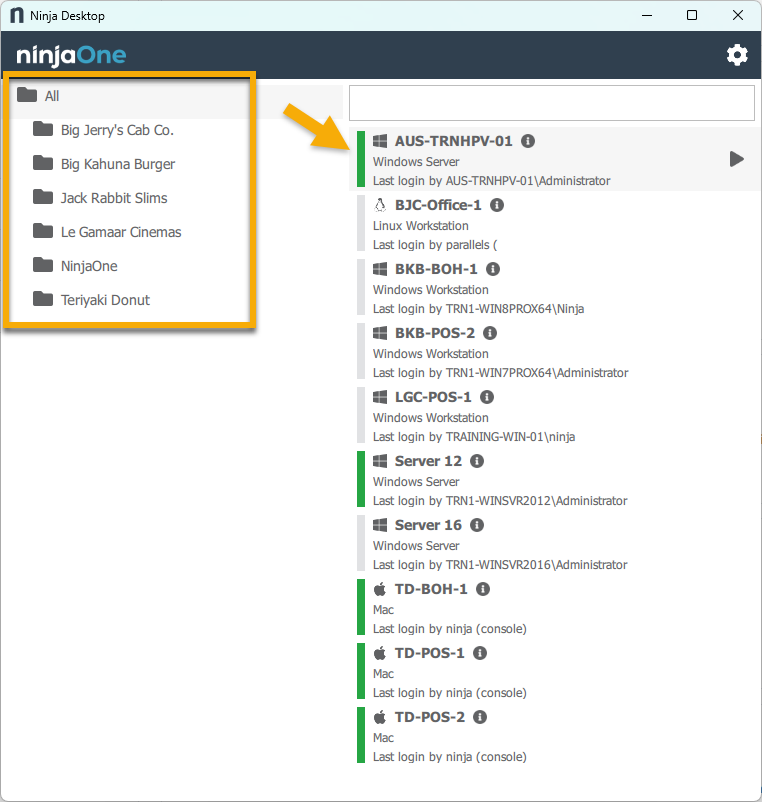
Alternatively, use the search bar at the top of the device list to find a device by name.

Run Actions on Devices from the Desktop Companion
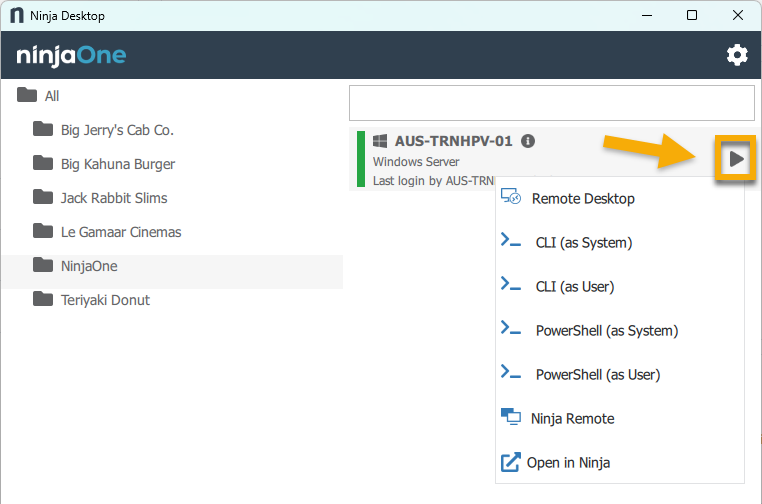
You can run various actions from the Desktop companion app depending on device type:
- Remote Desktop: Use remote desktop to connect to the device. Refer to Remote Desktop Protocol: Frequently Asked Questions for more information.
- CLI (as System) or CLI (as User): Interact with the device's operating system using the command-line interface. Refer to NinjaOne Endpoint Management: Scripting, Automation and CLI Resource Catalog for information.
- PowerShell (as System) or (as User): Run commands in PowerShell on the device.
- Terminal as root: Open the Terminal emulator as a system administrator.
- Terminal: Open the Microsoft Windows Terminal emulator in your web browser.
- TeamViewer: Initiate a remote session using the TeamViewer integration, if enabled. Refer to TeamViewer: Transitioning to NinjaOne Remote for information.
- Splashtop: Initiate a remote session using the Splashtop integration, if enabled. Refer to Splashtop: Integration Guide for information.
- NinjaOne Remote: Initiate a remote session using NinjaOne Remote. Refer to NinjaOne Remote: Getting Started for information.
- Open in Ninja: Open the device dashboard in the NinjaOne web app.
Configure Settings for the Desktop Companion
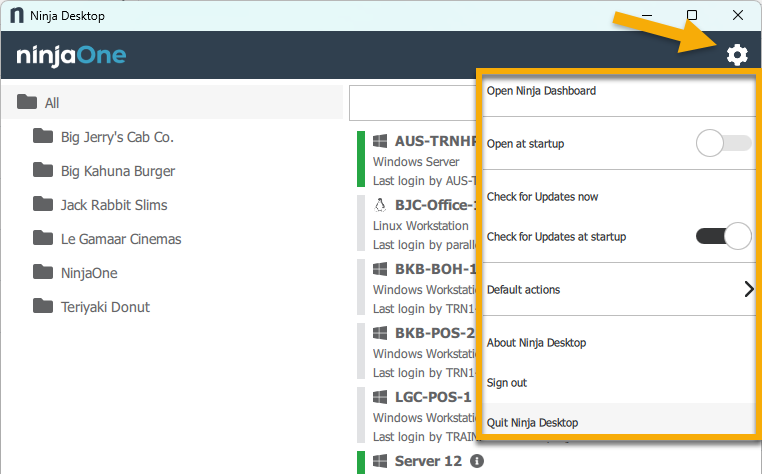
To access the NinjaOne Desktop Companion settings, click the gear icon in the top-right corner of the application.
| Setting | Description or Purpose |
|---|---|
| Open NinjaOne Dashboard | Opens the NinjaOne web application system dashboard in your browser. If you are not logged in to the NinjaOne web application in your browser, you will be prompted to enter your credentials, and then you will be immediately directed to the appropriate page. |
| Open at startup | Toggle to have the application automatically open upon device startup. Minimized: When the setting is enabled, an additional option will appear to opt to reduce the window upon opening at startup. |
| Check for Updates now | Opens a separate window to check whether any updates are available for the application. If an update is available, you will be prompted through the installation process. The app will close at the end of the update. Upon re-launching the app, the updated version will be running. |
| Check for Updates at startup | Toggle to automatically trigger a check for updates at startup. |
| Default actions | Set a remote access method that you want to automatically open when you double-click a device. This will be set to "Ask me every time" by default, which will open a window to select a remote access method when you double-click a device. |
| About NinjaOne Desktop | Opens a window with a link to the NinjaOne web application and the current version of the desktop application. |
| Sign out | Logs you out of the application. Clicking this button will invalidate your OAuth token as a security measure. |
| Quit NinjaOne Desktop | Exits the NinjaOne Desktop Companion application. |
Revoke OAuth Tokens
Click the gear icon in the Desktop Companion app to log out. When you log out of the NinjaOne Desktop companion app, NinjaOne will automatically invalidate the OAuth token that was initiated during the Desktop session.
If there is no activity in the NinjaOne Desktop application, the OAuth token will expire after two weeks, and you will be prompted to log in again upon subsequent use.
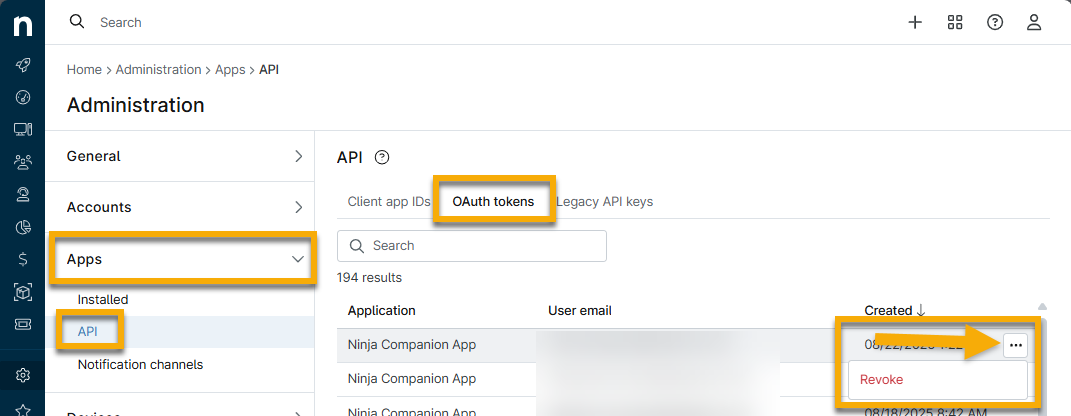
You can also manually revoke OAuth tokens for individual sessions by performing the following steps:
- Navigate to Administration → Apps → API → OAuth Tokens.
- You will find a list of OAuth Tokens for each user of the Companion App. To revoke a token, move your cursor over the token in question and click Revoke.
Additional Resources
To learn more about common questions and scenarios for the NinjaOne Desktop Companion, refer to NinjaOne Desktop Companion: FAQ.