
What is the Patch caching in NinjaOne?
Patch caching is a feature designed to optimize how Windows devices download and install patches. Instead of every endpoint connecting directly to Microsoft’s update servers, NinjaOne allows you to designate a Windows device as a cache server.
The cache server downloads the required patches from Microsoft the first time they are requested and stores them in a dedicated cache folder. When other Windows devices on the same network need those same patches, they retrieve them directly from the patch cache server rather than downloading them again from the Internet.
This approach significantly reduces Internet bandwidth consumption, accelerates patch deployment, and ensures more efficient use of network resources. By centralizing patch downloads through a local cache, administrators can streamline patch management in environments with many Windows devices, while maintaining full control and reliability of updates.
Is Patch caching similar to WSUS?
Patch caching in NinjaOne is similar to WSUS (Windows Server Update Services), in that it creates a central point that client machines use to obtain patches, reducing Internet bandwidth, but unlike WSUS, which is a complete patch management system, NinjaOne´s patch caching focuses solely on caching patch binaries. Another difference is that WSUS requires a Windows server running the WSUS server role, while NinjaOne´s patch server can be any computer running any Windows OS.
What are the requirements for setting up patch caching in NinjaOne?
There are three requirements for setting up Patch caching in NinjaOne:
- Designate a computer as a cache server. This computer must be reachable from the subnet that the client computers it will serve and must be managed by NinjaOne. It must be a Windows machine running any Windows OS and have sufficient disk space for storing the patch binaries. When designating it as a patch cache server, you must select a folder to store the patch binaries and setup the proper firewall rules to allow communication with the clients.
- Windows Patches must be enabled in the policies governing client computers that leverage Patch caching.
- The patch mode in the policies governing client computers that leverage Patch caching must be set to “Control Windows Patch management”.

How do client computers know there is a patch cache server and they should use it to get patches?
The patch server list is communicated to the client computers via the NinjaOne agent. Once the patch server(s) is(are) assigned, there´s nothing for the administrator to do on the client side.
What important things should I know before setting up patch cache servers in NinjaOne?
Important considerations before designating and assigning patch servers:
- Patch servers can be assigned at the tenant (system-wide), organization and location levels.
- Up to 10 patch servers can be assigned for each of the above-mentioned.
- Per-device assignments can be applied through cache override.
- A device can only be assigned as a patch cache server at one single level.
- The patch cache service (CacheListener.exe) on the server uses TCP port 8443 for communicating with the clients.
What’s the level priority (location vs organization vs tenant) for patch cache servers?
A client´s agent will select patch cache server level in the following priority:
- Device overrides cache server(s): specific cache servers configured at the device level. If no overrides are in place, then:
- Location cache server(s): if none exist, or if they are unreachable, then:
- Organization cache server(s): if none exist, or if they are unreachable, then:
- Tenant cache server(s): if none exist, or if they are unreachable, then:
- Direct internet download.
When there are multiple cache servers assigned at the same level, which one will be used by the agent?
- When multiple cache servers are available at the same level, the agent will use the cache server with the shortest number of hops on the network path (traceroute).
- If multiple cache servers are available with the same number of hops, the agent will use the server with the fastest response time.
- If multiple cache servers are available with the same number of hops and response time, the agent will use the first server in the list that was communicated to the agent.
What’s the process to designate a device as a patch cache server and assign it to the whole tenant (system-wide)?
This kind of patch servers is useful for single organizations or IT departments. The patch cache server must be reachable from any subnet within the tenant.
Follow the next steps to designate and assign a system-wide patch cache server.
- In NinjaOne, go to Administration > Devices > Cache.
- Click Add. The cache server configuration modal will open.
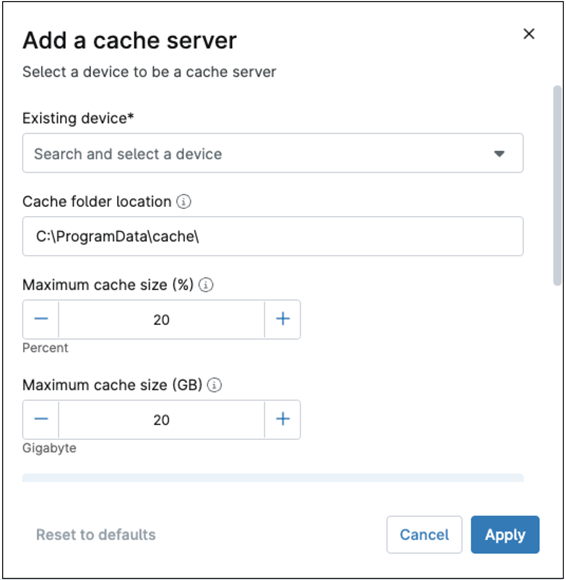
- Under Existing device, select the one you want to use as a cache server.
- Under Cache folder location, select the folder you want to use to store the patch binaries, the default is C:\ProgramData\cache\. If the folder does not exist, it will be automatically created.
- Under Maximum cache size (%), select the maximum percentage of disk space to be used to store the patch binaries, the default is 20%.
- Under Maximum cache size (GB), select the maximum size in GB to be used to store the cache binaries, the default is 20 GB.
Once either maximum is reached, the oldest binaries will be deleted to store the newer ones.
- Scroll down to see other options in the configuration modal.
- Under Maximum cache age, select Unlimited or Custom. If custom is selected, you can type the maximum number of days to keep the cache binaries. The default is unlimited.
- Under Maximum download bandwidth, select Unlimited or Custom. If custom is selected, you can type the amount of KB/s for the internet connection limit to download the patches. The default is unlimited.
- Under Maximum upload bandwidth, select Unlimited or Custom. If custom is selected, you can type the maximum amount of KB/s used by each endpoint´s agent to transfer the patch binaries from the cache server to the endpoint. The default is unlimited.
- Click Apply.
What’s the process to designate a device as a patch cache server and assign it to an organization?
This kind of patch servers is useful for multiple organizations or IT departments, independent from each other. The patch cache server must be reachable from any subnet within the organization.
Follow the next steps to designate and assign a patch cache server to an organization.
- In NinjaOne, go to Administration > Organizations.
- Click The Organization name of your choice. The Organization editor appears.

- On the left side menu, click Cache.
- Click + Add. The cache server configuration modal will open.
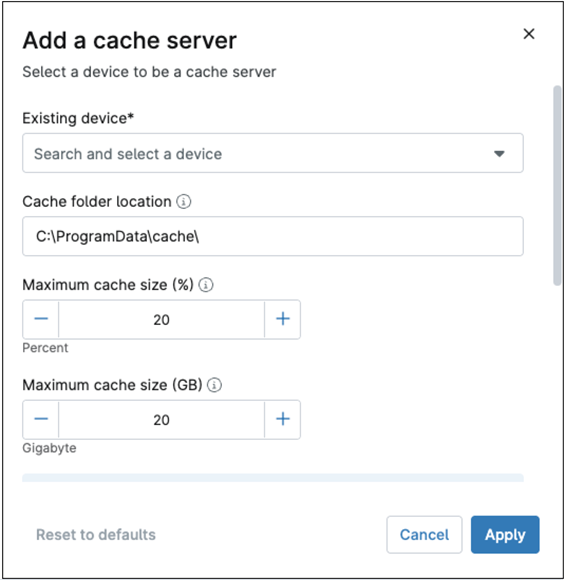
- Under Existing device, select the one you want to use as a cache server.
- Under Cache folder location, select the folder you want to use to store the patch binaries, the default is C:\ProgramData\cache\. If the folder does not exist, it will be automatically created.
- Under Maximum cache size (%), select the maximum percentage of disk space to be used to store the patch binaries, the default is 20%.
- Under Maximum cache size (GB), select the maximum size in GB to be used to store the cache binaries, the default is 20 GB.
Once either maximum is reached, the oldest binaries will be deleted to store the newer ones.
- Scroll down to see other options in the configuration modal.
- Under Maximum cache age, select Unlimited or Custom. If custom is selected, you can type the maximum number of days to keep the cache binaries. The default is unlimited.
- Under Maximum download bandwidth, select Unlimited or Custom. If custom is selected, you can type the amount of KB/s for the internet connection limit to download the patches. The default is unlimited.
- Under Maximum upload bandwidth, select Unlimited or Custom. If custom is selected, you can type the maximum amount of KB/s used by each endpoint´s agent to transfer the patch binaries from the cache server to the endpoint. The default is unlimited.
- Click Apply.
What’s the process to designate a device as a patch cache server and assign it to a location?
This kind of patch servers is useful for organizations with multiple locations. The patch cache servers must be reachable from any subnet within the location.
Follow the next steps to designate and assign a patch cache server to a location.
- In NinjaOne, go to Administration > Organizations.
- Click the Organization name of your choice. The Organization editor appears.

- On the left side menu, click Locations.
- Click the location of your choice. The location editor appears.

- On the left side menu, click Cache.
- Click + Add. The cache server configuration modal will open.

- Under Existing device, select the one you want to use as a cache server (the device must reside on the same location you are setting up).
- Under Cache folder location, select the folder you want to use to store the patch binaries, the default is C:\ProgramData\cache\. If the folder does not exist, it will be automatically created.
- Under Maximum cache size (%), select the maximum percentage of disk space to be used to store the patch binaries, the default is 20%.
- Under Maximum cache size (GB), select the maximum size in GB to be used to store the cache binaries, the default is 20 GB.
Once either maximum is reached, the oldest binaries will be deleted to store the newer ones.
- Scroll down to see other options in the configuration modal.
- Under Maximum cache age, select Unlimited or Custom. If custom is selected, you can type the maximum number of days to keep the cache binaries. The default is unlimited.
- Under Maximum download bandwidth, select Unlimited or Custom. If custom is selected, you can type the amount of KB/s for the internet connection limit to download the patches. The default is unlimited.
- Under Maximum upload bandwidth, select Unlimited or Custom. If custom is selected, you can type the maximum amount of KB/s used by each endpoint´s agent to transfer the patch binaries from the cache server to the endpoint. The default is unlimited.
- Click Apply.
How can I assign patch servers at the device level (cache override)?
Some devices may require specific settings and for this reason, it is possible to select a patch server for a device, overriding location and organization cache server settings.
Follow the next steps to assign a patch server for one device.
- In NinjaOne, from the device dashboard, click the device name for which you want to change the cache server. The device overview screen appears.

- Click Settings. The settings screen appears.
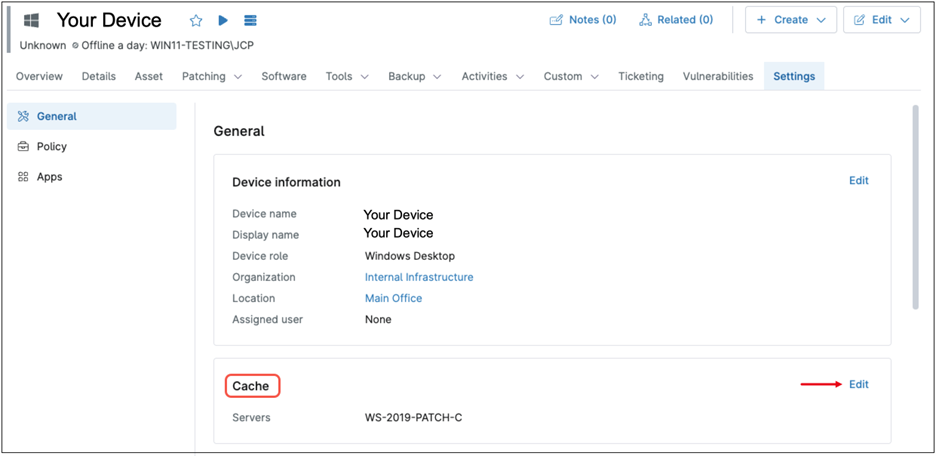
- In the Cache section, click Edit. The Edit cache servers modal appears, showing the currently assigned patch server.

- In this modal, you can add or remove cache servers. If multiple servers are assigned, you can reorder them to adjust their priority. Cache servers can only be added from the pre-populated list, which is generated from devices previously designated as cache servers at the organization or location level. Designating new cache servers is not allowed in this view.
When a patch cache server is designated, are the firewall ports automatically opened for the listener process?
No. Manual firewall configuration on the server side is required. This can be achieved by opening inbound TCP port 8443 or by creating a firewall rule that allows communication for the CacheListener.exe process.