
Topic
This article provides additional information about creating ticket templates for the Zendesk integration within NinjaOne.
Table of Contents
Zendesk Ticket Structure
Visual Overview
This section provides a visual example of what the Zendesk ticket looks like when integrated through NinjaOne. If you would like to know more about Zendesk functionality in full, please refer to Zendesk Product Guide Resources.
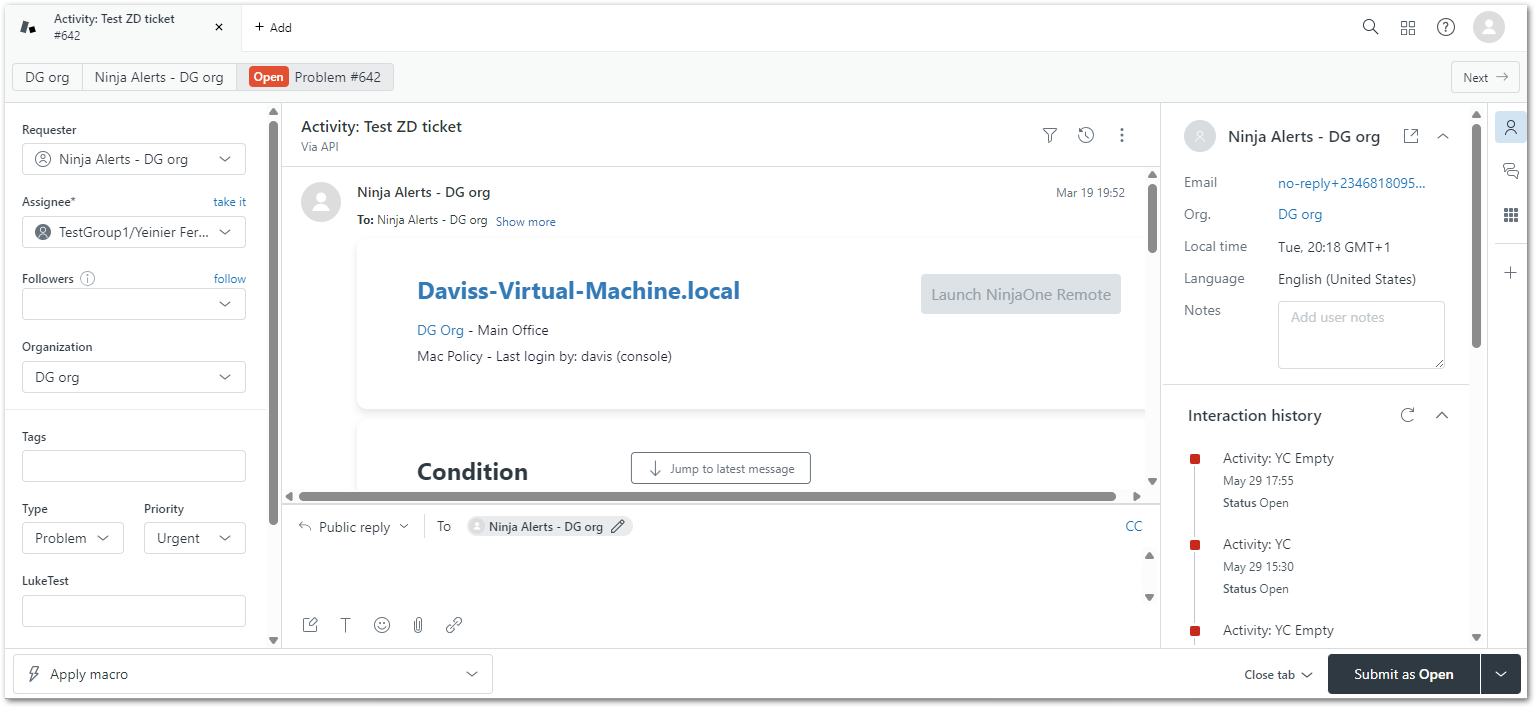
- The example ticket above was created by a triggered condition. The Requestor (left panel) shows that it was initiated by an alert set up for organization "DG org." From the Activity of the ticket (center panel), you can see details about the condition when you scroll down.
- To enable condition triggers to create tickets, the organization must be mapped in the NinjaOne integration configuration.
- If the mapped organization also has a contact selected, the Requestor will show the contact's name instead of "Ninja Alerts."
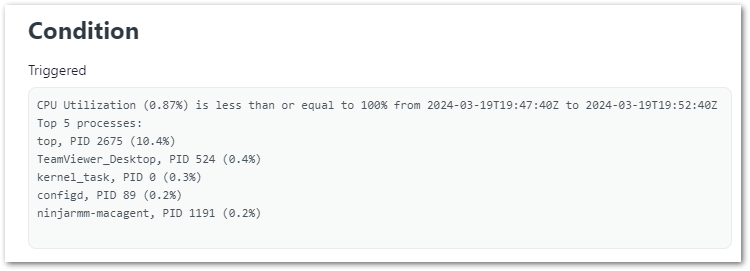
- The button to Launch NinjaOne Remote is gray when the Remote tool is not enabled for the organization, is inaccessible for the device type, or if the device is offline. The Launch NinjaOne Remote button will be active and blue when enabled, allowing the technician to start a remote session with the affected device.
- If the device is online and is a Windows or Mac OS, an additional remote connection option displays in the App widget (right panel).
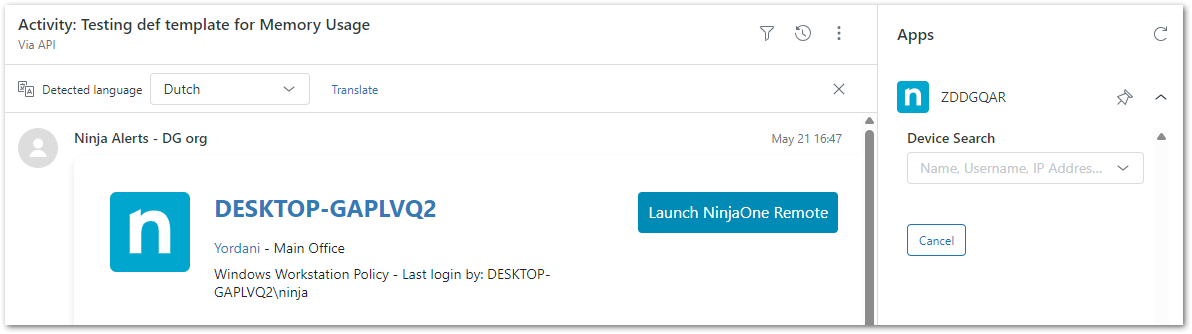
- If the device is online and is a Windows or Mac OS, an additional remote connection option displays in the App widget (right panel).
- Custom device ID fields can be added to the ticket template by activating the Marketplace App (this is done during integration configuration). This ID is used by the Zendesk Marketplace to show real time details on the device inside Zendesk via the NinjaOne public API.
- The device name in the Activity is a link that navigates you to the device dashboard on the NinjaOne platform, whether the device is online or offline.
Ticket Template Descriptions
See below for an explanation of the Zendesk ticket structure. This information will help you create ticket templates using core Zendesk values.
| Field Name | Description |
|---|---|
| General | |
| Name | Title of ticket template. |
| Ticket creation | |
| Status | There are six standard ticket status values: New, Open, Pending, On-hold, Solved, and Closed. See Ticket Status Values below for an explanation of each status. |
| Type | Setting the type helps you to categorize your tickets, which you can then use in your workflow. For example, you can create views of tickets by their type. While the field can be blank initially (and through any number of updates), once you change the field to a specified type, you can't change it to blank again. There are four values for type: Question, Incident, Problem, and Task. See Ticket Type Values for an explanation of each type. |
| Group | Groups serve as the core element of ticket workflow; support agents are organized into groups and tickets can be assigned to a group only, or to an assigned agent within a group. To learn about creating groups in Zendesk, please refer to About the Groups page – Zendesk help. |
| Priority | Can be Low, Normal, High, or Urgent. |
| Tags | Tags are used to add information to tickets and can be utilized in the workflow. To learn about creating tags in Zendesk, please refer to About tags – Zendesk help. |
| Condition reset | |
| Action | Reset alerts when a ticket is set to a specific status in Zendesk. Important Note: If a field is marked as required to solve a ticket and the NinjaOne triggered status changes to "Solved," if the field is empty when a condition resets the status change will fail. |
| If the status is | Select a status that will trigger the change. |
| Change to new status | Select the new status for condition reset. |
| Condition retrigger | |
| Action | Alerts that are reopened within a time period can be appended to an existing (open) ticket. |
| Callback | |
| Action | Select what will happen to a NinjaOne alert when an associated ticket is resolved in Zendesk. |
Ticket Status Values
- New — the request was received but has not been opened and has not been assigned to an agent. The New status can indicate that the support team is evaluating it to determine who should be assigned to resolve it.
- After changing the status from New to any other status, it cannot be changed back to New.
- Open — the request has been assigned to an agent who is working to resolve it.
- Once a ticket status changes to Open, it cannot be changed back to New.
- If your tickets are being created in the Open status instead of New, please refer to Troubleshooting / FAQ.
- Pending — the assigned agent has a follow-up question for the requester. The agent may need more information about the support issue.
- Requests that are set to Pending typically remain that way until the requester responds and provides the information the agent needs to continue resolving the request.
- On-hold — the support request is awaiting a resolution from a third party (i.e., someone who is not a member of your support staff and does not have an agent account). This status is optional and must be added manually.
- Solved — the agent has resolved the support issue. Solved tickets are typically set to Closed a number of days after they have been set to Solved (the exact number of days depends on how an administrator sets this up).
- Until a ticket is Closed, the requester can reopen the ticket. For example, the requester may not agree with the agent that the support issue is resolved and reply back to the ticket solved email notification.
- Closed — the ticket is complete and can't be reopened. However, requestors can create follow-up requests for closed tickets.
- A ticket's status cannot be manually changed to Closed. Closing a ticket is handled automatically via your business rules.
Ticket Type Values
- Question — used to indicate that the requester's issue is a question rather than a problem that needs to be solved.
- Incident — used to indicate that the requester is experiencing a single occurrence of a larger problem that is affecting multiple users.
- Problem — used to indicate that the requester is having an issue with your product or service that needs to be resolved and that is affecting multiple users.
- For example, if the wireless network in an office stops working, the problem will probably generate several support requests. Instead of handling each ticket separately, create one ticket describing the problem and set the type to Problem.
- Task — used when you want to assign the ticket as a task to a specific agent.
- When you select Task, you can set a Task Due Date. The due date is defined as 12pm in the user's browser's local time zone on the date specified.