
Topic
This article explains how to renew or update a Security Assertion Markup Language (SAML) certificate for access to NinjaOne.
Environment
- NinjaOne Identity Access Management (IAM)
- NinjaOne Integrations
Description
Occasionally, an older SAML certificate configured for an enterprise application will expire and no longer allow users to log in to NinjaOne with their single sign-on (SSO) accounts. The renewal process in NinjaOne is similar across all Identity Providers (IdPs), though there are some exceptions. We recommend you review the documentation from the IdP that you use to ensure understanding when generating or renewing a SAML certificate.
NinjaOne does not support SSO via identity providers with expired SAML certificates. Customers who have not updated their SAML certificate before their region's release date will lose the ability to log in to NinjaOne through their identity provider. A NinjaOne System Administrator role must update any expired or expiring SAML metadata before your region's 14.0 release date.
Tentative release dates for each region are as follows:
| Region | Date (Tentative) |
|---|---|
| CA (ca.ninjarmm.com) | 2026-06-16 |
| OC (oc.ninjarmm.com) | 2026-06-17 |
| EU (eu.ninjarmm.com) | 2026-06-24 |
| US2 (us2.ninjarmm.com) | 2026-07-08 |
| NA (app.ninjarmm.com) | 2026-07-15 |
For this article, we will use Microsoft Entra ID as an example. For your convenience, refer to the following external resources to learn how to manage certificates for other IdPs compatible with NinjaOne:
- Can I regenerate a certificate for a generic SSO integration? | Duo Knowledge Base Topics (external link)
- Tutorial: Manage federation certificates - Microsoft Entra ID | Microsoft Learn (external link)
- Maintain SAML certificates - Google Workspace Admin Help (external link)
- Manage signing certificates | Okta Classic Engine (external link)
- Creating and Applying Certificates (4266990) | OneLogin (external link)
- What do I do when a SAML Certificate is Expiring? | Ping Identity (external link)
Update Metadata for an Expired SAML Certificate
Updating the metadata for your IdP will invalidate the metadata currently on file in NinjaOne. Attempts to use SSO to log in with that IdP will fail until you complete the update steps below.
To update the metadata in NinjaOne for your IdP, perform the following steps:
- Log in to NinjaOne as a System Administrator.
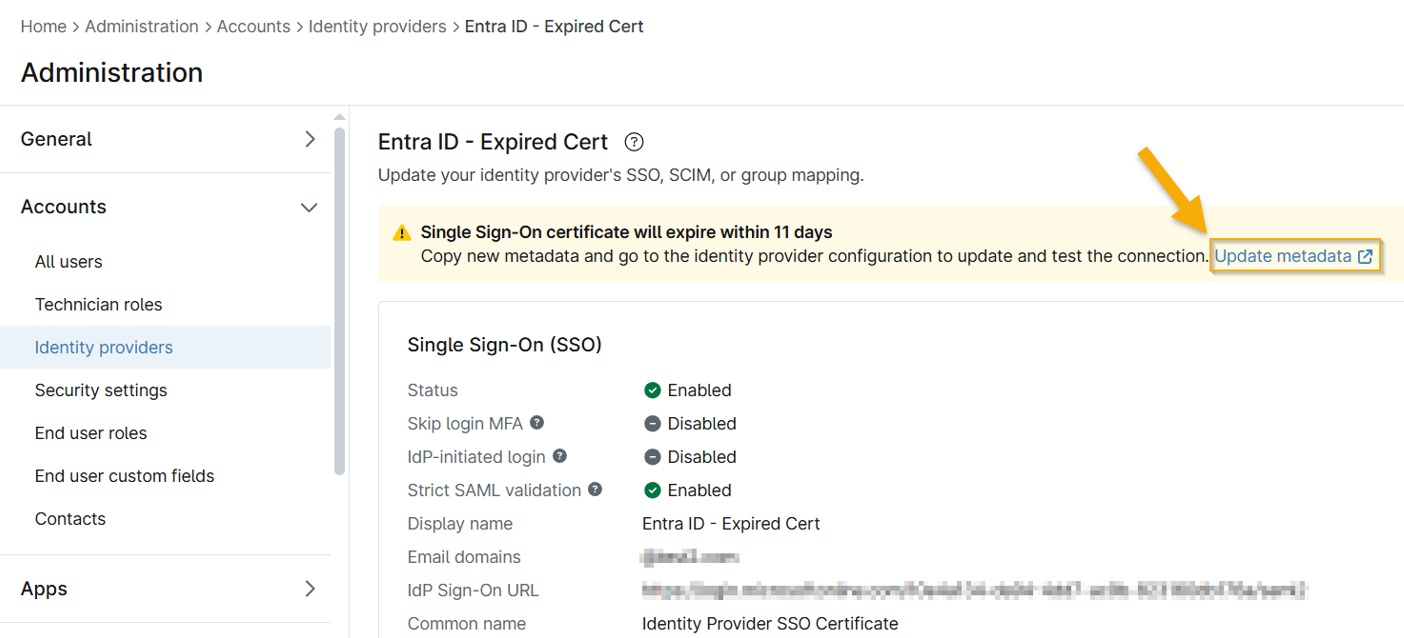
- Navigate to Administration → Accounts → Identity providers.
- Select the IdP account with the expiring certificate.
- Click Update metadata in the notification banner.
- Open a separate browser tab and log in to your Microsoft Entra ID account.
- Navigate to Enterprise apps and select the NinjaOne SSO application.
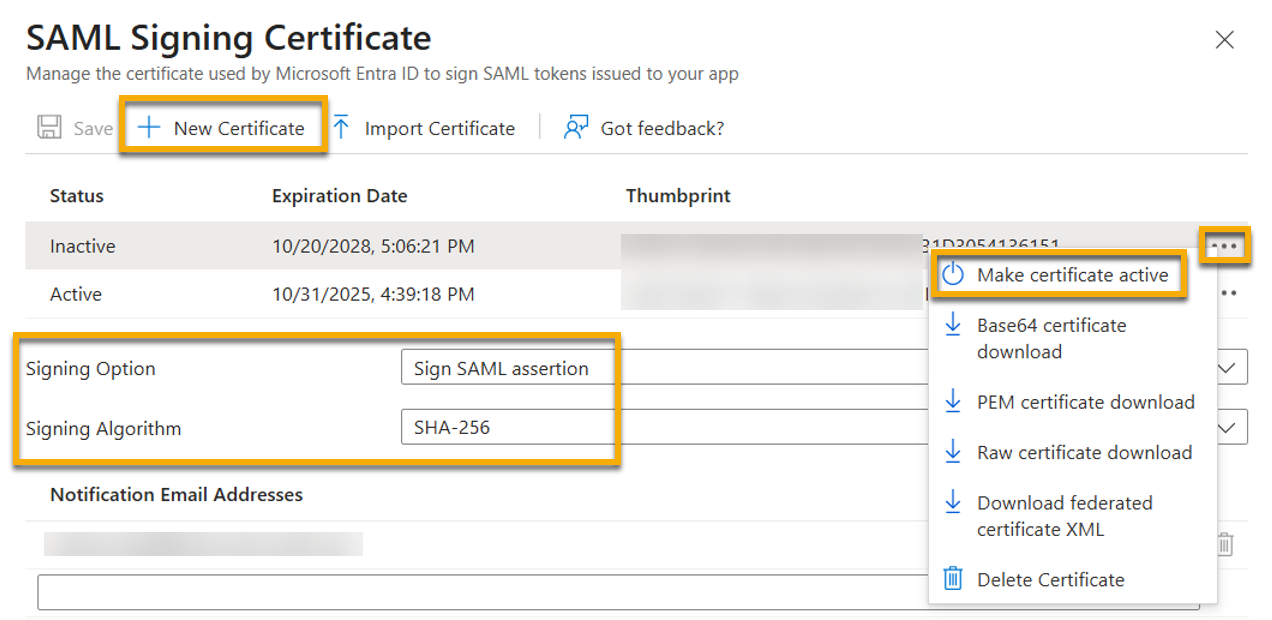
- Open SAML Certificates and click Edit.
Select New Certificate and then use the following table to complete the applicable fields.
Field Data Signing Option Sign SAML assertion Signing Algorithm SHA-256 - Click Save.
- Click the actions menu icon and select Make certificate active.
- Refresh the page and review changes.
- Navigate to the SSO section of the Enterprise application in Entra ID and copy the App Federation Metadata URL.
- Return to the browser tab with your NinjaOne account open to the IdP page.
- Paste the copied data into the Import metadata from field and then click Test connection.
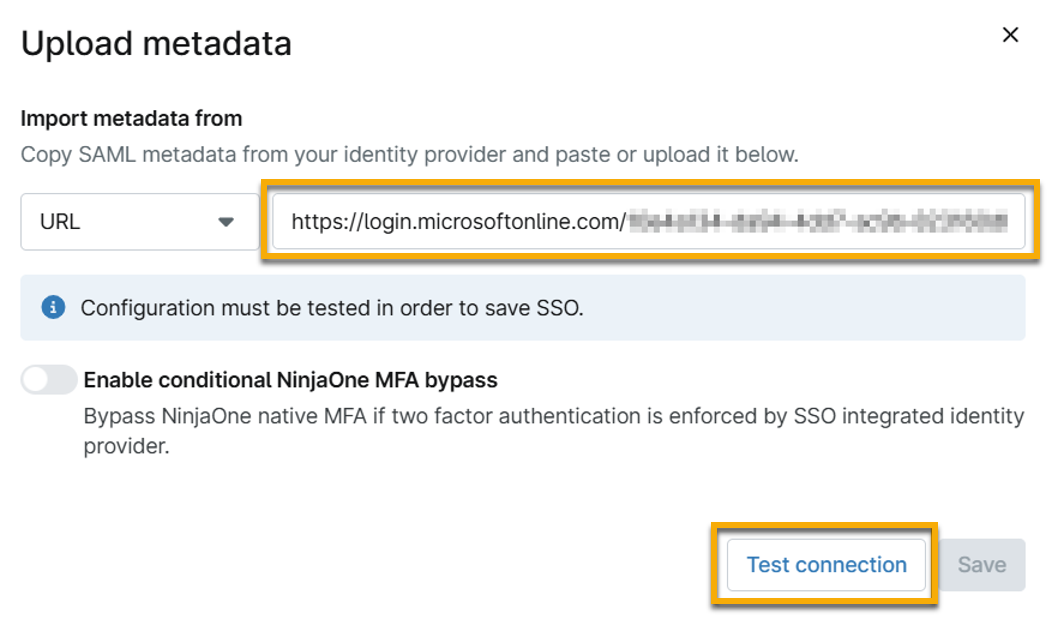
- When the connection succeeds, click Save.
If you require additional assistance, refer to NinjaOne Support: Submitting and Viewing Support Requests in NinjaOne.
Additional Resources
To learn more about NinjaOne IAM, refer to NinjaOne Identity Access Management (IAM): Resource Catalog.