
Topic
This article explains how to use the Freshservice integration with NinjaOne to create tickets from conditions and alerts.
First, you must enable the integration. To do so, refer to Getting Started with the Freshservice ITSM integration in NinjaOne.
Environment
NinjaOne platform
Freshservice integration
Description
With the Freshservice integration, you can:
- Create Freshservice tickets automatically from NinjaOne policy conditions.
- Automate ticket updates when a condition is re-triggered.
- Automate NinjaOne device matching to Freshservice assets.
- Manually discover NinjaOne devices and access them remotely.
Configure NinjaOne Alerts to Create a Freshservice Ticket
You can create tickets from the following alert options:
- Create Tickets from a Triggered Condition
- Create Tickets from a Compound Condition
- Create Tickets from a Scheduled Automation
- Create Tickets from a Policy Activity
Create Tickets from a Triggered Condition
- Open the policy configuration page. You can do this from Administration → Policies or from a device dashboard → Settings → click the policy name.
- Create a condition that will trigger ticket creation.
Once the Freshservice app is enabled in NinjaOne, the Freshservice ticket fields populate on the condition configuration modal. The default action in the first dropdown will create a ticket when the condition is triggered. - From the bottom Freshservice dropdown, select which template the condition will use to create the ticket.
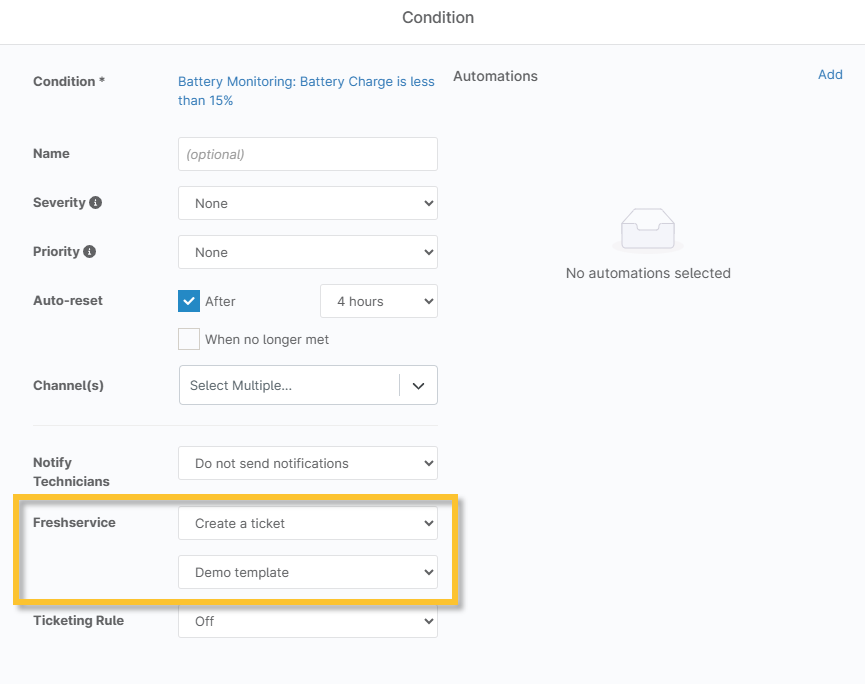
Figure 1: Create a Freshservice ticket from a NinjaOne condition
Create Tickets from a Compound Condition
- Open the policy configuration page. You can do this from Administration → Policies or from a device dashboard → Settings → click the policy name.
- Create a compound condition.
Once the Freshservice app is enabled in NinjaOne, the Freshservice ticket fields populate on the configuration modal under Notifications. The default action in the first dropdown will create a ticket when the condition is triggered. - From the bottom Freshservice dropdown, select which template the condition will use to create the ticket.
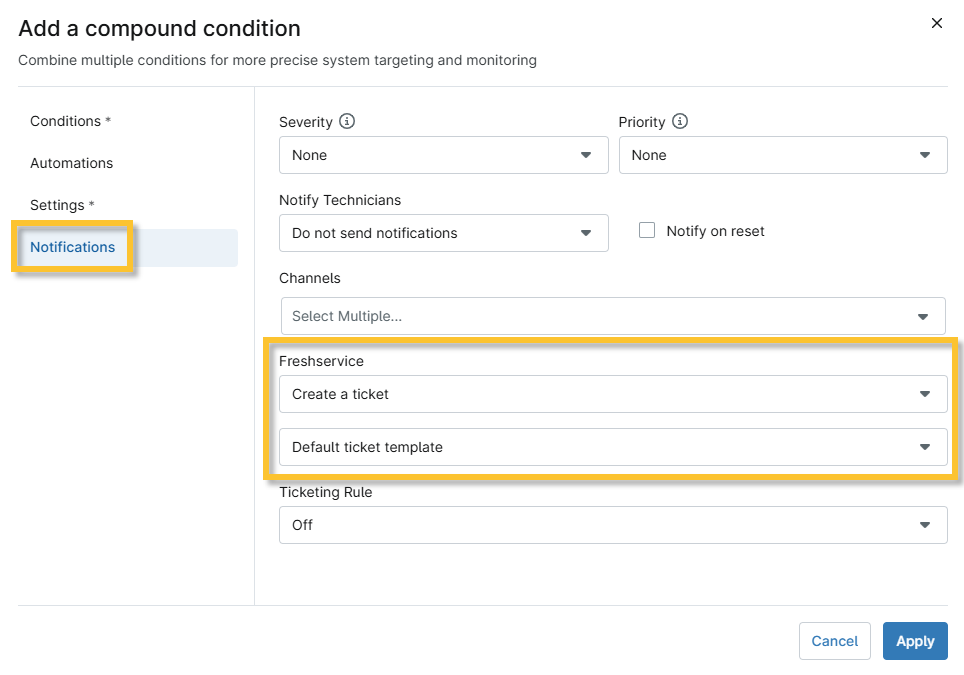
Figure 2: Create a Freshservice ticket from a NinjaOne compound condition
Create Tickets from a Scheduled Automation
- Open the policy configuration page. You can do this from Administration → Policies or from a device dashboard → Settings → click the policy name.
- Create a scheduled automation.
Once the Freshservice app is enabled in NinjaOne, the Freshservice ticket fields populate on the configuration modal under Notifications. The default action in the first dropdown will create a ticket when the condition is triggered. - From the bottom Freshservice dropdown, select which template the condition will use to create the ticket.
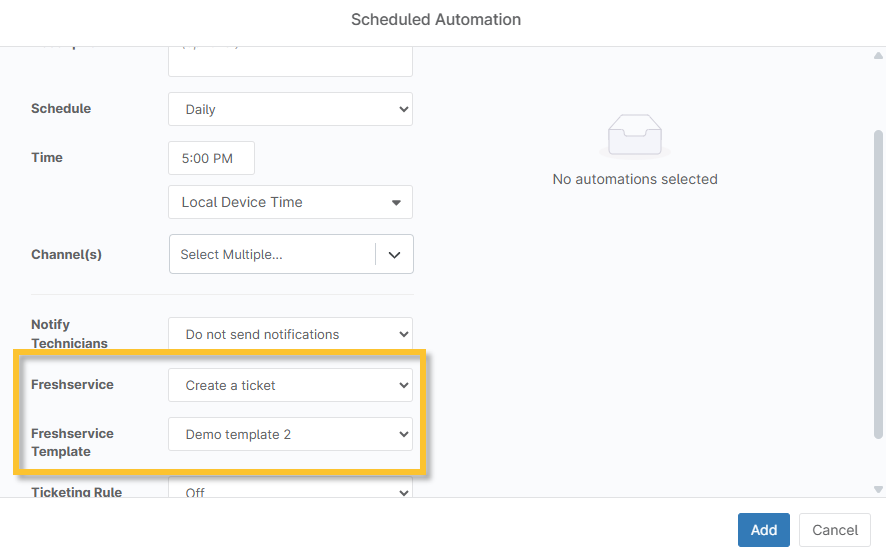
Figure 3: Create a Freshservice ticket from a NinjaOne scheduled automation
Create Tickets from a Policy Activity
- Open the policy configuration page. You can do this from Administration → Policies or from a device dashboard → Settings → click the policy name.
- Open Activities and select an option from the list.
Once the Freshservice app is enabled in NinjaOne, the Freshservice ticket fields populate on the configuration modal under Notifications. The default action in the first dropdown will create a ticket when the condition is triggered. - From the bottom Freshservice dropdown, select which template the condition will use to create the ticket.
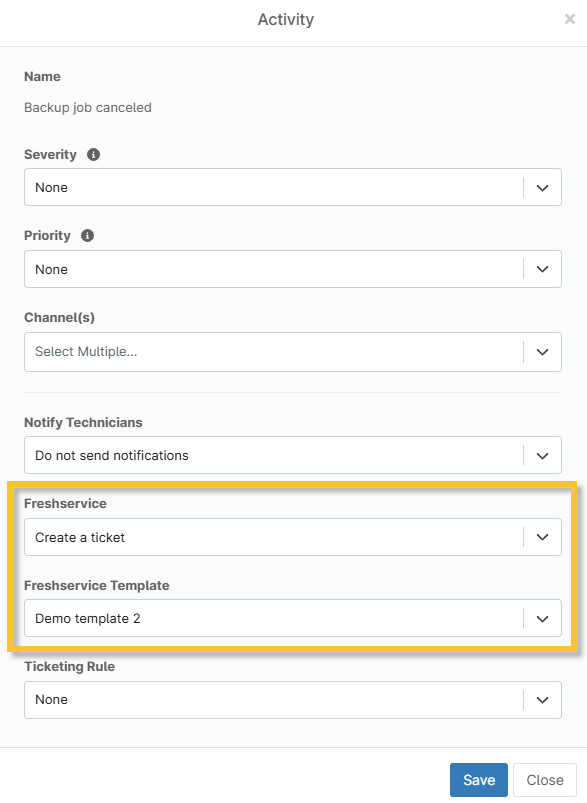
Figure 4: Create a Freshservice ticket from a NinjaOne activity
Additional Resources