
Topic
This guide provides instructions for creating and mapping device role, global, organization, and end user custom fields.
Environment
- NinjaOne Endpoint Management
- NinjaOne Documentation
Description
Custom fields allow you to publish data about a user, endpoint, organization, or location in NinjaOne. You create the custom fields and then use those fields to populate the Custom tabs on the dashboards. Custom tabs can hold multiple "sub-tabs," and each sub-tab may list different custom fields depending on the type of information you want to share with your users.
For instructions to create custom fields, refer to NinjaOne Custom Fields: Getting Started.
Index
Select a topic to learn more:
Custom Field Details
When you create a custom field, the Overview and Details sections let you customize how technicians interact with the field. This section illustrates what those customizations look like when the custom field appears on the dashboard.
- Custom Field is Required: You can mark a custom field as required in the Overview section when creating or editing the field. If a custom fields is required, an asterisk will appear next to the field name. If the technician attempts to save without completing the required field, the field turns red, and NinjaOne rejects the save attempt.
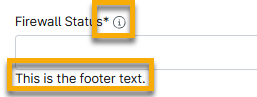
- Custom Field Tooltips: You can add tooltip text in the Details section when creating or editing the field. The text you enter during configuration appears when the technician moves their mouse cursor over the icon next to the field name when in Edit mode on the dashboard.
- Custom Field Footers: You can add footer text in the Details section when creating or editing the field. The text you enter during configuration appears below the data field when in Edit mode on the dashboard.
Figure 1 shows an example of a required custom field that includes a tooltip and a footer.
Custom Field Types
This section describes each custom field and the data you can provide for each.
| Custom Field Type | Description |
|---|---|
| Apps and Services dropdown | Select a single Apps and Services document from a drop-down menu. |
| Apps and Services multi-select | Select one or more Apps and Services documents from a drop-down menu. |
| Attachment | Allows a photo or document to be attached to a custom field. For example, a .docx file containing procedures. By default, Attachment fields restrict file size to 20 MB. In the Advanced Settings, you can review the accepted file types and optionally modify the restrictions. You can only attach one file at a time; click the X next to the file name to delete the current attachment. |
| Checkbox | A checkbox can confirm an answer or provide a binary choice. For example, it could signal whether a device's OS is up to date. The set value for the Checkbox field must be either true (1) or false (0). If you select the checkbox, Yes appears on the screen. If it is not checked, No appears on the screen. |
| Date | This custom field allows technicians to select a date from the calendar. Use the Advanced Settings to filter date options, such as including or excluding specific dates or restricting a technician's selection to future or past dates only. |
| Date/Time | This custom field allows technicians to select a date from the calendar and add a time. Use the Advanced Settings to filter date options, such as including or excluding specific dates or restricting a technician's selection to future or past dates only. |
| Decimal | This field accepts numeric values with a decimal point. You can only enter one decimal point into this field. By default, the Decimal field will accept any numeric decimal in the range -9999999.999999 to 9999999.999999. However, in the Advanced Settings, when creating or editing a decimal field, it may be restricted to a smaller numeric range. |
| Device dropdown | The device drop-down links to a device, giving quicker access to that device. By default, the device that can be selected in a Device dropdown field is unrestricted. However, in the Advanced Settings, you can restrict the available devices to certain organizations, roles, or device types. When you click the data, you will navigate to the applicable dashboard in NinjaOne. |
| Device multi-select | This list shows all devices for all organizations within NinjaOne. Click all options that apply to populate the field. You can group devices for quick access, such as all Microsoft Windows workstations. By default, there are no restrictions on what device you can select in a Device multi-select field. However, in the Advanced Settings, you can restrict the available devices to certain organizations, roles, or device types. When you click the data, you will navigate to the applicable dashboard in NinjaOne. |
| Drop-down | This list shows all the values you provided during the configuration of the custom field. When configuring this custom field, you must set an option value, such as: enabled, disabled, unknown, or other. For the Dropdown field, the set value must be an exact match for a valid option (either using the GUID or the field name as listed when the options command is run). |
| Store contact info or support emails in this custom field. For example, the email can connect a technician to the end user for a terminal. This field allows a valid email to be added in the format of xxx@<domain>.xxx. When you click the data, it opens to your default email software. | |
| Health Status | Add a Healthy, Unknown, Needs attention, or Unhealthy status to the custom fields tab. |
| Integer | This field allows technicians to type a number from their keyboard or click the arrows to input data. This function can gather numerical values. By default, the Integer field will accept any number within the range -2147483648 to 2147483647. Use the Advanced Settings to change the default. |
| IP address | This feature can be used to display the IP address of a device. The IP address field is configured to only accept valid IP addresses. If you enter invalid content, the field will highlight red and notify you that an error has occurred. By default, the IP address field will accept any IP in either IPv4 or IPv6 format. Use the Advanced Settings to change the default. |
| Monetary | Enter a monetary value into a text field on the custom fields tab. |
| Multi-line | Multi-line allows for numerous lines of text to be entered, but the text cannot be formatted. Multi-line fields have a text limit of 10000 characters. |
| Multi-select | This list shows all the values provided during the configuration of the custom field. Click all options that apply to populate the field. Multi-select creates a field in which multiple items can be selected and displayed. For example, the field can be used to provide a list of common applications installed on a given device. When configuring this custom field, you must set an option value, such as enabled, disabled, unknown, and others. |
| Organization dropdown | This feature allows you to select an organization that exists in NinjaOne. When you click the data, you will navigate to the applicable dashboard in NinjaOne. |
| Organization location dropdown | This list shows all the locations for all organizations within NinjaOne. By default, there are no restrictions on which organization's locations can be selected in an Organization location dropdown field. Use the Advanced Settings to change the default. When you click the data, you will navigate to the applicable dashboard in NinjaOne. |
| Organization location multi-select | Lists all locations for all organizations within NinjaOne. Click all options that apply to populate the field. The field can be used when multiple locations are relevant. For example, a list of locations affected by a particular server. By default, there are no restrictions on which organization's locations can be selected in an Organization location multi-select field. Use the Advanced Settings to change the default. When you click the data, you will navigate to the applicable dashboard in NinjaOne. |
| Organization multi-select | Lists all organizations within NinjaOne. Click all options that apply to populate the field. The multi-select field can be used when multiple organizations are relevant. For example, a list of organizations affected by a particular server. When you click the data, you will navigate to the applicable dashboard in NinjaOne. |
| Phone | This field can pull and store a phone number. For example, the phone number could represent the contact for vendor support. This field accepts valid phone numbers and will display in red text if an invalid phone number entry is added. |
| Secure | Assign a password to this document. |
| Text | This field allows for a single line of text. Text can be used to store or retrieve information. Text fields have a limit of 200 characters. An example would be a license key. |
| Time | Time fields allow tracking of a specific time, such as the last time a user logged in. This field allows technicians to enter a specific time to the minute. For the Time field, the set value must be in seconds or in ISO format (HH:mm:ss). |
| TOTP | This custom field allows you to store data for time-based one-time passwords. Technicians who are given permission to view this field will see a new TOTP secret generate every 30 seconds. |
| URL | This field allows technicians to enter a URL or Web address. You do not need to enter the "www" prefix, but you must include the top-level domain (.com, .org, .net). There is a 200-character limit for URL fields. URL custom fields are limited by the following rules:
|
| WYSIWYG | Use the WYSIWYG menu to format text. This text field allows for text with bold, strikethrough, italic, underlined, code block, quote block, or hyperlink text. You can attach files and photo attachments to this field. |
About Secure Custom Fields
You can use secure fields to store sensitive data, including passwords. Secure fields may use a length between 200 and 10,000 characters. By default, the password is hidden and will not appear in an exported CSV file.
When creating or editing a Secure field, you can use the Advanced Settings to configure complexity rules to require one integer, one uppercase letter, one lowercase letter, and at least six characters. The Advanced Settings also include an option to set a maximum character limit between 200 and 10,000 characters.
When viewing, the field shows no value even when you enter data.
This field has additional icons next to the editable text box.
| Icon | Function |
|---|---|
 | Show entry (by default, the text is encrypted). |
 | Hide entry. This icon appears when the show entry function is active. |
 | Reset the field. When clicked, any data in the field is deleted. |
 | Edit. This icon displays when there is text in the field. |
 | Generate an automatic password. |
 | Confirm. You can also click anywhere outside the text field, and this will have the same effect. |
Additional Resources
Refer to Custom Fields: Resource Catalog to learn more about custom fields.