
Topic
This article shows you how to configure the mapping between NinjaOne and ConnectWise Manage for your device types.
Environment
- NinjaOne Integrations
- ConnectWise Manage
Description
To sync multiple device roles from NinjaOne to configuration types in ConnectWise, you must add all of the individual role mappings to a single Configuration Type mapping.
Configuration Type mappings at the location level are optional. Setting the configuration type mapping applies to all locations. The only reason to change configurations for locations is if you have a use case where you want certain mappings applied only on a per-location basis.
Select a category to learn more:
Map Devices and Configuration Types
- Navigate to Administration → Apps → Installed and open the ConnectWise Manage configuration page. If you have not yet enabled this application, refer to NinjaOne Integrations: Getting Started with ConnectWise Manage for instructions.
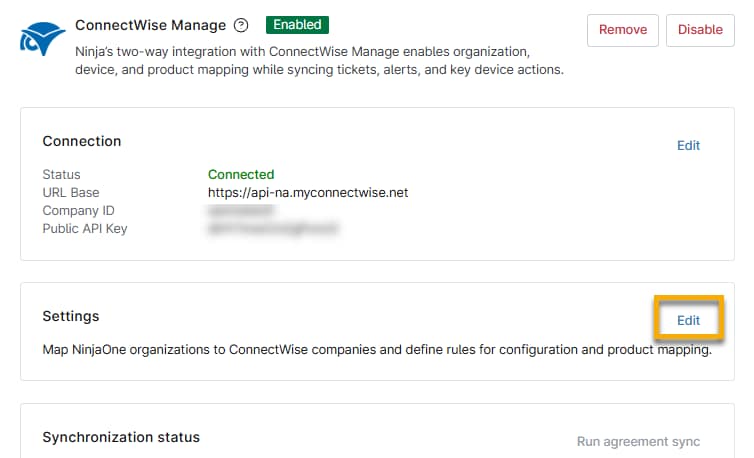
- Click Edit in the Settings widget.
- Select Configuration Types and click Add New Mapping.
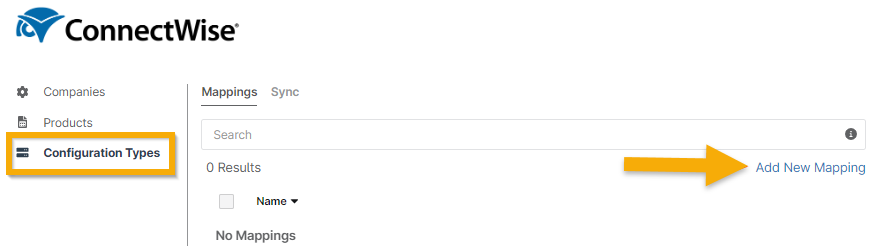
Figure 2: Map ConnectWise configuration types to NinjaOne device roles
The Configuration Type Mapping modal displays.
- Give the new mapping a name. Then, click Add Mapping.

Figure 3: Map ConnectWise configuration types to NinjaOne device roles → Add mapping
The Add Mapping configuration modal displays.
- Select a NinjaOne device role and ConnectWise configuration type from the respective drop-down menu. You can also set a default status for the related ConnectWise configuration when a device is created in NinjaOne and syncs to ConnectWise (On Create), and when a device is deleted from NinjaOne and syncs to ConnectWise (On Delete).
- Click OK when you finish adding all mappings.
- To add additional mappings, click Add Mapping again.
- Repeat Steps 3–4 to complete additional configuration type mappings.
- Once you've finished adding your mappings, click OK to save.
- You can edit, copy, or delete existing mappings by selecting the mapping in question and clicking the respective button at the top of the list.

Configure Device Data Synchronization Options
When configuring and working with synchronization, it's important to understand the following characteristics of the feature:
- Device updates occur during synchronization.
- Synchronization is an automated process that runs in the background. Because it is continuous, you will not receive "completion" notifications.
- After setting up synchronization, you do not need to adjust its settings unless you want to manually trigger a synchronization session.
- To synchronize multiple device roles to configuration types in ConnectWise, you must add all individual role mappings to a single Configuration Type Mapping. Once you've done so, navigate to Companies and select the corresponding Configuration Type Mapping to trigger the synchronization.
- Creating Configuration Type Mappings at the location level is optional. Mappings created at the top level will apply to all locations. You only need to change individual locations if your use case requires different mappings for each location.
To configure what device data is synced from NinjaOne to ConnectWise:
- Click Configuration Types and open the Sync tab.
- Activate the checkbox(es) for the device data you want to sync to ConnectWise configurations.
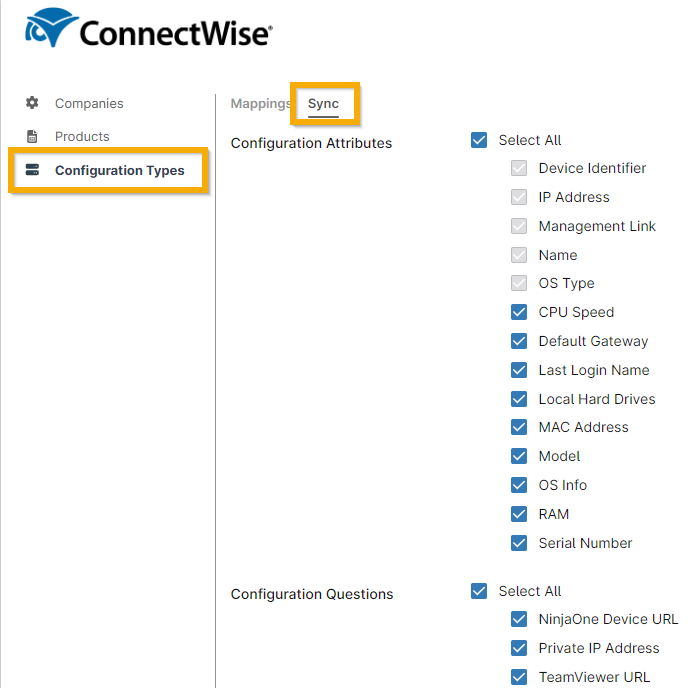
Figure 5: Map ConnectWise configuration types to NinjaOne device roles → Add mapping
Additional Resources
Refer to the following resources to learn more about the ConnectWise integration in NinjaOne: