
Topic
This article explains how OS updates for Apple Mobile Device Management (MDM) devices work. It also describes the features available to system administrators for managing those updates.
Environment
NinjaOne Mobile Device Management (MDM)
Description
NinjaOne allows you to easily manage OS updates for all Mobile Device Management (MDM)-enrolled Apple iOS, iPadOS, and macOS devices. By leveraging a subset of Apple’s MDM protocol, Declarative Device Management (DDM), technicians can approve individual OS updates and fully enforce them on devices by specifying an enforcement date and time.
Are you interested in watching other videos related to NinjaOne MDM? Refer to our NinjaOne MDM Video Library.
Index
Select a category to learn more:
- Prerequisites and Compatibility
- How Approved OS Updates Work
- Define End-user Behavior Around Self-Installing Updates
- Define Device Behavior Around Self-Installing Updates
- Enforce Specific OS Updates on Managed Devices
- Additional Resources
Prerequisites and Compatibility
The user behavior and device behavior sections within a NinjaOne MDM policy support macOS 14+ and Supervised iOS and iPadOS 17+ devices. Specific settings may require later versions.
Manually scheduled updates within a NinjaOne MDM policy support macOS 14+ and iOS and iPadOS 17+ devices. We recommend you read the Enforce specific OS Updates on Managed Devices section of this article carefully to understand caveats and considerations when enforcing updates on unsupervised devices.
How Approved OS Updates Work
A typical approved update will behave as described in the following example workflow:
- Before approving an update, the technician will define standard device behavior in the OS Updates section of a policy. Typically, this step involves delaying the availability of a particular update to end users. NinjaOne can delay an update from appearing to a device's user for up to 90 days from its release. Until the specified delay is reached, the update will not be visible to the end user and cannot be installed by them.
- A technician can approve a particular update (for example, macOS 15.3.1). In doing so, they define an enforcement date and time.
- Upon approval, devices affected by that policy will receive a notification that macOS 15.3.1 has been approved and will be enforced at the specified date and time. The update will automatically download and prepare on devices. Each day, the device's user will receive a reminder that this update will be enforced at the specified time. Notifications become more frequent in the final 24 hours leading up to the enforcement deadline.
Even if the approved update would usually be hidden due to a delayed configuration in the policy, users will be able to install it at a time of their choosing via these notifications and through the normal device system settings.
- If the enforcement deadline passes before the device has updated, the device will force the update. If the user is actively using a device, they will receive a 60-second countdown before the installation begins. If the device is not actively in use, the update will occur without requiring any user interaction.
- In NinjaOne, you can approve individual OS updates from either the Enforce Updates section of the OS Updates tab in the policy or from the Patching → OS patches tab on the dashboard. When viewing available updates in the policy, an approved update will show in the Approved tab if the enforcement date is still in the future. If the enforcement deadline is in the past, you can find it in the Enforced tab.
Important Considerations About Self-Installing Updates
For iOS and iPadOS devices, you can configure specific updates to self-install. If multiple updates are available for a device, configuring self-installation at the policy level controls the user's ability to manage updates on the device.
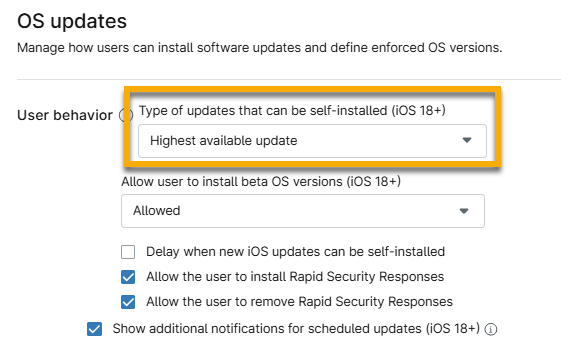
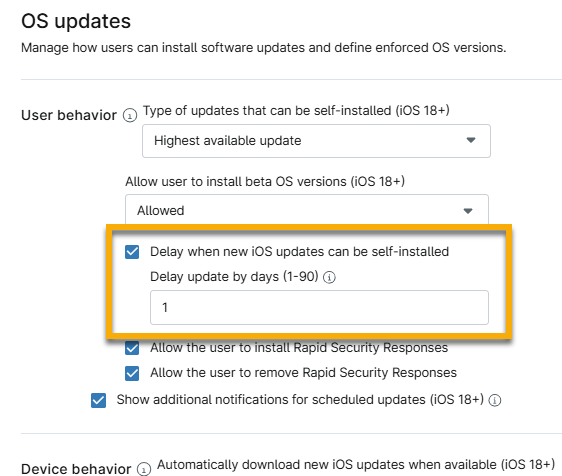
If you activate the option to delay when an update can be self-installed, a new field appears that allows you to specify the number of days to delay by.
Specify a time period from 0 to 90 days during which a newly released OS update will not be available to end users. For each new update, the counter starts on the day when Apple releases the update. Once the period expires, the update becomes visible on the device, and the user can then update.
Define End-user Behavior Around Self-Installing Updates
This section explains how to configure your policy to manage the device's user behavior when an update is enforced.
- In NinjaOne, click Administration in the left navigation pane and select Policies.
- For macOS devices, select the agent policy. For iOS devices, open MDM Policies and select the Apple policy.
- Open the OS updates section of the policy configuration page. For macOS policies, this section will be in the MDM drop-down menu.
- Define the types of updates that can be self-installed or when upgrades can be installed. For more information about how self-installed updates work, refer to Important Considerations About Self-Installing Updates discussed previously in this article.
- For Apple MDM policies, you must make a selection from the top drop-down menu.
- If you activate the option to delay when a new iOS update can be self-installed, a new field appears that allows you to specify the number of days to delay the update. Users cannot review available updates until the specified time after the update was first made available by Apple.
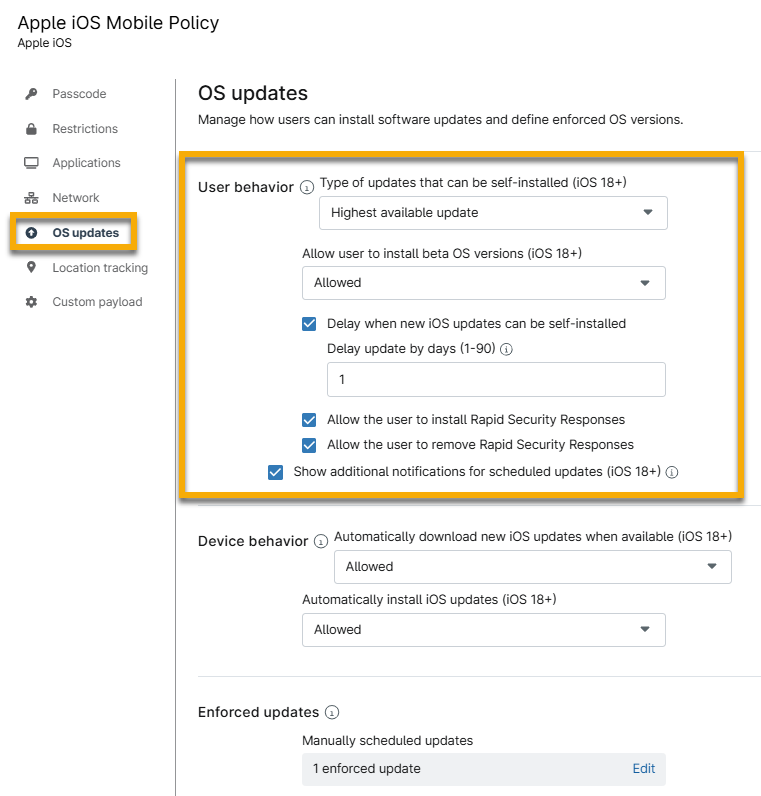
- Define whether users are allowed to install beta versions of the OS. From the drop-down menu, select "Allowed," "Always on," or "Always off."
- Select other optional checkboxes to activate additional rules:
- Allow users to install Rapid Security Responses: Users can install the Rapid Security Response software on their devices. Refer to Apple documentation to learn more: About Rapid Security Responses for iOS, iPadOS, and macOS - Apple Support (external link).
- Allow the user to remove Rapid Security Responses: Users may remove the Rapid Security Response software from their devices.
- Show additional notifications for scheduled updates: Users will receive (approximately) daily notifications about the enforcement of OS updates approved in NinjaOne. Notifications become more frequent as the specified enforcement deadline approaches. If disabled, users will still receive a notification 1 hour before the enforcement deadline.
- Allow standard user accounts to self-install OS updates (macOS 15+): OS updates for devices running macOS 15 and later will be automatically installed.
Any specific updates enforced through NinjaOne will override these delays and take effect as specified.
Define Device Behavior Around Self-Installing Updates
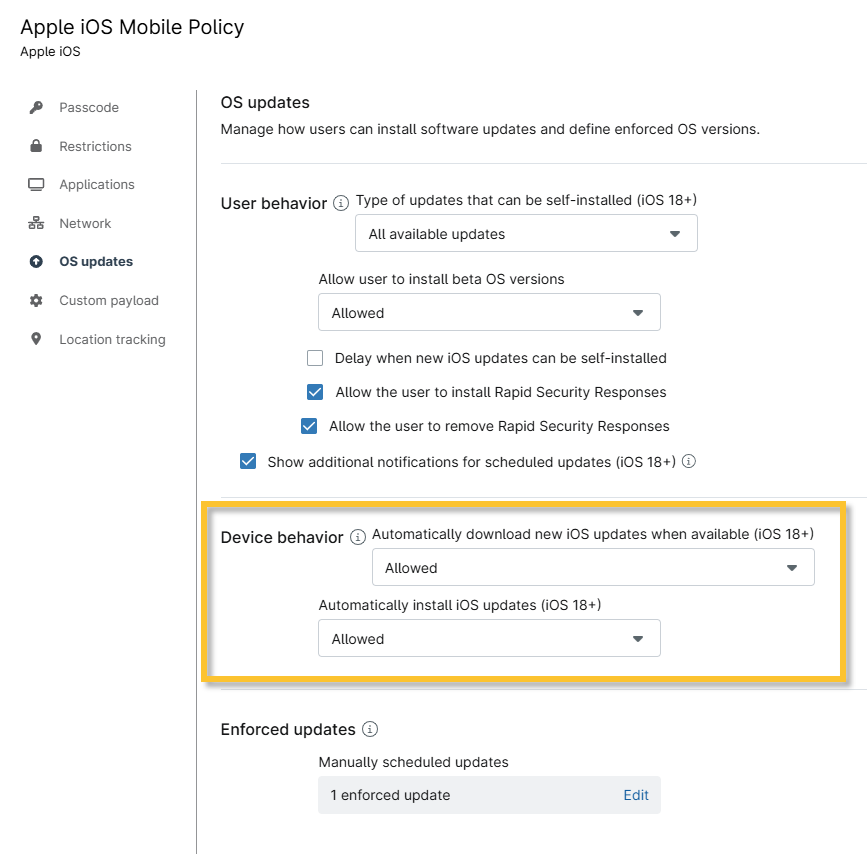
Use the Device behavior section to define whether to automatically download or install new iOS updates when available. The following settings can be configured:
- Automatically download new OS updates when available.
- Automatically install OS updates.
Enforce Specific OS Updates on Managed Devices
The Enforced updates section allows technicians to schedule updates manually. Click Edit to open a new configuration modal, allowing for more refined update settings.
You can enforce a deadline to schedule a specific version update or allow devices to skip it by approving a specific OS update from the list of all updates currently available from Apple. When approving, you specify an enforcement deadline, ensuring that the device will update by that time. Once an OS Update is approved and sent to a device, it will behave as described in the How Approved OS Updates Work section.
NinjaOne supports manually scheduled updates for both supervised and unsupervised iOS devices. However, there is an important caveat for unsupervised devices: Supervised devices will enforce any approved update, while unsupervised devices will only enforce the latest available version of each update branch.
For example, imagine the following versions are available: 17.7.1, 17.7.2, 18.1, 18.1.1. An unsupervised device will only support updates to iOS 17.7.2 or 18.1.1. If an update to 17.7.1 or 18.1 is scheduled for an unsupervised device in this scenario, the device will not enforce it.

To approve or reject an update, perform the following steps:
- Click Edit in the Enforced updates section.
In the Manually scheduled updates modal, open the section you need to update based on the descriptions in the following table.
Section Description Approved Schedule an update for a specific OS version. The user will be notified and permitted to update once the OS version is approved. When the enforcement date passes, the device will automatically update. Rejected NinjaOne will not enforce this update. Once the specified time period in the delay configuration in the policy has passed, it will become visible to end users. Within the delay period, a rejected update will not be visible. Enforced This section populates based on any approved updates where the enforcement date has passed. If multiple updates are enforced, devices running older OS versions may update sequentially. NinjaOne recommends that you clean up enforced updates in the policy so that only the highest enforced version remains. This ensures that devices will update directly to the highest enforced version. You can define multiple OS updates with future enforcement deadlines, provided that the enforcement deadlines differ for each version. - Click Add.
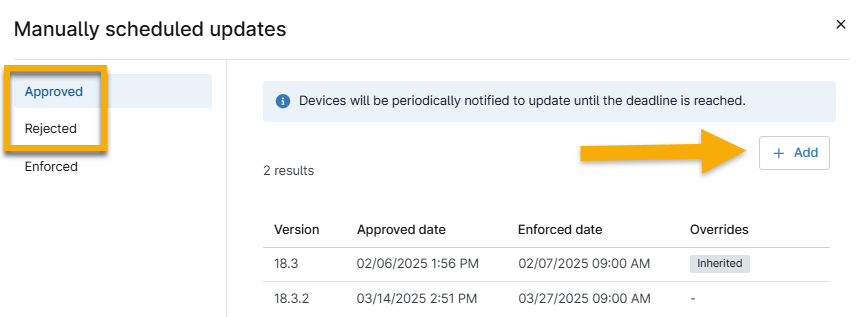
Figure 7: Add enforcements for iOS updates
- When rejecting an update, select the version from the drop-down menu. When approving an update, you must select the version from the drop-down menu and then select a day and time to complete this update.
- Click Add.
- Click Apply in the modal, then click Save in the policy editor.
You can add or remove manually scheduled updates at any time. To remove an update, move your cursor over the entry and click the ellipsis action button to see the Delete option.
Additional Resources
Refer to the following resource to learn more about NinjaOne MDM for Apple and Android: NinjaOne MDM: Resource Catalog.