
Topic
This article discusses boot verification for NinjaOne Device Backup.
Environment
NinjaOne Device Backup
Description
Boot Verification tests your image backups and verifies that you'll be able to boot from them in the event of a restoration. NinjaOne Boot Verification creates a snapshot of the endpoint screen as evidence of the backup's viability. Boot Verification is available for Microsoft Windows Servers that use NinjaOne Image Backup.
Select a topic to learn how to manage boot verification settings and review the results of bootability tests.
- Enabling Boot Verification
- Viewing Results
- Boot Verification Reporting
- Exit Status Codes
- Health Status and Activities
- Known Issues and Limitations
- Additional Resources
Enabling Boot Verification
- In the NinjaOne navigation menu, click Administration.
Navigate to Policies → Agent Policies and select Windows Server Policy.
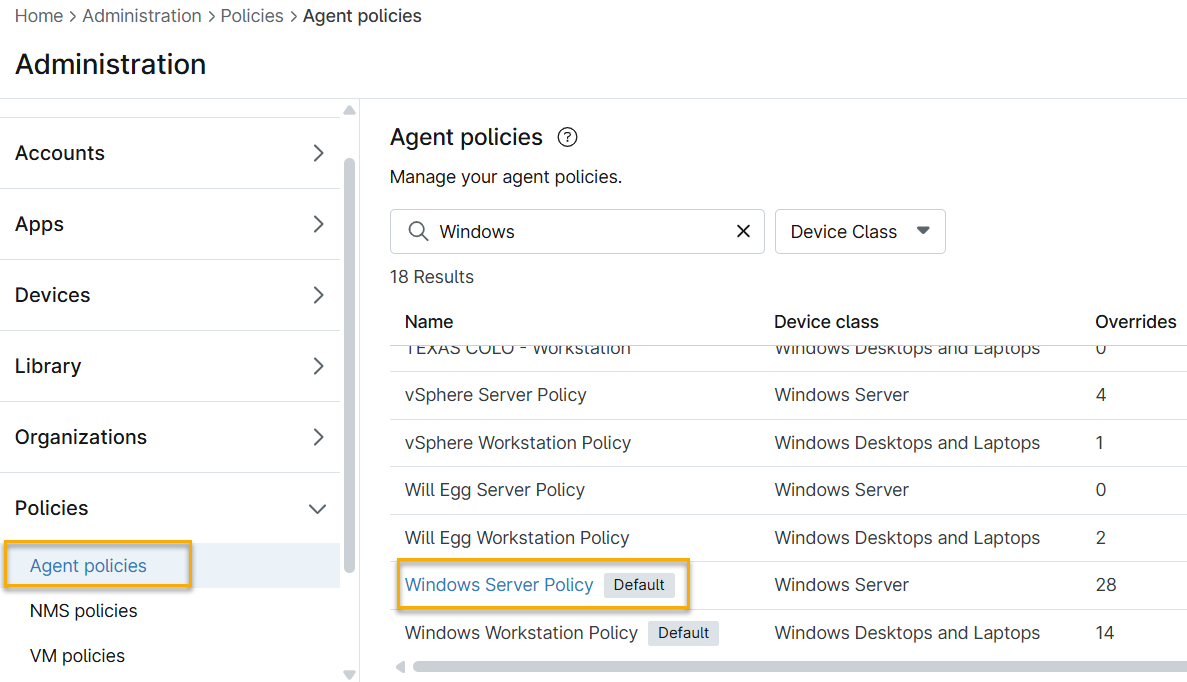
Figure 1: Windows Server Policy (click to enlarge) - In the policy's navigation menu, expand Backup. Then, select Image from the flyout menu. You'll see the Boot Verification section.
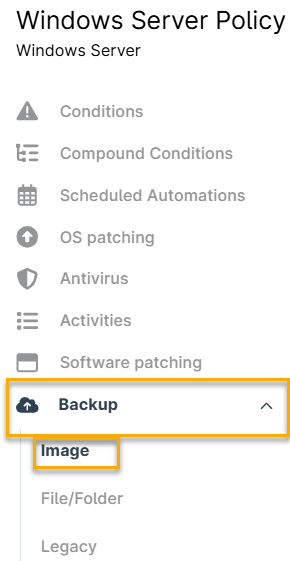
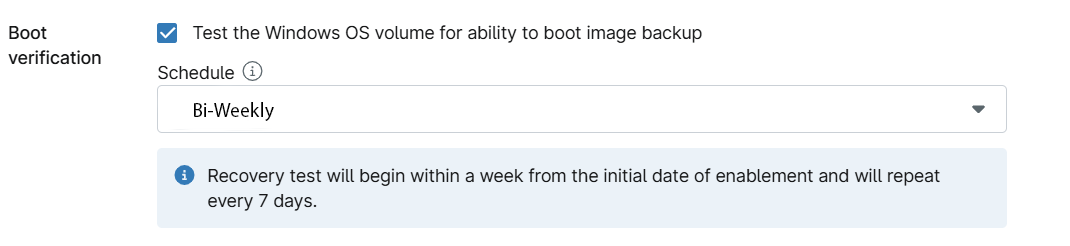
Figure 2: Backup → Image (click to enlarge) - Select the Test the Windows OS volume for the ability to boot image backup checkbox.
- In the Schedule drop-down menu, you can select Bi-Weekly or Monthly as the frequency. Recovery tests will begin within a week of initial enablement and then repeat based on this setting.
Viewing Results
You can access verification results from the NinjaOne Device Backup overview dashboard. Follow the instructions below to view the results of your verification test. You can view Backup Verification results and screenshots at the Global, Organization, or Device-level.
- In the NinjaOne dashboard, navigate to the organization you wish to view.
- Select Backup → Device → Overview from the navigation menu.
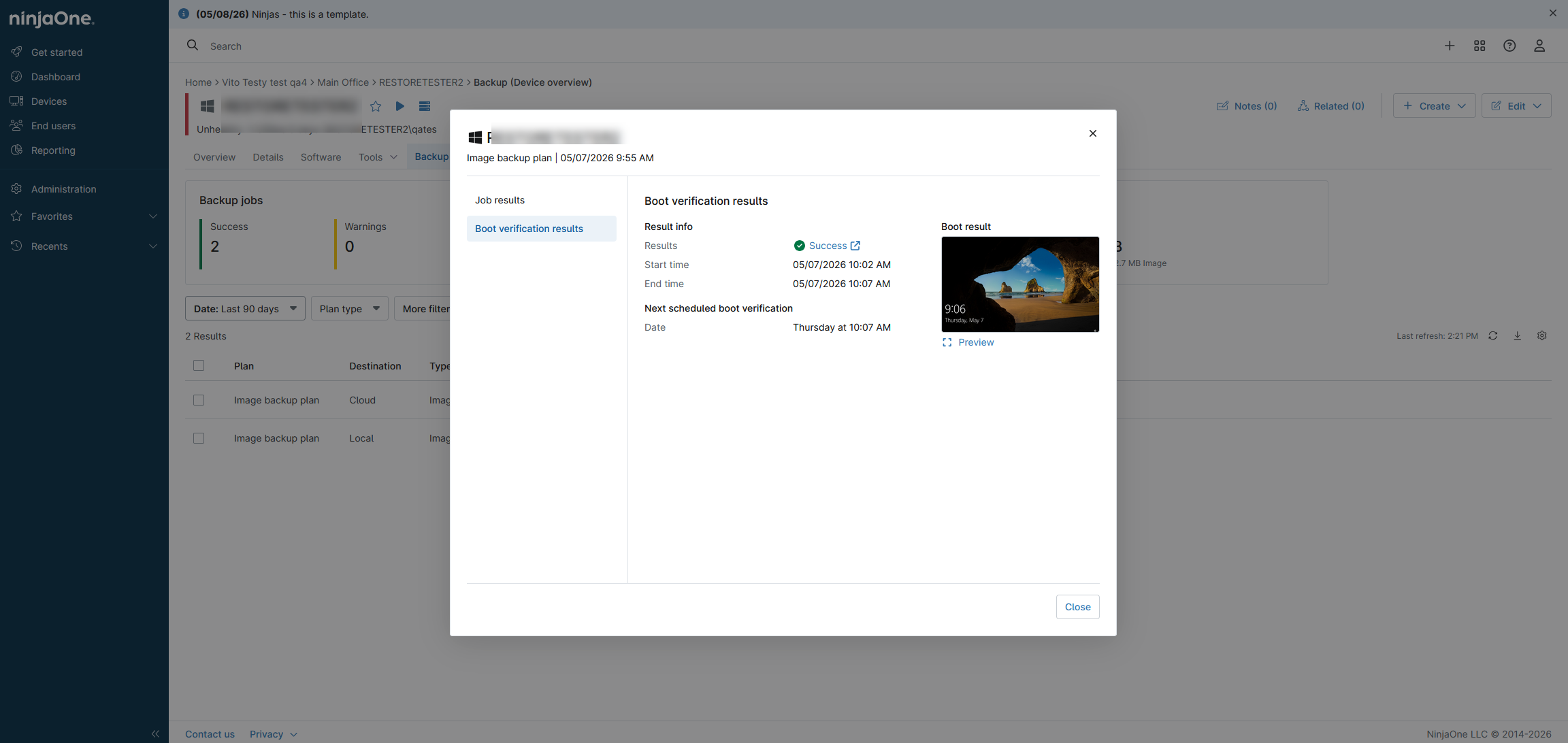
The backup overview page will open. NinjaOne displays a Boot verification last result card on the dashboard header. At the global level, clicking the result in the card opens the backup history, where you can view a list of results. Click the Status for a device to view the boot verification result.
The Boot verification last result card is also available on the organization and device-level dashboards. From these dashboards, you can click the Success or Warning links in the card or in the table to directly open the Job results dialog and review details about successful or failed verifications.
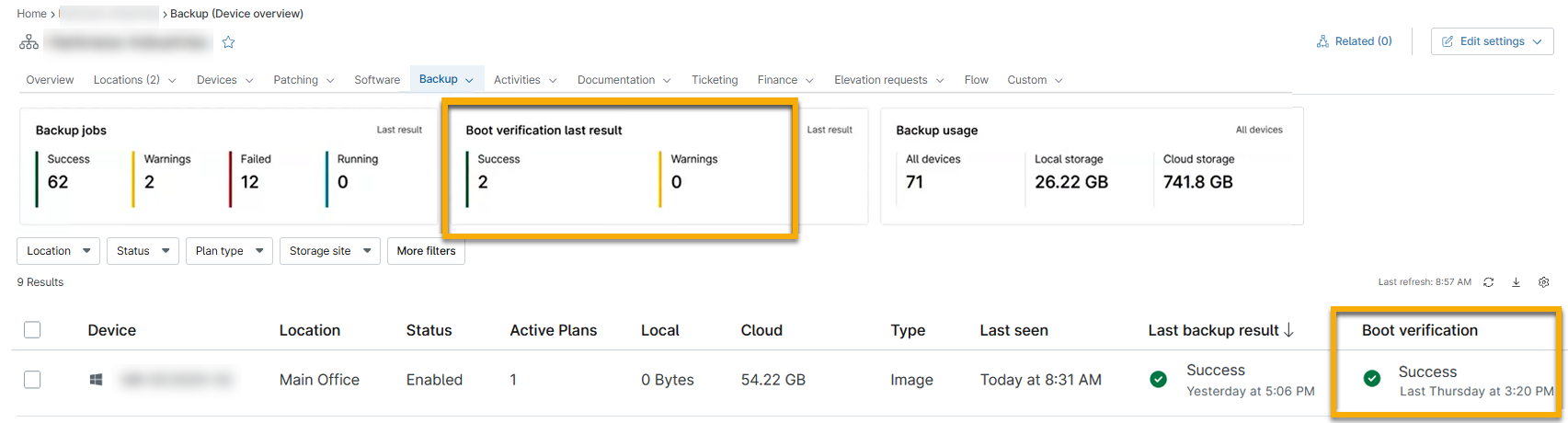
You will only see results for boot verification status if a verification has run on the device.
Boot Verification Reporting
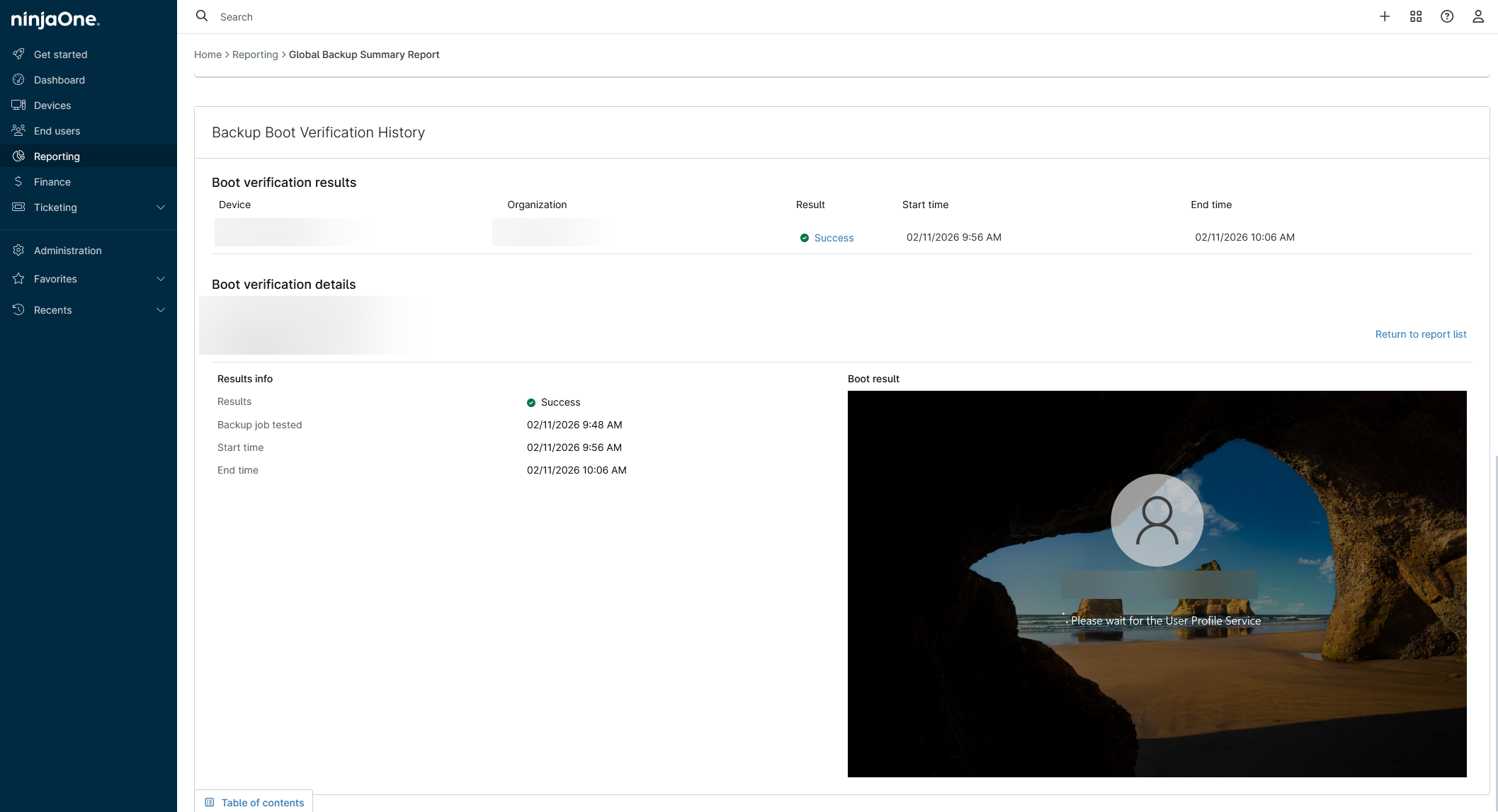
You can include a section for boot verification results directly in your Backup Summary reports in NinjaOne.
The Backup Boot Verification History includes screenshots of your successful boots and also lists the following parameters:
- Device
- Organization
- Result
- Start time
- End time
Exit Status Codes
NinjaOne Device Backup Verification will display a code in the results for any unsuccessful verification. For information regarding Backup Verification error codes, refer to NinjaOne Device Backup: Troubleshooting Error Codes.
Health Status and Activities
You can use the Health Status capabilities built into NinjaOne to customize warnings and alerts, and you can even create an activity, such as email notifications, based on boot verification status. For more information about using the Health Status features in NinjaOne, refer to NinjaOne Endpoint Management: Customize Device Health Statuses and NinjaOne Endpoint Management: Per-Condition Health Status. To learn about configuring Activities, refer to NinjaOne Endpoint Management: Device and System Activity Notification Feed.
Known Issues and Limitations
The following are known issues and limitations of this feature:
- At this time, machines with pending Windows updates may report a successful boot without being at a login screen. In addition to reaching a login screen, we also measure boot success by the device's ability to communicate with the backup service. We anticipate isolating Windows Update screenshots with a warning in the future.
- Boot Verification is only available for the Windows Server Role and Windows Server Policy.
Additional Resources
- To learn about creating summary reports in NinjaOne, refer to NinjaOne Reporting: Summary Reports.
- For information regarding Backup Verification error codes, refer to NinjaOne Device Backup: Boot Verification Error Codes.
- For information regarding backup-related error codes, refer to: NinjaOne Device Backup: Troubleshooting Error Codes.