
Topic
This article discusses how to add Android apps from the Google Play Store in NinjaOne MDM.
Environment
NinjaOne MDM
Description
The Privacy Badger browser extension and similar extensions may block cookies, which could prevent the Google Play Store from displaying on the NinjaOne console.
Navigate to the Policy
- In the left-hand navigation menu, click Administration, then click Policies and select MDM Policies from the drop-down menu.
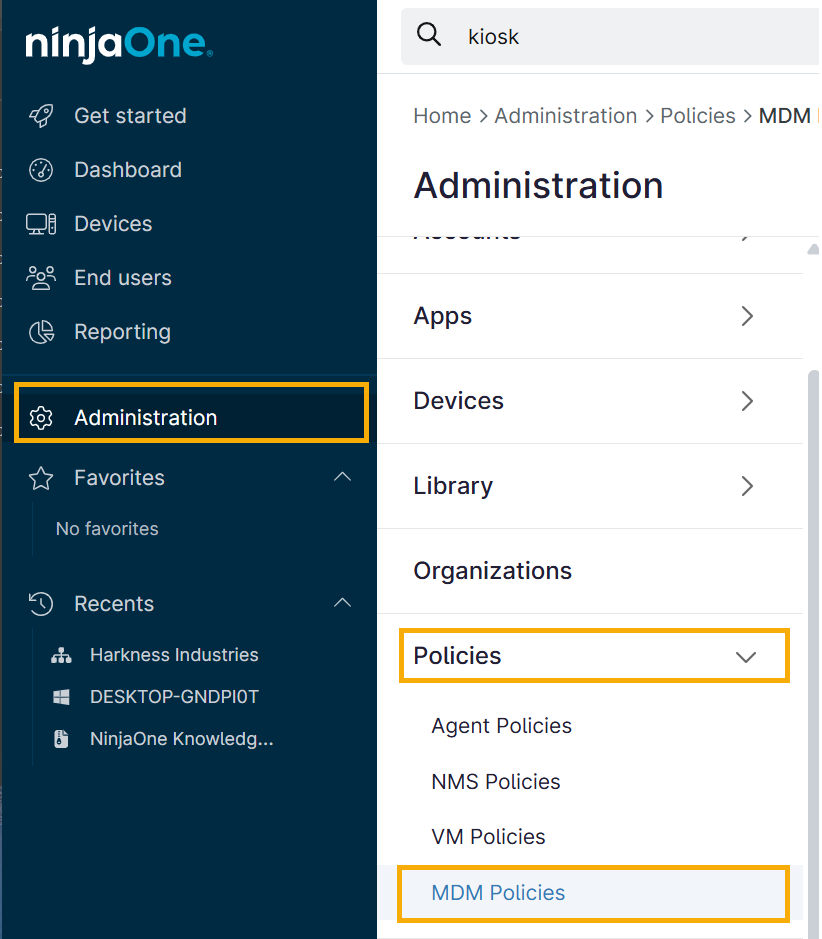
Figure 1: Navigating to MDM Policies (click to enlarge)
- Find and select the Android Mobile Policy.
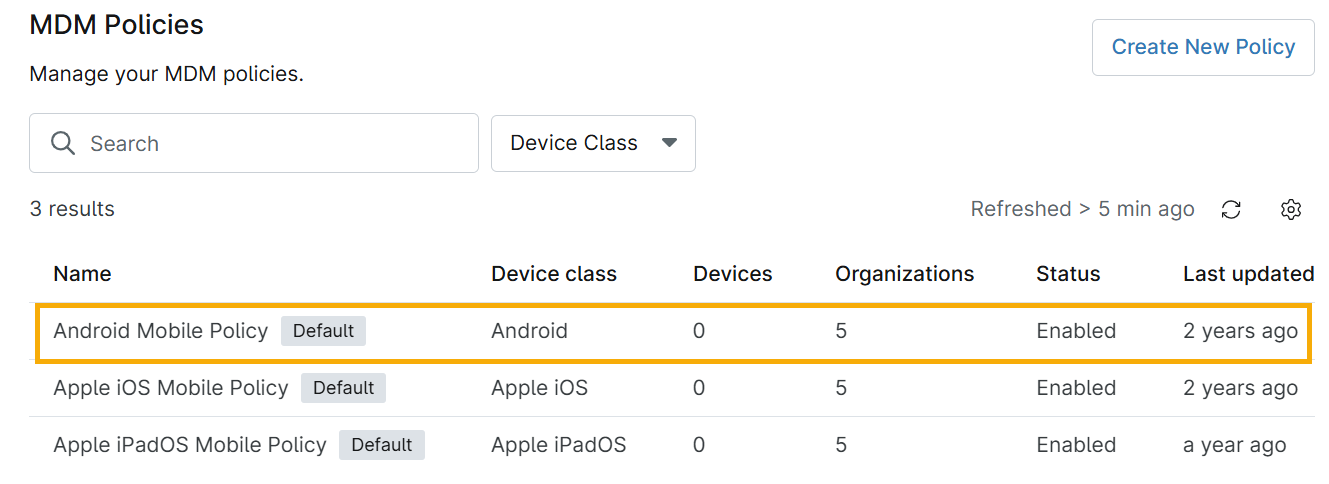
Figure 2: The MDM Policy Editor (click to enlarge)
- Scroll down to Managed Applications and click the Add Apps button, then choose Google Play Store from the expanded options.
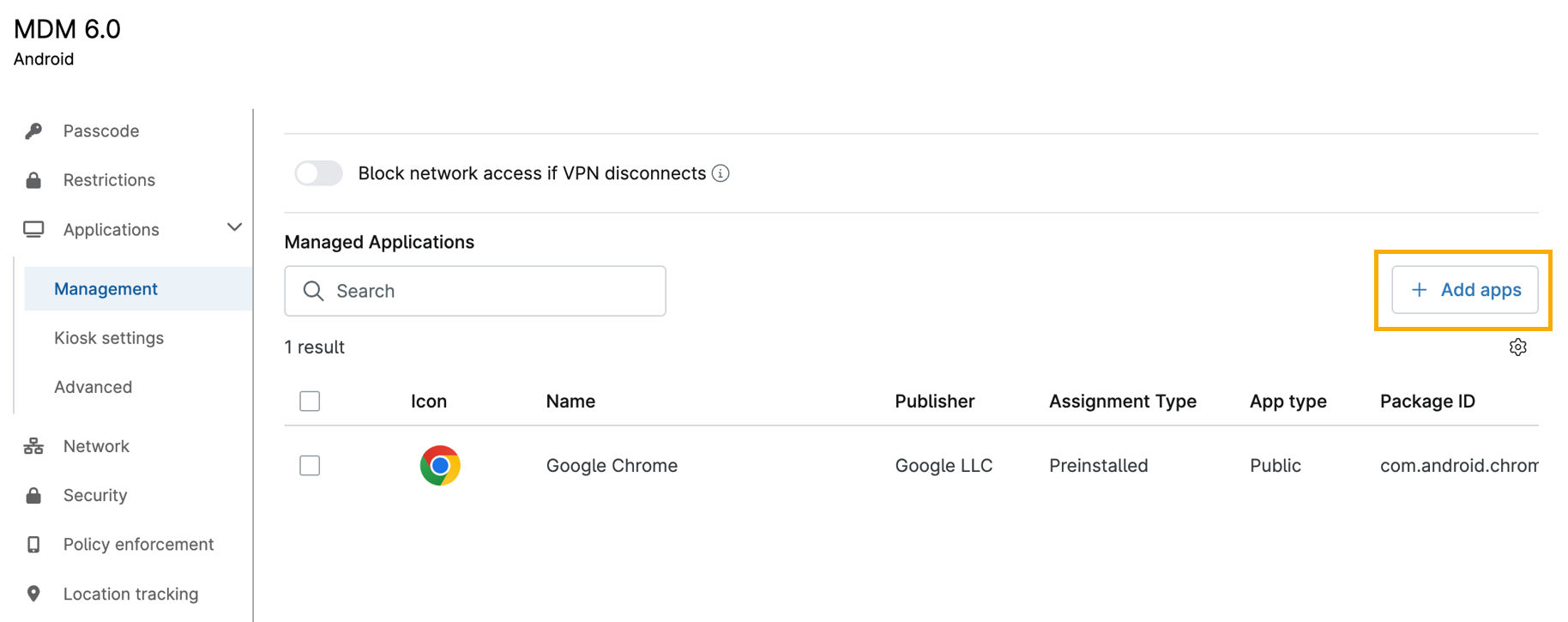
Figure 3: Managed Applications (click to enlarge)
Add the app
- Select the Android connection (for example, an Enterprise account) from the drop-down menu at the top right corner. If you are creating a new Android connection, refer to MDM: Enable Android Enterprise Device Management.
- Use the search field to find the application.
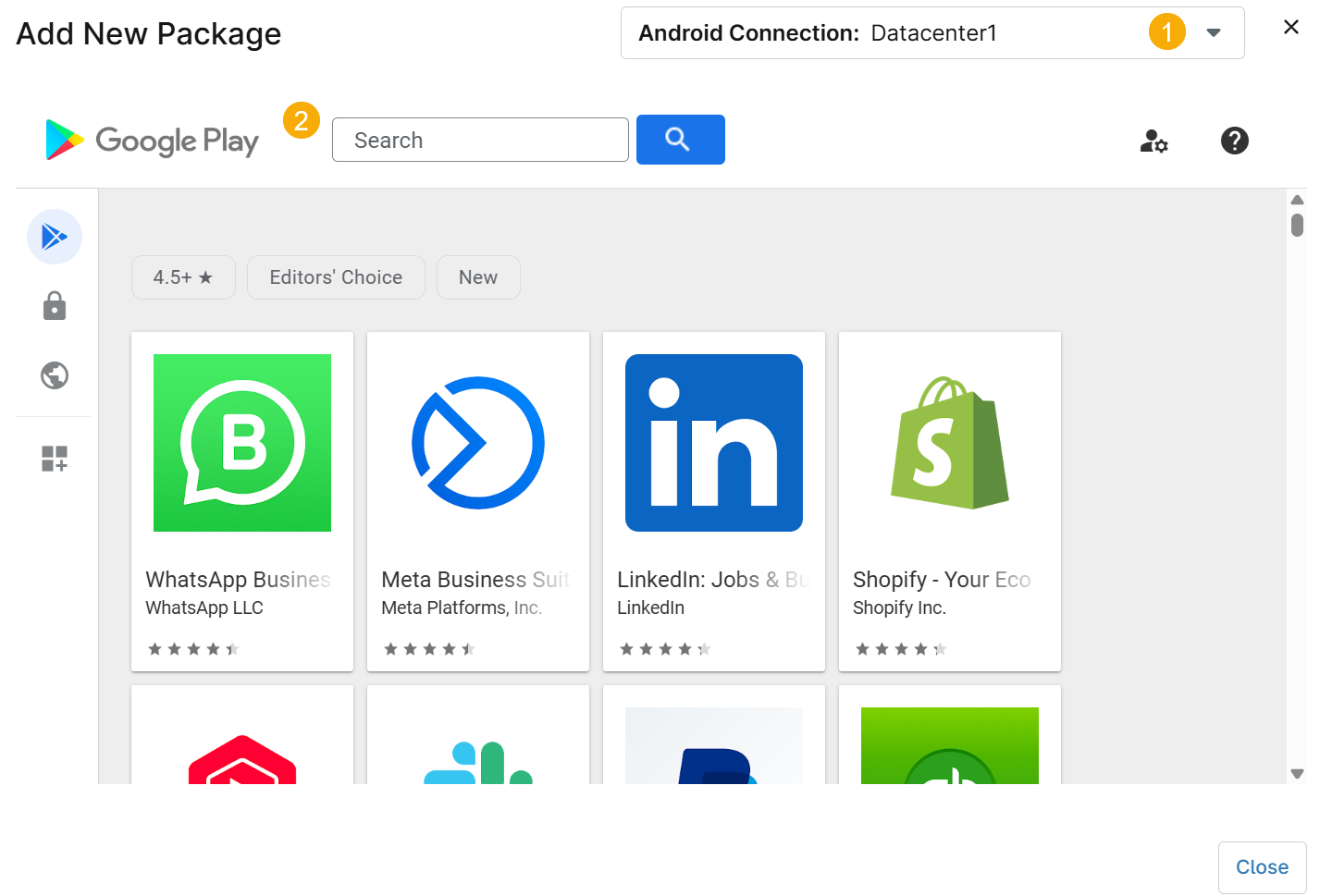
Figure 4: The Android Play Store (click to enlarge)
- Click Select to add the application to the device policy.

Figure 5: Adding the app from the Store (click to enlarge)
- The app is listed under Installed Applications, which shows the app details and assignment type. The assignment defaults to "Preinstalled," but you can change it by following the steps in Configure or Edit Application Restrictions and Settings.