
Topic
This guide explains how to enable the ITGlue integration in NinjaOne.
Environment
- NinjaOne Integrations
- ITGlue
Description
Automatically sync critical endpoint data, including device details, from NinjaOne into ITGlue.
To enable the integration in NinjaOne, you must have a working ITGlue account.
- In NinjaOne, navigate to Administration → Apps → Installed, and then click Add app.

- Locate and select ITGlue from the list of apps and click Continue.
You will automatically navigate to the ITGlue application configuration page.
- Click Enable.

- Enter your ITGlue domain name in the Hostname field and click Enable. You can find the domain name in the URL address.

- Your API credentials will display. Use this key to set up the integration within IT Glue.
- Log in to your IT Glue account and follow the integration setup instructions in this IT Glue documentation (you must log in to your account to view this external link) or Integrating with NinjaRMM (public external link).
IT Glue syncs NinjaOne customers to IT Glue organizations, and then syncs NinjaOne devices to IT Glue configurations. You can only sync configurations AFTER syncing organizations.
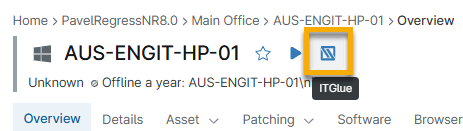
From the NinjaOne console, you can quickly access the device in IT Glue by clicking the IT Glue icon next to the device name.
Additional Resources
For answers to frequently-asked questions about the IT Glue integration, refer to NinjaOne Integrations: Frequently Asked Questions (FAQ) About IT Glue.