
Topic
This guide will show you the steps to create a ConnectWise API Member to activate the ConnectWise – NinjaOne Integration.
Environment
- NinjaOne Integrations
- ConnectWise Manage
Description
To integrate ConnectWise Manage and NinjaOne, you must provide an API key during setup. For more information, refer to NinjaOne Integrations: Getting Started with ConnectWise Manage.
Index
Select a category to learn more:
Create a Security Role for API User Permissions
Create a new security role to use for your API user that grants them permission only to the assets that are necessary for NinjaOne's ConnectWise integration.
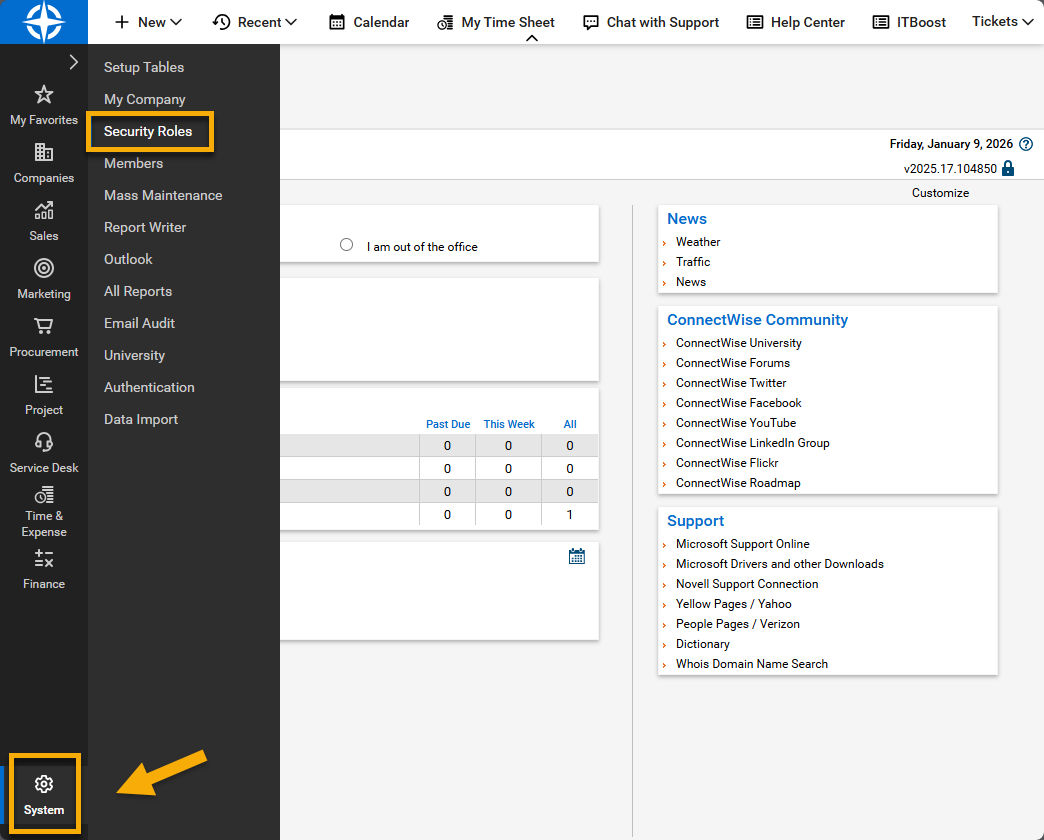
- Open the System menu and select Security Roles.
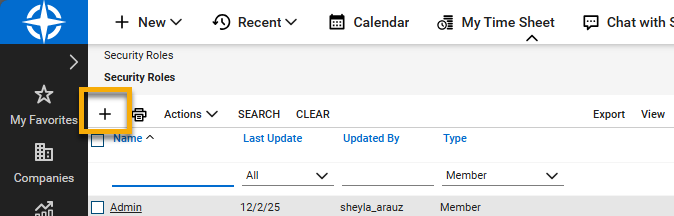
- Create a new role by clicking the plus sign icon (+) at the top of the Security Roles table.
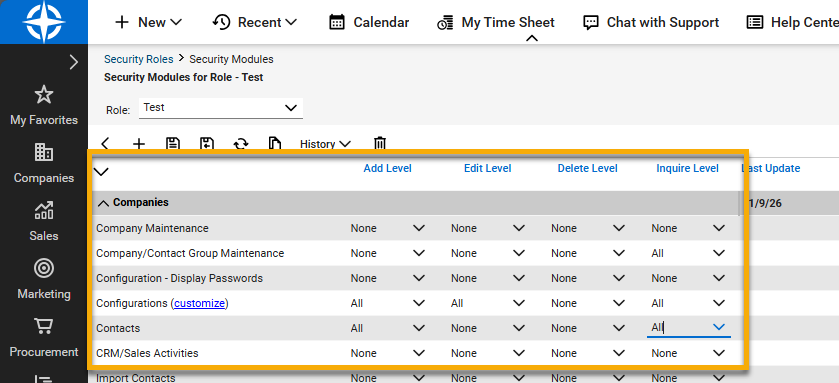
- Give the role a unique identifier and save to continue. The page will update to show security modules for the role.
- For all categories except the ones described in the following table, select None from the drop-down menus.
| Category name | Module level | Access required |
|---|---|---|
| Companies → Company Maintenance | Inquire | All |
| Companies → Configurations | Add, Edit, and Inquire | All |
| Companies → Contacts | Add, Inquire | All |
| Finance → Agreements | Add, Edit, Inquire | All |
| Procurement → Product Catalog | Inquire | All |
| Procurement → Products | Inquire | All |
| Service Desk → Close Service Tickets | Add, Edit, Inquire | All |
| Service Desk → Service Tickets | Add, Edit, Inquire | All |
| Service Desk → SLA Dashboard | Inquire | All |
| System → Table Setup* | Add, Edit, Inquire | All |
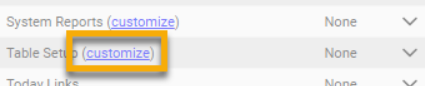
- Click the customize hyperlink next to System → Table Setup. Move the following items from the Allow access to these box into the Disallow access to these box:
- Contacts / Communication Type
- General / StsClient

Create the API User
Create the API user to facilitate the connection between NinjaOne and ConnectWise.
- From System in the main navigation, click Members and then open the API Members tab when the Members page opens.
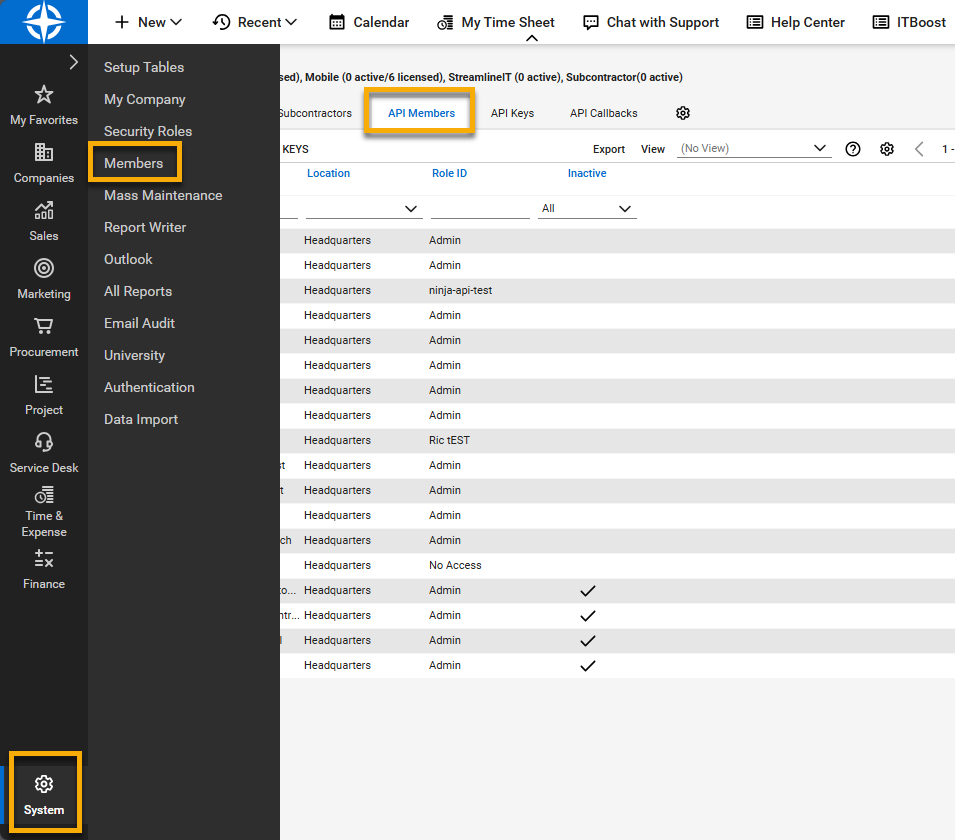
- Create a new API member by clicking the plus sign icon (+).
- Complete the prompt to create a new user. Set the Role ID to the new security role that you created earlier in this process.
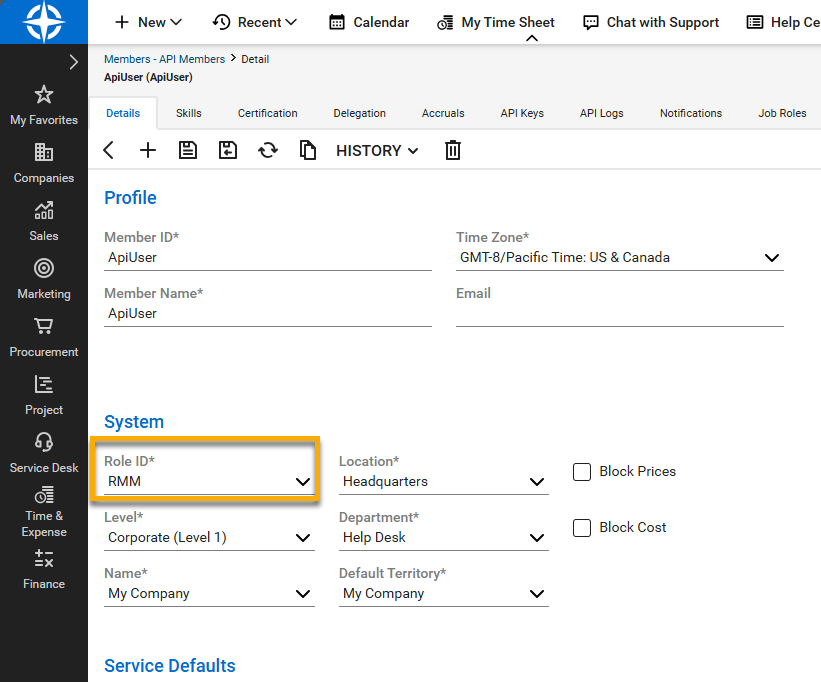
You must complete other required fields before you can save the new user. Except for the fields mentioned above, you can fill in the fields to your preference.
Add the API Key
NinjaOne will request a public and private API key when enabling the integration. Perform the following steps to obtain the keys:
- On the new API Member page, open the API Keys tab and then click the plus sign icon (+) to add an API key.
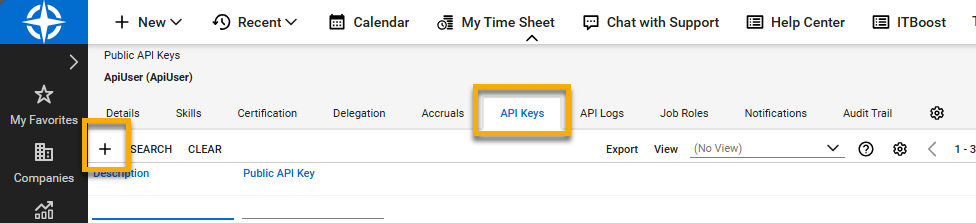
- Add a description for the Public API Key, and when ready, click the save icon.
- Copy the Public and Private Key to paste into NinjaOne where applicable. This is the only time you will see the Private Key, so we recommend saving it.

Additional Resources
We offer the following resources to help optimize the integration between your NinjaOne and ConnectWise Manage accounts:
- NinjaOne Integrations: Getting Started with ConnectWise Manage
- NinjaOne Integrations: ConnectWise Ticket Management
- NinjaOne Integrations: Map Devices to ConnectWise Configuration Types
- NinjaOne Integrations: Map Devices to ConnectWise Products and Agreements
- NinjaOne Integrations: Map Organizations to ConnectWise Companies
- NinjaOne Integrations: Run an Agreement Sync for ConnectWise Manage