
Topic
Learn how to create and manage your products for NinjaOne's Billing tool.
Environment
NinjaOne Billing
Description
Products refer to the line items or merchandise being sold, which you can add to service agreements for invoicing purposes.
Want to learn more about NinjaOne Billing? Check out our video library.
First, enable NinjaOne's Billing tool. Learn how to here: NinjaOne Billing: Getting Started with Professional Services Automation (PSA).
Then, select a category to learn more:
- About Product Types
- Add the Product Types
- Add Products to an Active Agreement
- Add Products to a Ticket
- Additional Resources
About Quantity Source
The following table provides a description of each quantity type, which you must select when adding a new product.
| Quantity Type | Description |
|---|---|
| Manual | Create a custom product for tracking miscellaneous items (a group of products that do not fall into any of the other defined categories). This requires manual quantity updates. |
| Device counts | Create a managed devices product for automated billing of device counts. This includes devices in NinjaOne that can be mapped to a line item. NinjaOne will calculate the count automatically. |
| End user counts | Create a managed end-user product for automated billing based on end users in NinjaOne. You can include all or specific user roles. |
| Backup storage counts | Create a managed device backup storage product for automated billing of device backups. Apply rules by role, group, or storage inclusion type. |
| Time entries | Create a labor ticket time entry product for automated billing of ticket time entries. This includes time entries logged in NinjaOne Ticketing. These are calculated automatically and converted into line items on the invoice. For an in-depth explanation of creating these products, refer to NinjaOne Billing: How to Bill a Labor Ticket Time Entry Product. |
| Software licenses | Automatically bill products based on the number of licenses used or the number purchased in NinjaOne IT Asset Management. Refer to NinjaOne Endpoint Management: Software Licenses to learn how. |
Add the Product Types
Some product types will contain unique data fields for configuration. The following instructions provide guidance for all product type options.
- Add the product types by navigating to Administration → Apps → NinjaOne Billing and then opening the Products tab.
- Click +Add and select the Quantity type.

If you have integrated an accounting tool such as QuickBooks or Xero, you also have the option to import products. To learn how, refer to Billing Integrations section of NinjaOne Billing: Resource Catalog.
- Refer to the appropriate section below to create the product.
General
You must complete the General section of the New product dialog for all product types.
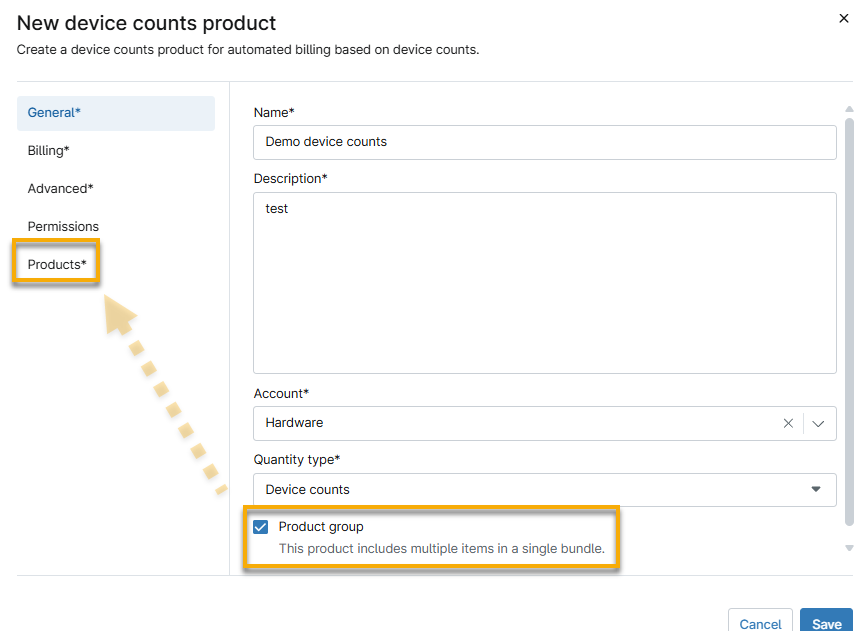
- Add a name and description for the product. If you add a time entry product, you will have an additional option to select an application user role. The System automation user role refers to automatic actions triggered by conditions. For more information, refer to NinjaOne Ticketing: Automation.
- Select your account code from the Account drop-down menu. The account code allows you to map and track billing in your accounting tool. To learn more about account codes, refer to NinjaOne Billing: Account Codes.
- Select the Quantity type. You can refer to the About Quantity Source section within this article for definitions. Use the quantity type to determine which products can be added to specific billing automations and orders.
- Select the Product group checkbox to add the Products tab to the configuration dialog. This checkbox is not available for the software license or time entries products.
Billing
You must complete the Billing section of the New product dialog for all product types.
The following table provides a description of each field in the Billing tab.
| Billing Field | Description |
|---|---|
| Price | This is the price you charge to the customer and may be referred to as "retail price." |
| Cost | This is the price you paid for the product. We will use this information for future enhancements and profitability reporting. This field may also appear as Default cost. |
| Taxable | Apply a sales tax. If you select this checkbox, the Tax rate drop-down menu appears. |
| Tax rate | Select the agreement from which to inherit the tax rate. To learn about agreements, refer to NinjaOne Billing: Agreement Services. |
| Billing |
|
| Default Quantity | This is the number of products charged to the customer. The Price will become price per quantity. This field is only available for manual products. |
| Schedule type | This option is only available for a time entries product. Refer to NinjaOne Billing: How to Bill a Labor Ticket Time Entry Product for details. |
| Location type | This option is only available for a time entries product. Refer to NinjaOne Billing: How to Bill a Labor Ticket Time Entry Product for details. |
Invoices
This section of the New product dialog is only available for time entry products.
Click the Block time toggle to include a specified amount of time with each invoice created for this product type. Refer to NinjaOne Billing: How to Bill a Labor Ticket Time Entry Product for more information.
If you select Limited from the Amount of included time drop-down, you can then select the number of included hours and determine the carryover limit.

Advanced
You must complete the Advanced section of the New product dialog for all product types except manual.
Use the information in the following table to complete these fields. Depending on the product you select, these fields may change.
| Advanced Field | Description |
|---|---|
| Role | Select devices or end users by their roles. If you select "Specific role," you can choose multiple roles from the drop-down menu. Click Enter on your keyboard between each selection.
|
| Group | Select devices by their groups for billing criteria. You can select multiple groups and bill by all selected or any selected. |
| Auto Round Time Entries | Round up to a specific interval. This can be helpful if technicians have extra tasks that should be recorded as labor but cannot be or were not recorded on the ticket time stamp (for example, setup, finding new tickets, minimum work standards, and others). |
| Products | Select all products that should be grouped together for this product group. |
| Quantity source | This field appears for software license products. Select whether you want ot use the number of licenses currently used or the sum of all licenses. |
| Included count | This field appears for software license products. Select the number of licenses to deduct from the quantity source. |
Permissions
You must complete the Permissions section of the New product dialog for all product types
Select whether you want to give access to the products for all technicians or specific roles. The technician account or role must have the Billing permissions activated. Refer to NinjaOne Accounts: User Permissions and Options for more information.
Products
This section displays when you select the Product group checkbox in the General section of the New product dialog.
Select the products you wish to include in this group. The cost of the group will be determined from the sum of the individual products. Click the X next to the product name to remove it from the group.

Add Products to an Active Agreement
Access the Finance → Agreements page from the sidebar menu in NinjaOne. To learn more about this page, refer to NinjaOne Billing: Agreement Services.
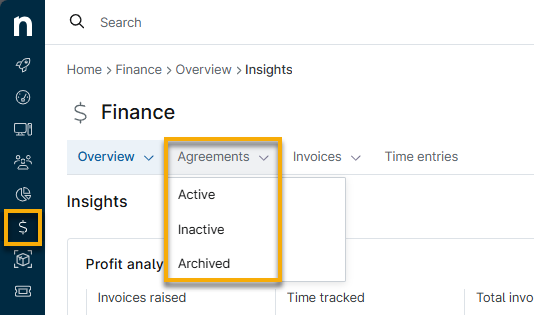
In Products, you can use the additional tabs to add prices for Time Entries, Devices, and Other. The data fields here are similar to those used for creating a product type on the Billing application page, which we covered in the previous section.
When you add an agreement, you can choose from New, Existing, or Non Catalog.
- New: Create details for a new product.
- Existing: Select active products that you created when configuring the NinjaOne Billing application page.
- Non Catalog: Create details for an "ad hoc" product. NinjaOne will not add these products to your existing list of products.
Add Products to a Ticket
Add Products From the Products Tab
You can add products to tickets through the Products tab.
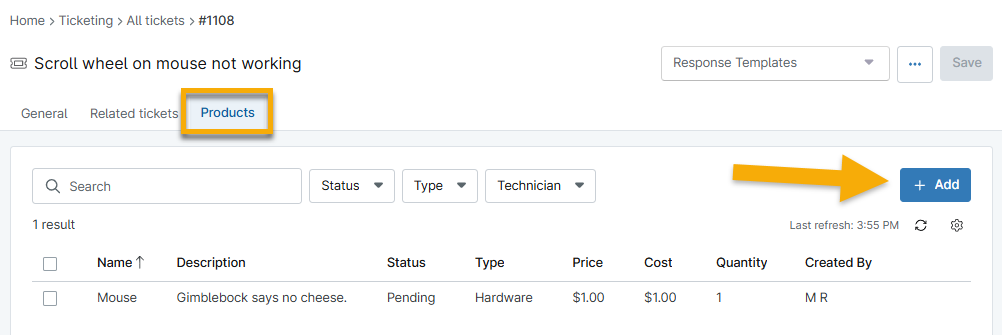
Figure 6: NinjaOne ticketing system → Add service product
- You cannot remove an agreement from the ticket if there are unbilled products associated with it.
- The agreement must be active.
- If you delete the organization, NinjaOne will remove the agreement from the ticket.
- If you change which agreement the ticket uses, you must save the ticket before adding new products.
- You must select a new agreement if you change which organization owns the ticket.
Labor Ticket Time Entry Products
Set a labor ticket time entry product by adding a comment on a ticket. You can also use this method to override the current product, ensuring that your time is billed correctly. This value defaults to the product that is configured by the time entry rules in the agreement for the assigned technician.
Additional Resources
Refer to NinjaOne Billing: Resource Catalog to view all related articles.