
Topic
This article explains how to configure Lost mode support for your Apple or Android devices enrolled in NinjaOne Mobile Device Management (MDM).
Environment
- NinjaOne Mobile Device Management (MDM)
- Apple iOS
- Apple iPadOS
- Android
Description
Lost mode support for NinjaOne Mobile Device Management (MDM) lets you lock a device after someone reports it lost or stolen. You can also define a message and contact information to appear on the device. Geolocation settings are not required for Lost mode, but pairing them enables you to retrieve the location of a lost device. Refer to NinjaOne MDM: Location Tracking for more information.
You can learn more about Lost mode in the developer documentation, such as Lost mode | Android Management API | Google for Developers (external link) and Use Lost mode in Find Devices on iCloud.com - Apple Support (external link).
Index
Select a category to learn more:
- Activate Lost mode for your devices
- Add custom messaging for Lost mode
- What happens during Lost mode?
- Search for devices with Lost mode active
- Deactivate Lost mode
- Additional resources
Activate Lost mode for your devices
NinjaOne only supports Lost mode for company-owned or supervised devices. Refer to NinjaOne Apple MDM: Understanding "Supervised" vs "Unsupervised" to understand the requirements for a supervised mobile device.
You cannot place a device into Lost mode if any of the following conditions apply:
- (Android and iOS) The device is not an organization-owned device.
- (Android and iOS) The device is already in Lost mode.
- (Android) The device password has been reset by an IT administrator in the last 12 hours.
- (Android) The employee manually exited Lost mode in the last 12 hours.
- (Android) The device uses a work profile on a company-owned device, and the work profile is paused.
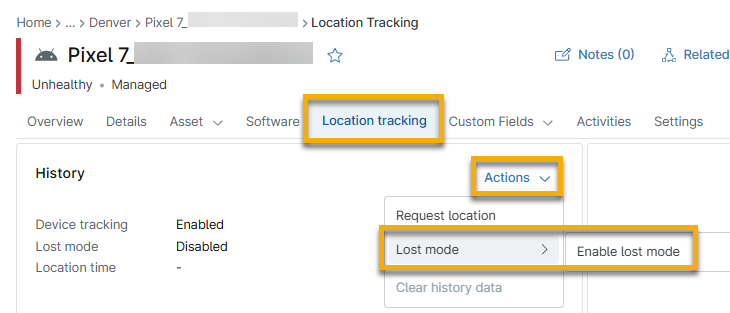
- Navigate to the Location tracking tab on the device dashboard.
- Click Actions and select Lost mode → Enable Lost mode.
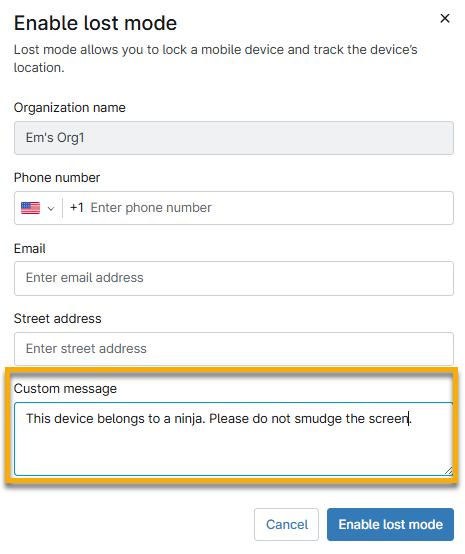
- Enter contact information for your lost device, then click Enable Lost mode.
Additional Lost mode activation methods
You can also activate Lost mode by using the following methods:
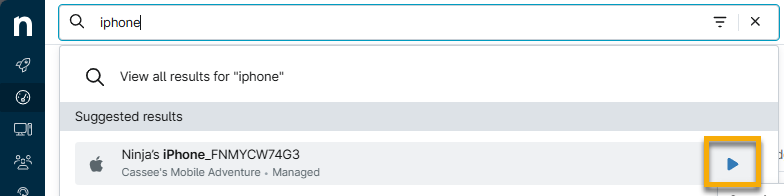
- Find the lost device in the Global Search and perform the action, then select Lost mode → Enable Lost mode.
- Locate the device in the Devices list, click Run actions, and select Lost mode → Enable Lost mode.
Add custom messaging for Lost mode
You can add a custom message to the device screen when you activate Lost mode. In the Enable Lost mode dialog, enter your instructions into the Custom message text field.
What happens during Lost mode?
When you activate Lost mode for a device, NinjaOne will immediately report its location on the device dashboard page. Device location functionality varies by manufacturer.
- iOS devices: The device location command will trigger every five minutes. You can also manually request the current location for an Apple device from the Location tracking tab. Location requests are rate-limited. After requesting a device's location, you must wait before you can request it again.
- Android devices: Location data is provided in the usage logs.
After you enable Lost mode, the device displays a Lost mode pending status until the device confirms the command. After the device confirms, the status updates to Lost mode active. While a device is in the pending state, the Enable Lost mode action is unavailable — you can only disable Lost mode until the command is confirmed.

NinjaOne displays Lost mode for a device when the following criteria are met:
- You have the Update device permission.
- The device is supervised or company-owned.
The following events will create a dashboard activity in NinjaOne:
- NinjaOne creates a Lost mode record.
- A Lost mode creation succeeds or fails.
- NinjaOne creates a Lost mode alarm action.
- A Lost mode alarm action succeeds or fails.
- NinjaOne initiates a Lost mode location request.
- A Lost mode location request succeeds or fails.
- NinjaOne deactivates Lost mode.
- A Lost mode deactivation attempt succeeds or fails.
Search for devices with Lost mode active
To quickly find all devices with Lost mode active in NinjaOne, use the MDM - Lost mode active search filter on the Devices search page. Devices that have been sent the Lost mode command but have not yet confirmed it display a Lost mode pending status on the device dashboard and are not returned by this filter.

Deactivate Lost mode
To deactivate Lost mode, perform the following steps:
- Navigate to the Location tracking tab on the device dashboard.
- Click Actions and select Lost mode → Disable Lost mode.
- Alternatively, find the lost device in Global Search, perform the action, and select Lost mode → Disable Lost mode.
Additional resources
Refer to NinjaOne MDM: Resource Catalog to learn more about NinjaOne MDM. Refer to the following external resources for assistance with your device management.
- BatchUsageLogEvents | Android Management API | Google for Developers (external link): View a Lost mode event containing the device location and battery level as a percentage.
- Device Location | Apple Developer Documentation (external link): Request the location of a device when in Lost mode.
- Play Lost mode Sound | Apple Developer Documentation (external link): Play a sound on a device that's in Lost mode.