
Topic
This article discusses how to configure compound conditions in NinjaOne.
Environment
NinjaOne Endpoint Management
Description
Compound conditions allow technicians to combine multiple conditions for more precise device targeting and monitoring. This option lets you apply multiple conditions to define precise conditions in which alerts trigger or NinjaOne takes action based on configurations.
You must set conditions at the policy level, which allows you to monitor your systems with minimal configuration. When compound conditions meet the configured criteria, such as combining a custom field and a script result, NinjaOne can assign severity and priority levels, send notifications to specific recipients, run automations, or create a ticket. Learn more about policy-level conditions at NinjaOne Policies: Condition Configuration.
Compound Conditions (NinjaOne, Inc., 01:39)
Index
Select a topic to continue.
- Understand how compound condition configuration works
- Review technician permissions for compound conditions
- Create a Compound Condition
- Create a Script Result Condition
- Create a Custom Fields Condition
- Create a Software Condition
- Create an Operating System Condition
- Create a Windows Service Condition
- Create a Daemon Condition
- Create a Process Condition
- Create a Windows Role or Feature Condition
- Create a File or Folder Condition
- Create a Windows Registry Condition
- Trigger the Compound Condition
- Add Automations to a Compound Condition
- Apply Condition Settings to a Compound Condition
- Add Ticketing Rules and Notifications to a Compound Condition
- Additional Resources
How Compound Condition Configuration Works
When adding a compound condition, you can create the following types:
| Compound condition type | Description or purpose |
|---|---|
| Script result condition | The script result condition lets you run an evaluation script on devices at specified intervals. The condition matches the script's output against the criteria you specify. Criteria are case-sensitive, and the condition checks for an exact match. |
| Custom fields | The custom field condition evaluates a field value against conditions you specify; the value must meet all conditions or any condition specified. For example, if a custom field value must meet "ALL" conditions, it will not trigger if the custom field value fails to meet one or more of the provided conditions. If a custom field value must meet "ANY" condition, it will trigger if at least one of the conditions is met. |
| Software | This condition triggers based on whether a specified software application exists or does not exist on the managed device. NinjaOne supports wildcards of "*" (asterisk) for software. For example, "*adobe" or "*firefox*". |
| Operating system | This condition triggers only when the device is running the specified operating system. |
| Windows Service (Windows OS policies only) | This condition triggers based on whether a specified service exists or does not exist, is "up" or "down," disabled, or set as automatic on the managed device. Manually added services must be based on the service name, not the service display name. NinjaOne supports one wildcard of "*" (asterisk) at the beginning or end of the service name. |
| Daemon (macOS and Linux policies only) | Use this condition to trigger based on the presence and state of daemons on the endpoint. You can manually enter the name of the daemon or select multiple daemons from a drop-down menu. One wildcard of "*" (asterisk) is supported at the beginning or end of the service name. |
| Process | Use this condition to trigger based on whether one or more processes are running. NinjaOne supports wildcards of * for process names. For example, *adobe or *firefox*. |
| File or folder | Use this condition to determine whether a specified file path or folder is present or missing. NinjaOne supports multiple wildcards within the string for either folder or file. |
| Windows role or feature (Windows OS policies only) | Use this condition to detect whether the endpoint has a specific Windows role or feature installed. |
| Windows Registry | This condition triggers based on the presence, absence, or value of a registry key on the managed device. Use it to detect configuration drift, verify device setup, or monitor specific registry values. |
You can add automations or configure notifications that will initiate when the compound condition triggers. Additionally, configure settings that automatically reset the condition after a specified amount of time or run the condition on a schedule.
The Compound Conditions section in the NinjaOne policy provides a search filter so you can find a specific condition based on name or status (active or inactive).
Technician Permissions for Compound Conditions
You must grant the technician permission to access and manage compound conditions. System administrators have access by default.
Technicians must have a minimum permission Default Access of "View, Update" for Policies in their account or role.
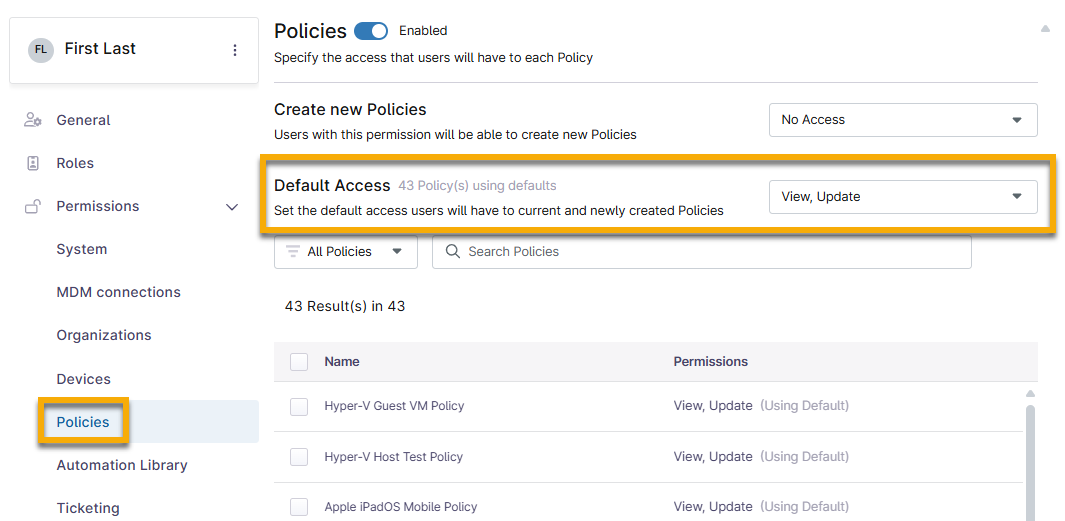
To learn more about permissions, refer to User Permissions: Permission Options. To learn more about roles, refer to User Roles and Permissions.
Create a Compound Condition
To create a new compound condition, perform the following steps:
- In NinjaOne, navigate to Administration → Policies → Agent Policies and select the policy.

The Policy Editor will open.
- Click Conditions → Add condition and select Compound condition from the drop-down menu.
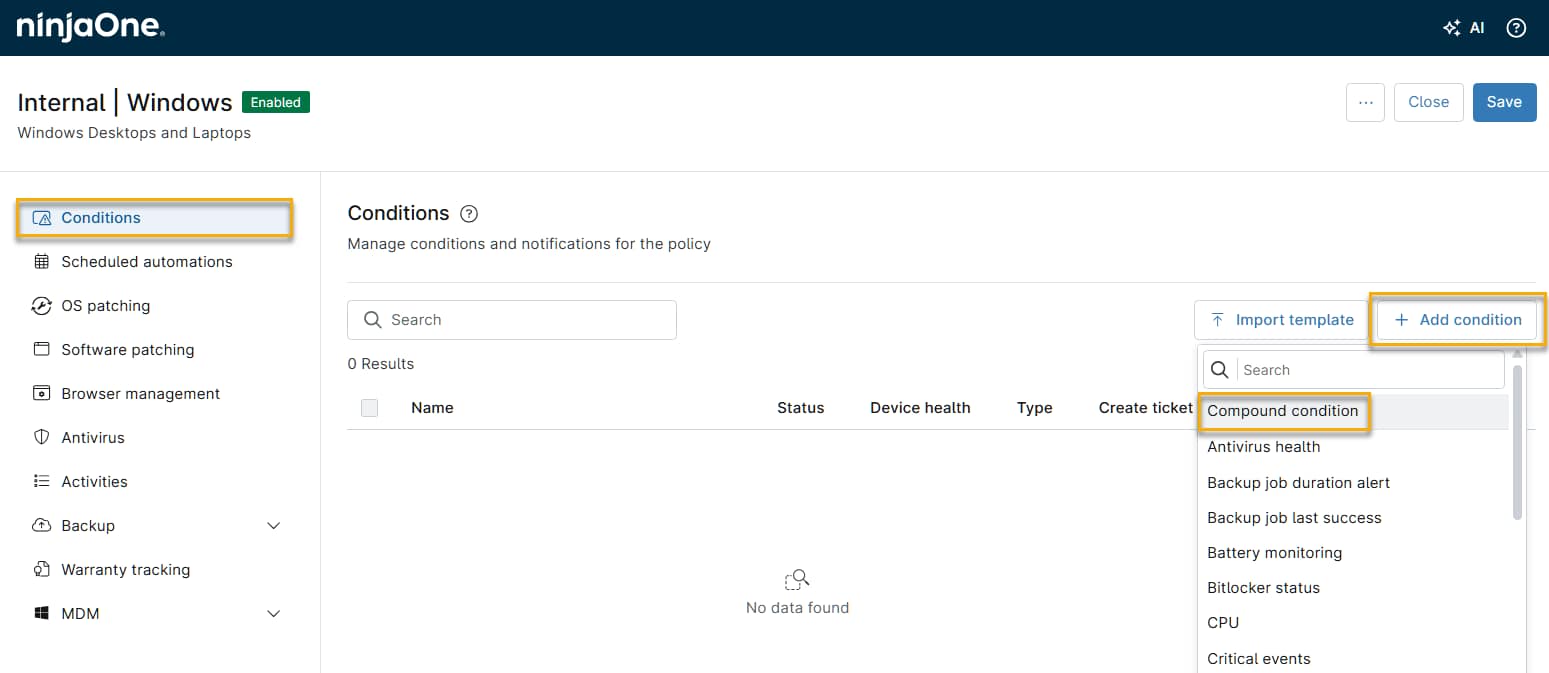
The Add a compound condition dialog will appear.
- The Conditions section of the modal is open by default. Click Add condition and then select an option from the drop-down menu. If you add more than one condition, a Trigger When option appears at the top of the Conditions list. For information about this setting, see Trigger the Compound Condition.
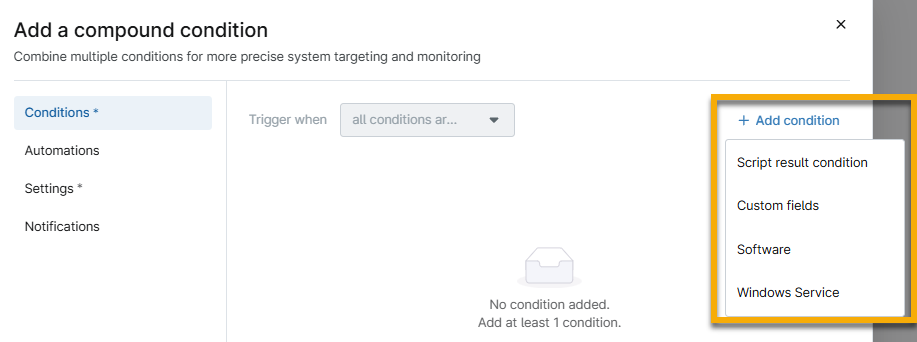
Depending on the condition type you select, your configuration options will vary. Refer to the following sections to find instructions specific to your compound condition type.
Create a Script Result Condition
To create a script result compound condition, perform the following steps:
- Select Script result condition from the Add condition drop-down menu.
- Next to Evaluation script, click Add. Select an evaluation script to run on devices at the interval specified in the compound condition setting.
- For Result code, select an option from the drop-down menu and then use the minus (-) and plus (+) sign buttons to create a threshold.
- In the context of a script result condition, a result code is a number that an application or script returns when it finishes running. This number indicates whether the execution was successful or if a problem occurred.
- For Timeout, use the minus (-) and plus (+) sign buttons to determine the amount of time the script is allowed to run. If the running duration hits the specified amount of time, NinjaOne forcibly terminates the script.
- For Output, select an option from the drop-down menu and then add text that is logically consistent with the selected probe script. The condition matches the script's output against the criteria you specify.
- Select the Include script output in final alert checkbox under this field to see the actual script results when the system alerts you. NinjaOne will include any script output in the final alert or activity note.
- In the context of a script result condition or any program that executes, output refers to the information that the script or application returns when it finishes running. This can include text, numbers, or structured data that indicate what the script performed or found during execution.
- Select the checkbox in the Script error notification section to send an error notification email to technicians if the result code meets the set criteria. Then, select the criteria that need to be met in the drop-down menu. Use the minus (-) and plus (+) sign buttons to set the threshold for the number of script errors.
- Example use of this field: If Script error notification is set to "equal to" and "1," the technician receives an error notification any time the script returns a result code of 1.
- Click Apply.
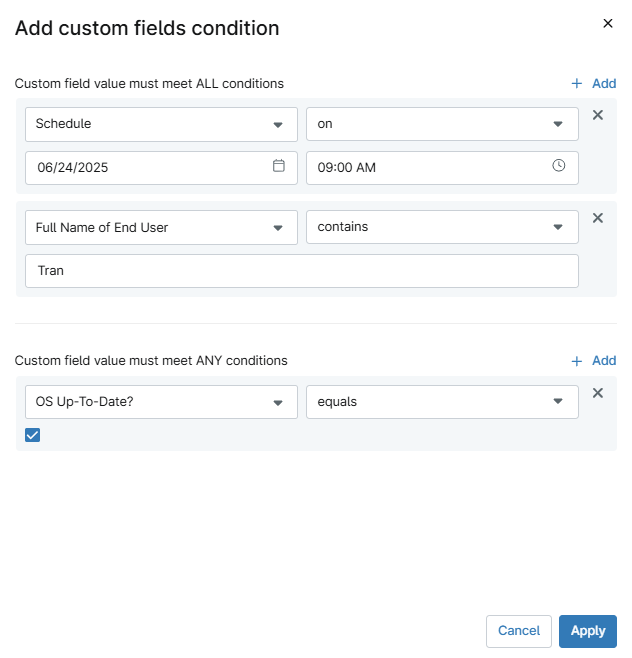
Create a Custom Fields Condition
To create a custom field compound condition, perform the following steps:
- Select Custom fields from the Add condition drop-down menu.
- Next to Custom field value must meet ALL conditions or Custom field value must meet ANY conditions, click Add.
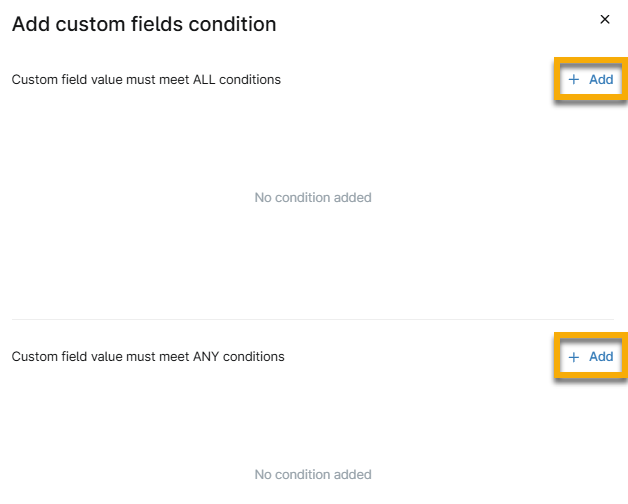
- Two drop-down menus will appear when you click Add; select an option from each menu.
- Depending on your selection in the first drop-down menu, the criteria in the second drop-down menu will change, and additional data fields may appear. The resulting data fields depend on how you set up the custom field and the information it requires. To learn more about custom field setup, refer to Custom Field Setup.
- Click Add again to include more criteria.
- Click Apply.
Create a Software Condition
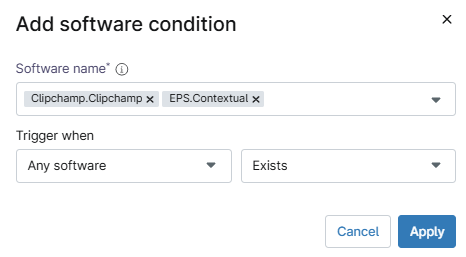
To create a software compound condition, perform the following steps:
- Select Software from the Add condition drop-down menu.
- Select the software from the top drop-down menu or type the name of the software into this field. If you type in a name, press Enter on your keyboard to save it. You can select multiple software programs.
- Select the values that will trigger the condition in the Trigger when drop-down menu.
- Click Apply.
Create an Operating System Condition
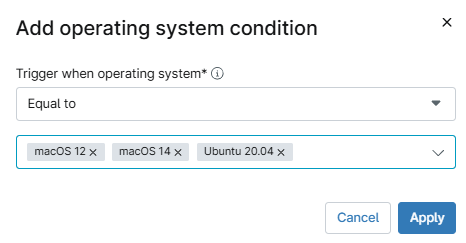
To create an operating system compound condition, perform the following steps:
- Select Operating System from the Add condition drop-down menu.
- Select the value that will trigger for the specified OS. The OS can be present ("equal to" or "contains") or absent ("not equal to" or "does not contain") on the device. The "equal" values will match the full name of the OS, whereas the "contain" values will match part of the name (for example, "contains" or "does not contain" will trigger if an OS was misspelled or incomplete).
- In the Select or add an OS field, select or type an operating system. You may use an * before or after the operating system as a wildcard.
- Click Apply.
Create a Windows Service Condition
To create a Windows service compound condition, perform the following steps:
- Select Windows Service from the Add condition drop-down menu.
- Select the service(s) from the top drop-down menu or type the name of the service into this field. If you type in a name, press Enter on your keyboard to save it. You can select multiple services.
- Select the value that will trigger the condition in the Trigger when drop-down menu.
- If you select "Up" or "Down" from the second Trigger when drop-down menu, the Duration fields appear in the dialog (refer to Figure 10 for illustration). Define the duration the service must remain in the selected state to trigger the condition.
- Click Apply.

Create a Daemon Condition
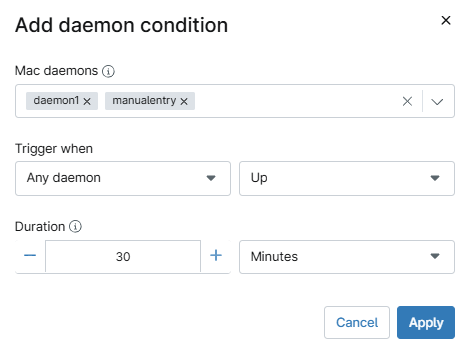
To create a daemon compound condition, perform the following steps:
- Select Daemon from the Add condition drop-down menu.
- Type the name of the daemon into the daemon name field. On macOS policies, this field is labeled Mac Daemons. Press Enter on your keyboard to save it. You can select multiple daemons.
- Select the value that will trigger the condition in the Trigger when drop-down menu.
- If you select "Up" or "Down" from the second Trigger when drop-down menu, the Duration fields appear in the dialog (refer to Figure 10 for illustration). Specify the duration for which the service must remain selected to trigger the condition.
- Click Apply.
Create a Process Condition
To create a process compound condition, perform the following steps:
- Select Process from the Add condition drop-down menu.
- Type the name of the process into the Process name field. Press Enter on your keyboard to save it. You can select multiple processes.
- Select the value that will trigger the condition in the Trigger when drop-down menu.
- Click Apply.

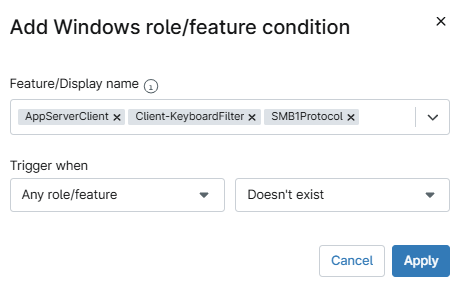
Create a Windows Role or Feature Condition
To create a Windows role or feature compound condition, perform the following steps:
- Select Windows role or feature from the Add condition drop-down menu.
- From the Feature/Display name drop-down menu, select from the list of available roles and features. If the name of a role or feature is not listed, you can manually type it into the space; press Enter on your keyboard to save the entry.
- Select the value that will trigger the condition in the Trigger when drop-down menu.
- Click Apply.
Create a File or Folder Condition
To create a file or folder compound condition, perform the following steps:
- Select File or folder from the Add condition drop-down menu.
- In the File or folder path field, enter the full path of the file or folder you want to monitor. You can use up to two wildcards (*) anywhere within the path (consecutive wildcards are not allowed).
- Select the value that will trigger the condition in the Trigger when drop-down menu.
- Click Apply.
Create a Windows Registry Condition
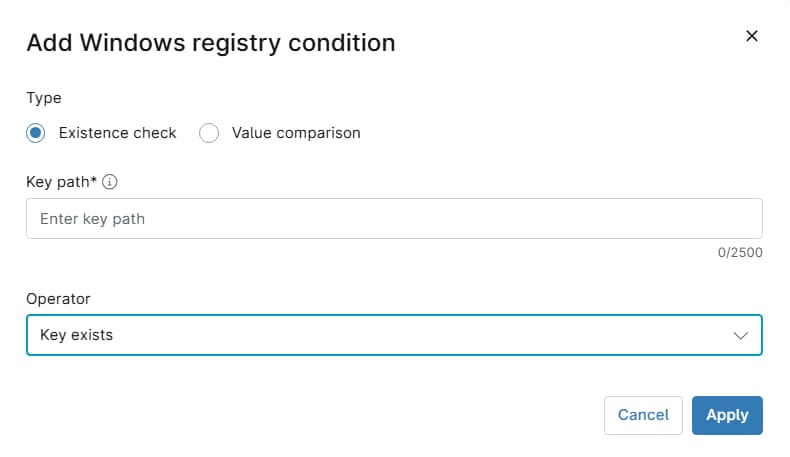
To create a Windows Registry compound condition, select Windows Registry from the Add condition drop-down menu, then enter the following information. When finished, click Apply to save the condition. This condition type uses reference tables rather than numbered steps because its configuration varies depending on the condition type you select.
Select a Condition Type
Select one of the following condition trigger options:
- Existence check: Trigger based on whether the registry key is present or absent on the device. If you choose this setting, you must select an operator value. See the Existence Check Settings table in this section for a description of each setting.
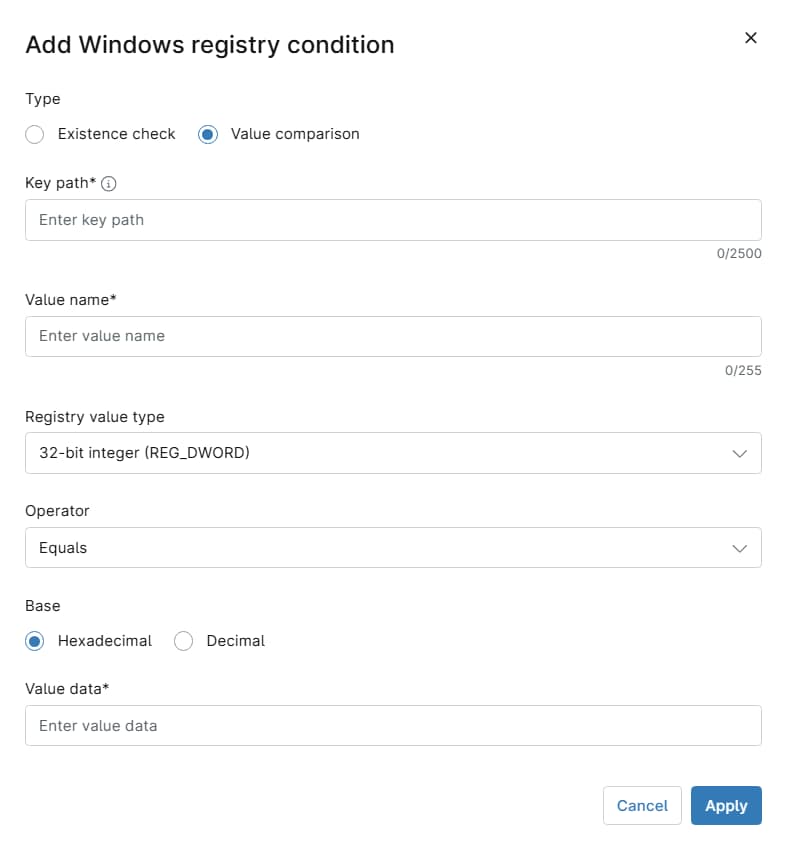
- Value comparison: Triggers based on the data stored in a specified registry value. If you choose this setting, you must enter additional information for your comparison. Refer to the Value Comparison Settings table in this section for a description of each setting.
Existence Check Settings
| Setting | Description |
|---|---|
| Key path | The registry key path requires the hive (root key), key, and subkeys. Do not include the registry value. Only the following hives are currently supported (uppercase only):
For example: |
| Operator | If you selected Existence check as the condition type, select the value that will trigger the condition. Choose from the following options to trigger the condition:
|
Value Comparison Settings
| Setting | Description |
|---|---|
| Registry value type | Select the data type of the registry value you want to evaluate:
|
| Operator | Select the comparison to apply. The available operators change based on the registry value type you selected. |
| Base | Select the counting system the value uses. You can choose Hexadecimal or Decimal. |
| Value Data | If you selected an operator other than Exists or Does not exist, enter the expected value in this field. |
Trigger the Compound Condition
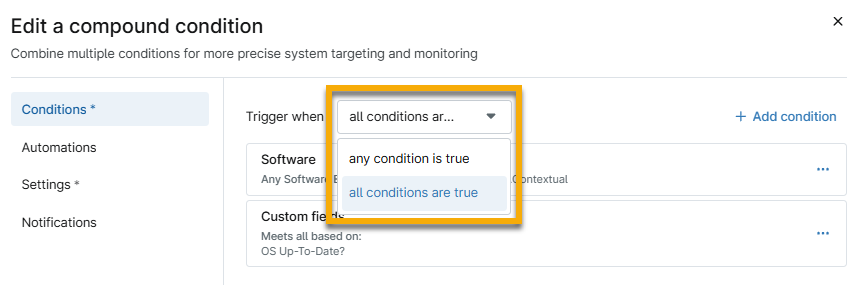
When adding multiple conditions to a compound condition, you'll see a Trigger When drop-down menu with two options:
- any condition is true: Conditions will be evaluated sequentially from top to bottom. If one or more conditions evaluate to true, the evaluation stops immediately and the compound condition triggers. This prevents unnecessary checks on the endpoint, helping maintain performance.
- all conditions are true: Conditions will be evaluated sequentially from top to bottom, and every condition must be met for the compound condition to trigger. If any condition fails during evaluation, the process stops immediately. Keep in mind that evaluating numerous or complex conditions frequently can impact performance.
This option requires at least two conditions.
Add Automations to a Compound Condition
To add an automation to run when your compound condition is triggered, perform the following steps:
- Open the Automations tab within the configuration dialog, and then click Add automation.
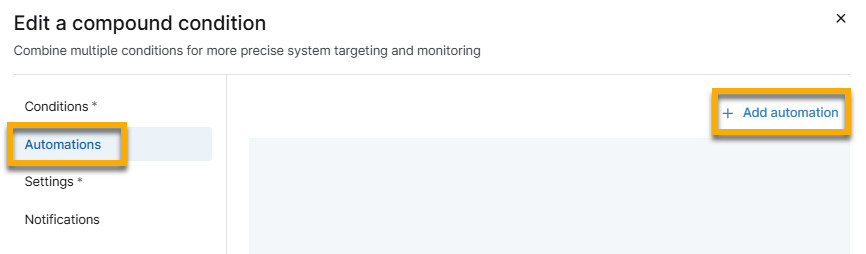
The Automation Library will open, displaying a list of available automations.
- Locate and select your script using the filters at the top of the dialog. Select additional automations as needed.
- Click Apply.
Apply Condition Settings to a Compound Condition
To apply additional condition settings, perform the following steps:
- Open the Settings tab within the compound condition configuration dialog.
- Enter a name for your compound condition.
- Use the following table to configure the fields.
| Field name | Description or purpose |
|---|---|
| Auto Reset After | The condition resets and can trigger again after the specified time. |
| When no longer met | The condition resets when the values are no longer met. |
| Run Every | The condition runs at the specified interval. |
| Trigger uptime | The condition won't trigger until the device has been running for at least the specified amount of time. You can use this option to prevent alerts while a device is starting up its programs and services. |
- Click Apply.

Add Ticketing Rules and Notifications to a Compound Condition
To configure ticketing rules and notifications, perform the following steps:
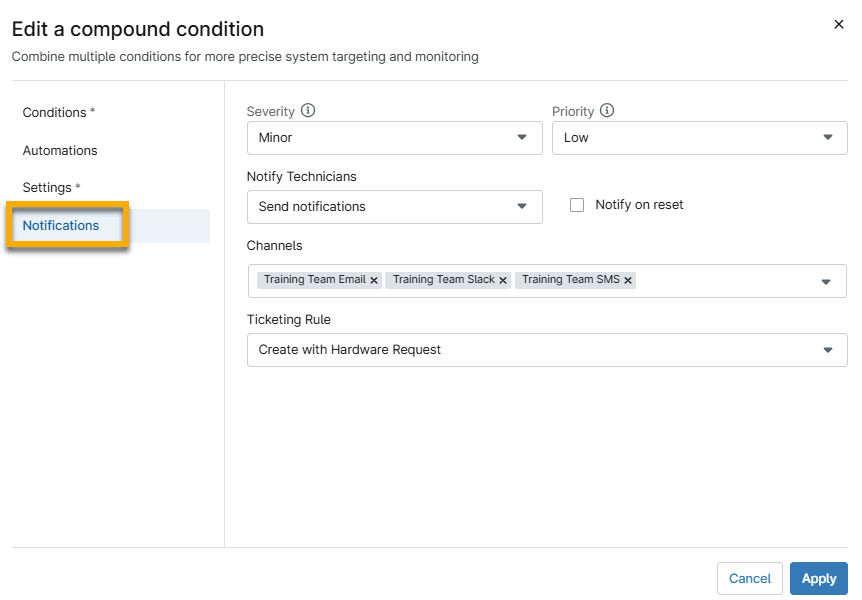
- Open the Notifications tab within the configuration dialog.
- Use the following table to configure the fields.
| Field name | Description or purpose |
|---|---|
| Severity | The severity indicates the impact of the triggered condition on the affected device or system. |
| Priority | The priority defines the order in which you should address the triggered condition. |
| Notify Technicians | Select whether you want technicians to receive a notification when the condition is triggered. |
| Notify on reset | Select whether you want technicians to receive a notification when the condition is reset. You must configure the condition to reset in the Settings section for this option to perform as expected. |
| Channels | Select the channels through which technicians receive the notification. |
| Ticketing Rule | This option allows you to create a ticket from the triggered condition. The ticketing options may vary or may not be available if NinjaOne Billing or NinjaOne Ticketing is not active with your system configuration. To learn more about ticketing in NinjaOne, refer to Ticketing: Resource Catalog. |
- Click Apply.
Additional Resources
To learn more about policies in NinjaOne, refer to NinjaOne Policies: Condition Configuration.