
Topic
This article explains how to set up NinjaOne Remote on Linux.
Environment
- NinjaOne Remote
- Linux
Description
NinjaOne Remote supports remote connections to devices running supported Linux distributions. The Linux device must have a graphical user interface (GUI) to support remote desktop connections. Before connecting, install the required dependencies on the Linux device and activate the NinjaOne Remote integration in NinjaOne.
Install Linux Dependencies
Install the required packages on the Linux device before connecting. You can perform this installation via remote command line access or script automation in NinjaOne.
Debian-Based Linux
sudo apt install libxcb-xinput0 libxcb-xinerama0 libxcb-cursor0 libopengl0 -yRed Hat x64-Based Linux
sudo yum install xcb-util-cursor.x86_64 xcb-util-wm.x86_64 xcb-util-keysyms.x86_64 libglvnd-opengl -yRed Hat ARM64-Based Linux
sudo yum install xcb-util-cursor.aarch64 xcb-util-wm.aarch64 xcb-util-keysyms.aarch64 libglvnd-opengl -yActivate the Integration for the Organization
To activate the integration, complete the following steps:
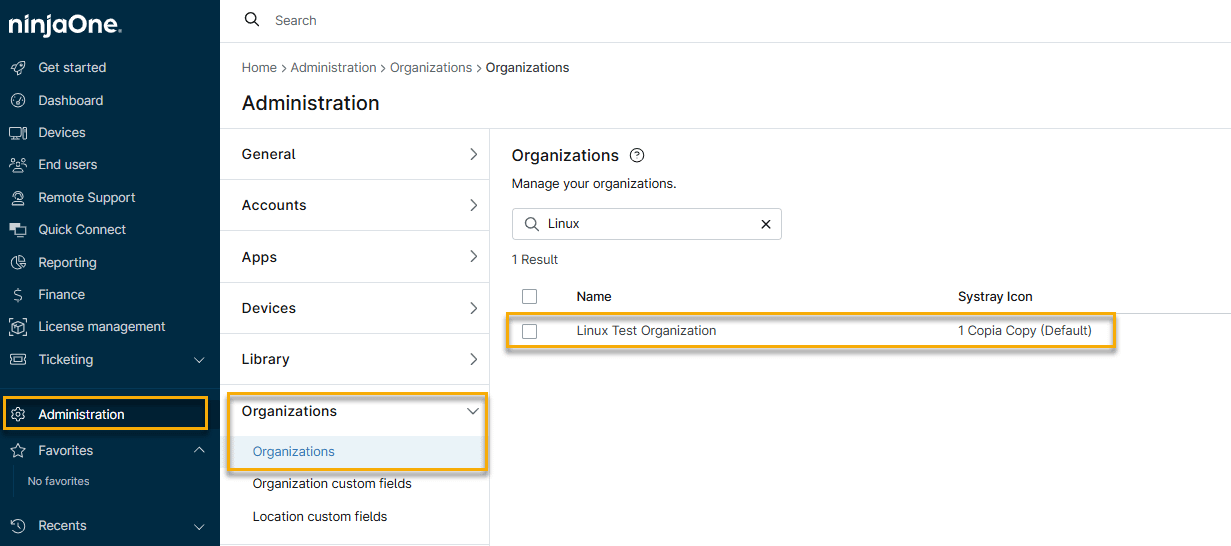
- In NinjaOne, navigate to Administration → Organizations, then select your organization in the list.
- On the organization's configuration page, click NinjaOne Remote, select the General tab, then click Enable integration.

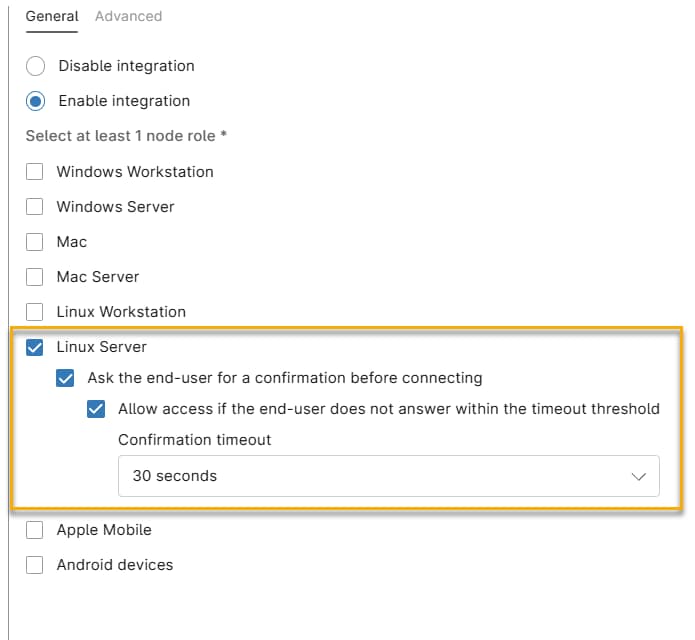
- Select the Linux Server checkbox. NinjaOne displays additional checkboxes you can use to configure connection behavior.
Connection Behavior Options
Use these settings to control what happens on the remote device when a technician initiates a connection.
- Ask the end user for a confirmation before connecting: Require users to click a confirmation button on their remote devices before establishing the connection.
- Allow access if the end-user does not answer within the timeout threshold: Select this checkbox to allow the connection automatically if the end user does not respond to the confirmation prompt within the specified time.
- Confirmation timeout: Select the amount of time NinjaOne Remote should wait for a response before bypassing the confirmation prompt and establishing the connection.
Connecting to a Device
To connect to a device, complete the following steps:
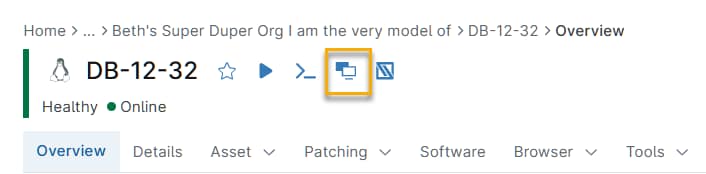
- In the device's overview page, click the NinjaOne Remote icon. This icon appears only if NinjaOne Remote is activated and the remote machine is online.
- NinjaOne will prompt you to confirm, then establish the connection. Refer to NinjaOne Remote: Connecting to a Device to learn about the tools available once you are connected to the remote Linux device.