
Topic
This article explains how to use remote printing with NinjaOne Remote.
Environment
NinjaOne Remote
Description
NinjaOne Remote now allows you to print from a remote session.
System Requirements
NinjaOne supports the following operating system (OS) versions:
- Apple macOS: Big Sur (11+) and newer.
- Microsoft Windows: Version 10 and newer.
Procedure
To print a document from a remote session, perform the following steps:
- Click the NinjaOne Remote icon on the device dashboard (the device must be active).

- Click the printer icon on the top menu bar during an active session to create a virtual printer.
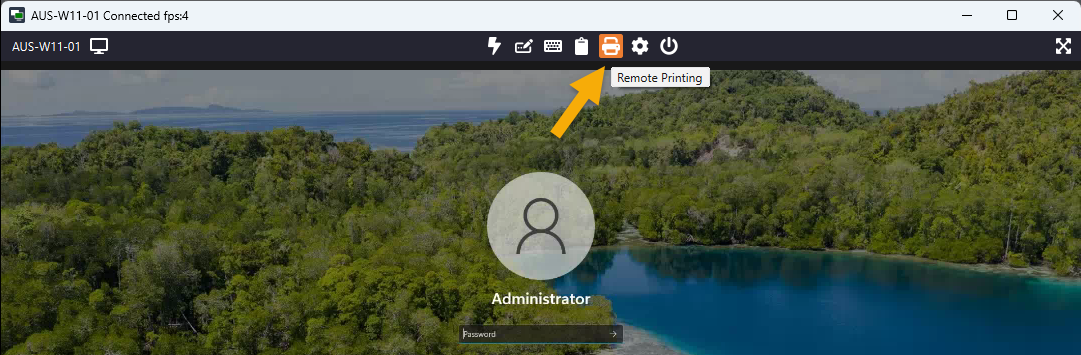
- Use the remote computer's native search function to find the "NinjaRemote" printer. You can also right-click within the session and select the Print option or use the Ctrl+P keyboard shortcut.
- In the Print Preview tool, select a connected printer.
Additional Resources
Refer to Remote Access: Resource Catalog to learn more about remote access in NinjaOne.