
Topic
This article explains the process for performing a manual backup with NinjaOne Device Backup.
Environment
NinjaOne Device Backup
Description
While NinjaOne Device Backup has robust scheduling capabilities that allow you to perform backups at a predetermined frequency, there may be times when you need to initiate a backup that you haven't scheduled in advance. NinjaOne Device Backup enables you to perform manual backups at your convenience.
Starting a Backup
You can start a manual backup directly from the NinjaOne device overview page. Follow these steps to initiate a manual backup:
- From the NinjaOne dashboard, navigate to the device overview page for the device on which you want to run the backup.
- Place your cursor over the drive icon located next to the device name to reveal a drop-down menu of the backup plan options.
- Select Run Backup Plan.
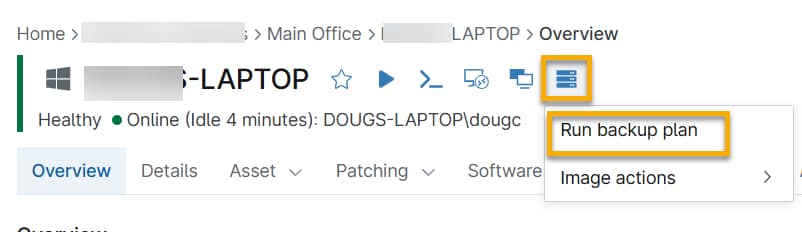
If your device is on more than one backup plan, you can select the plan you want to execute.
- Select the plan you wish to execute and click Run. The backup will begin immediately.

Running Actions
You can monitor the progress of your backup by scrolling to the Running actions section of the device overview page.
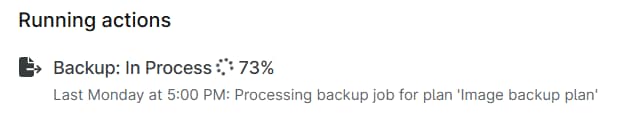
The Running actions section will display all actions currently running on the device and their current progress. It will also indicate when NinjaOne ran the last backup for the device.
Place your cursor over the actions menu to reveal the Cancel and Detail options. Refer to the following sections for a detailed description of each option.
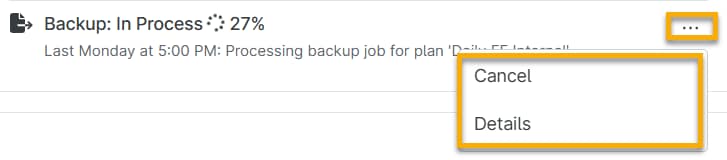
Cancel
Click Cancel to open a dialog where you can select Cancel backup to stop the backup job.
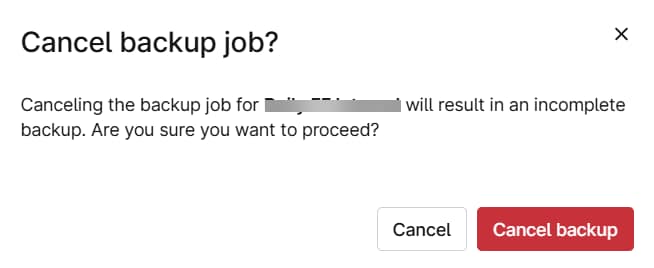
Details
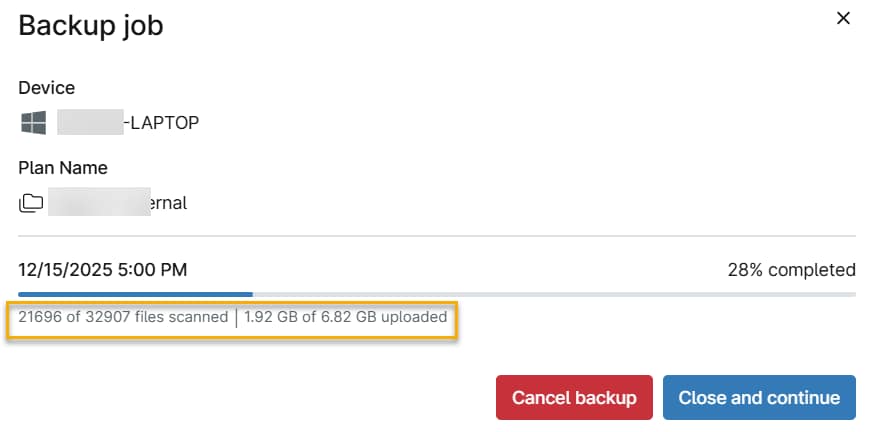
Click Details to open a dialog that displays details of the running job, including the number of files scanned and the size of the uploaded files. You can also cancel the backup from here by clicking Cancel backup.
Validation
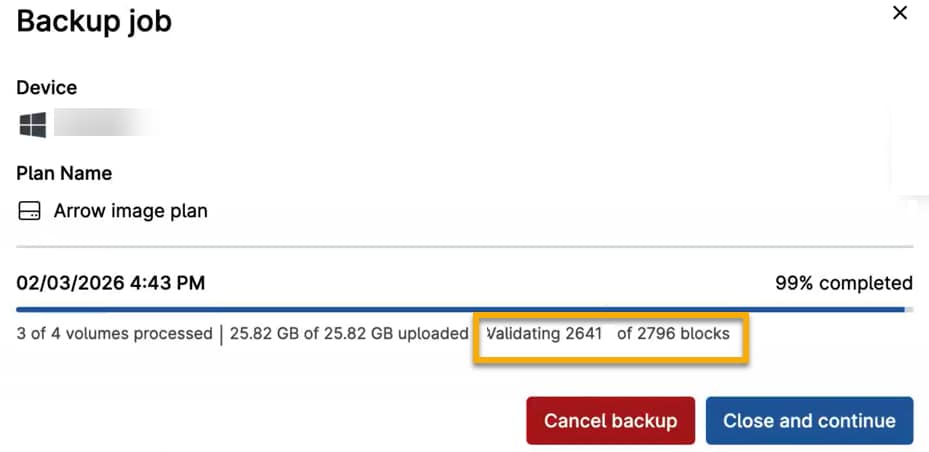
Local backups include a validation phase at the end. You'll see the progress of the validation in the dialog as it runs. Validation is only run on local backups, as cloud backups are automatically validated based on their immutability.
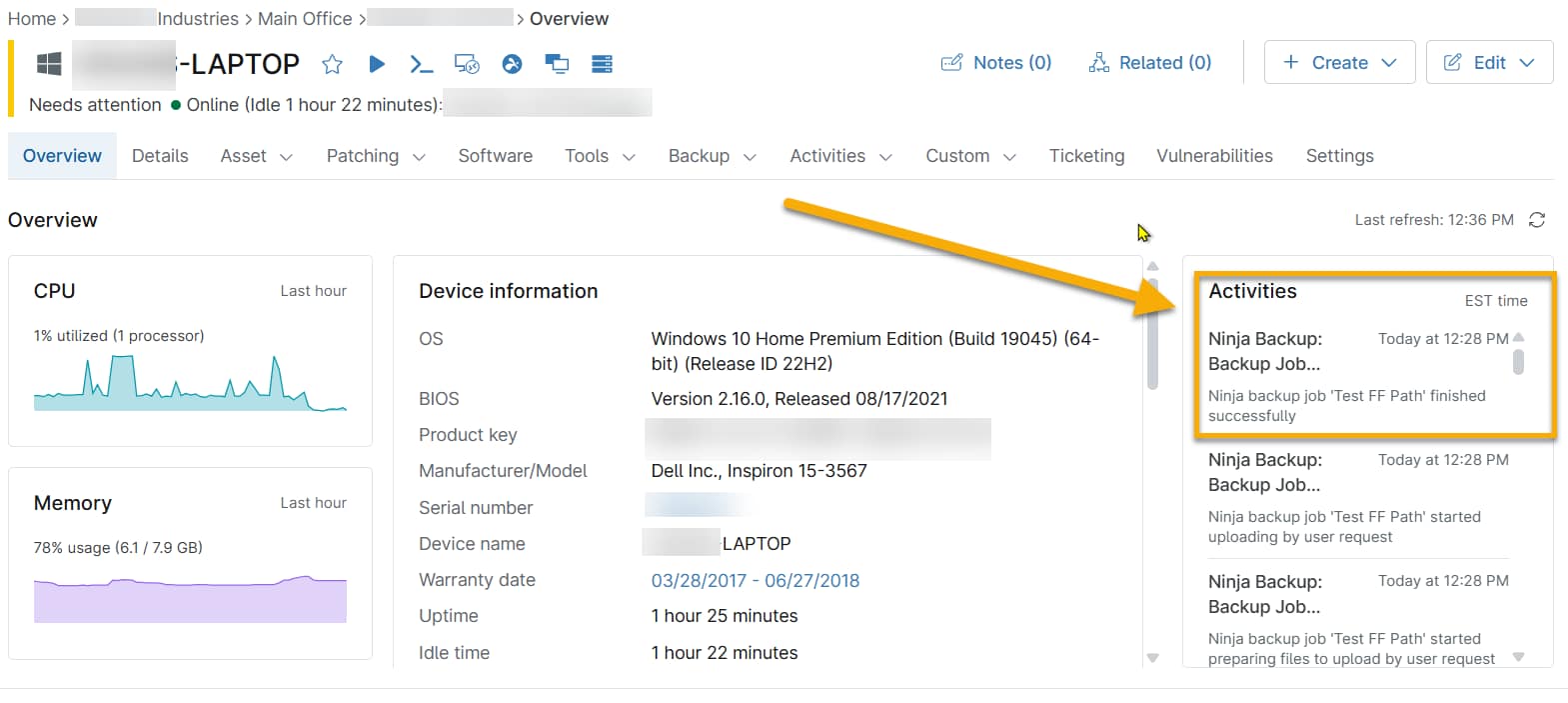
When your backup is complete, it will no longer display in the Running actions section. The backup is now available for download or restoration. NinjaOne will list the backup in the Activities section of the device overview page and on the NinjaOne Device Backup dashboards, where you can access it for downloads or restores. For more information about backup dashboards, refer to NinjaOne Device Backup: Backup Dashboards
Additional Resources
For more information about NinjaOne Device Backup, refer to these resources: