
Topic
This article explains how to connect your NMS devices through Telnet and Secure Shell (SSH).
Environment
NinjaOne NMS
Description
You can use Telnet and SSH to connect to managed devices directly from a device's dashboard.
Index
Select a category to learn more:
- Telnet and SSH Requirements
- Accessing the Command-Line
- Designating Custom Ports
- Saving a Custom Port
- Additional Resources
Telnet and SSH Requirements
To connect with Telnet or SSH:
- The device must be connected and online.
- Technicians must have device permission.
- Technicians must have a valid Telnet or SSH credential. Refer to NinjaOne NMS: Network Discovery to learn how to create new Telnet or SSH credentials.
Accessing the Command-Line
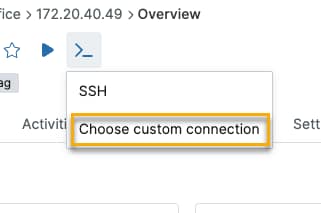
Place your mouse cursor over the command line icon and click Choose custom connection from the drop-down menu.
Designating Custom Ports
When connecting to a device, you can specify a custom port, enabling secure connections to devices that do not use standard ports. Follow the procedure below to connect through Telnet or SSH and a custom port.
- Place your mouse cursor over the command line icon and select Choose custom connection from the drop-down menu.
- The Choose custom connection dialog will open. Select the SSH or Telnet credential from the drop-down menu, then enter the port number in the Port field and click Confirm.
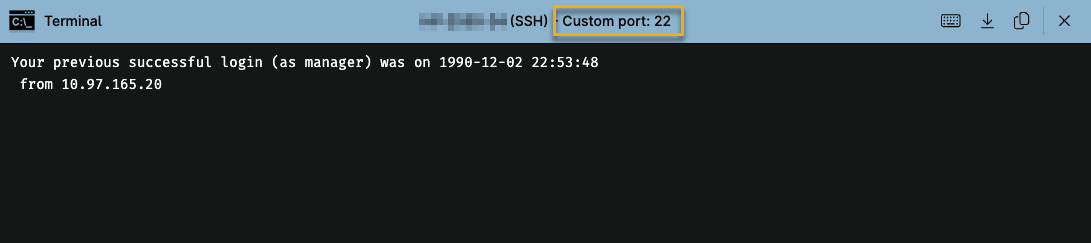
The command-line interface will open, displaying your custom port.
Saving a Custom Port
NinjaOne allows you to save custom port information as the default for future connections.
- In the device's dashboard, click the Settings tab, then click click Edit in the Credentials card.

- The Edit credentials dialog will open. In the Telnet/SSH section, select your credential from the drop-down menu, then enter the custom port number and click Update.
Additional Resources
Refer to NinjaOne NMS: Resource Catalog to learn more about managing NMS devices in NinjaOne.