
Topic
This article explains how to use the Cloud Remote Desktop Protocol (RDP) in NinjaOne.
Environment
NinjaOne Endpoint Management
Description
NinjaOne's Cloud RDP feature enables you to remotely access devices using Microsoft's Remote Desktop Protocol technology. For more information about basic architecture and RDP features, refer to Remote Desktop Protocol - Win32 apps | Microsoft Learn (external link).
Select a topic to continue:
- Rendezvous Points Allowlist Requirements
- Configure Permissions for Technicians to Use Cloud RDP
- Initiate the Remote Connection and Configure RDP
- RDP Provisioning Information
- Additional Resources
Rendezvous Points Allowlist Requirements

Grant Command Line Permissions
Navigate to Devices → Remote Tools → Command Line.
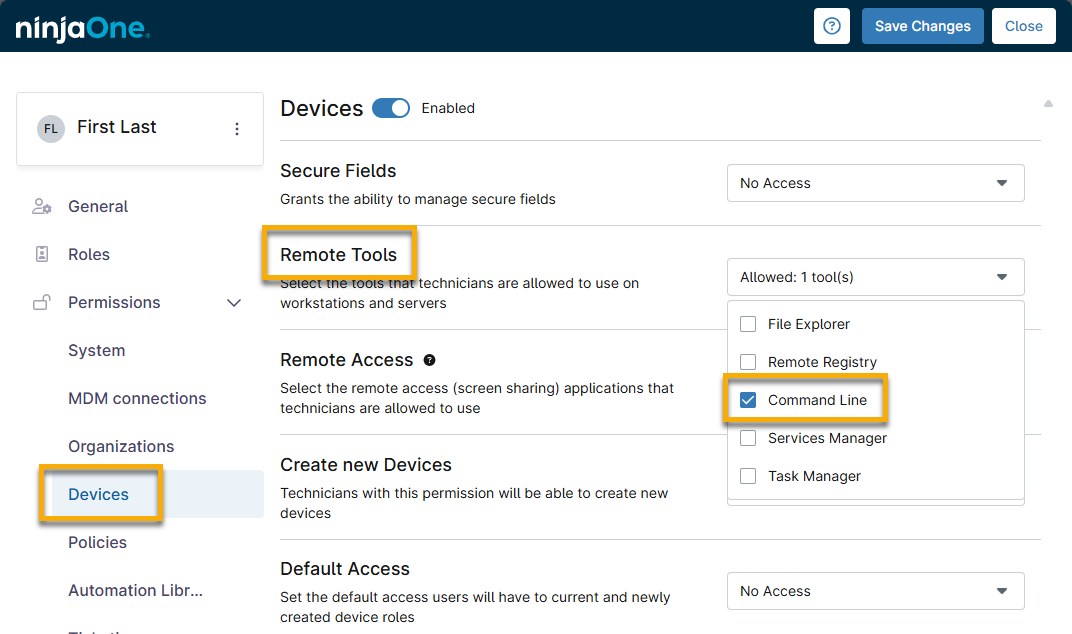
To learn more about enabling technician permissions, refer to User Roles and Permissions.
Initiate the Remote Connection and Configure RDP
To initiate the remote session, perform the following steps:
- Access the device dashboard in NinjaOne for the device you want to connect with.
- Click the remote desktop connection icon at the top of the page.

When the Remote Desktop dialog appears, use the following table to customize your connection, and then click Connect:
Field Description Credential This setting allows you to choose whether to pass credentials to the device for RDP access. You have two options:
- None: No credentials are passed for the session.
- RDP access credential: The assigned default credentials for RDP access are passed for the session. Default credentials are assigned from the organization settings, but can be overridden for a specific device under its Settings tab. For more information, refer to our documentation about Credential Exchange.
The Administrative session checkbox allows you to log in with administrative credentials, which grant elevated privileges to perform system-level tasks. If you do not have Administrator credentials, refer to the Connecting with Non-Administrator Credentials section of this article.
Gateway This setting selects the gateway region with which to to connect. "Auto" is selected by default, but you can also specify one of the five available gateway regions. Connection These settings allow you to specify numerous options about your RDP connection. There are four preset configurations: Custom, Performance, Standard, and Multimedia. Selecting any option other than Custom automatically configures the recommended settings for that type of connection. You always have the option to customize the settings beyond the automated recommendations.
The Connection configuration settings are divided into the General, Local Resources, and Experience tabs. Click each of these tabs to see additional customization options.
Provision This setting indicates if the device is provisioned for RDP access. If it is, you will see a message that says, "Machine is ready to accept RDP connection." If you do not select the Configure RDP automatically option, NinjaOne does not alter the device's configured settings.
If the device is not currently provisioned for RDP access, you will see a message that says "Provision RDP access" with a checkbox. Enabling this option and clicking Connect provisions the device to allow RDP access. Refer to the following section of this article for more information.
Connecting with Non-Administrator Credentials
If you use standard user credentials, Windows may prompt you to enter credentials again after the connection initiates. To prevent this, the device's Windows Remote settings must be configured to explicitly allow the standard user account.
- In Windows, navigate to System → Remote Desktop → Remote Desktop Users and add the user account.
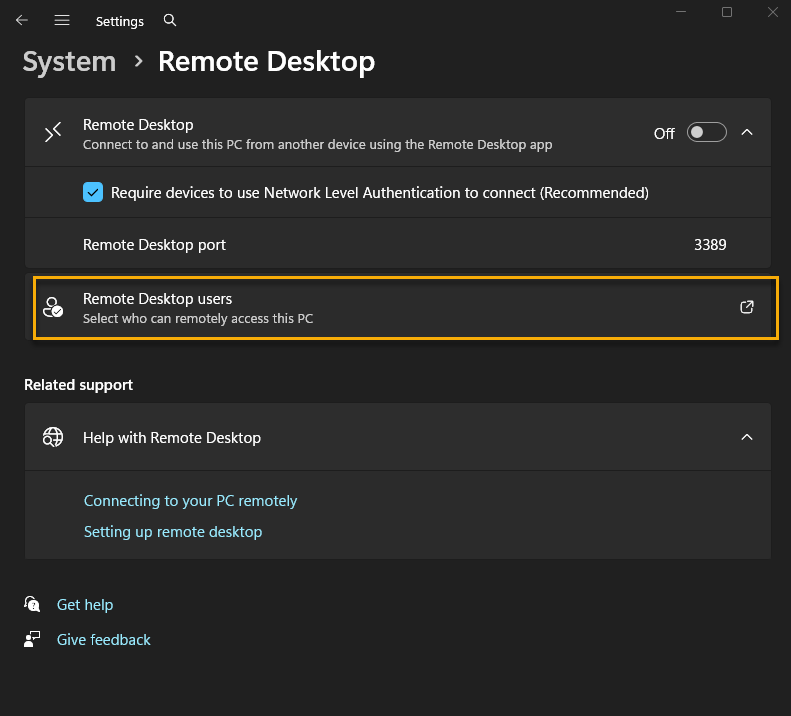
- The Remote Desktop Users window will open. Click Add, then click OK.
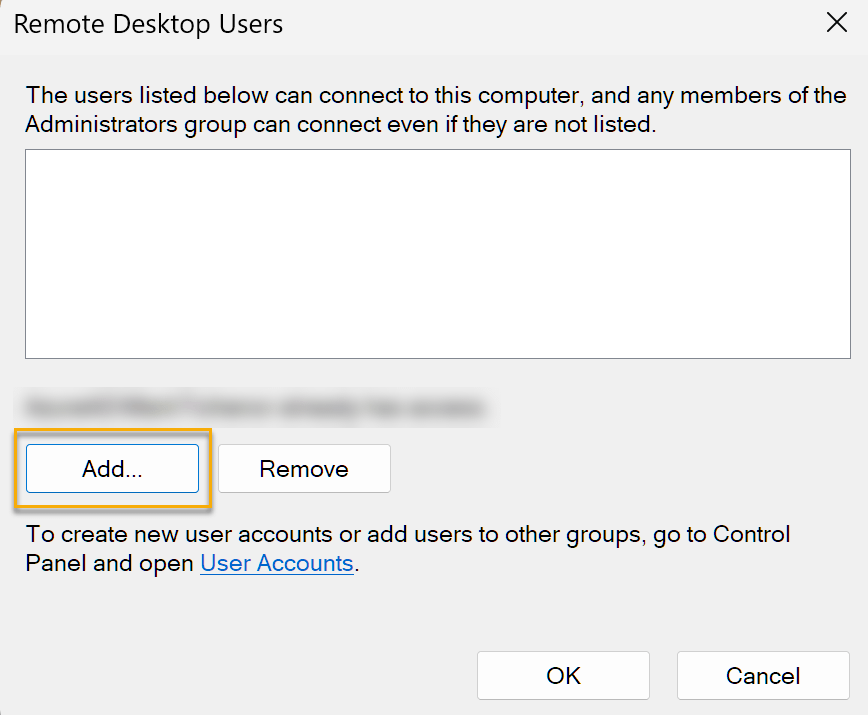
- Enter the user information and click OK.
RDP Provisioning Information
When NinjaOne provisions a device for RDP access, two changes are made on the device:
- The service Remote Desktop Services starts.
- The Allow remote connections to this computer radion button is selected and the Allow connections only from computers running Remote Desktop with Network Level Autnentication (recommended) checkbox is cleared.You can find this setting locally on the device by navigating to Control Panel → System and Security → System → Remote Settings.
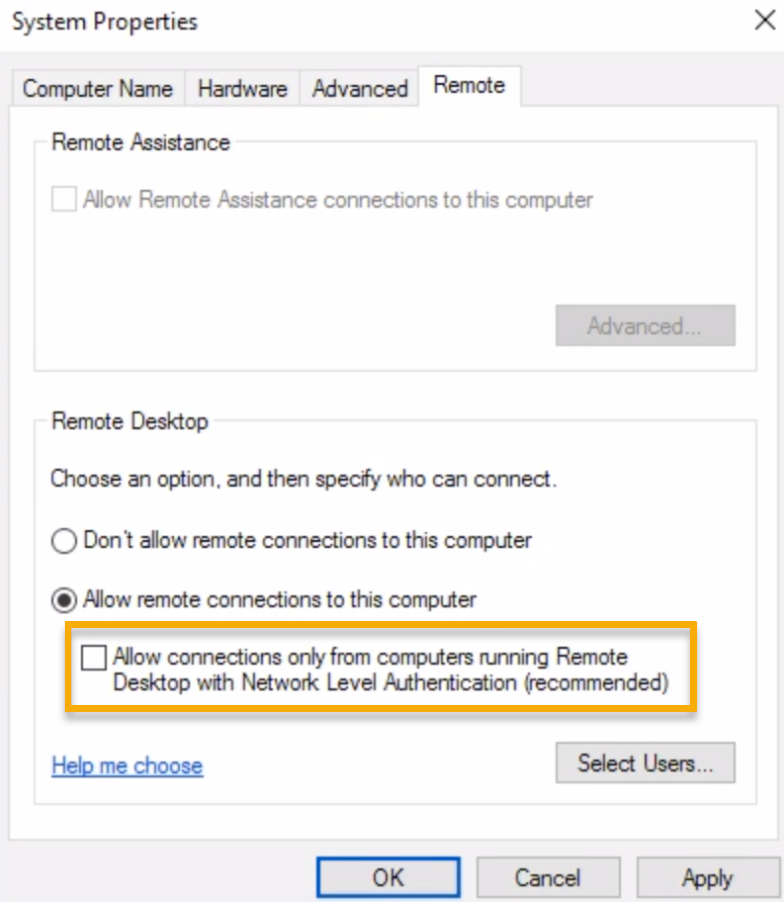
After you provision a device for RDP access, RDP remains enabled after you end your session. If you wish to de-provision a device for RDP access, you must do so locally on the machine.
Additional Resources
For a list of frequently asked questions regarding Cloud RDP, refer to Remote Desktop Protocol: Frequently Asked Questions.