
Topic
This article explains how to configure a Microsoft Windows device to accept deployment of the NinjaOne Windows agent via the NinjaOne Network Management System (NMS).
Environment
NinjaOne Network Management System (NMS)
Description
Windows Management Instrumentation (WMI) allows NinjaOne to discover and monitor Windows devices remotely, using Distributed Component Object Model (DCOM) for communication. This article describes how to configure WMI and DCOM on a target Windows device and verify that remote WMI connections are working correctly.
Index
Prerequisites
Ensure your environment meets the following prerequisites before beginning this procedure:
- Firewalls between the client and target device must allow Transmission Control Protocol (TCP) port 135 access.
- Intervening firewalls must allow dynamic Remote Procedure Call (RPC) port traffic.
- Valid Windows credentials are available for authentication (Kerberos or NT LAN Manager [NTLM]).
- The Windows Management Instrumentation and DCOM Server Process Launcher services are running.
- The Windows Management Instrumentation (WMI-In) and Windows Management Instrumentation (DCOM-In) firewall rules are active.
- If using a non-domain local administrator account, Remote User Account Control (UAC) restrictions must be deactivated, and the user account used for remote access must be a member of the local Administrators group.
Configure and Verify Services and Connections
This first step in the device configuration process ensures the following:
- The Windows Management Instrumentation and DCOM Server Process Launcher services are running.
- The Windows Management Instrumentation (WMI-In) and Windows Management Instrumentation (DCOM-In) firewall rules are active.
- UAC restrictions are deactivated (if using a non-domain, local administrator account).
The following steps are for manual configuration. You can run the script in the System Preparation PowerShell Script section of this article to automate these steps.
Verify the WMI Service
To complete this procedure, the WMI service must be running. Perform these steps to verify.
- On the target device, click the Start menu, type services, and open the Services window.
- Locate the following services in the list and confirm that the Status column shows Running, the Startup Type is Automatic, and the Log On As column shows Local System:
- DCOM Server Process Launcher
- Windows Management Instrumentation
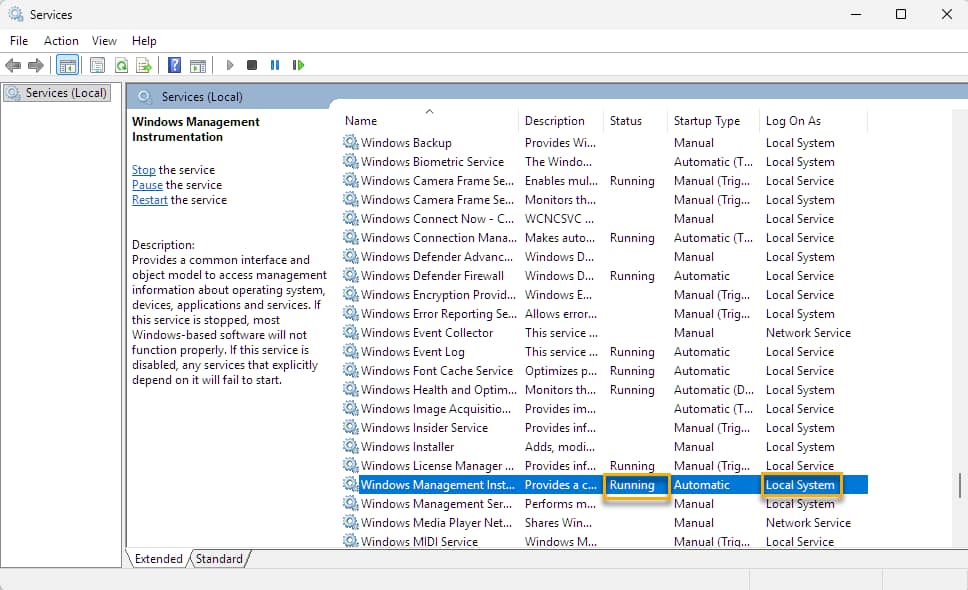
Activate Required Firewall Rules
- Click the Start menu, type Windows Defender Firewall with Advanced Security, and press Enter.
- In the left section of this window, click Inbound Rules, then activate the following rules:
- Windows Management Instrumentation (WMI-In)
- Windows Management Instrumentation (DCOM-In)
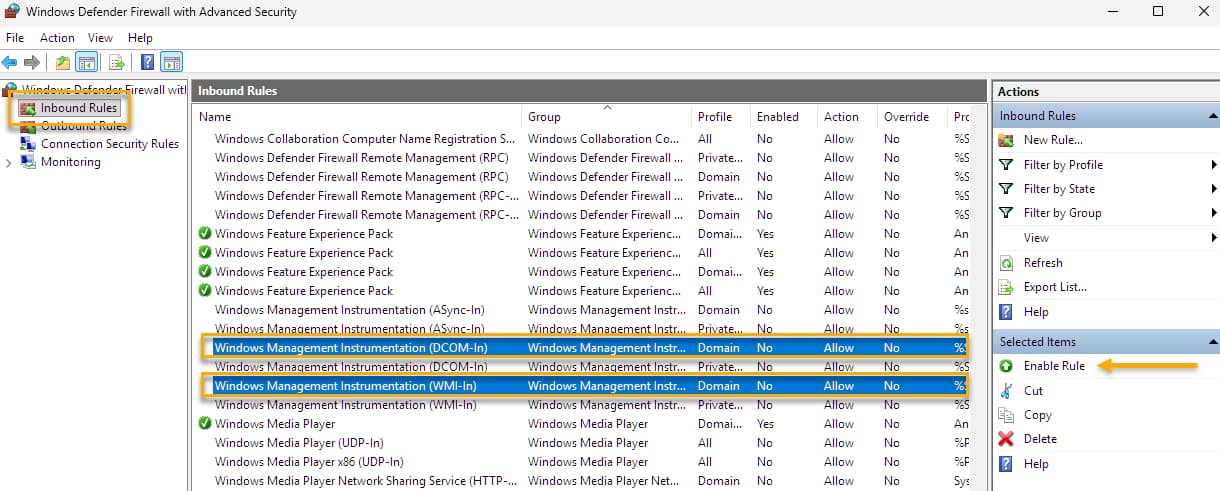
Deactivate Remote UAC Restrictions (Local Accounts Only)
Perform this step only when using local administrator accounts on Windows workstations. To allow remote WMI administrative access, you must create a value in the Windows Registry.
- Open the Start menu, type Registry Editor, and press Enter.
- Navigate to the following key:
HKLMSOFTWAREMicrosoftWindowsCurrentVersionPoliciesSystem. - Right-click a blank area of the Registry and select New → DWORD (32-bit) Value. The new value will appear as an entry in the value list.
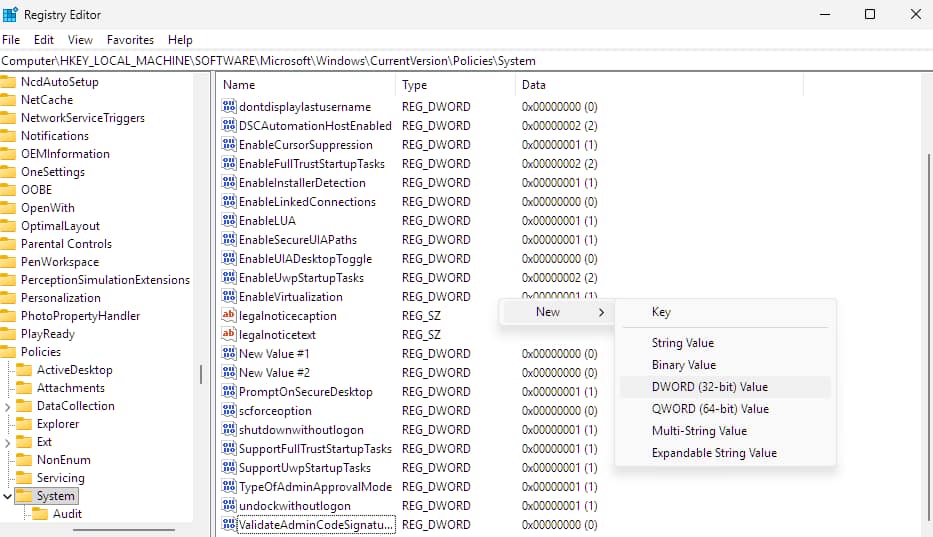
- Double-click the new value and configure the following settings:
- AssignName: LocalAccountTokenFilterPolicy
- Value data: 1
- Restart the target device.
System Preparation PowerShell Script
You can run a PowerShell script to perform these configuration steps.
<# This script activates firewall rules for WMI-In and DCOM-In and deactivates UAC remote restrictions for local accounts in the registry.
The script requires an elevated PowerShell session. #>

netsh advfirewall firewall set rule name="Windows Management Instrumentation (WMI-In)" new enable=yes profile=any
netsh advfirewall firewall set rule name="Windows Management Instrumentation (DCOM-In)" new enable=yes profile=any
Set-ItemProperty -Path "HKLM:SOFTWAREMicrosoftWindowsCurrentVersionPoliciesSystem" -Name "LocalAccountTokenFilterPolicy" -Value 1 -Type DWord -Force
Test Local WMI Access
Successful execution of this test confirms:
- WMI connectivity.
- Authentication.
- DCOM communication.
- Remote query execution permissions.
Test Connectivity
- Click the Start menu and type
wbemtest, then press Enter. - The Windows Management Instrumentation Tester will open. Click Connect.
- The Connect window will open. In the Namespace field, enter the following, replacing [TARGET_IP] with the IP address or hostname of the remote system:
\[TARGET_IP]rootcimv2. If the connection succeeds, the WMI Tester window will open successfully.
Run a Test Query
In the WMI Tester window, enter the following query and click Apply: SELECT * FROM Win32_BIOS. If the query returns BIOS information, remote WMI access will be functioning correctly, and the device will be properly configured for NinjaOne Windows agent deployment.
Additional Resources
NinjaOne NMS: Deploying the NinjaOne Agent to Discovered Windows Devices