

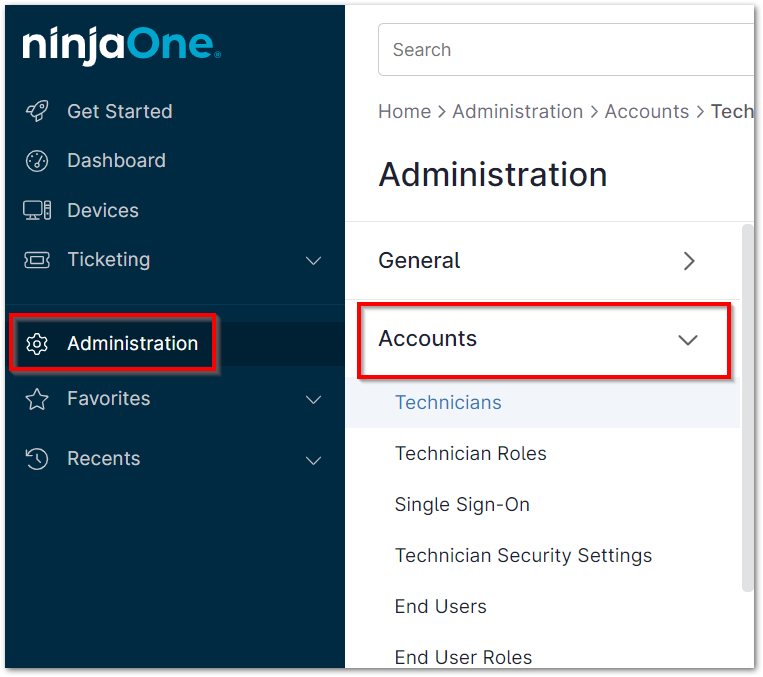
To configure user idle warning, navigate to Administration > Accounts, and in the Technicians tab, you can select the technician whose user idle warning time frame you'd like to change.
Once in the user editor, open the Display tab under General and use the User Idle Warning drop-down to adjust the time to your preference.

If the session activity goes stale, a 5-minute auto-logout countdown begins. After this countdown, the user will be automatically signed out if they are still inactive.
Important Notes:
- The default User Idle Warning is 1 hour.
- The selected User Idle Warning time frame is applied when NinjaOne is open in a browser (even if the tab is inactive).
- As a best security practice, manually logging out of NinjaOne when you are no longer using the app is still recommended.
- If the User Idle Warning is set to OFF, the user will not receive an idle warning, but the user's NinjaOne session will still expire after 24 hours.