
The ConnectWise Control (ScreenConnect) integration allows you to seamlessly initiate remote connections via your existing ConnectWise Control account without having to leave your NinjaOne console. It is separate from ConnectWise Manage (PSA), which NinjaOne also offers as an integrated tool for ticketing, PSA, and project management.
Important Note: The ConnectWise Control integration is compatible with Windows, Mac, and Linux devices.
Table of Contents:
Prerequisites:
- You must have an existing ConnectWise Control (ScreenConnect) account.
- You must also be logged into your ConnectWise Control account.
- This integration works with cloud-hosted instances of ConnectWise Control only.
- All devices that you wish to connect to using the integration must:
- Have the ConnectWise Control client installed.
- Be under the same ConnectWise Control instance.
- Be under the All Machines session group in ConnectWise Control.
- If your instance of ConnectWise Control does not have session group named All Machines, you can create one by clicking Create Session Group at the bottom of the Access module in the ConnectWise Control interface.

- If your instance of ConnectWise Control does not have session group named All Machines, you can create one by clicking Create Session Group at the bottom of the Access module in the ConnectWise Control interface.
Enable the ConnectWise Control Integration:
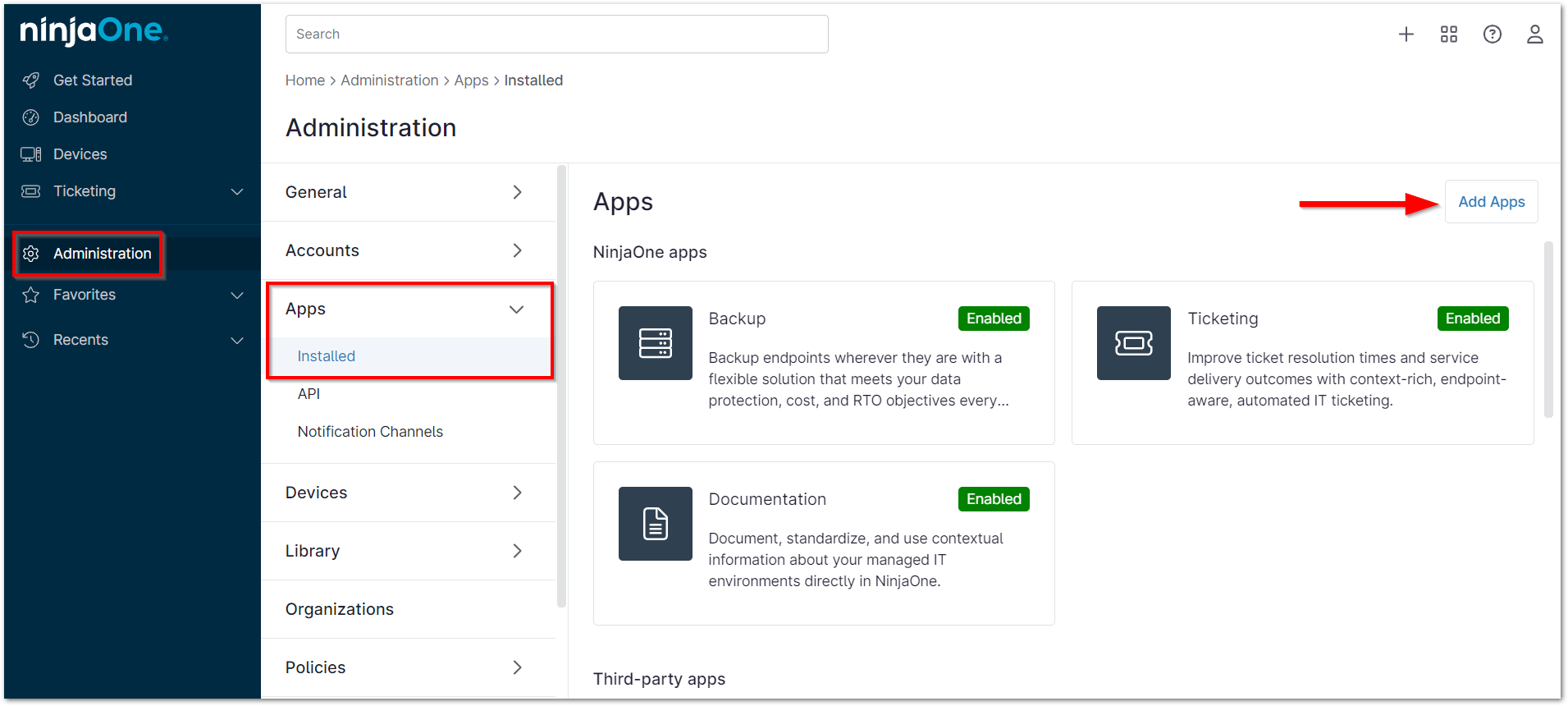
- Navigate to Administration > Apps and click on the Add Apps button. Then locate and select ConnectWise Control from the list of apps.
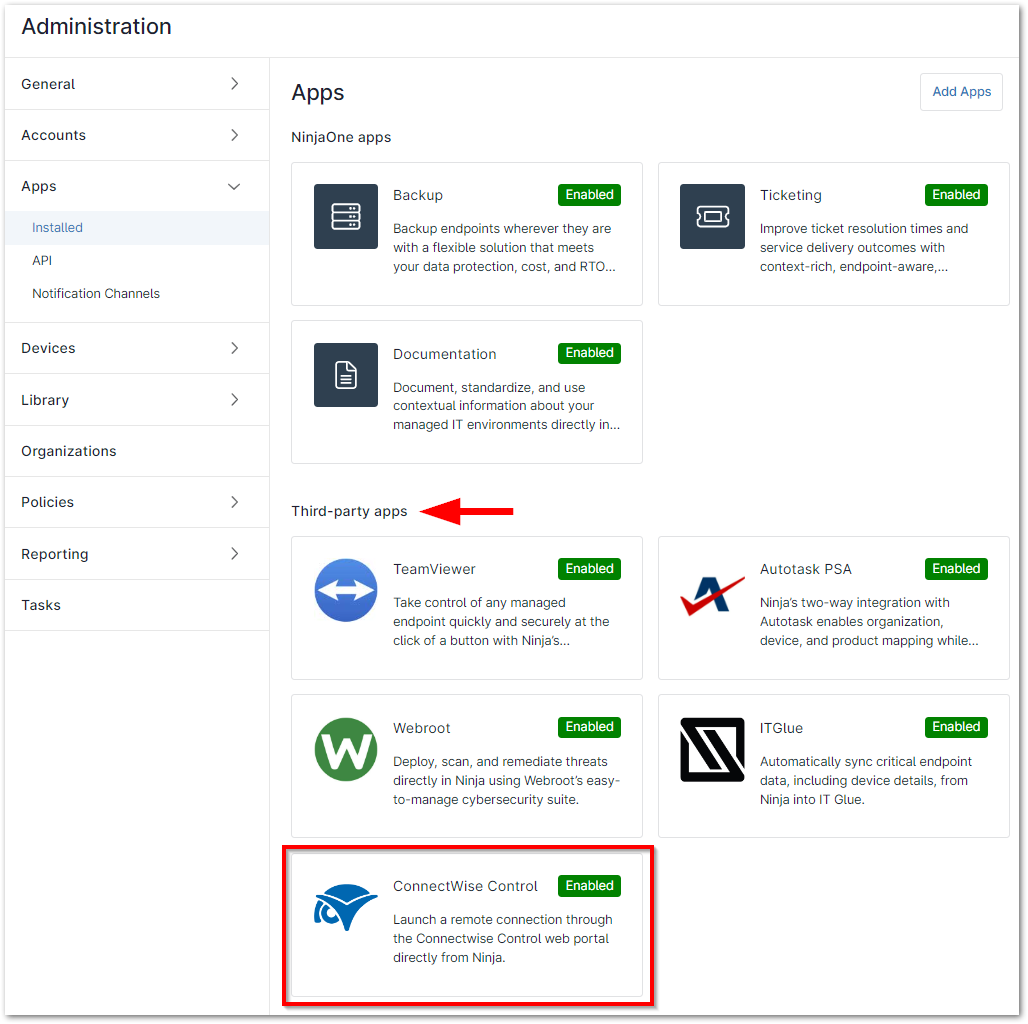
- Once ConnectWise Control is added, you'll find it grouped with the third-party apps.
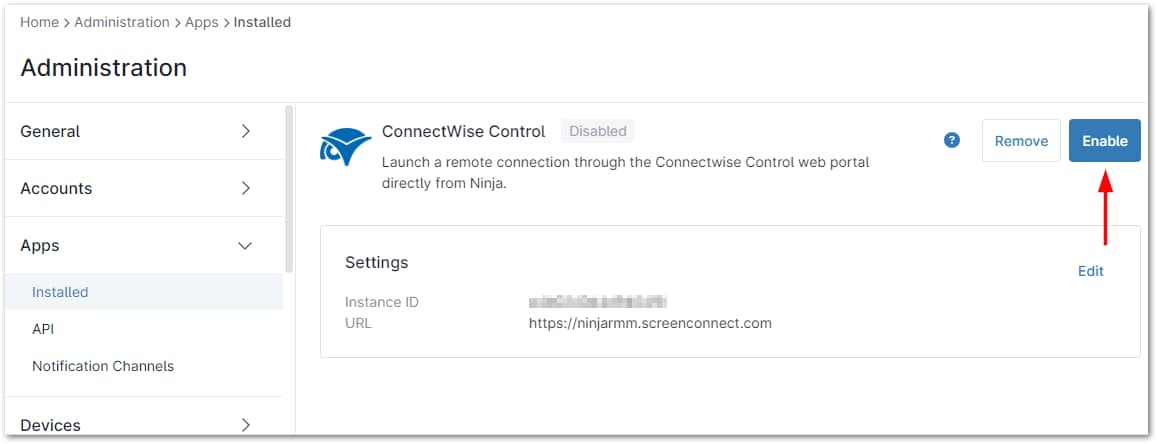
- Click ConnectWise Control. In the resulting window, change the status to Enabled.
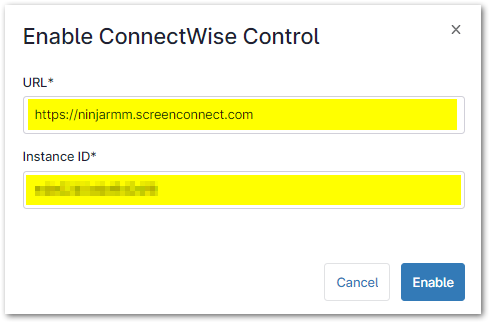
- Once you enable ConnectWise Control, you will be prompted to set the Instance ID and URL. When you are ready, click Enable.
Notes:
- The URL must begin with "https://". You can find the URL in the address bar of your ConnectWise ScreenConnect Client instance.

- You can find your Instance ID under the listing for the ScreenConnect Client service on a Windows machine that has your ScreenConnect Client installed.
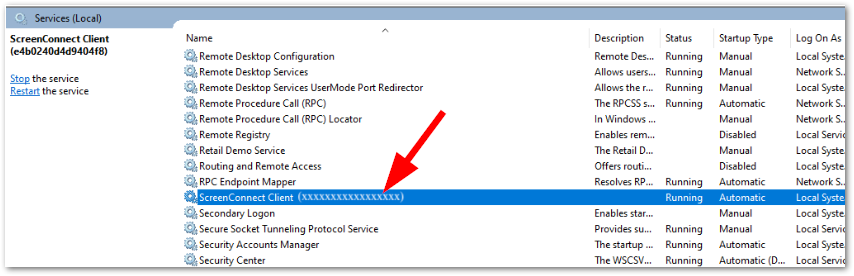
- On a Linux device, the ScreenConnect Client service is called Connectwisecontrol. You can find the instance ID under "Connectwisecontrol-[INSTANCEID]".
- You will see that the integration page lists a status of Enabled, in addition to the URL and ID that you entered.
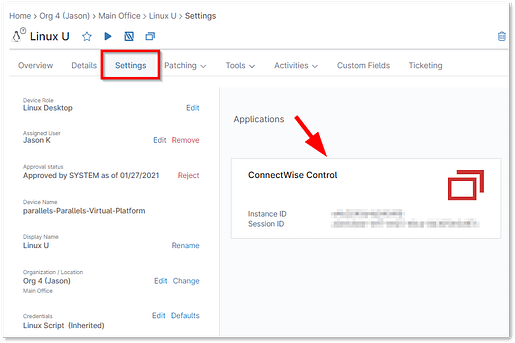
- Any devices that have the ConnectWise Control client installed under the Instance ID that you provided will show a new ConnectWise Control module under the device Settings tab indicating that the integration is enabled.
Connect to Devices:
- Navigate to the device you would like to initiate a ConnectWise Control session within your NinjaOne environment and click the ConnectWise Control icon (
 ).
).
This opens a session in a new tab in your ConnectWise Control environment. If you are not logged in, you will be prompted to do so, and the session will be launched.
An entry in the Activity Feed is generated whenever a NinjaOne user attempts to initiate a ConnectWise Control connection.