

The Migration Tool allows the ability to download created templates in NinjaOne Documentation. Downloaded templates can then be imported into other environments or documentation tools.
Import Documents from CSV:
The "Import Document(s) from CSV" option allows you to import data using a template downloaded from the NinjaOne platform. With the CSV format, you can select an existing template to fill out and enter multiple rows of data, instead of filling out the same template multiple times.
Important Notes:
- CSV format does not use the custom field types; for example, if the custom field is a drop-down, you will not be able to use the drop-down in the CSV file.
- Documents cannot be updated via templates.
- Uploaded CSV files must match the template they are being uploaded to.
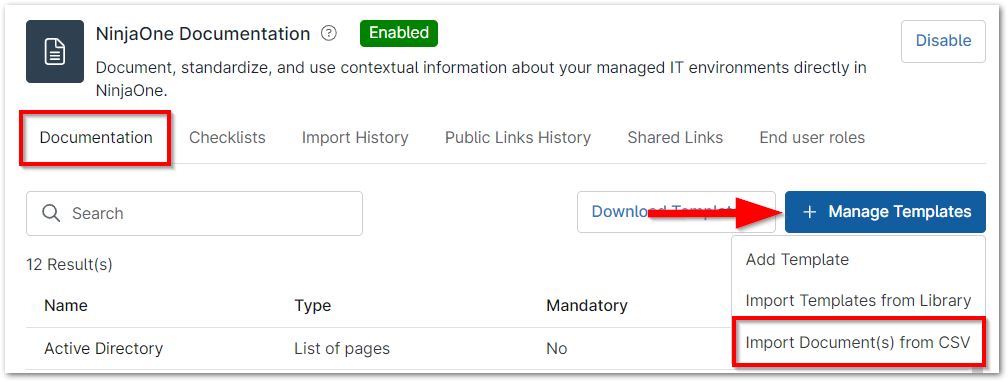
- To use the import wizard, navigate to Administration > Apps > Installed > and then click on Documentation.

- Under the Documentation tab, click Manage Templates and select Import Document(s) from CSV.
The Import Wizard modal displays. - Select the Template Type you want to use. These templates include both templates imported from the NinjaOne library and those created from scratch.
- Once a template has been selected, the option to download that template as a CSV file will become available.

- Use the downloaded template to fill out your data and then save locally.
- To import the data, use the "drag and drop" field for the CSV file you just modified or click Browse Files to locate the file. Once the file has been selected, click Preview.
- If errors are found on the imported CSV, these will be captured during the preview. Click Re-Upload after making corrections to the local file to reattempt import.

- Lastly, click Save Changes at the top of the preview page to complete the import.
Import History:
The Import History will show a list of documents which have been imported via an uploaded CSV file.
- Navigate to Administration > Apps > Installed > and click on Documentation.
- Open the Import History tab.
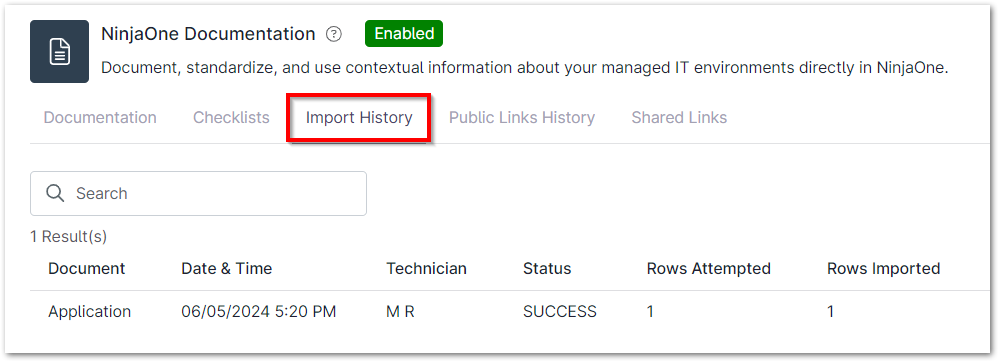
- View information about previous imports broken down by Document, Date & Time, Technician, Status, Rows Attempted (i.e., number of rows submitted for import), Rows Imported (i.e., number of rows successfully imported).