
Efficient macOS patch management is essential for IT teams to maintain security, stability, and compliance across their Apple devices. macOS patch management software automates updates, minimizing vulnerabilities and keeping systems up to date without disrupting end users. Traditional patch management for macOS devices can be complex and time-consuming, especially in environments with both macOS and Windows endpoints.
NinjaOne offers a powerful, automated mac patch management software solution that simplifies the entire patching process. With NinjaOne, IT administrators can deploy macOS updates, enforce patching policies, and monitor compliance from a single, centralized platform. This ensures that organizations have a proactive and efficient macOS patcher that streamlines patch management for macOS devices while reducing manual workload.
System Requirements
- macOS patching is compatible with systems running macOS Catalina or newer.
- Unlike Windows, macOS updates require a reboot to be applied.
- Updates won’t queue up waiting for a reboot—if a reboot is needed, no further patches will install until it’s completed.
macOS Patching Credentials
- Due to Apple’s security model, patching macOS requires a local account with secure token privileges (volume ownership).
- These permissions can be granted to either standard or admin accounts.
- To configure credentials:
- Go to the Administration section in the left menu and open Organizations.
- Click the three-dot menu next to the organization you want to edit.
- Choose Edit.

- In the left menu, select Credentials.
- Switch to the Defaults tab.
- Set up the macOS patching credentials.
- Click Save to apply the changes.
Enable and Configure macOS Patch Management
- Open the policy editor for the Mac policy you want to modify (Administration > Policies).
- In the left panel, select macOS Patching.
- Toggle the Enabled switch on.
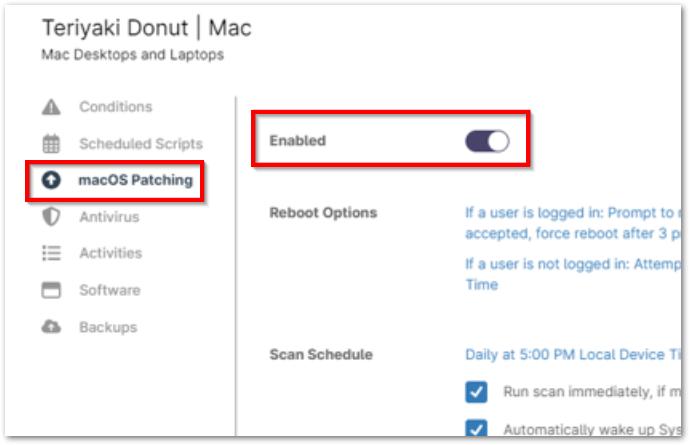
- Set up the Scan Schedule and Update Schedule according to your needs.
Reboot Options
- Under Reboot Options, configure how and when devices should restart after patching.
- For users not logged in:
- Reboot immediately: The device will reboot immediately.
- Attempt to reboot until successful: Schedule repeated reboot attempts (daily, weekly, or at intervals).
- For users logged in:
- Prompt to reboot until accepted: Prompt the user repeatedly until they accept the reboot, with an option to force reboot after a set number of prompts.
- Notify user then reboot: Notify the user before rebooting after a specified delay.
- Set a custom Reboot Dialog: You can also customize the reboot message shown to users.
- Automatically reboot: Automatically reboot after a defined time.
Note: There is no “do nothing” option for reboots—macOS requires a reboot before patches can be installed.
Policy Scheduling
- There are two types of schedules:
- Scan Schedule: When the system checks for available patches.
- Update Schedule: When patches are downloaded and installed.
- You can enable the option to run missed scans or updates immediately when the device comes online.
- Default scan time is 8:00 AM local time, and default update time is 5:00 PM.
- Scheduling options include:
- Daily
- Weekly
- Monthly (by day of month)
- Custom (select month and weekday)
- On system startup
- None (for ad-hoc scans)
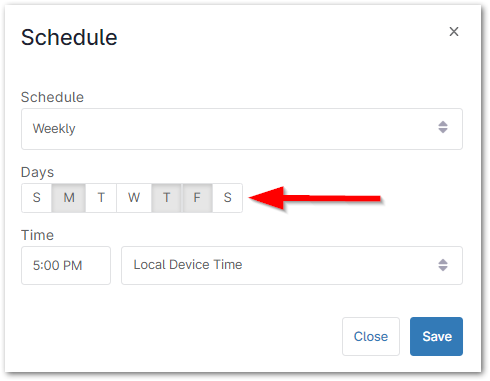
- For recurring schedules, you can set a time limit for how long the scan or update should run.
- Weekly schedules require at least one day to be selected.
Approvals
- Configure how patches are approved based on their classification:
- Critical: High-risk vulnerabilities that could be exploited remotely or compromise system integrity.
- Unassigned: Security updates without a defined severity level.
- Hover over the info icon next to the approval settings for more details.
- Choose to approve or reject patches in each category.
- Click Save to finalize your settings.
Running a macOS Patch Cycle on Demand
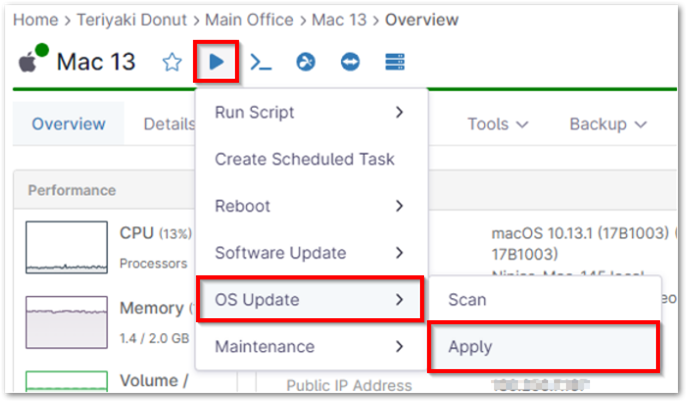
- Locate a device that has macOS patching enabled via its policy.
- Hover over the action/play icon and select OS Update from the menu.
- Click Apply to initiate the patch installation process.
The Benefits of Using NinjaOne for macOS Patch Management
1. Automation and Efficiency
NinjaOne eliminates the need for manual macOS updates, ensuring IT teams can focus on strategic initiatives instead of routine maintenance. Automated mac patch management software ensures patches are applied without requiring user intervention.
2. Centralized Patch Deployment
With NinjaOne, IT teams manage patching across all endpoints—including macOS, Windows, and Linux—through a single pane of glass.
3. Minimized Security Risks
By ensuring macOS devices receive timely security updates, NinjaOne reduces vulnerabilities and strengthens endpoint security.
4. Flexible Scheduling and Control
NinjaOne provides granular control over patch deployment, allowing teams to define update schedules that align with business needs while minimizing downtime.
Best Practices for macOS Patch Management with NinjaOne
1. Define Patch Approval Rules
Set up policies that differentiate between critical security updates and feature updates. Auto-approving security patches ensures rapid deployment.
2. Schedule Patching During Off-Hours
Reduce disruption by deploying updates when macOS devices are least in use.
3. Test Updates Before Broad Deployment
For mission-critical environments, test patches on a small subset of macOS devices before organization-wide rollout.