
Topic
This article explains how and in which scenarios to use the NinjaOne Agent Deployment by AD Immediate Scheduled Task GPO automation script in the NinjaOne Automation Template Library.
Environment
- NinjaOne Endpoint Management
- Microsoft Windows
Description
NinjaOne offers an Active Directory (AD) Discovery and Deployment feature that simplifies agent deployment in AD domain-controlled environments. Refer to NinjaOne Endpoint Management: Active Directory Discovery and Deployment to learn more about this option.
Alternatively, you can use a domain-based agent deployment model that uses an immediate scheduled task Group Policy Object (GPO). It may be more appropriate to use this model if at least one of the following scenarios applies:
- You need to deploy the agent to remote laptops and similar devices that connect to the network via a Virtual Private Network (VPN).
- You have a larger domain with a large number of Organizational Units (OUs) containing your computer objects, or you need to deploy to multiple OUs simultaneously.
- You would like to deploy the agent to your computer objects based on security group membership rather than by OU.
- You would like to register computer objects in different OUs or security groups to different locations within NinjaOne.
- You need to push the agent to computer objects on a more frequent basis than once daily, weekly, or monthly.
- Your computer objects route through to the internet via a proxy.
- You cannot hook NinjaOne into your Domain Controller (DC) for security reasons.
- You do not have direct access to the DC and instead administer the domain via the Remote Server Administration Tools (RSAT).
- You need to deploy to both servers and workstations simultaneously.
- You need to deploy to computer objects in different network segments irrespective of the one in which the DC resides.
To use a domain-based agent deployment model with GPO, access the automation script available in the NinjaOne Template Library called NinjaOne Agent Deployment by AD Immediate Scheduled Task GPO. Refer to Automation Library: Template Scripts for navigation steps.
Index
Select a topic to learn more:
- Additional Features and Benefits
- Prerequisites, Custom Fields, and Script Variable Values
- Automation Script Processes
- How to Edit the NinjaOne GPO Target List Custom Field
- How to Obtain the Location Token ID
- Additional Resources
Additional Features and Benefits
In addition to the use cases described in the Description section of this article, this script offers the following features and benefits:
- The GPO generated by the automation is an immediate scheduled task. The task will apply immediately on the next automated or manual Group Policy refresh, so you do not need to restart your endpoints to deploy the NinjaOne agent. The task will reapply continuously on every automated or manual Group Policy refresh thereafter until the agent is successfully deployed. The task will also apply to remote devices, such as laptops, whenever they connect to the network, whether through a VPN or otherwise, and subsequently to the DC, without the need for an "always-on" VPN.
- The process will automatically download the generic agent installer file from the NinjaOne platform on which the endpoint running it is registered, and verify the digital signature.
- This automation is fully compatible with Microsoft Entra Domain Services environments, and there is no need to keep a management server online permanently. It will save all files required by the GPO in the Group Policies store.
- Note that this script is not compatible with Microsoft Entra ID or Microsoft Intune. For instructions to deploy via Intune, refer to NinjaOne Agent Installation: Deployment via Microsoft Intune.
- Where applicable, NinjaOne will pass the proxy password to the automation via a secure custom field and only store it in an encrypted state, and only within the immediate scheduled task on the DC. The GPO will pass the encrypted password to the endpoint as a PowerShell script argument, so it will never be stored on the endpoint and will never be stored anywhere in plain text.
- The script fired by the GPO has the following characteristics:
- It will detect if the NinjaOne agent service is installed on the endpoint and only try to install the agent if the service is not found. The script will detect and remove any remnants of previous failed installations or uninstalls to maximize the likelihood of a successful deployment.
- It will check the header of the current agent installation file from NinjaOne (it will only download the header, not the whole file) to determine if an update is available, and will download and verify it if so. This ensures your endpoints will not install an outdated agent only to immediately update themselves.
- It can optionally write events to the Windows Event Log for ease of troubleshooting and diagnosis of failed deployments.
- As a security precaution, the automation script will store the references to OUs or security groups used to determine the location token ID as Globally Unique Identifiers (GUIDs), not plain-text names.
Prerequisites, Custom Fields, and Script Variable Values
The NinjaOne Agent Deployment by AD Immediate Scheduled Task GPO automation will assume you have activated agent tokenization, as it will use the token IDs to determine the location to which the endpoints will register. Refer to NinjaOne Platform: Agent Tokenization for more information about agent tokenization.
Depending on your access privileges within the domain, you may run this automation script on any DC or on any domain-joined computer with the RSAT Active Directory and RSAT Group Policy optional Windows features installed and active.
If your domain configuration prevents the local DC System account from making domain-level changes, run the automation by using credentials with the appropriate privileges. These changes include creating and importing GPOs, reading AD objects, and reading from and writing to the System Volume (SYSVOL) share. For more information about using credentials in NinjaOne, refer to NinjaOne Endpoint Management: Credential Exchange.
If you will be reading from or writing to custom fields, you need to run the automation with credentials that can be elevated to do so.
NinjaOne. If the script detects these GPOs, it will immediately fail.The automation script will write the files it requires to the {[Your GPO GUID]} folder within the Policies folder of the SYSVOL share. This share will replicate to all other DCs automatically with no need for any additional Windows features such as Distributed File System (DFS) replication, so the DC you run it against is arbitrary for multi-DC domains.
Custom Fields Used for Automation
The automation script may use any or all of the following custom fields. These custom fields are optional, depending on your requirements.
| Name | Type | Scope | Permissions | Description |
|---|---|---|---|---|
| NinjaOne Location Token ID | Text | Organization, Location | Technician access: Editable Automations: Read-Only | This field contains the location token ID for the location the devices will register into, if not declared by the script variable. For details on how to obtain the location token ID, refer to the section of this article titled How to Obtain the Location Token ID. |
| NinjaOne GPO Target List | WYSIWYG | Device | Technician access: Editable Automations: Read/Write | If Target Scope is set to OUs or Security Groups, this field contains the list of OUs or security groups to configure or target, together with their respective location token IDs. NinjaOne will not use this field for any other Target Scope. |
| NinjaOne GPO Hostname List | WYSIWYG | Device | Technician access: Editable Automations: Write Only | If Target Scope is set to OUs or Security Groups, this field contains the list of computer object hostnames within the targets. NinjaOne will not use this field for any other Target Scope. |
| Proxy Password | Secure | Organization, Location | Technician access: Editable Automations: Read-Only | For proxy connection, this field contains the proxy credentials password if applicable. |
For large-scale deployments, it may be useful to populate the NinjaOne Location Token ID custom field at scale by using a comma-separated value (CSV) import file. You can find instructions to do so in our Script Share: Import Data from Spreadsheet into Custom Fields (API) (Dojo Community page).
Script Variables Used for Automation
The automation script uses the following script variables:
| Name | Type | Description |
|---|---|---|
| GPO Name | Text | This variable is the name of the GPO. It can be any unique identifier, so as to align with any naming convention, but must contain the string NinjaOne. |
| Target Scope | Dropdown | This variable controls the targeting for the GPO by linking and security group filtering as applicable. Your options are None (for item-level targeting), Domain Root, Organizational Units, or Security Groups. The OU and security group targeting support registration location token ID override. |
| Enable Event Logging | Checkbox | If selected, this variable will cause the GPO script to write Windows events into the Application event log under the NinjaOneGPODeployment source as it proceeds. This option is useful for diagnosing deployment issues on remote endpoints at scale (for instance, with a Windows Event Collector) or individually at the endpoint level. |
| Output Computer List | Checkbox | If selected, this variable will output the list of computer object hostnames in every OU or security group in scope into the NinjaOne GPO Hostname List custom field when targeting OUs or security groups. |
| Recreate Target List | Checkbox | If selected, this variable will re-populate the NinjaOne GPO Target List custom field when targeting OUs or security groups. Use this option to resolve target list misalignments caused by changes to your AD architecture. |
| Remove GPO | Checkbox | If selected, this option will remove the GPO and associated files and folders from the DC. You must set Target Scope to None and leave Recreate Target List and Output Computer List unselected. |
| Token ID | Text | Paste the location token ID into this variable if you are not using the NinjaOne Location Token ID custom field for this purpose. For details on how to obtain the location token ID, refer to the section of this article titled How to Obtain the Location Token ID. |
| Proxy Autodiscovery | Checkbox | If selected, this variable will use proxy auto-discovery (if behind a proxy). |
| Proxy Host | IP Address | This is the proxy hostname, and is mandatory if using a proxy without auto-discovery. |
| Proxy Port | Integer | This is the proxy port number, and is mandatory if using a proxy without auto-discovery. |
| Proxy Username | Text | This is the proxy username, if required. |
| Proxy Password | Checkbox | If selected, this variable will indicate that a password is required for the proxy username. The script will retrieve the password from the Proxy Password secure custom field. |
Automation Script Processes
This section describes the workflow stages for the automation script process.
Stage One: Preliminaries
The script starts by validating all prerequisites and will immediately fail if any are unsuccessful.
Examples include, but are not limited to:
- Validating script variables
- Ensuring the endpoint is domain-joined and is either a DC or another computer with RSAT for AD and GPO installed and active
- Ensuring the account that runs the script is active and can write to SYSVOL
The script will then obtain the list of all computer objects and retrieve all OUs and security groups that contain them, which will filter out those that only contain user objects. The script will then retrieve the location token ID either from the script variable or the custom field.
Stage Two: Target Scope Selection Configuration
The next stage depends on the target scope. For OUs and security groups, if this is the first time you are running the script, or if you select Recreate Target List, the script will populate the NinjaOne GPO Target List custom field with the list of OU or security group names together with the provided location token ID, and then it will stop. The script will return OU canonical names rather than their distinguished names, so they are easier to understand.
At this point, you can edit the scope for deployment, and optionally control to which locations you will register the computer objects in each OU or security group. For instructions, refer to the section of this article titled How to Edit the NinjaOne GPO Target List Custom Field.


Stage Three: Proxy Password Encryption
If you have configured proxy details that include a password, the script will read the secure custom field and encrypt the string in an identical manner as when encrypted locally.
Stage Four: Create Main GPO and Supporting Files
The automation script performs the following actions during stage four:
- The automation script will delete any pre-existing deployment GPO found with the same name to remove all pre-existing links.
- The script will create a new GPO and will customize the template included in the automation script for the domain and DC on which it is running.
- The script will import the customized GPO content into the newly-created GPO. The script will target and link the GPO accordingly, either at the domain root, OU-level, domain root with security group filtering of the immediate scheduled task, or not at all.
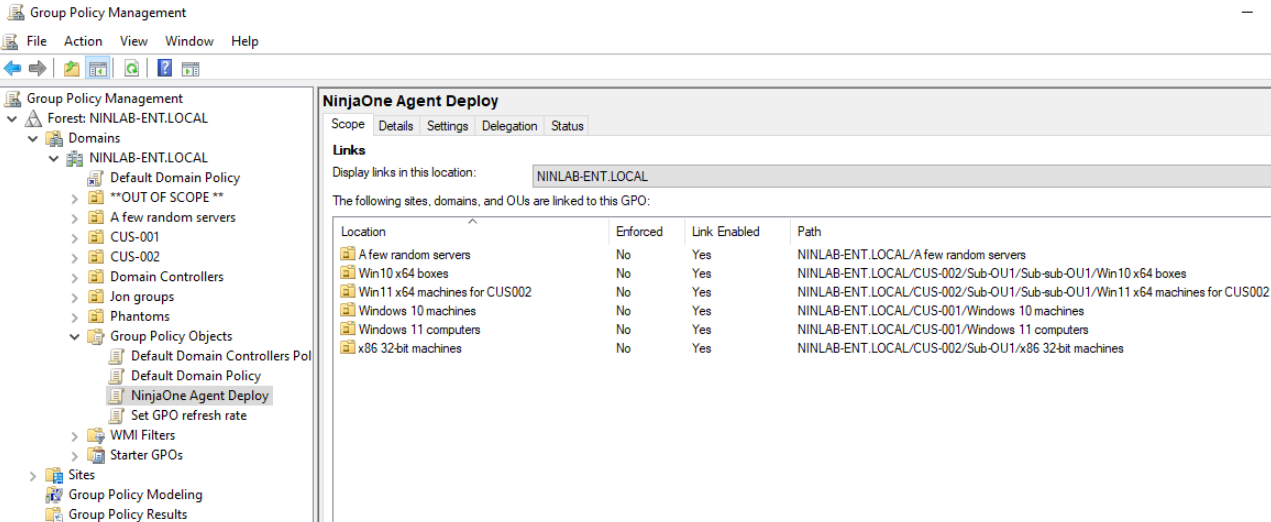
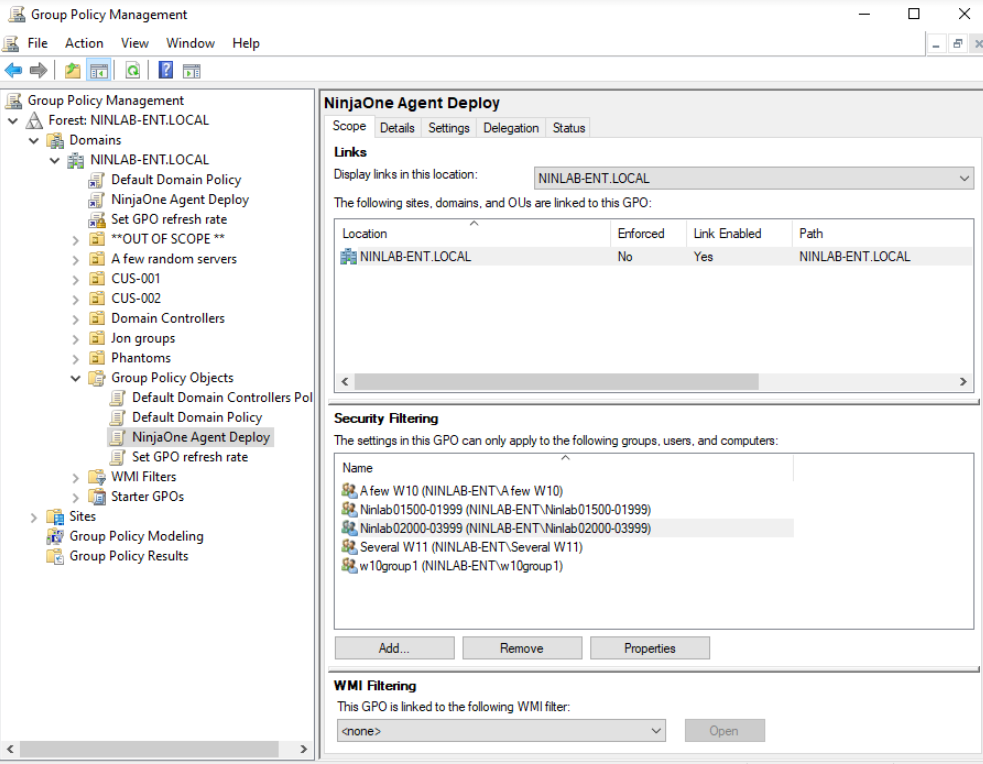
- With the finalized GPO in place and linked and filtered as applicable, the automation script will generate the script that the GPO will trigger on policy refresh, which is customized according to the domain and DC. The script is automatically customized as required, including Windows Event Logging, OU or security group targeting, agent update checks, and other specifications.
The script will be automatically saved to the GPO folder.
- For OU and security group targeting, the automation script will write a CSV lookup file of the target GUIDs and corresponding NinjaOne location GUIDs into the GPO folder. If you selected Output Computer List, the script will also write the list of target OUs and security groups in scope and their respective computer objects to the NinjaOne GPO Hostname List custom field.

- The automation script will download the agent installer file to the GPO folder and verify the digital signature before outputting a final result message.
Stage Five: GPO Script Process
When the automated or manual Group Policy refresh activates the script, the script will first check if the NinjaOne agent service exists, and if so, immediately exit.
If the NinjaOne agent service does not exist, the script will then remove all potential remnants of any previously failed installation or uninstall attempt to maximize the likelihood of successful installation.
The next step is dependent on the Target Scope configuration:
- For OU targeting, the script will retrieve the GUID of the endpoint’s OU and compare it to those in the CSV-lookup. This comparison will determine the NinjaOne location token ID.
- For security group targeting, the script will retrieve the GUIDs of the security groups the endpoint is a member of and compare them to those in the CSV-lookup. This comparison will determine the NinjaOne location token ID.
- For domain root or no targeting, the location token ID provided by the script variable or custom field is already hard-coded.
The next action the GPO script will perform is dependent on the platform from which the automation was run. As applicable, the GPO script will either copy the agent installer file from the Domain Controller, or it will check the date of the agent installer file currently available from NinjaOne from its header. If the date of the installer file available from NinjaOne is the same as the date of the file on the Domain Controller, the script will copy the agent installer file from the Domain Controller. However, if the date of the installer file available from NinjaOne is later than the date on the Domain Controller, the script will download the newer agent installer file and verify its digital signature. If download or digital signature verification fails, the script will fall back to copying the installer file from the Domain Controller; if successful, the script will use the newer file.
Next, the script will install the agent, set the device to register to the correct location as determined by the location token ID, and delete the local copy.
If you provided a proxy configuration, the script will set this when the agent is installed. If the proxy configuration included a password, this will be passed in as an encrypted string as a script argument, so it will never be stored on the endpoint.
Finally, the script will wait to confirm successful registration to the NinjaOne platform, which can fail if the location token ID is invalid. After confirming registration status, the script will exit.
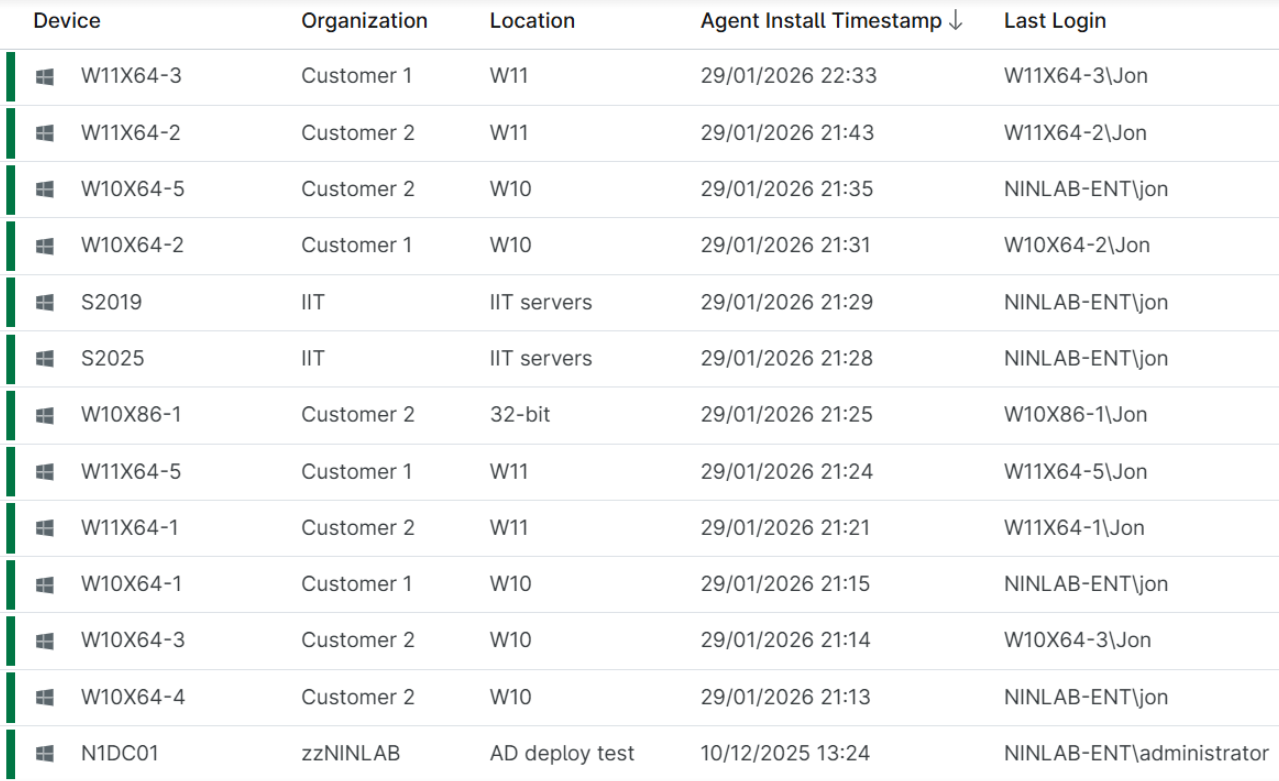
If you selected Enable Event Logging, the script will write events to the Application event log with the NinjaOneGPODeployment source throughout the entire process. In the following Figure 6, note the NinjaOneGPODeployment source in the Application log:

How to Edit the NinjaOne GPO Target List Custom Field
You can edit the NinjaOne GPO Target List custom field after the script's first run, after recreating the target list, or any other time thereafter.
To remove an OU or security group from the scope, delete the row with the Delete row option in the actions menu. Refer to Figure 8 for an illustrated example.

You must make at least one change to the initial target list when targeting OUs, either by deleting one or more rows from the scope or by changing one or more location token IDs.
Running the automation while targeting all OUs with the same location token ID will have the same result as targeting the domain root, so in this scenario, the automation will fail.
Note that this is a different scenario from targeting every security group without changing any location token ID, as there may be cases where not every computer object is a member of a group.
For each OU or security group where you want to change the target location, you will need the respective location token ID.
How to Obtain the Location Token ID
To find your location token ID in NinjaOne, perform the following steps:
- Navigate to the NinjaOne system dashboard and open the Devices tab. Select Agent Installers.
- Copy the token ID for the location you require from the Token column and paste it into the Token ID column of the respective row in the target list. The token ID you choose must support a Windows-based device role, or those endpoints will fail to register to the platform.

- When you are finished, save the changes.
- Rerun the automation script. The script will validate the changes and fail if one or more of the following are true:
- You deleted the header row, end row, or all target rows.
- You are targeting OUs, but made no change to the custom field.
- You set Target Scope to Security Groups, but the custom field contains OUs, or vice versa.
- You edited OU or security group names so they no longer match the DC.
- One or more computer objects exist in multiple security groups with conflicting location token IDs.
- Any token ID is recorded in an invalid GUID format.
When the automation script validates the custom field, it will continue to stage three.
Additional Resources
To learn more about automating your NinjaOne workflows and customizing your instance, refer to the following articles: