Topic
This article discusses configuring bandwidth throttling for backups in NinjaOne.
Environment
NinjaOne Device Backup
Description
NinjaOne Device Backup enables you to throttle bandwidth at three different levels: Organization, Location, and Device.
- NinjaOne applies bandwidth throttling values to each device. It does not create a shared pool of bandwidth for the entire organization.
- Bandwidth throttling only applies to cloud backups.
Refer to the links below for instructions about throttling bandwidth at each level.
Organization-Level
Navigating to Organization-Level Bandwidth Throttling Options
Follow these steps to locate the organization-level bandwidth throttling options:
- In NinjaOne, navigate to Administration → Organizations from the expanded options. Select the organization whose location you are throttling.
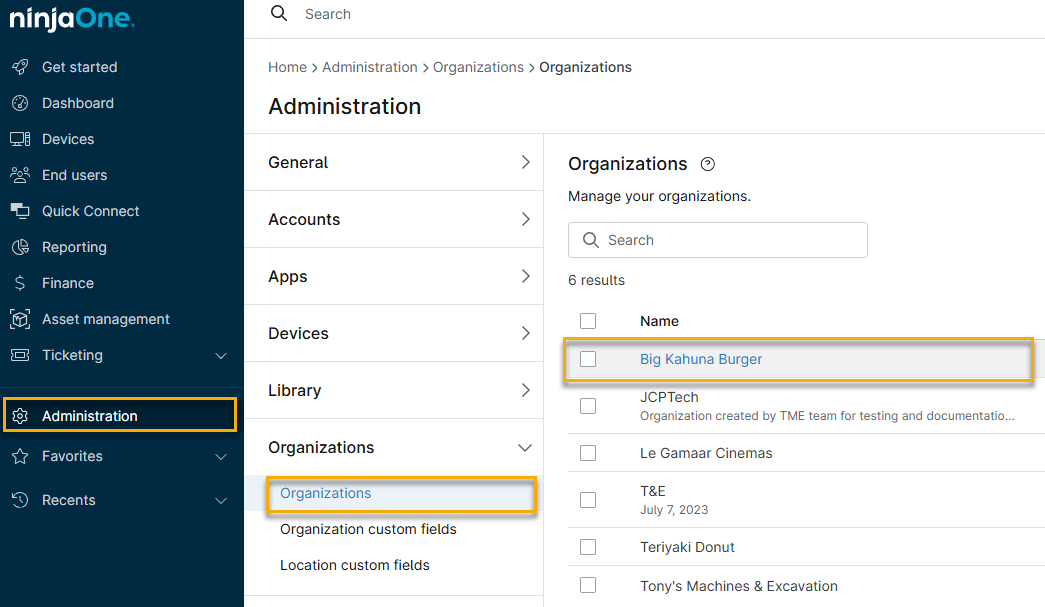
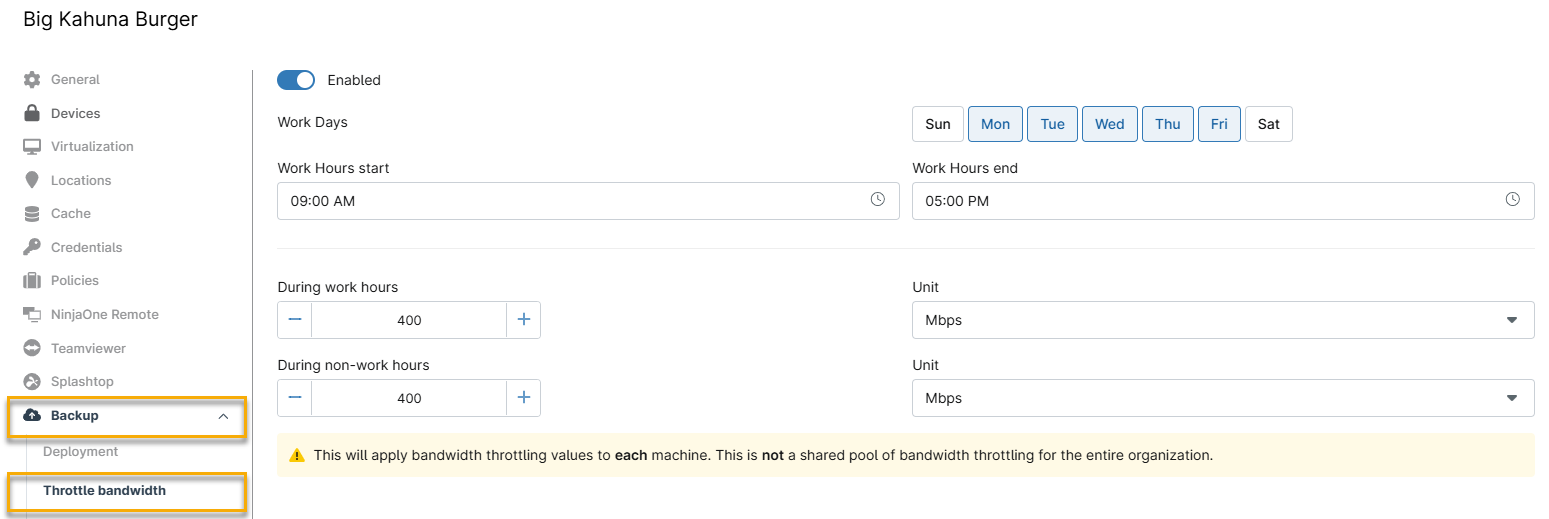
- In the organization's navigation menu, select Backup → Throttle bandwidth.
-
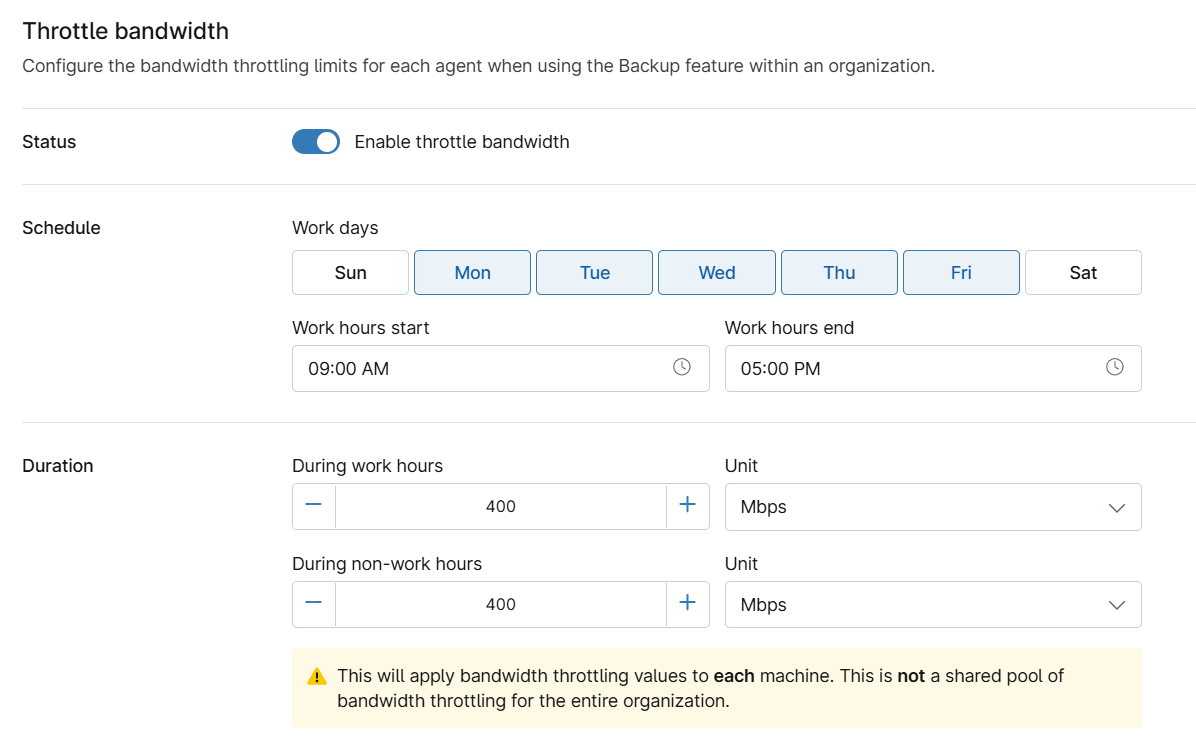
Next to Status, select Enable throttle bandwidth.
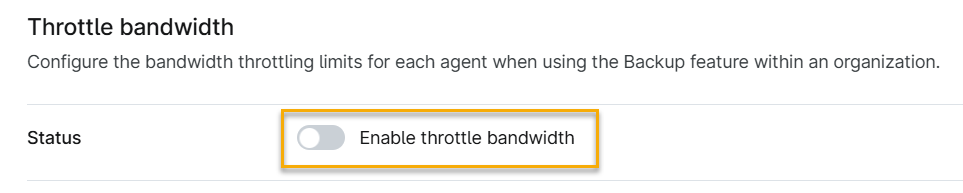
Figure 3: Enable throttle bandwidth (click to enlarge)
Configuring Organization Bandwidth Throttling
To configure bandwidth throttling for the organization, follow these steps:
- Next to Status, verify that Enable throttle bandwidth is activated.
- Configure the following options:
Schedule
- Select the Work days on which bandwidth throttling will be active.
- Work hours start/end: Determine the window during which you will throttle bandwidth.
Duration
- During work hours/Unit: Specify the throttled transfer speed and the unit of measurement during the set work hours.
- During non-work hours/Unit: Specify the throttled transfer speed and the unit of measurement outside of the set work hours.
- After you've made your selections, click Apply.
Location-Level
Navigating to Location-Level Bandwidth Throttling Options
- In NinjaOne, navigate to Administration → Organizations from the expanded options. Select the organization whose location you are throttling.
- In the organization's navigation menu, click Locations. Move your cursor over the location name and click the Edit button when it appears.

- Select Backup in the Location Editor to access the bandwidth throttling settings.
Configuring Location Bandwidth Throttling
Follow the steps below to enable bandwidth throttling at the location level.
- Select the Bandwidth throttling switch to enable the throttling feature.
- Configure the following options:
- Select the Work days on which bandwidth throttling will be active.
- Work hours start/end: Determine the window during which you'll be throttling bandwidth.
- During work hours/Unit: Specify the throttled transfer speed and the unit of measurement during the set work hours.
- During non-work hours/Unit: Specify the throttled transfer speed and the unit of measurement outside of the set work hours.
- After you've made your selections, click Apply.

Device-Level
Navigating to Location-Level Bandwidth Throttling Options
Follow these steps to access the location-level bandwidth throttling settings.
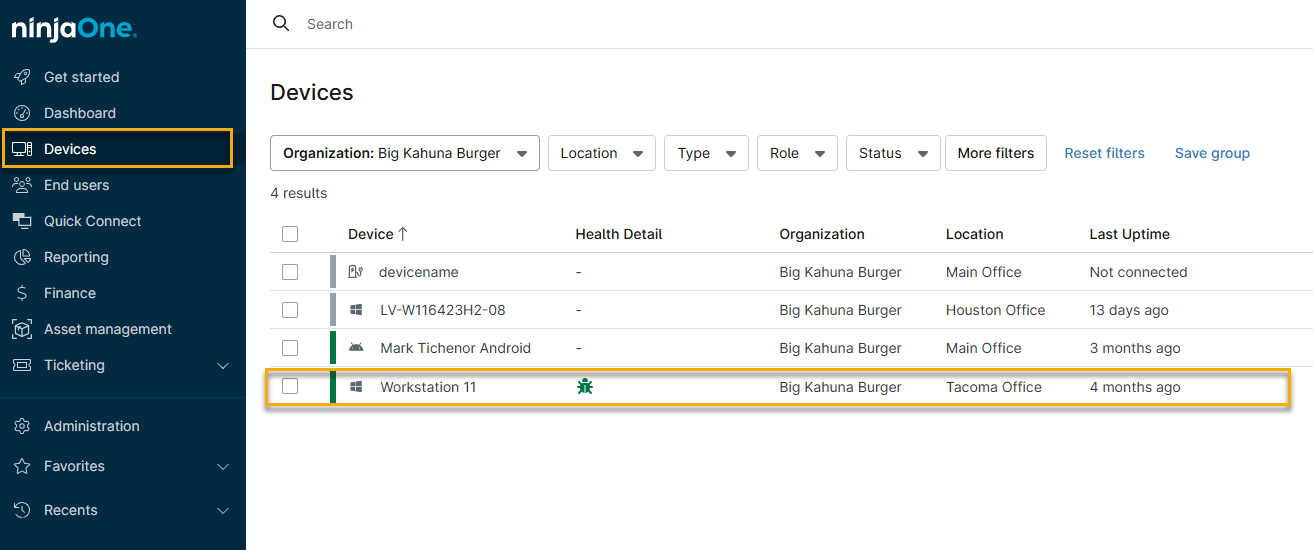
- Select the device in the Devices dashboard.
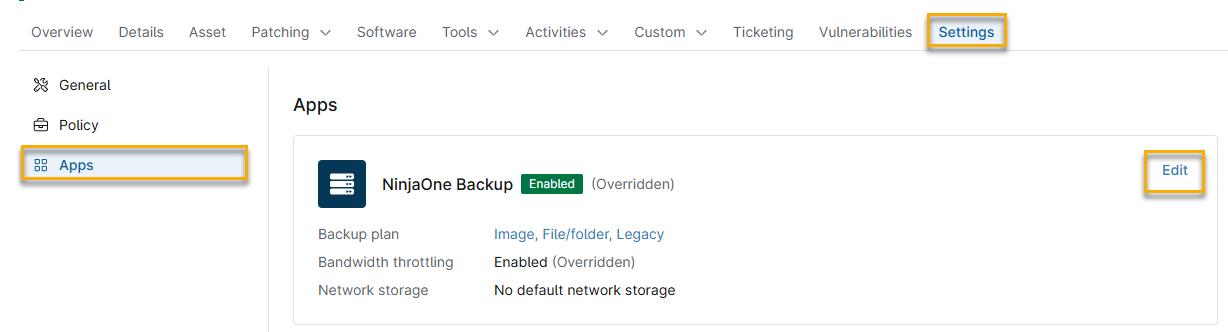
2. Click the Settings tab, then select the Apps category from the menu and click Edit.
Configuring Location-Level Bandwidth Throttling
Follow these steps to set up bandwidth throttling at the location level:
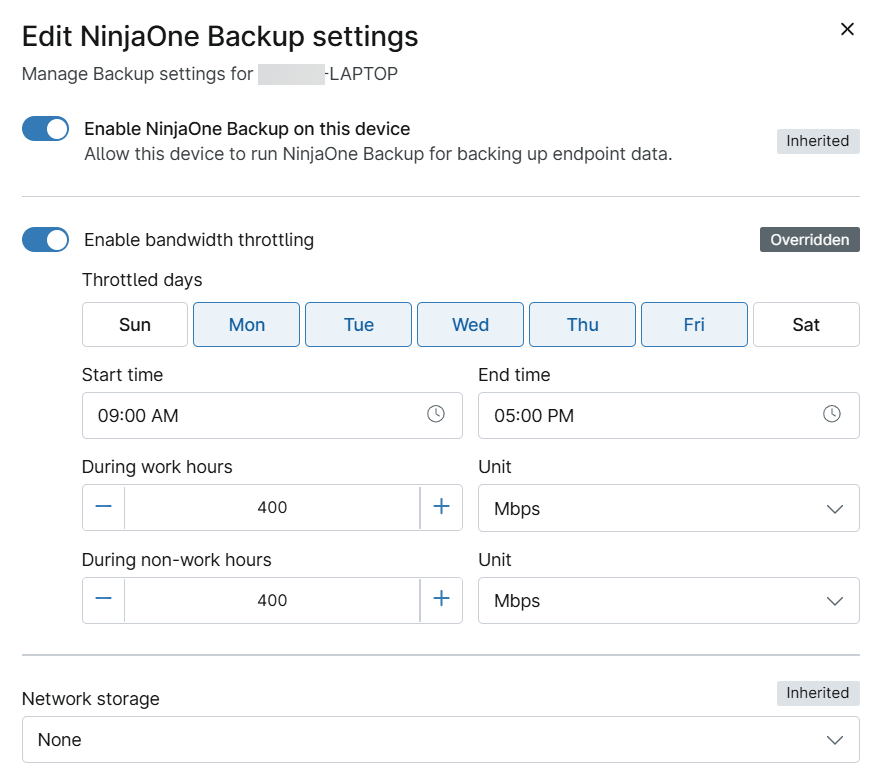
- Select the Enable bandwidth throttling switch to enable throttling.
- Configure the following options:
- Throttled days: Select the days of the week on which bandwidth throttling will be active.
- Start time/End time: Determine the window during which you'll be throttling bandwidth.
- During work hours/Unit: Specify the throttled transfer speed and the unit of measurement during the set work hours.
-
During non-work hours/Unit: Specify the throttled transfer speed and the unit of measurement outside the set work hours.
It is not necessary to change the Network storage setting.
- After you've made your selections, click Update.