
Topic
This article explains how to add a Microsoft Hyper-V virtual machine (VM) in NinjaOne.
Environment
NinjaOne Endpoint Management
Description
NinjaOne uses an agent installed on a physical or virtual device in your organization, called a monitor delegate, to gather information about the host VMs in the environment. After you set up Hyper-V monitoring, the monitor delegate communicates with the VM agent on the device, then populates the data in the NinjaOne platform.
Hyper-V Monitoring (NinjaOne, Inc., 01:40)
Select a topic to learn more:
- About the Monitor Delegate
- Add the Hyper-V Host Device
- Designate a Monitor Delegate
- Additional Resources
About the Monitor Delegate
The monitor delegate is a Microsoft Windows device that NinjaOne uses as a proxy to collect data from Hyper-V hosts in the organization's environment. Your NinjaOne Organization must have a dedicated monitor delegate to communicate with the Hyper-V virtual machines within it.
Note the following monitor delegate restrictions:
- If no monitor delegate exists, you must add it before you can add virtual machine hosts.
- You can only add one host per monitor delegate.
To be available for selection as a monitor delegate, a device must:
- Have the NinjaOne agent installed.
- Be online and connected to the NinjaOne interface.
- Belong to the organization to which you are adding a host.
- Have Hyper-V installed.
Note the following:
- Install the NinjaOne agent on the server before setting up monitoring.
- After you set up Hyper-V monitoring, the NinjaOne agent downloads and communicates with the VM agent on the device, then populates the data in the NinjaOne console.
Add the Hyper-V Host Device
- In NinjaOne, click Dashboard, then click the Add icon and select Device.
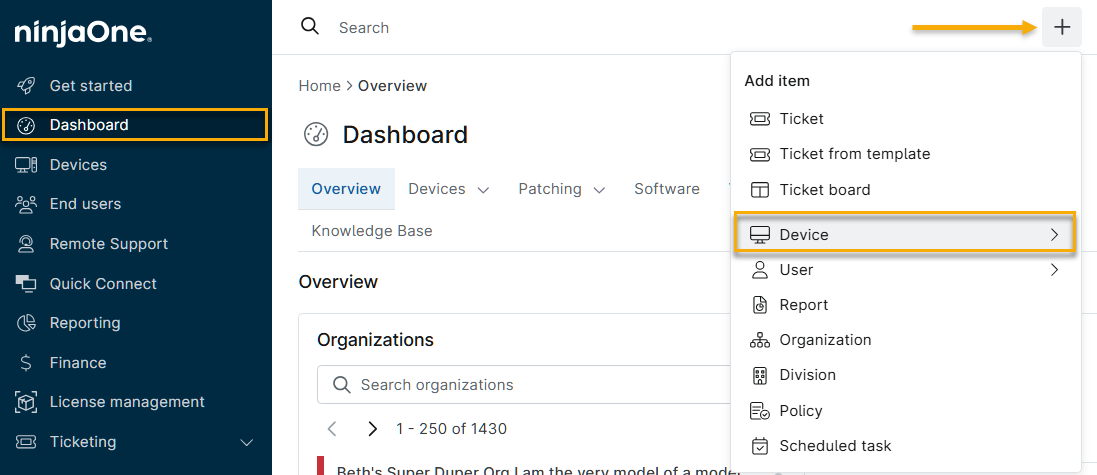
- In the Add Item menu, select Virtual Infrastructure.

The Add a virtual machine host window will open.
- Select Windows Hyper-V, then enter the following information:
- Organization: Select the NinjaOne organization to which the VM belongs.
- Hyper-V Host: Select the name of the host from the drop-down menu.
- Click Test host. NinjaOne will verify that it can reach and authenticate with the host. After the test succeeds, click Add host. NinjaOne will add the device to the organization.

Designate a Monitor Delegate
You can designate any physical or virtual Windows device in your organization as a monitor delegate.
- In the NinjaOne organization's dashboard, navigate to Edit settings → Edit organization.

- The organization's configuration settings will open. Select Virtualization.
- In the Virtualization list, move your cursor over the device, then click Edit when the option appears.
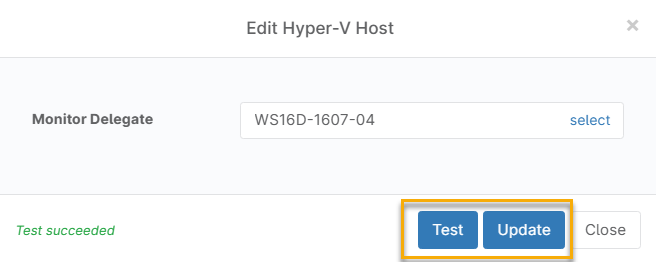
- The Edit Hyper-V Host window will open. Click Test.
- After the test succeeds, click Update.
Adding Additional Virtual Machines
You can add additional Hyper-V VMs as Windows devices. These VMs will report their status to the monitor delegate, which will in turn relay the information to NinjaOne. Refer to NinjaOne Agent Installation: Add a Microsoft Windows Device for more information about adding Windows devices.
Additional Resources
To learn about monitoring VMs in NinjaOne, refer to NinjaOne Endpoint Management: Monitoring Virtual Machines.