
Topic
This article shows you how to configure policies in NinjaOne when using the SentinelOne for antivirus. For instructions on enabling the SentinelOne integration in NinjaOne, please see SentinelOne: Integration Guide.
Environment
NinjaOne and SentinelOne integration
Description
Deploy SentinelOne at the Policy Level
Navigate to the editor for a policy that needs SentinelOne enabled (Administration → Policies) and open Antivirus. Select SentinelOne from the drop-down menu.
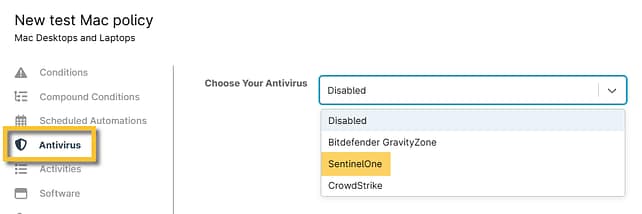
Figure 1: NinjaOne policy configuration page → Antivirus → Select
Once the antivirus is set at the policy level, all devices managed by that policy will be updated when the device is online and connected. You should see the SentinelOne card on the device dashboard under Settings, and the Activities tab will show "Software Added" following successful installation.
Enable Notifications for Activities
From the policy Activities tab, expand the SentinelOne section and select any activity for which you wish to enable notifications or create tickets.
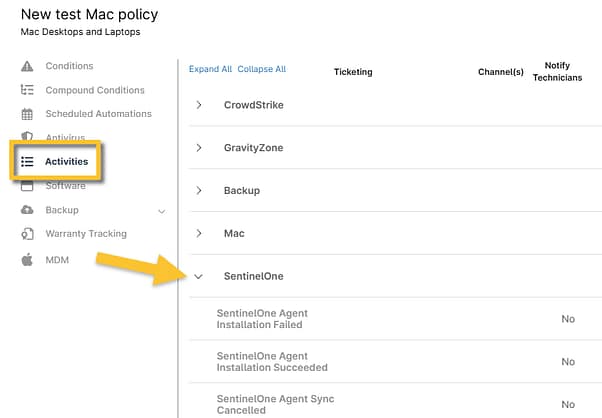
Figure 2: NinjaOne policy configuration page → Activities → Select