
Issue
Attempted sign-in does not properly launch the browser for OAuth authentication.
When you attempt to sign in to the NinjaRMM Desktop Companion application on a Windows device, the screen circles, and the browser does not launch to prompt you to authenticate via OAuth.
Environment
The list of NinjaOne services, platforms, or scopes to which this content relates goes here. If there's more than one item, create a bulleted list. Hyperlinks do not go here.
Cause
This issue is often caused by your protocol handlers not being configured correctly. Refer to Understanding protocol handlers - Win32 apps | Microsoft Learn (external link) for information.
Resolution
Navigate to your Windows Settings → Apps → Default apps → Choose default apps by protocol and check the configuration for HTTP and HTTPS.
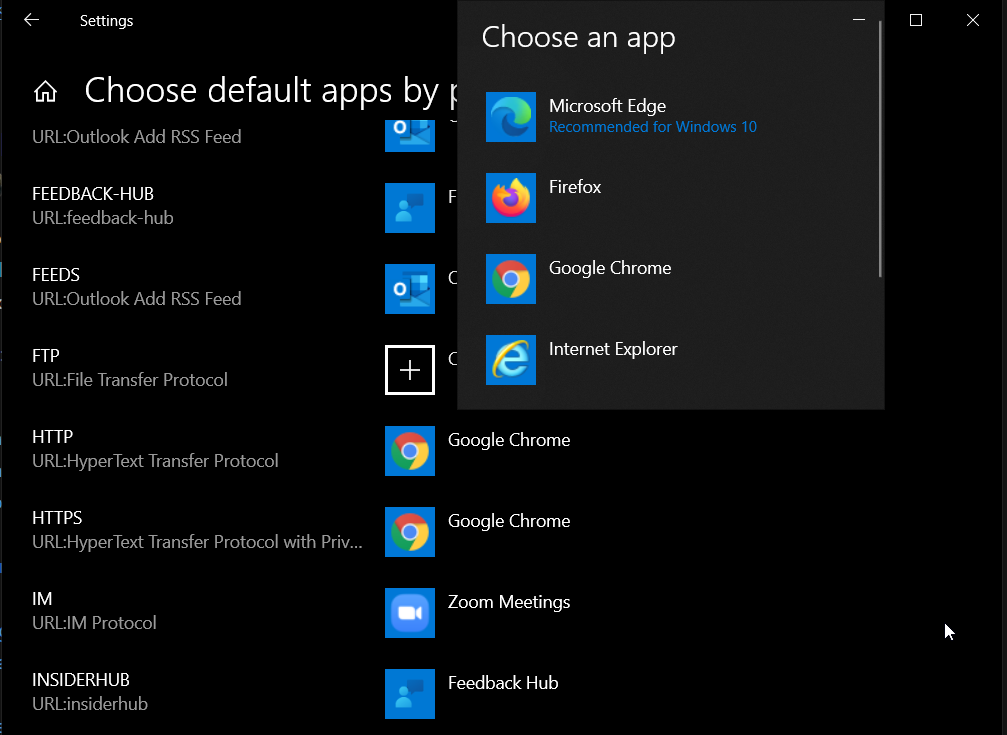
Figure 1: Desktop settings → Apps → Default app selection
- If a browser is not assigned for either of these protocols, assign a browser and try again.
- If a browser is assigned, try assigning a different browser and trying again. If the browser launches properly and guides you through the OAuth authentication process, this indicates that there was an issue with the browser you were previously using.
If the issue you are experiencing is not listed above, or if you need further assistance after attempting the recommended troubleshooting steps, please contact NinjaOne Support.