
Topic
This article explains how to limit the IP addresses that technicians can use to access NinjaOne.
Environment
NinjaOne Platform
Description
When a technician attempts to log in from a restricted IP address, NinjaOne will present an error message and will not proceed with identity verification, preventing them from accessing NinjaOne.
View additional tutorials in our video library.
Index
Select a category to learn more:
Setting up User Login Restriction by IP Address
To restrict the use of an IPv4 (public IP) address for a technician, perform the following steps:
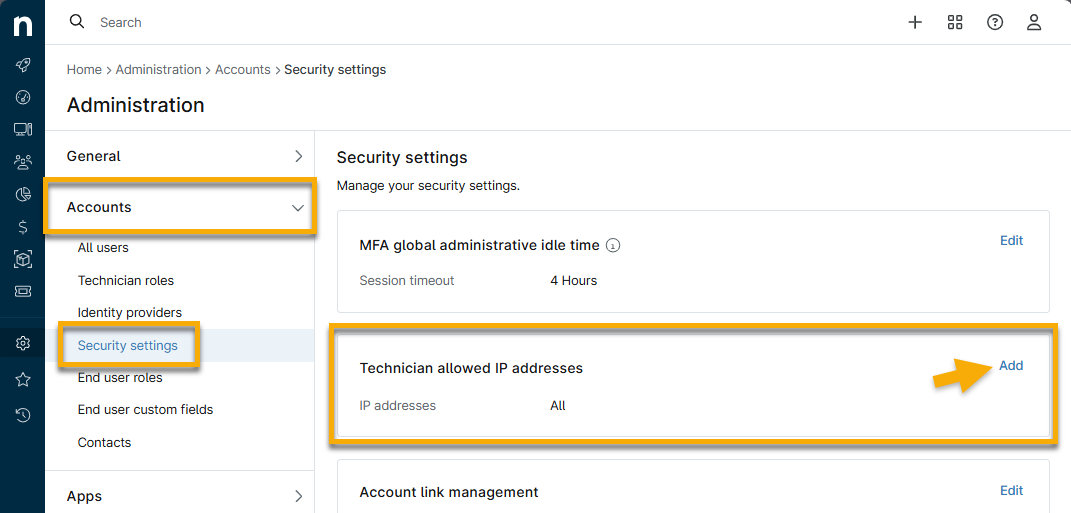
- Navigate to Administration → Accounts → Security settings. Click Add in the Technician allowed IP addresses widget.
In the Add IP restriction dialog, enter one or more IP addresses to restrict in Classless Inter-Domain Routing (CIDR) format. Click Enter on your keyboard between each entry.
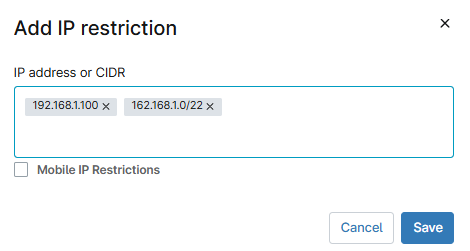
Figure 2: Enter IP address or CIDR - NinjaOne supports multiple subnet masks; however, it does not permit the use of wildcards.
- Find resources for translating an IP range to CIDR in the CIDR to IPv4 Documentation (external link).
- Once IP address settings are changed, they take immediate effect.
- Select Mobile IP Restrictions to restrict access to the NinjaOne Mobile application; the application login page will follow the IP allowlist you configure in this dialog. If you do not select this option, technicians can log into the NinjaOne Mobile application from any IP address.
- Click Save.
Reviewing IP Address Usage
To view which IP addresses technicians have used to log in, perform the following steps:
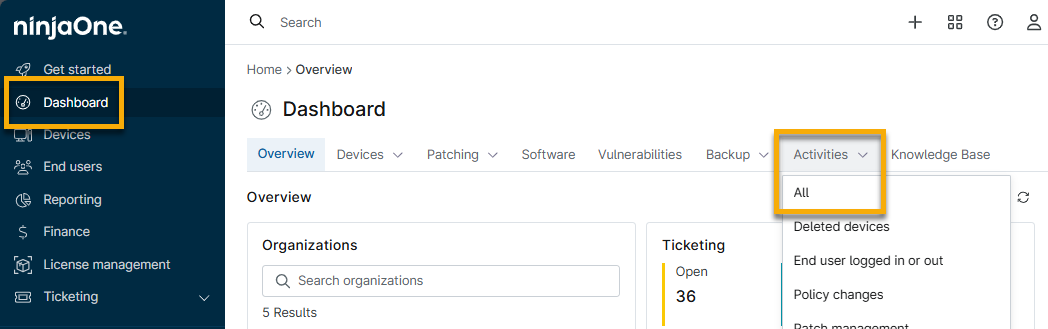
- Navigate to the system dashboard, move your mouse cursor over the Activities tab, and click All.
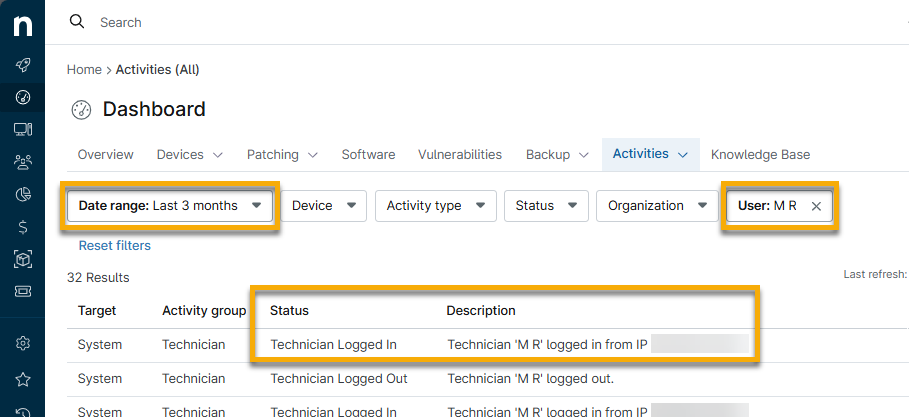
- Select the technician name from the User filter drop-down menu and extend the date range as needed.
- Look for Technician Logged In in the Status column and then review the Description field for that row to review the IP address used.
Additional Resources
Refer to NinjaOne User Management: Resource Catalog for more information about user permissions and access.