
Topic
This article discusses configuring and editing Android application restrictions and settings in NinjaOne Mobile Device Management (MDM).
Environment
- NinjaOne Mobile Device Management (MDM)
- Android
Description
Technicians can edit the applications installed at the policy level to override the default settings for each application.
Procedure
- From the Android MDM policy editor, open the Applications tab, select an installed application, and click the Edit button.
Figure 1: Managed Applications in the MDM Policy Editor (click to enlarge)
- The Applications Policy Editor will appear with the General tab open by default. This is a long, scrollable page with many configurable options. Refer to the table underneath Figure 2. for an explanation of each option.
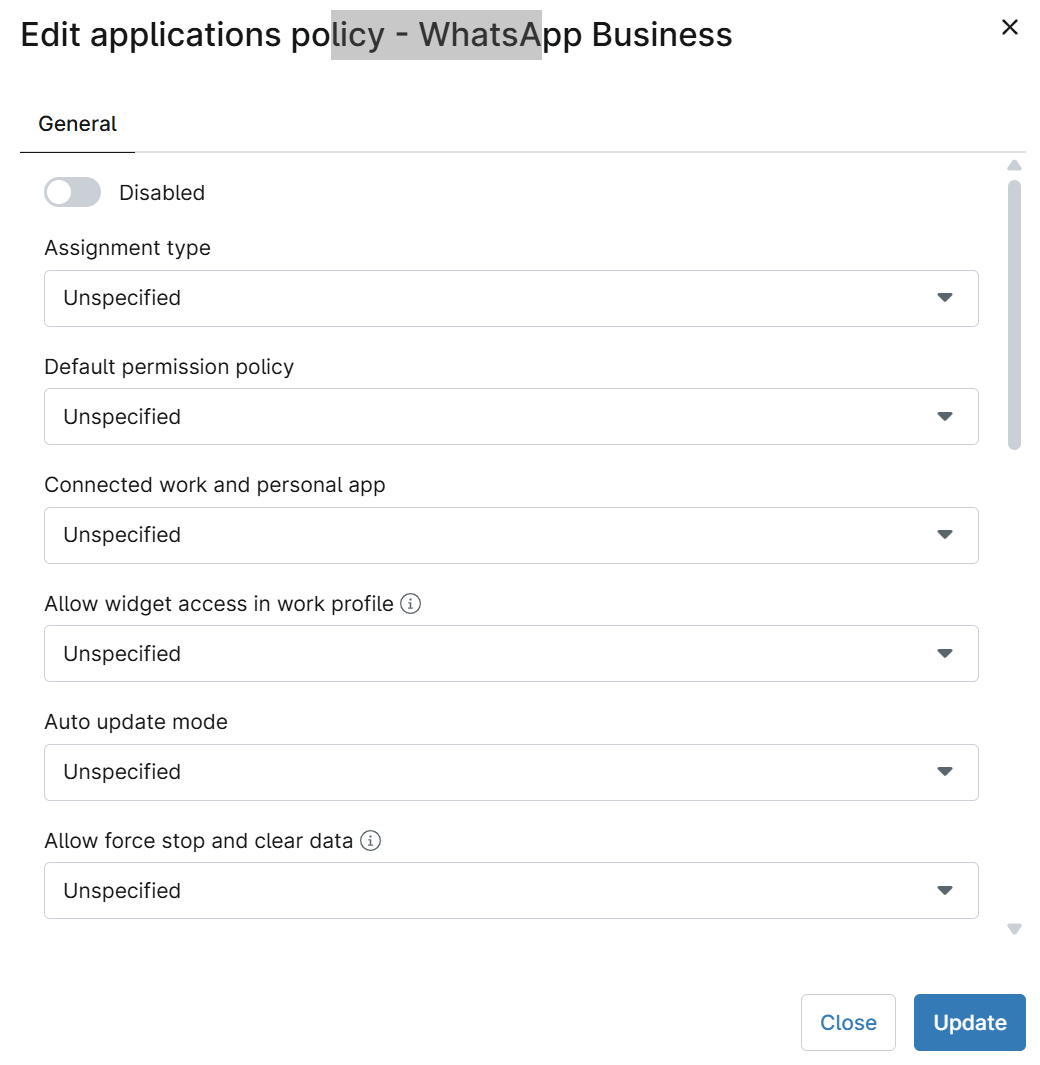
Figure 2: The Applications Policy Editor (click to enlarge)
Configuration options
| Setting | Description |
|---|---|
| Enabled | Turn OFF
|
| Assignment Type | Refer to the Application Assignment Types section for a description of each type. |
| Default Permission Policy |
|
| Connected Work and Personal App |
|
| Auto Update Mode |
|
| Allow force stop and clear data | Allow or restrict a user to force-stop an app and clear the cache. Requires Android 11 or later versions. |
| Application track for installation | This option lists available closed-track app versions within Google Play. If an app developer supports application tracks and the app has been shared with the customer connection ID, NinjaOne will show these versions of the app here. Select a track and move between versions. This will only change versions on a device when a newer version code is available than what is installed on the device. |
| Per app permission overrides | Select a permission from the dropdown list to allow granular permission control. Each app provides its declared permissions and will have a different list of available overrides. |
| Overrides | Each selection from the Per App permission overrides drop-down menu will be displayed here. When an override is added, a new drop-down menu displays. You can allow, deny, or prompt access to the permission. Click the X on the right side to remove the override. These will override any global permissions set! 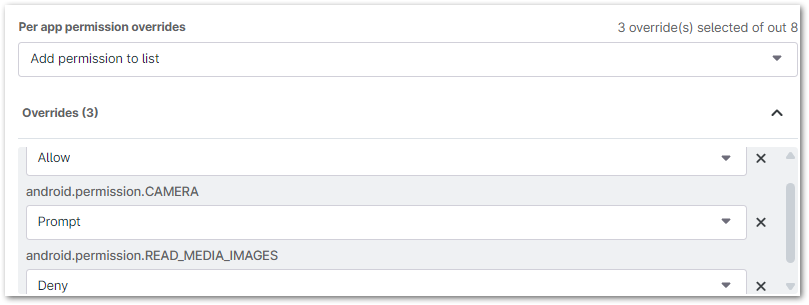 |
| Delegated Scope Overrides | Android apps can have additional delegation scopes, letting applications install certificates, access managed configurations, block uninstallation, enable system apps, and more. Access this feature in the Android policy editor by going to Applications and editing an installed application; it will be at the bottom of the modal. Select one or more scopes from the dropdown; click the X to remove them. The availability of these scopes may depend on the application selected. |
 to enable the app on the device or turn ON
  to prevent app use.
Additional Resources
For further information about adding and managing Android applications, refer to NinjaOne MDM: Getting Started with Android Device Management.