
Topic
This article explains how to use Entra ID expressions with the System for Cross-domain Identity Management (SCIM) in NinjaOne, provides sample expressions for common use cases, and describes the basic components of an expression's syntax.
Environment
- NinjaOne Integrations
- Microsoft Entra
Description
You can use Microsoft Entra ID expressions to reference, modify, or replace user data so that key attributes are present and compatible with NinjaOne's SCIM application.
Select a category to learn more:
- Purpose of Expressions with NinjaOne SCIM
- Common Expressions and Use Cases
- Components of an Expression
- Additional Resources
Purpose of Expressions with NinjaOne SCIM
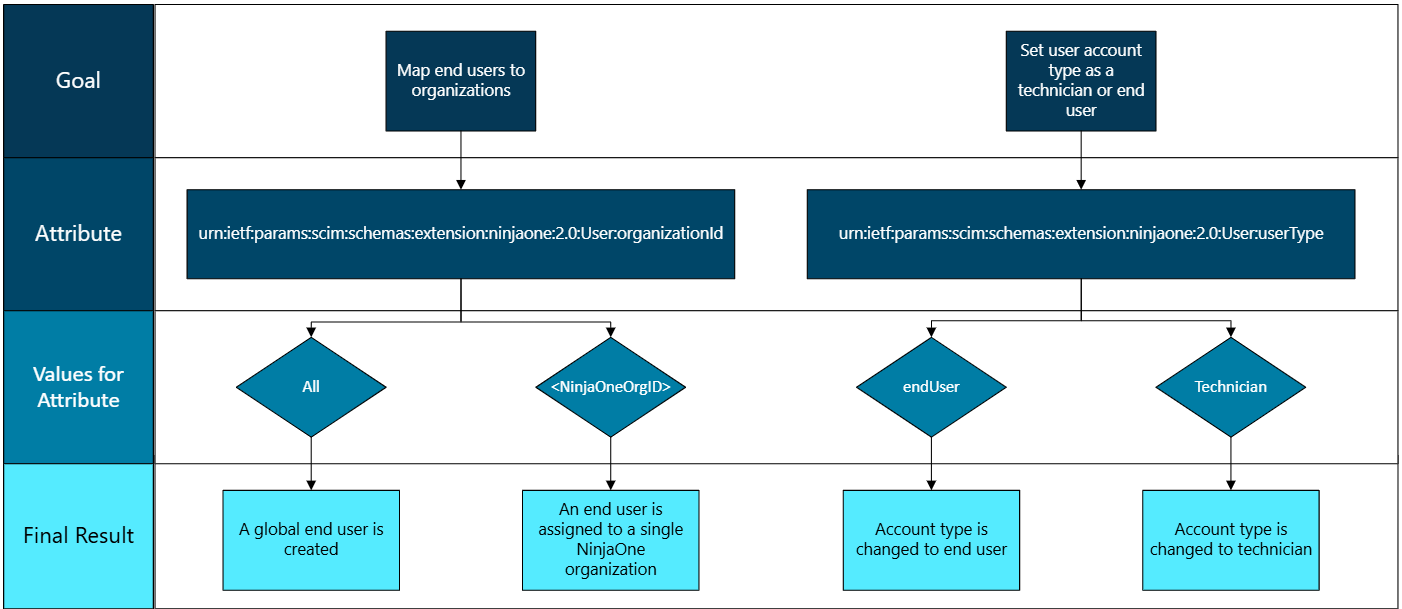
Expressions in NinjaOne's SCIM attribute mapping aim to match end user accounts to an organization in NinjaOne or set them as global end users. The customappsso attribute needed to assign user accounts to an organization or as a global end user is:
urn:ietf:params:scim:schemas:extension:ninjaone:2.0:User:organizationId
This attribute has two accepted values:
| Value | Purpose |
|---|---|
| All | This creates a global end user. |
| <NinjaOneOrgID> | This assigns an end user to the corresponding NinjaOne organization. Multiple organizationID values may be added as an expression. |
Set the user account type in NinjaOne as a technician or end user. The customappsso attribute needed to set a user account as a technician or end user is:
urn:ietf:params:scim:schemas:extension:ninjaone:2.0:User:userType
This attribute is optional; you only need to use it if you intend to create technician accounts. You will create end-user accounts if this attribute is not present. It has two accepted values:
| Value | Purpose |
|---|---|
| endUser | This creates a NinjaOne end user account. This value is case sensitive. |
| Technician | This creates a NinjaOne technician account. |
The following flowchart illustrates the goal of these two expressions:
Figure 1: Goal and final result for NinjaOne user account "customappsso" attributes and their accepted values (click to enlarge)
Common Expressions and Use Cases
If users have a specific Microsoft Entra ID user attribute that groups them to an organization in NinjaOne, you can use this attribute in an expression to set the target NinjaOne organization ID. Use the Switch function in an expression as a common method to map end user accounts to an organization in NinjaOne or set them as global end users.
Examples include but are not limited to:
Assign Users by Department
IT teams often use the Department Microsoft Entra ID user attribute and use the Organization feature in NinjaOne to group users by department.
Use the Switch function in an expression to change a specific Department value to a Department attribute for the target NinjaOne organizationId. This assigns the user to the correct NinjaOne organization.
The following is an example expression using the Switch function:
  Switch([Department], "All", "Marketing", "03f0e06r-9b1f-4f52-97a8-a5a36hd850a3",
  "Finance", "04f0e06r-3b1f-8f52-97a5-a2a36hn850a6", "Sales", "02f0e06r-5b3f-8t52-91a6-a2q36in860a7",)
In accordance with the Switch function outlined in the example expression, end user accounts associated with “key1” (Marketing) will be mapped to the NinjaOne Organization ID associated with “value1” (03f0e06r-9b1f-4f52-97a8-a5a36hd850a3).
Assign Users by Company Name
Use the companyName Microsoft Entra ID user attribute and use the Organization feature in NinjaOne to organize users by their respective company.
Use the Switch function in an expression to change a specific companyName value to the Company Name attribute for the target NinjaOne organizationId. This assigns the user to the correct NinjaOne organization.
The following is an example expression using the Switch function:
  Switch([companyName], "All", "Blobs Burgers", "03f0e06r-9b1f-4f52-97a8-a5a36hd850a3",
  "Dr Blabs Family Dentistry", "04f0e06r-3b1f-8f52-97a5-a2a36hn850a6", "Blub's Pestos
  Pizzeria", "02f0e06r-5b3f-8t52-91a6-a2q36in860a7",)
In accordance with the Switch function outlined in the example expression, end user accounts associated with “key1” (Blobs Burgers) will be mapped to the NinjaOne Organization ID associated with “value1” (03f0e06r-9b1f-4f52-97a8-a5a36hd850a3).
Assign Users by Account Type (Groups)
If you are using Microsoft Entra ID Groups, you can configure and reference user application roles via an expression to assign a user account type. To see a full set of instructions, refer to NinjaOne SCIM: Using Microsoft Entra ID Groups to Create End User and Technician Accounts.
Using the SingleAppRoleAssignment expression is a common method to set user account types in NinjaOne to a technician or end user, but there are several expressions that you can use depending on your Microsoft Entra ID configuration.
- In this scenario, assign end user groups to an app role titled “endUser” and assign technician groups to an app role titled “Technician.”
- Use the SingleAppRoleAssignment expression to assign the app role to a user’s group. This expression will set the user account type in NinjaOne as technician or end user.
The following is an example expression of SingleAppRoleAssignment when following the steps outlined in NinjaOne SCIM: Using Microsoft Entra ID Groups to Create End User and Technician Accounts:
SingleAppRoleAssignment([appRoleAssignments])
Components of an Expression
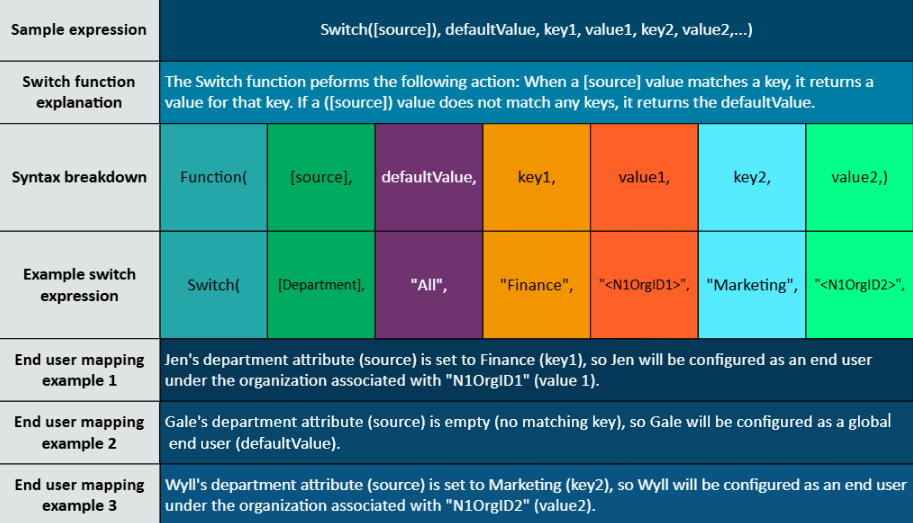
Although the examples outlined in the previous sections of this article are common methods to map accounts, there are many other relevant user attributes that you can use to map end users to the applicable organization in NinjaOne. If you have an attribute that can be used to map the end user accounts, you can use the Switch function in an expression for example.
The following example is a syntax breakdown of an expression utilizing the Switch function. Using a “plug and play” approach, you can replace the source, values, and keys with values relevant to your Microsoft Entra ID configuration.
Figure 2: Components of a switch expression (click to enlarge)
Expression Syntax
Expressions in Microsoft Entra ID have a syntax similar to Visual Basic for Applications (VBA). Refer to Reference for writing expressions for attribute mappings in Microsoft Entra Application Provisioning - Microsoft Entra ID | Microsoft Learn (external) for a more in-depth overview of expressions syntax and a full list of available functions.
Attributes and string constants have the following formatting requirements:
- Attributes must be enclosed in square brackets. For example: [attributeName]
- String constants must be enclosed in double quotes. For example: "United States"
The following function provides an example of not assigning an argument to key2:
Generic Function:
Switch(source, defaultValue, key1, value1, key2, value2, …)
Example Function:
Switch([Department], “All”, Finance, "<NinjaOneOrgID1>", “”, “<NinjaOneOrgID2>",)
In this example, a user without a value set for the Department attribute would be assigned to the NinjaOne Organization associated with <NinjaOneOrgID2>.
Additional Resources
Refer to the following resource to learn more about NinjaOne SCIM: System for Cross-domain Identity Management (SCIM) – NinjaOne Dojo.