
Topic
This article explains how to use NinjaOne's Patch Intelligence AI feature.
This feature is separate from the Katana AI, which you can learn more about at NinjaOne Katana Agentic AI: Getting Started.
Environment
- NinjaOne Patching
- Microsoft Windows
Description
Patch Intelligence AI gives you instant, AI-generated patch explanations and highlights of any known issues, whether reported by Microsoft, the community, or detected through NinjaOne's anonymized failure/rollback telemetry, so that you can make safer, more informed patching decisions.
View additional tutorials in our video library.
How Patch Intelligence AI Works
- This feature creates Microsoft Windows OS patch analysis summaries using generative AI, third-party content, and anonymized internal patch failure or rollback data. It does not use identifiable customer data.
- OS Patch Intelligence AI helps users determine whether and when to apply an OS patch. Note that this analysis is meant to augment user research, not replace it. Do not make patch application decisions solely based on this analysis.
- When activated, NinjaOne will attempt to synthesize an analysis and basic recommendations for each OS Patch. You can add and view the KB Analysis column in the Patching dashboard pages.
- The patch AI data is updated every 6 hours for Windows OS updates released in the last month, and gradually updated less frequently for older patches.
Enable NinjaOne AI
- To use the feature in NinjaOne, navigate to Administration → Apps → Installed.
- Select NinjaOne Patching and click Edit in the Feature section.

- Activate the Patch Intelligence AI toggle and click Update.
View Patch Intelligence AI Data
NinjaOne will show Patch Intelligence AI data in the KB analysis column of the Patching → OS Patches page on the system and organization dashboards. You may need to update the table settings to view this column.
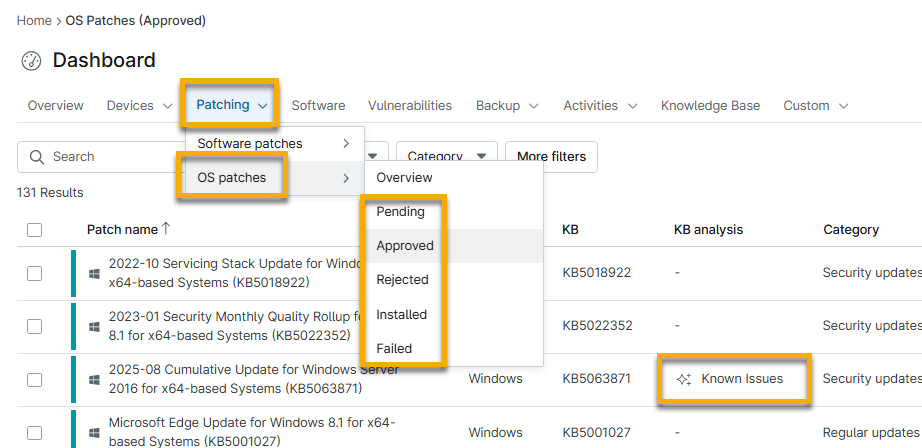
Click the status in the KB analysis column to view details.
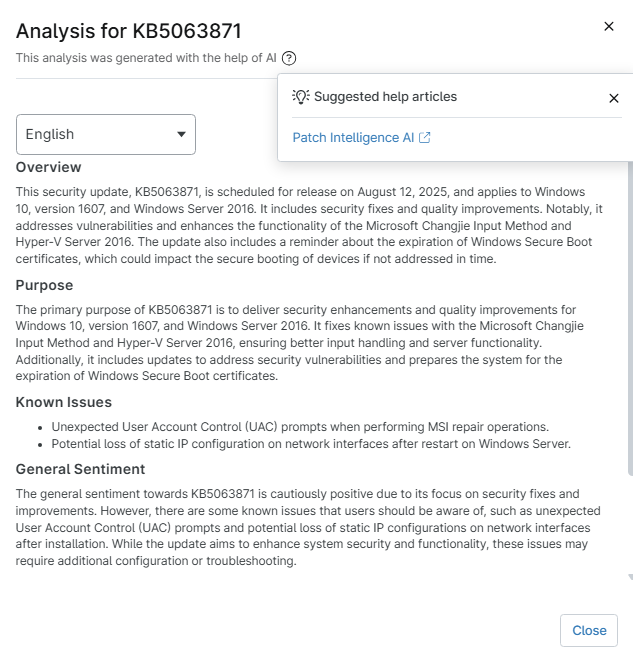
Patch Analysis Status Definitions
This field populates Windows OS Patches only and may have one of several values:
- "-": No data is available.
- Appears Stable: NinjaOne can provide an analysis and does not identify a significant concern with this patch.
- Caution: NinjaOne can provide an analysis and detect a significant reason for concern with this patch.
- Known Issues: NinjaOne can provide an analysis, noting that Microsoft has reported issues, and may offer corresponding workarounds.
Additional Resources
Refer to NinjaOne Patching: Resource Catalog to learn more about patch management in NinjaOne.