
Topic
This article will show you how to search for devices to which you assigned a system tag, and activity related to tags in NinjaOne. In addition, this article also covers how to create notifications for tag activity.
Environment
NinjaOne platform
Description
Search for Tagged Devices
Filter Search
- Select Devices on the left navigation pane.
- Click More filters and type "tag" into the search field; select Tags.

Figure 1: Filter device search for tags
- From the Operator dropdown, select a qualification:
- Contains all selected tags: Identifies devices that have all of the selected tags assigned to them.
- Contains any selected tags: Identifies devices that have at least one of the selected tags assigned to them.
- Contains none of the selected tags: Identifies devices that are not assigned any of the selected tags.
- Tags present: Identifies any device that has a tag assigned.
- No tags present: Identifies any device that does not have a tag assigned.
- From the Tags dropdown, select one or more tag names. This field may be locked depending on the Operator selection.
- Click Apply.
Once you create the filter, you can save it as a search group. To learn about group searching, please see Search and Grouping.
View Tags by Column or Export Data
You can add the Tags column to the Devices search page through the gear icon.
Once the column is added, this data will be included when selecting the "Export visible columns" option.
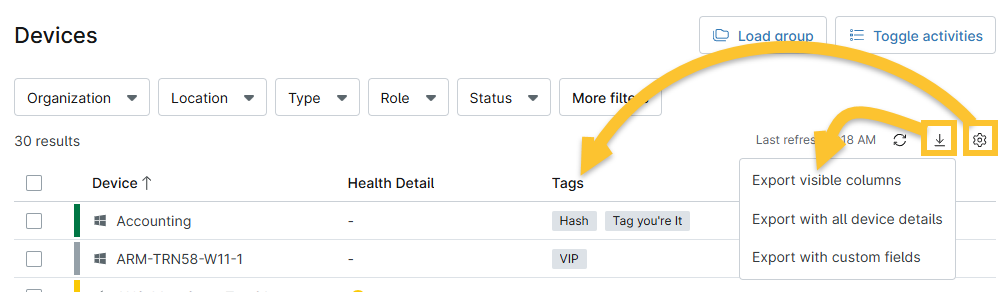
Figure 2: Add tag column and export data
Tag Activity Management
View Activity Related to Tags
On the system dashboard under Activity, you can view the following tag-related events:
- Tag created
- Tag deleted or merged
- Tag renamed
- Tag assignment added or removed (this event is also visible on the device and organization dashboards)
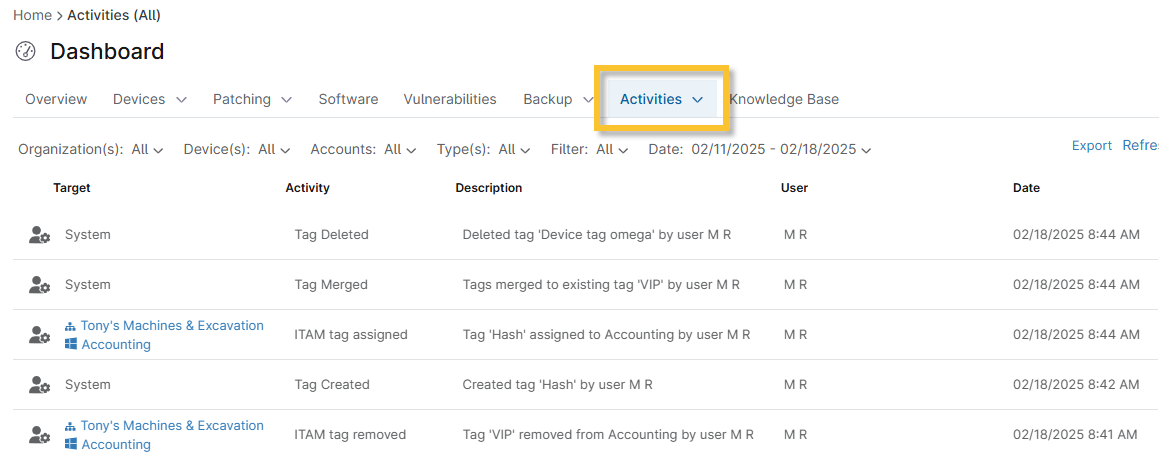
Figure 3: View tag activity
Create Notifications Related to Tag Activity
When a tag is assigned or removed from a device, you can configure notifications or ticket creation from a policy in NinjaOne.
- From the policy configuration page, click Activities and select "Asset management tag assigned" or "Asset management tag removed."
- Follow the instructions in our Device and System Activity Notification Feed guide.