
Topic
This article describes the process for cloning virtual endpoints that are managed by NinjaOne.
Environment
NinjaOne Endpoint Management
Description
This article describes the preparation steps required to properly clone devices and virtual machines (VMs) running Apple macOS or Microsoft Windows, and explains how the NinjaOne platform handles improperly cloned machines.
Select a topic to continue:
- Clone an Apple macOS Device or Virtual Machine
- Clone a Microsoft Windows Device or Virtual Machine
- Notes About Improperly Cloned Machines
Cloning an Apple macOS Device or VM
Before installing NinjaOne agent on the device to be used as your base image, you need to create a file and name it skipreregister.
skipreregister file must exist before the service runs for the first time. If you have already run the service, then you will also need to remove the existing registration information by deleting the values in agent.conf (/Applications/NinjaRMMAgent/programfiles/config).Remove the following values:
- Password
- MachineId
- DataSubmitTime
- NodeId
- WriteJsonOutputFile
The only values that should remain in the file are the version and the patcher version.
After completing these steps, you can take a snapshot of your image.
Cloning a Microsoft Windows Device or VM
When setting up the device or VM to use as your base image, install the NinjaOne agent. The service will start and register the device with the NinjaOne platform. Before taking a snapshot of the image, stop the NinjaOne agent service and run the noclone file.
This file removes the existing registration information from the device. The next time the NinjaOne agent starts, it registers as a new device.
Important Notes:
- If you are using NinjaOne Device Backup with the cloned machine, perform the cloning process before enabling NinjaOne Device Backup for the device at the organization editor level.
- Leave the NinjaOne agent service stopped and take your snapshot. If you reboot the device at any point, you need to stop the NinjaOne agent service again before taking the snapshot.
- When you first boot up the device or VM you cloned the image to, the NinjaOne agent service starts and registers with the NinjaOne platform as if it were a new device.
Notes About Improperly Cloned Machines
While we always recommend the above process for properly cloning machines with NinjaOne agent installed, the NinjaOne platform takes steps to manage improperly cloned machines.
- The NinjaOne agent uses hardware IDs based on each physical network adapter's universally unique identifier (UUID) and medium access control (MAC) addresses to identify the machine.
- When cloning in VMware, you can find the desired base template configuration at Broadcom's Techdocs Portal (external link).
- Potential issues may arise if the UUIDs are the same. You can resolve these issues by following the steps in this article from the Broadcom knowledge base (external link).
- The NinjaOne platform tracks changes to your hardware over time and updates its internal ID as your hardware changes.
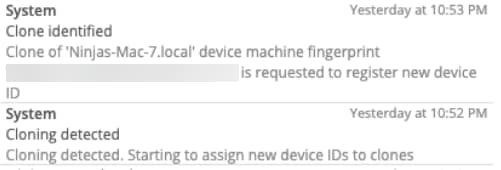
- The NinjaOne platform automatically de-clones any clones it detects. After the de-cloning process, you will have N new nodes in your dashboard (depending on the number of clones).
- If the NinjaOne platform detects a clone, a new entry will appear in your Activity Feed.
NinjaOne Device Backup specific notes:
The following notes apply when NinjaOne Device Backup is involved in a cloning workflow.
- If the NinjaOne Device Backup agent is installed on the machine, the NinjaOne platform will deactivate the NinjaOne Device Backup agent on the clone after the de-cloning process.
- If NinjaOne Device Backup fails to match the current machine ID with the ID used during previous logins, then NinjaOne Device Backup will deactivate backups on this machine to prevent corruption. The original node will continue to back up normally. NinjaOne Device Backup will deactivate only the new clones.