
Issue
The fields that should be synced from NinjaOne are not appearing in Autotask for a Configuration Item.
Environment
NinjaOne Integrations: Autotask
Cause
This may occur if you have not added the fields to the layout for Configuration Items in Autotask.
Resolution
Add the fields to the layout for configuration items.
- Log in to Autotask and navigate to Admin → Account Settings & Users. Open the Features & Settings tab and expand Configuration Items. Select Configuration Item Categories. In some instances, this hyperlink may be called Installed Products.

- Edit the configuration item that needs to be upated.
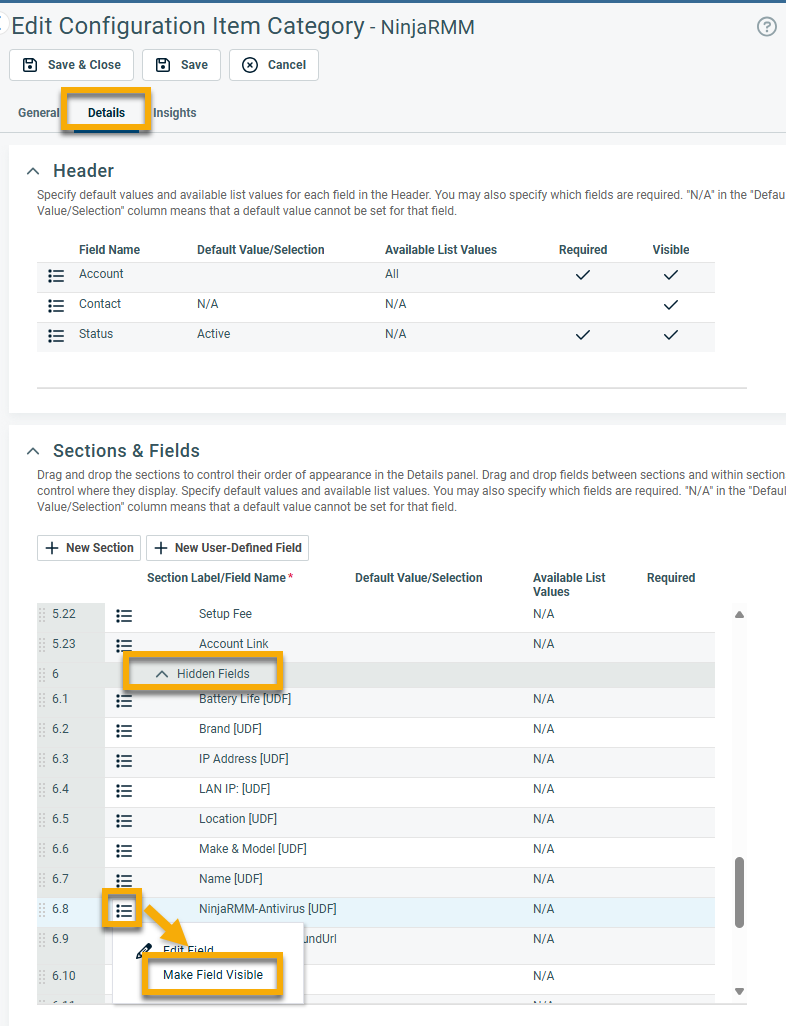
- Open the Details tab. A list of Hidden Fields will display; find and select the fields populated by NinjaOne. User-defined fields will contain "[UDF]" in the field name.
- Select the field you wish to show and click Make Field Visible. Repeat this process for any other fields you wish to display.
Additional Resources
Refer to the following resource to learn more about third-party applications that can integrate with NinjaOne: Integrations and Third-Party Apps: Resource Catalog.