
Topic
This article explains how to migrate your mobile device management (MDM) services to NinjaOne without performing a device wipe.
Environment
- NinjaOne MDM
- iOS 26
- iPadOS 26
- macOS 26
Description
Apple has introduced the ability to migrate company-owned devices from one MDM to another without requiring a full device wipe, available for devices running iOS 26, iPadOS 26, or macOS 26.
Your devices must already be in Apple Business Manager (ABM) or Apple School Manager (ASM) and enrolled via Automated Device Enrollment (ADE) in the original MDM. If both requirements are met, you can use the following steps to migrate these devices to NinjaOne MDM without a full device wipe.
As a best practice, we recommend enrolling a non-migrated device in NinjaOne first to ensure the defined configuration puts the device in the expected end state. Once you verify that the configurations are working as expected, you are ready to begin migrating devices.
Select a category to learn more:
- Prepare the NinjaOne Environment
- Perform the Migration for iOS or iPadOS
- Perform the Migration for macOS
- Additional Resources
Prepare the NinjaOne Environment
You must configure NinjaOne to support device enrollment through ADE. To do so, perform the following steps:
- Upload an Apple Push Notification (APNs) certificate. For instructions, refer to MDM: Apple Push Notification Service (APNs) Enrollment.
- Define the ADE profile. For instructions, refer to NinjaOne Apple MDM: Integrate with ABM for Automated Device Enrollment (Supervised Devices).
At this stage, you should not yet assign devices in ABM to the configured ADE Profile.
- In ABM or ASM (whichever service you are using for your devices), open the device page and click the ellipsis button. Select Assign Device Management. You can assign device management to multiple devices at once by selecting the checkbox next to each device and then clicking Assign next to Assign Device Management.

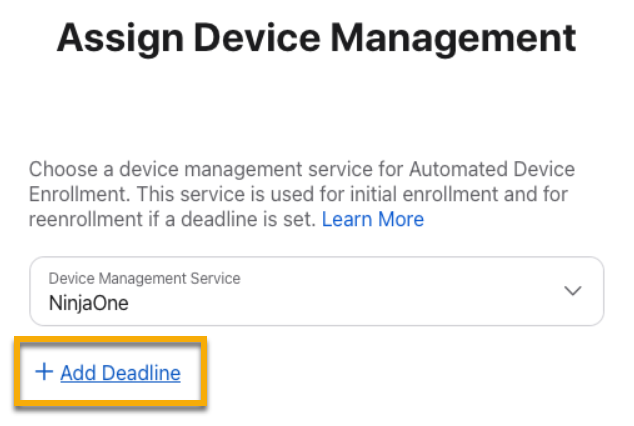
- Select the Device Management Service you defined when configuring the ADE Profile in NinjaOne. Then, select the Add Deadline option. If you are updating your devices in bulk, ABM will skip assigning the deadline to any selected device that does not meet the eligibility requirements.
- Define an enrollment deadline for the migration.
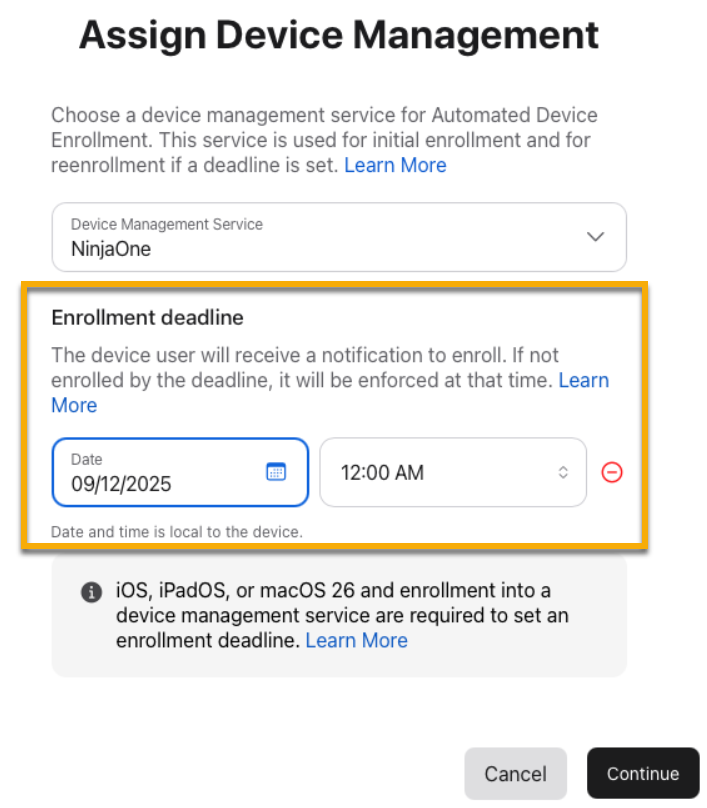
Leading up to this time, the user will be notified that the migration has been requested and will be enforced at the specified deadline. However, the user will have the opportunity to opt into the migration earlier.
- Click Continue.
- Confirm the changes when prompted, and ABM or ASM will take a few moments to assign the device to the new MDM service and initiate the migration.
You will see a confirmation on the screen when the process is complete. When a migration is actively scheduled for a device, the device record in ABM will also reflect this.
Perform the Migration for iOS or iPadOS
When the migration is initiated, the user will receive a notification on the device. Selecting Start Enrollment will open the VPN & Device Management page of the Settings app, where the device user can initiate the enrollment.
If the user selects Not Now when they receive the deadline notification, they can continue using their device but will periodically receive a follow-up notification. Once the enforcement deadline occurs, the user will be forced to proceed with the migration. When the migration begins, the device will restart.

After restarting, the user will receive a prompt to enroll in the new MDM. This is their final opportunity to select Not Now if the enrollment deadline has not yet been reached. The device will enroll in the new MDM and indicate when it is successful.
Once the enrollment is complete, the device will return to the Home screen and all settings configured by the new MDM (such as applications, restrictions, and other configurations) will install and apply to the device.
Perform the Migration for macOS
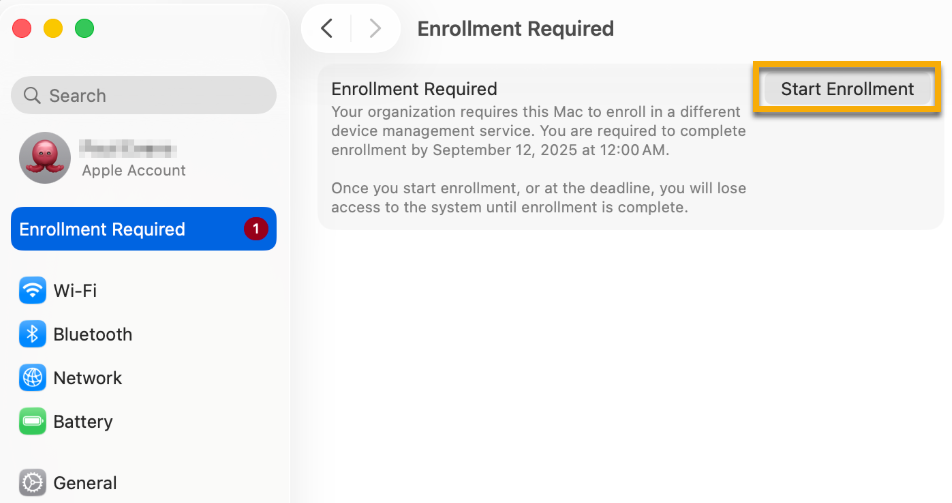
When the migration is initiated on a macOS device, the user will receive a notification on the device. Selecting the enrollment notification will take them to the System Settings app, where they can initiate the migration by clicking Start Enrollment.
Once the enrollment deadline passes, the device will force the migration process.
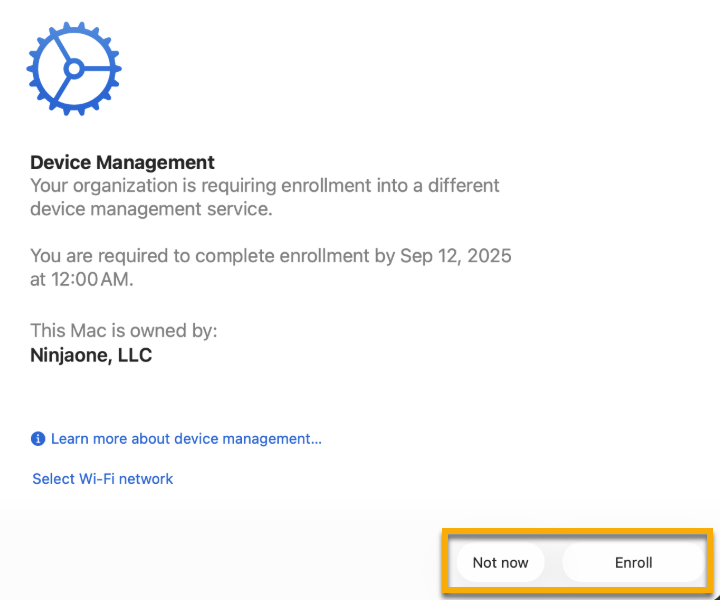
When initiated, the user will experience a workflow similar to a new ADE enrollment. This is the last point they can select Not Now prior to reaching the enrollment deadline, which will delay the migration while still allowing the user to access the device.
When the enrollment process starts, the user must enter a local administrator password on the device. The device will enroll in the new MDM and indicate when it is successful.
Additional Resources
Refer to NinjaOne MDM: Resource Catalog to learn more about NinjaOne MDM.