Topic
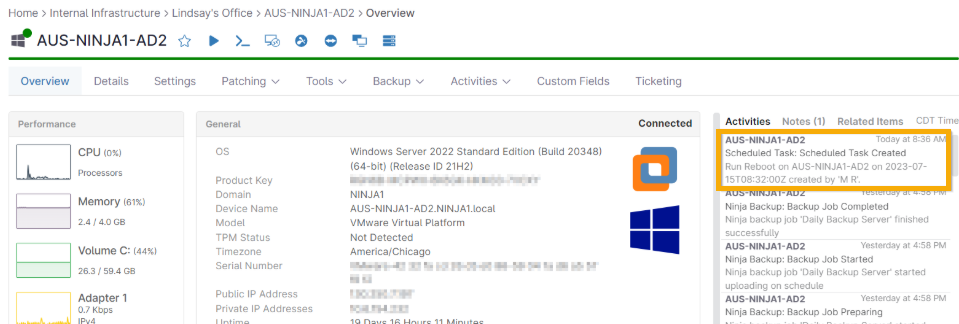
This article discusses how to create, view, and cancel scheduled device reboots.
Environment
NinjaOne Endpoint Management
Description
NinjaOne enables you to schedule reboots for individual devices or by adding a scheduled task to a policy.
- Scheduling Reboots at the Device Level
- Scheduling Reboots for Multiple Devices
- Viewing and Canceling Scheduled Reboots
Scheduling Reboots at the Device Level
Follow these steps to schedule reboots on an individual device.
Devices must be online to schedule a reboot.
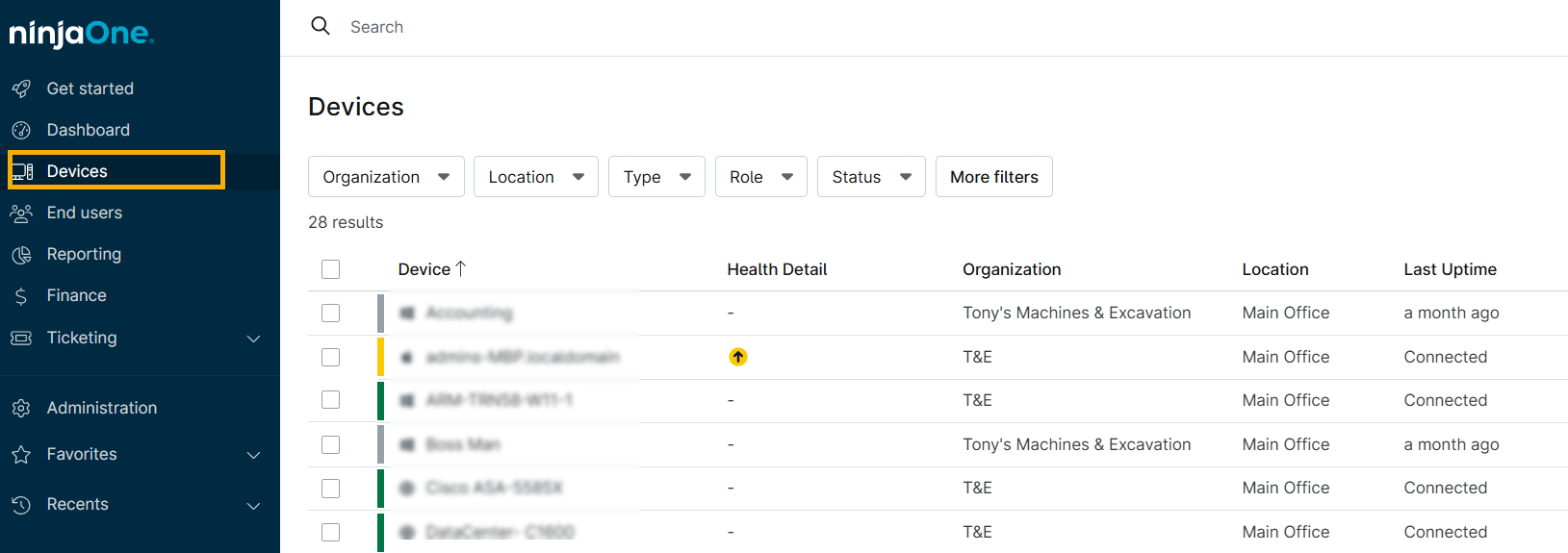
- Click Devices, then select an online device for which you'd like to schedule a reboot.
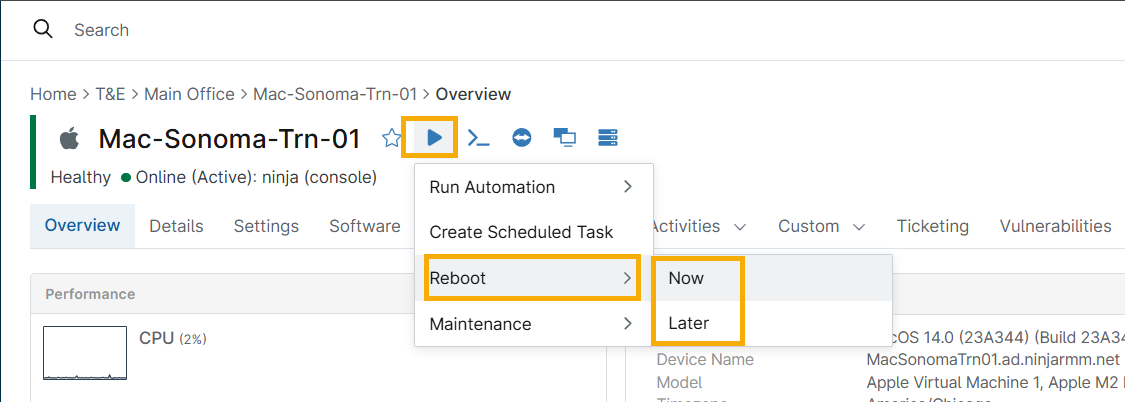
- Place your cursor over the Run button, then navigate to Reboot → Later.
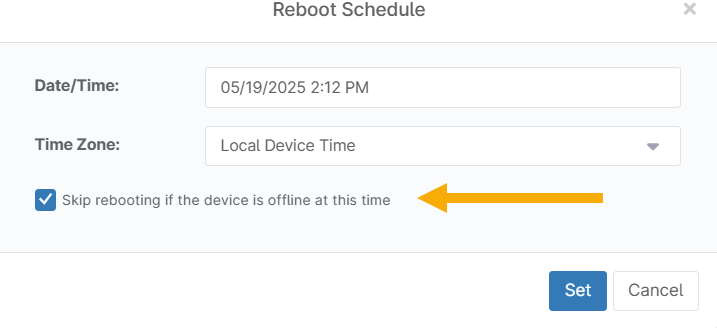
- Select a date, time, and time zone for the reboot, then click Set. You can also select the Skip rebooting if the device is offline at this time checkbox to avoid rebooting offline devices. If you do not select this option, the device will reboot immediately upon returning online.
- Click Set.
Scheduling Reboots for Multiple Devices
Follow these steps to schedule reboots on multiple devices simultaneously.
To successfully schedule a multiple-device reboot:
- The devices must be online.
- The devices must be the same type and belong to the same policy. You can run reboots for multiple devices with different policies, but not schedule them.
Procedure
- Click the Devices tab. You can use filters to narrow the list of devices.
- Select the devices in the list.
- Place your cursor over the Run menu, then navigate to Reboot → Later.
- Click Set.
Viewing and Canceling Scheduled Reboots
After scheduling a reboot, you can view it in two places:
- The Overview page for the device that had the reboot scheduled. Scroll to the Queued section of the page.
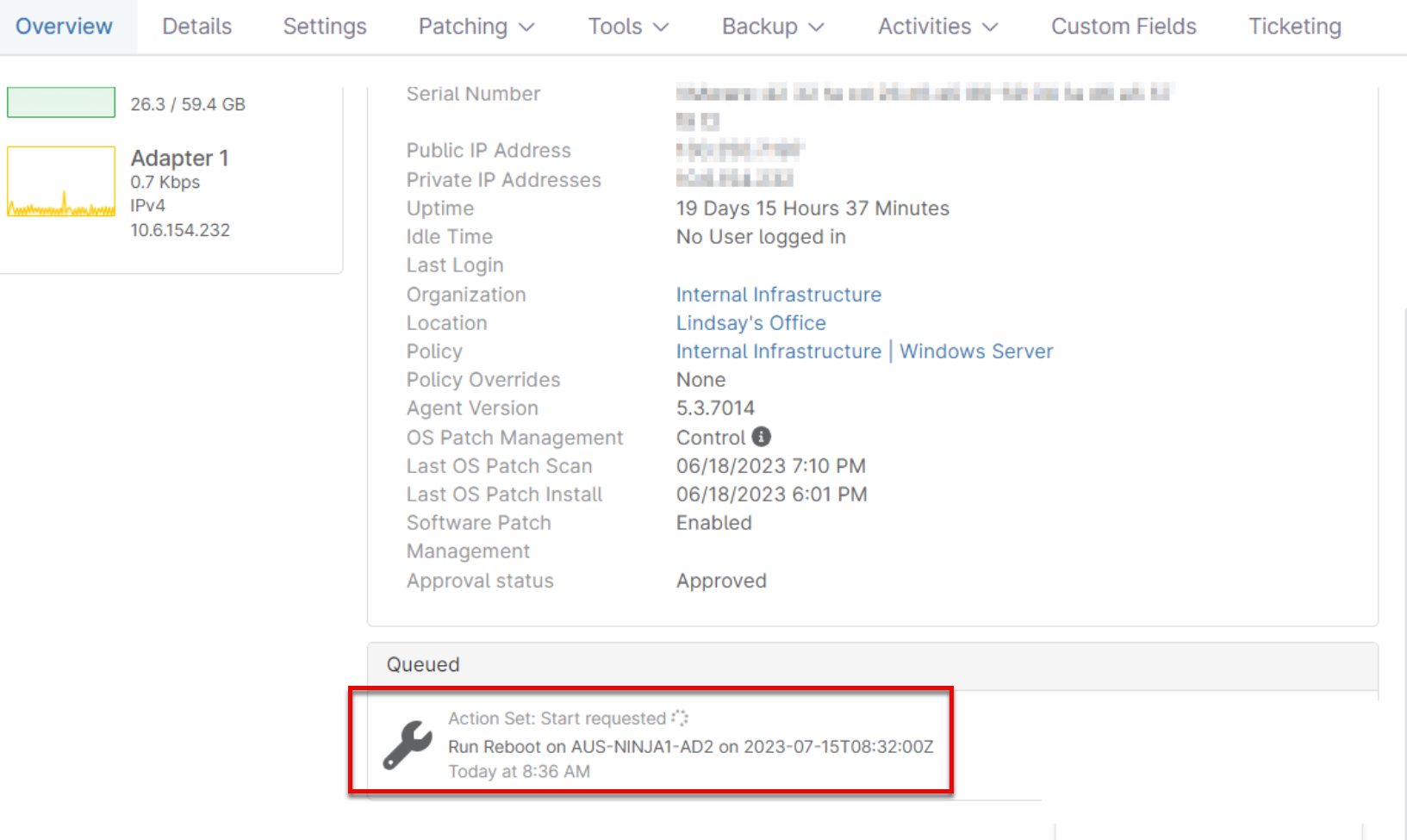
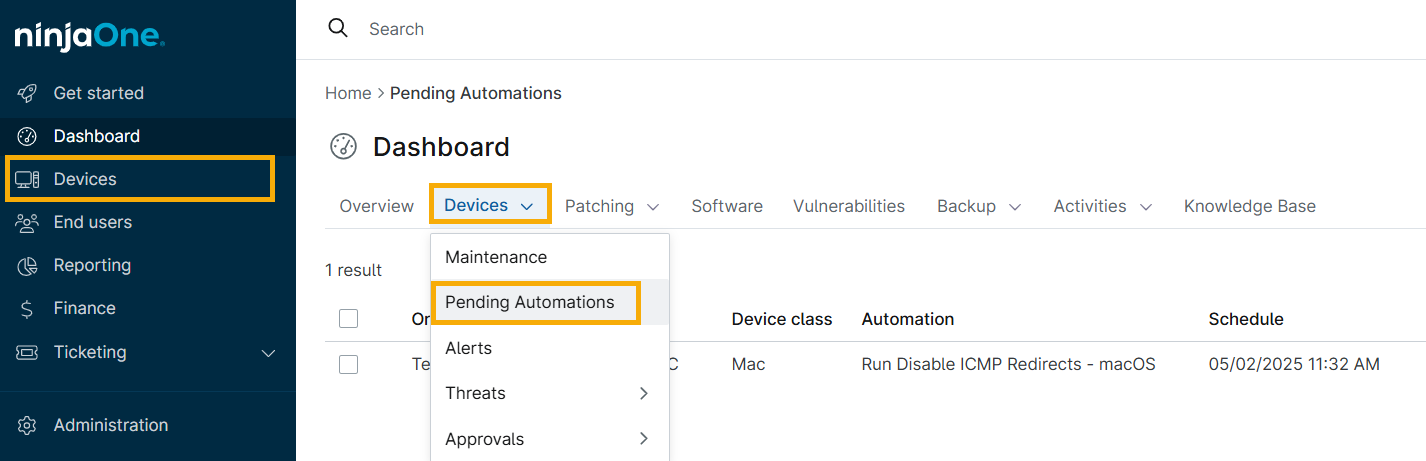
- The Pending Automations tab on the Devices dashboard shows all scheduled reboots for an organization or the entire system.
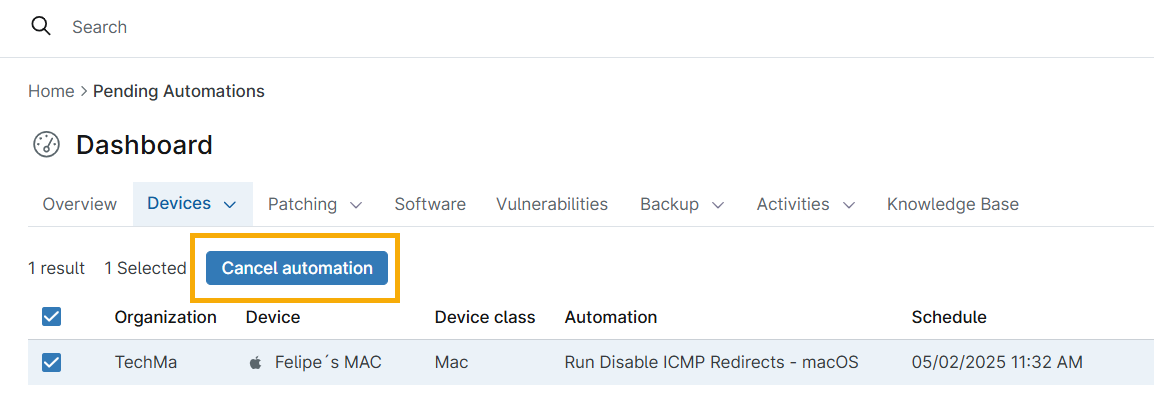
To cancel the reboot, check the checkbox next to the device name, then click Cancel Pending Automations.
NinjaOne generates activity logs when a reboot is scheduled, completed, or cancelled.