
Topic
This article explains how to use the NinjaOne Katana Agentic AI feature.
Environment
NinjaOne Katana Agentic AI
Description
With this feature, technicians can work more efficiently by providing them with the info they need as quickly as possible.
- One-click data gathering
- Natural language interaction
- Alert/activity summarization
- Ticket summaries
- Device health analysis
- Problem triage (recommending what you should work on next)
- Find insights and identify problems occurring across the environment
- Recommendations for scripts to solve problems
- Access your own knowledge base so Katana understands specific processes and procedures (not generic solutions)
Activate the NinjaOne Feature
When the AI assistant is active, the AI assistant icon appears on the platform.
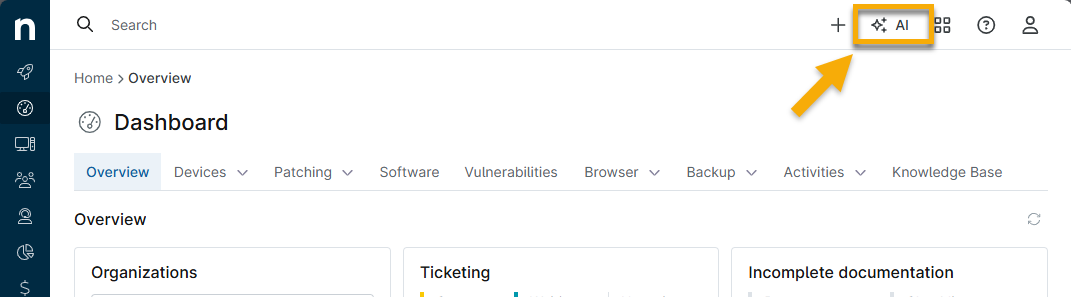
To activate this icon, perform the following steps:
- Navigate to Administration → Apps → Installed and select NinjaOne Katana Agentic AI.
- Click Enable.

Feature Permission Requirements
System administrators have access to this feature by default. Grant access to individual technicians and technician roles by following the steps below.
- Access the NinjaOne AI section in the account or role configuration page. Select the Enable AI configuration section toggle.
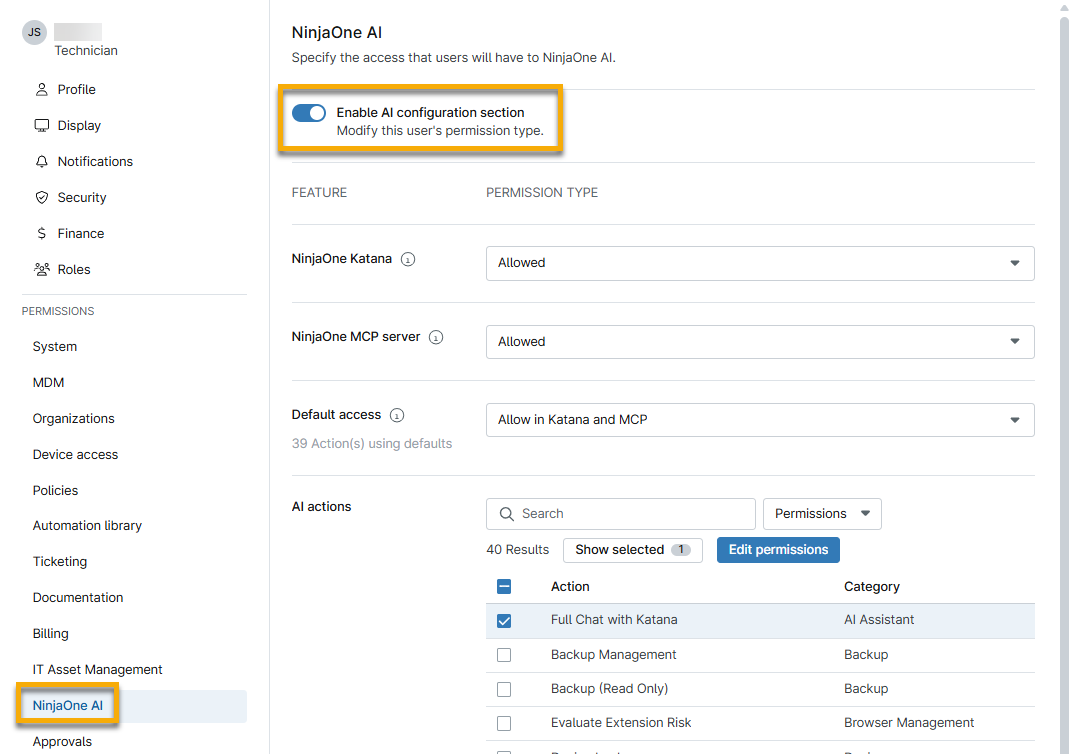
- Use the drop-down menus to specify whether the technician will have access to each feature. Move your mouse cursor over the tooltips to view descriptions.
- You can adjust the access for individual AI actions after selecting the Default access. Select the AI action and then click Edit permissions.
- Click Save.
AI Actions and Summaries
This section explains how Katana AI interacts with different pages across the NinjaOne platform.
Global Summary
When you open the Katana AI tool on any page in NinjaOne, it will update to provide a summary where applicable. If the AI cannot produce a summary, it will provide a Find help articles resource.

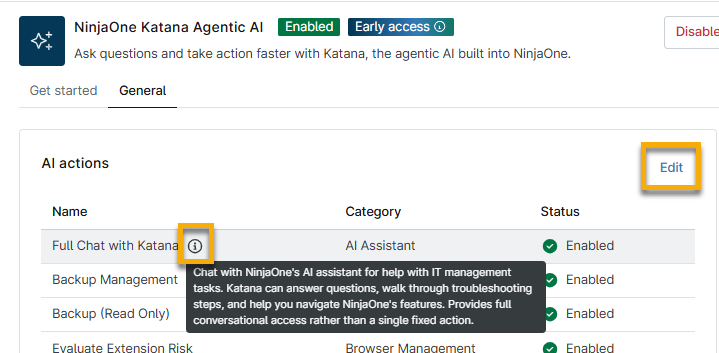
These summaries are configured on the NinjaOne Katana Agentic AI application page. You can turn them on or off from the General tab. Move your mouse cursor over the tooltip to view a description of the AI action, and click Edit to activate or deactivate it. When the AI action is deactivated, Katana AI will not provide a summary tool for the selected page or feature.
Ask Katana AI
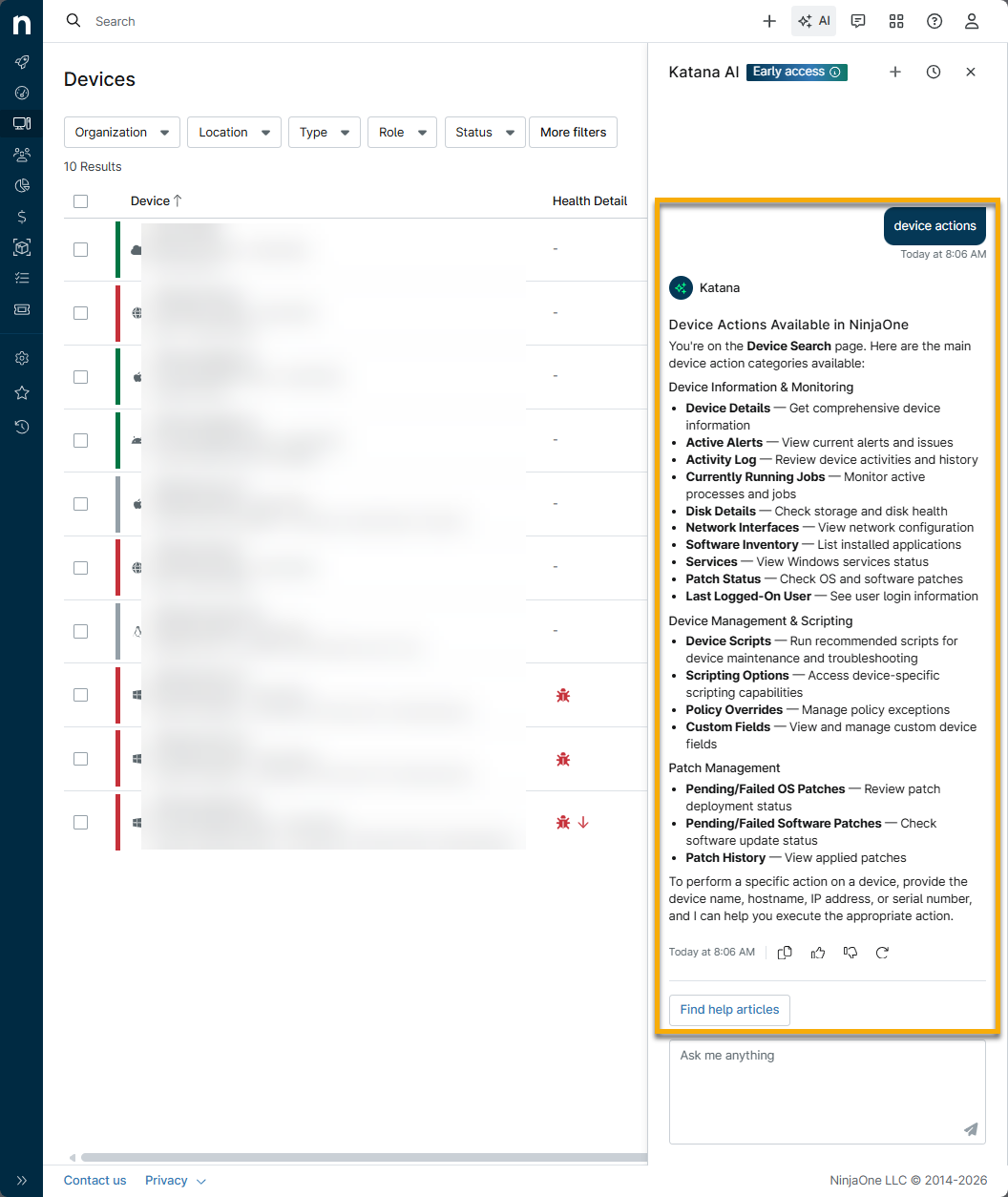
If you navigate to a page that does not automate resources from Katana AI, you can enter a question or keyword to initiate helpful prompts. In the screenshot below, typing "device actions" into the Katana AI chatbox provides a summary of the device information provided by the current page, your actions menu options, and a button to find additional help articles in the NinjaOne Dojo.
Use NinjaOne Katana with Device Actions
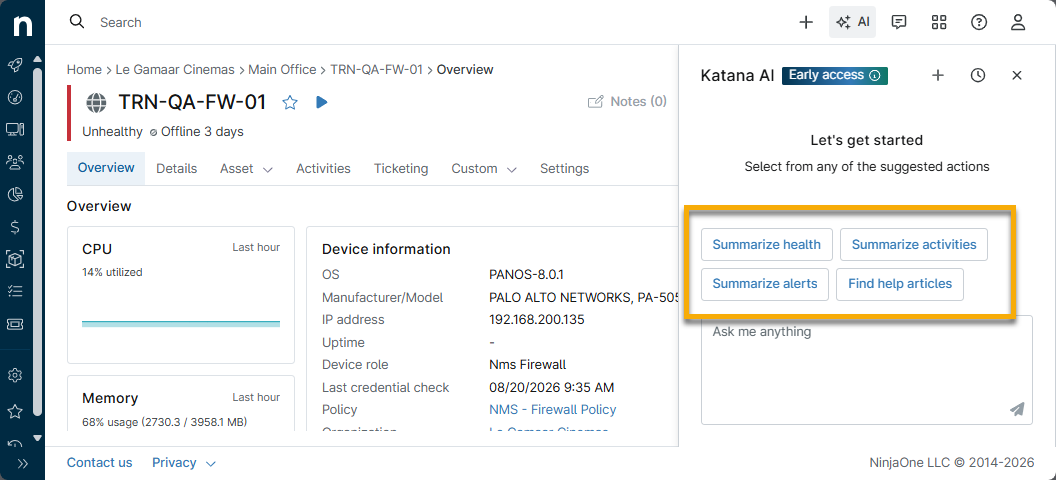
The AI assistant will provide summaries when the device dashboard is open. Select a device and then click the AI icon to view options to summarize data for the selected device.
Use NinjaOne Katana with NinjaOne Ticketing
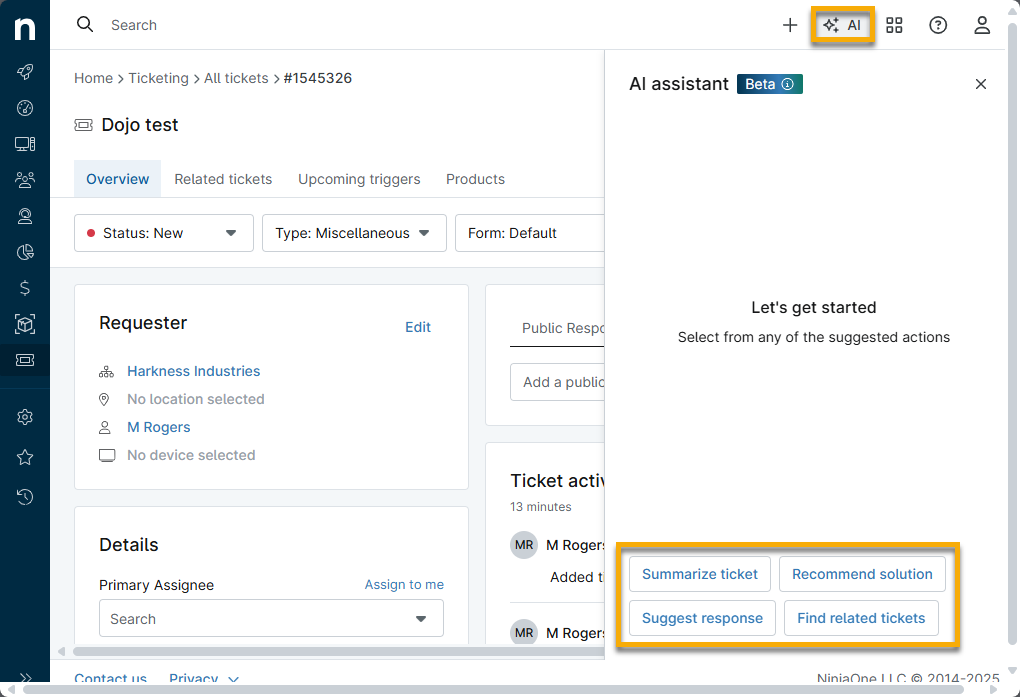
The AI assistant is designed to function when the ticket page is open. Select a ticket and then click the AI icon to review the following options (click the option to review instructions for its use):
- Summarize the Ticket
- Suggest a Response to the Ticket Reporter
- Recommend a Solution for the Ticket
- Find Related Tickets
Summarize the Ticket
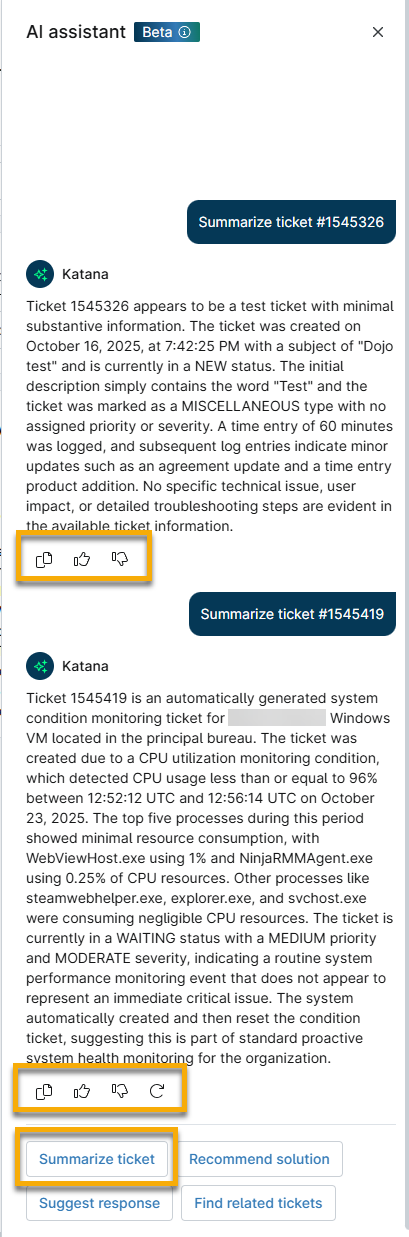
When you click Summarize ticket, Katana will take a few moments to collect the data and format it into the AI assistant window.
In the following example, Figure 4, we have summarized a mostly blank ticket (#1545326) and a ticket triggered by a condition (#1545419).
Use the icons below the summary to copy the data, indicate whether the information is helpful or not (which will help us improve our product), or reattempt a new summary. Move your mouse cursor over each icon to review what it does.
Recommend a Solution for the Ticket
The Recommend solution button provides a suggested course of action to resolve or troubleshoot the issue. It will use information from similar tickets and Dojo articles and include links to references.
Suggest a Response to the Ticket Reporter
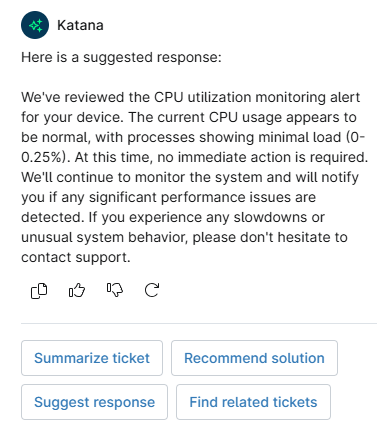
The Suggest response button provides verbiage that you can use to respond to the person who created the ticket. The AI assistant can use information from the ticket to generate a response that asks helpful questions to aid in resolving the ticket.
In the following example, Figure 5, we requested a suggested response for a triggered condition ticket.
Find Related Tickets
The Find related tickets button is not connected to the Related tickets tab. The AI assistant will search the system for similar tickets, Knowledge Base articles, and scripts based on information found in the ticket. Katana will list the most relevant content if the technician has access to it.
Katana will list similar ticket data based on:
- Assignee
- Tags
- Priority
- Severity
Additional Resources
Refer to the following resources for related content: