
Topic
This article discusses adding an Android app from the Google Play Store in NinjaOne MDM.
Environment
NinjaOne MDM
Description
Private apps will be deployed only to the devices that share the Android Connection name. NinjaOne recommends using a separate policy to segment connections from other devices that should not have access.
Private app considerations
- The Google Play iFrame has a size limitation in line with the Google Play Developer Console for APK files. Avoid uploading files above 100 MB. Larger apps should be uploaded as .aab files in the Developer Console and not through the iFrame as an APK.
- Organizations should lean on external resources and on-demand payloads where possible (i.e., any large app or game that alerts you on launch that it has more to download). This offers a better user experience and reduces network failures since external resources can be stopped/started as needed.
Procedure
- In the Policy, scroll down to Managed Applications and click the Add Apps button, then choose Google Play Store from the expanded options.

Figure 1: Managed Applications (click to enlarge)
- Select the Android connection (i.e., Enterprise account) from the drop-down menu in the top right corner. If you need to create a new Android connection, refer to MDM: Enable the Android Enterprise Device Management.
- Hover your cursor over the left-side navigation pane and click Private Apps.
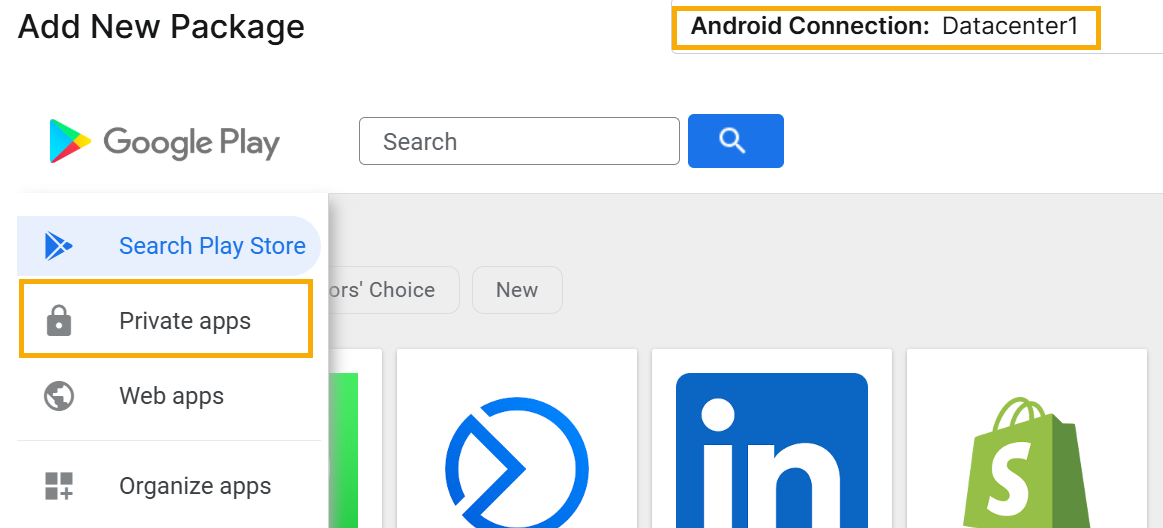
Figure 2: Adding the app from the Store (click to enlarge)
- Click the plus sign icon in the bottom right corner to upload your private apps.
- Follow the prompts to add or create your private app.
Additional Resources
For further information about adding and managing Android applications, refer to NinjaOne MDM: Getting Started with Android Device Management.