
Topic
This article explains the purpose of parameters and environment variables when installing or running scripts and automations in NinjaOne.
Environment
NinjaOne Automation
Description
The terms "parameters" and "arguments" are often used interchangeably, but they are slightly different. When you call a function, a script, or an executable file, you use arguments. When you define the function, you define the parameters that will take the arguments from the call for the parameter values. Within the scope of building automation scripts for NinjaOne, NinjaOne uses the term "parameters" throughout.
Parameters are not required by default in custom scripts. However, if your custom script is written to accept parameters, you have the option of specifying preset parameter strings in the script editor.
NinjaOne uses environment variables to reference parameters and simplify command input. which you can learn about in detail with our NinjaOne Endpoint Management: Using Variables in Automation Scripts article.
Index
Select a category to learn more:
- Important Considerations
- How to Use Parameters in a Script
- Other Use for Preset Parameters
- Frequently-asked Questions
- Additional Resources
Important Considerations
Consider the following notes before proceeding:
- The following special characters cannot be used in parameters: &|;$><`!
- NinjaOne is unable to pass multiple values for Array parameters. For example, when adding -param 1, 2 into our parameters text box, it only outputs 1 instead of 1 2.
- NinjaOne is currently unable to pass Boolean values through our parameters.
- NinjaOne only accepts String value parameters.
How to Use Parameters in a Script
The following illustrates an example of passing parameters to a PowerShell script that renames a local user.
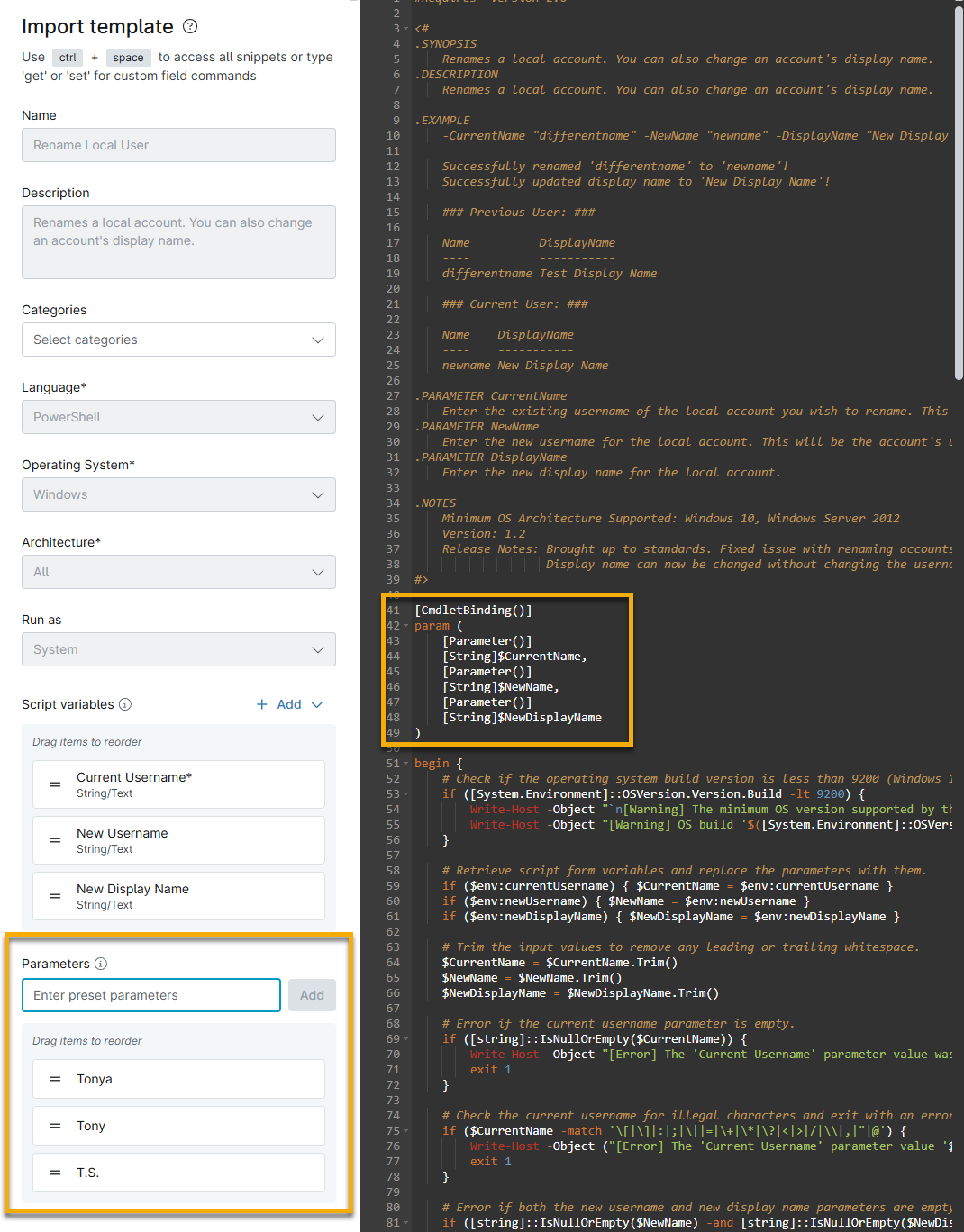
In Figure 1, we created three preset parameter strings:
TonyaTonyT.S.
These parameters correspond to the CmdletBinding attribute highlighted in the script and will replace the string variables in the order entered, as follows:
- $CurrentName: Tonya
- $NewName: Tony
- $NewDisplayName: T.S.
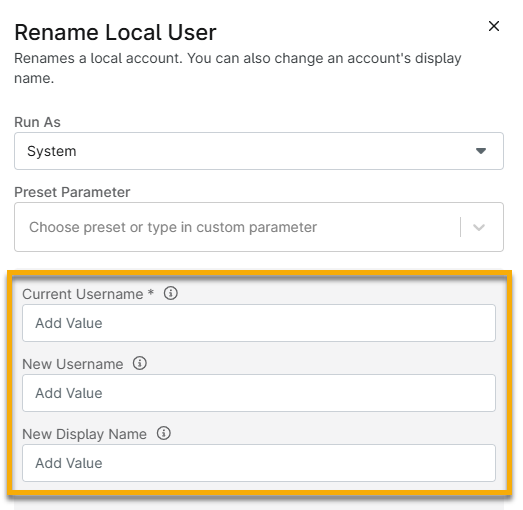
You can also set these parameters when executing the script through a policy condition or scheduled task. The prompt will require you to add values for the parameters.
Other Use for Preset Parameters
If you do not want to enter hard text parameters in your script, you can also call empty variables inside your script and insert their values inside the field for parameters before running your script.
The following is an example with a script calling three variables and displaying them in the output of the script:
param(
 [String]$variable1='',
 [String]$variable2='',
 [String]$variable3='')


Write-Host $variable1
Write-Host $variable2
Write-Host $variable3
When running this script, enter the values you want each variable to take in the order in which they were written in your script. Use a space in between each variable. If you have values with spaces in them, you need to add quotes to differentiate them from the other variables.
For example, if I want to add Peter Smith as a $Username and Pa5sW0rd as his $Password, I need to type them as follows:
"Peter Smith" Pa5sW0rdFrequently-asked Questions
How do I know what parameters to use in NinjaOne’s native install or run application scripts?
For EXE files, parameters are application-specific. There is no one set of parameters to use.
For MSI files, refer to MSIEXEC - Windows installer - Windows CMD - SS64.com (external link) for a list of possible parameters.
For NinjaOne's native Install Application script, all MSI files are executed using the following parameters:
/quiet /qn /norestart /log {path to our script folder}ninjascript-output-{current-time}.txt How do I know what parameters to use in my custom scripts?
Each scripting language has its own unique method of consuming script parameters. You should format parameters per the requirements of the language your custom script uses. Here are some external resources regarding how parameters work in the different scripting languages that NinjaOne supports:
- Parameters / Arguments - Windows CMD - SS64 (external link)
- Microsoft Windows 2000 Scripting Guide - Working with Command-Line Arguments | Microsoft Learn (external link)
- Pass Parameters - PowerShell - SS64.com (external link)
- Passing Arguments to the Script - Learn Shell - Free Interactive Shell Tutorial (external link)
We also expose the following environment variables that you can use for all types of scripts (Windows, Apple macOS, and Linux):
NINJA_EXECUTING_PATH -Install location
NINJA_AGENT_VERSION_INSTALLED -Agent Version
NINJA_PATCHER_VERSION_INSTALLED -Patcher Version
NINJA_DATA_PATH -Agent data folder (scripts, policy, downloads, logs)
NINJA_AGENT_PASSWORD -Agent password for obtaining session key
NINJA_AGENT_MACHINE_ID -The machine ID used on the server
NINJA_AGENT_NODE_ID -The node ID used on the server.
NINJA_ORGANIZATION_NAME -The organization name used on the server.
NINJA_ORGANIZATION_ID -The organization ID used on the server.
NINJA_COMPANY_NAME -The company name used on the server.
NINJA_LOCATION_ID -The location ID used on the server.
NINJA_LOCATION_NAME -The name of the location used on the serverAdditional Resources
Refer to NinjaOne Endpoint Management: Scripting, Automation and CLI Resource Catalog for more Automation Library tools.