
Issue
An Android device managed by NinjaOne MDM was wiped without an administrator explicitly initiating a manual wipe.
Environment
- NinjaOne Mobile Device Management (MDM)
- Android
Cause
NinjaOne Mobile Device Management (MDM) automatically wipes an Android device when the device meets any of the following conditions:
- A passcode policy not applied within 10 days.
- A policy configured to wipe after a time.
- A new enrollment with matching device information occurred.
- The device came online after more than 270 days offline.
Resolution
Identify which condition triggered the wipe and follow the relevant guidance.
A Passcode Policy was Not Applied within 10 Days
When NinjaOne MDM enforces a passcode policy on a device, or when a device password expires, the device must comply within ten days. If the device fails to enter the required passcode within that window, NinjaOne automatically wipes it to protect company data. You can confirm whether this condition triggered the wipe by checking the Compliance tab in device Details.
After re-enrolling the device, ensure the required passcode is applied before the 10-day compliance window closes.
A Policy is Configured to Wipe after a Time
The policy assigned to the device included one or more settings that automatically trigger a wipe when a threshold is reached. Review the policy assigned to the device and adjust the wipe threshold settings to values appropriate for your organization. NinjaOne MDM includes the following settings that can trigger an automatic wipe:
Wipe After Days
This setting, located on the Policy enforcement tab of the Policy editor, wipes the device after the specified number of days has elapsed.

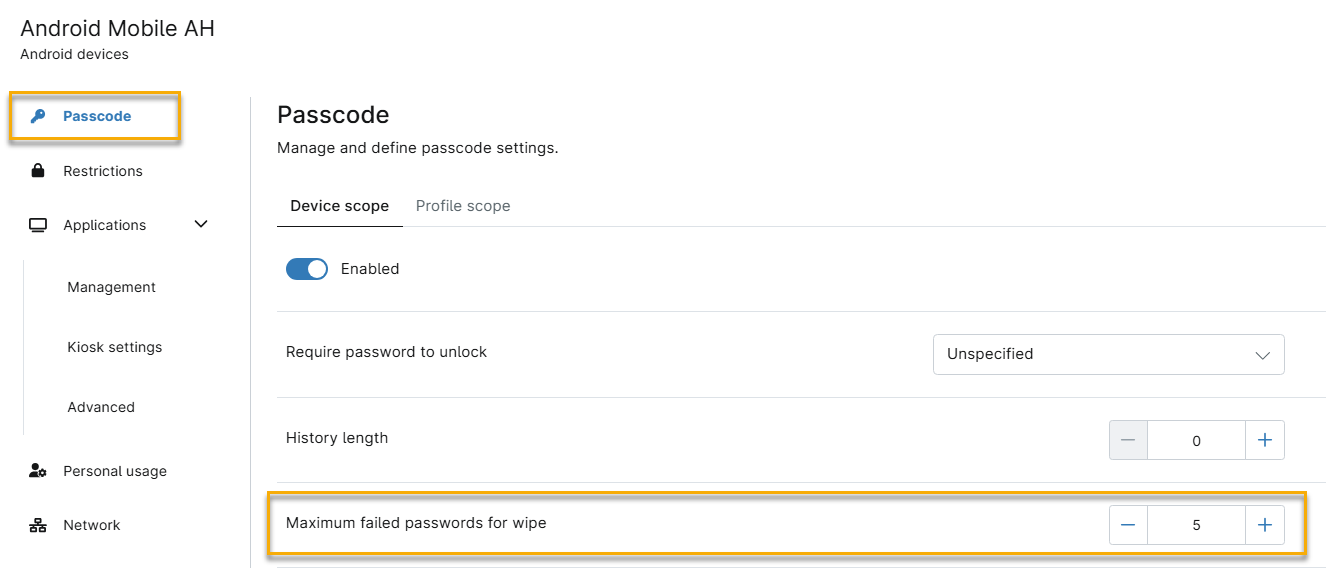
Maximum Failed Passwords for Wipe
This parameter, located on the Passcode tab of the Policy editor, wipes the device after the specified number of consecutive failed unlock attempts.
Maximum Duration Work Profile can be Off (Days)
This option, located on the Personal Usage tab of the Policy editor, wipes the work profile if it remains inactive beyond the specified duration.

Refer to the Policy enforcement section of NinjaOne MDM: Android Policy Management for more information.
A New Enrollment with Matching Device Information Occurred
When a new Android device is enrolled in NinjaOne MDM, NinjaOne checks whether an existing device record matches the incoming device's serial number, make, and model. If a match is found, NinjaOne automatically wipes the existing record to prevent duplicate entries in the device inventory.
The Device Came Online after More than 270 Days Offline
When an Android device that has been offline for more than 270 days comes back online, NinjaOne automatically wipes its device record. This behavior maintains the accuracy of the device inventory and removes stale data.
Additional Resources
For more information about Android device management and troubleshooting in NinjaOne, refer to the following articles:
- NinjaOne MDM: Troubleshooting Android Work Profile Issues
- NinjaOne MDM: Troubleshooting: Cannot Select the "For Work" Usage Type When Enrolling a Device
- NinjaOne MDM: Troubleshooting: Android Attempts to Set Up a Work Profile When I Try to Add a Company Google Account
- NinjaOne MDM: Troubleshooting: My IT Administrator Does Not Allow a Work Profile on My Device
- NinjaOne MDM: Troubleshooting: Work Profile Device Serial Number Mismatch in NinjaOne
- Enroll an Android Phone After Factory Reset
- NinjaOne MDM: Android Policy Management