Topic
This article resolves issues experienced for Android Mobile Device Management (MDM) in NinjaOne.
Environment
NinjaOne MDM
Android operating system
Description
Select an issue to review the cause and resolution.
- Android Password Reset Fails
- Automatic System Updates Cause Device to Restart
- Android IT Admin Doesn't Allow Work Profile on Device
- Android Tries to Set up Work Profile When Adding Company Google Account
- Cannot Re-Enroll Device
Android Password Reset Fails
Problem
There is a known issue with Android at the moment that causes the password reset function to fail, which may prevent additional commands from being sent to devices until a device is rebooted.
Solution
- Do not use Clear Passcode command.
Clear Passcode will invoke the bug on Android devices, indicated by a significant delay in the completion of the activity. Avoid using this command at this time. - Reset Passcode must meet requirements:
- The passcode being reset to must be a minimum of six characters.
- The passcode being reset to must meet or exceed applied policy requirements.
- Should commands fail, please restart the device—either locally on-device, or through the command Reboot Device. Following a reboot, a new command that follows above requirements should succeed.
Automatic System Updates Cause Device to Restart
Problem
Devices constantly restart when system updates are set to automatic.
Cause
This is expected behavior for Android devices. When setting system updates to automatic, you are directing android to download and install any available system or Google play system updates as soon as possible. As part of the update process a reboot is required and this will happen also as soon as possible.
Solution
If this is disruptive, consider using the windowed update configuration to set a specific time window at a preferred time. This time window is local to the device and not the MDM server, so setting a time window from 2 am to 4 am respective of time zone will enact at that time for each and every device.
- If you are using windowed updates, be sure to set a reasonable time window; a window of about, 4 hours is usually enough and ensures a balance between providing enough time for updates to install and not reducing efficacy of time windows by extending them for too long.
- As a further note, when setting a window update policy, this also applies to applications.
Android IT Admin Doesn't Allow Work Profile on Device
Problem
Unable to set up an already-configured device with an enrollment token set to “Work” rather than “Work and Personal”.
Solution
- For a BYOD requirement, create a new token and select “Work and Personal” for usage type. This will then allow the customer to create a work profile and use the device with full control over the personal side.
- For a fully locked down requirement, the continued use of “Work” as the usage type is fine, but the customer must factory reset the device, tap 6 times on the welcome screen—anywhere except the continue button. The QR code then can be scanned accordingly to set up the device as a work only, fully managed device.
- As a third option, the customer can use a “Work and Personal” token, again reset the device back to factory settings, and tap six times on the Welcome screen to start the QR code scanner. Instead of a fully managed, work only device, the device will provision into COPE mode, for a work profile on a company owned device that will allow the organization more control over the personal profile without invading user privacy and permit continued personal use.
Android Tries to Set up Work Profile When Adding Company Google Account
Problem
When adding a company Google account on the physical device, Android tries to set up a work profile.
Cause
The user will have Advanced Management set within their Google Workspace environment, requiring management associated with the Google account in question.
Solution
Disable Advanced Management either globally, or for the particular organization group (OU) the Google account belongs to.
Cannot Re-Enroll Device
Problem
Attempting to enroll a device that was previously erased and deleted from NinjaOne sends an error message "Cannot set up the device" and resets to factory settings.
Cause
Device policy may have apps that are "Required for Setup" or system Deduplication settings are on.
Solution 1
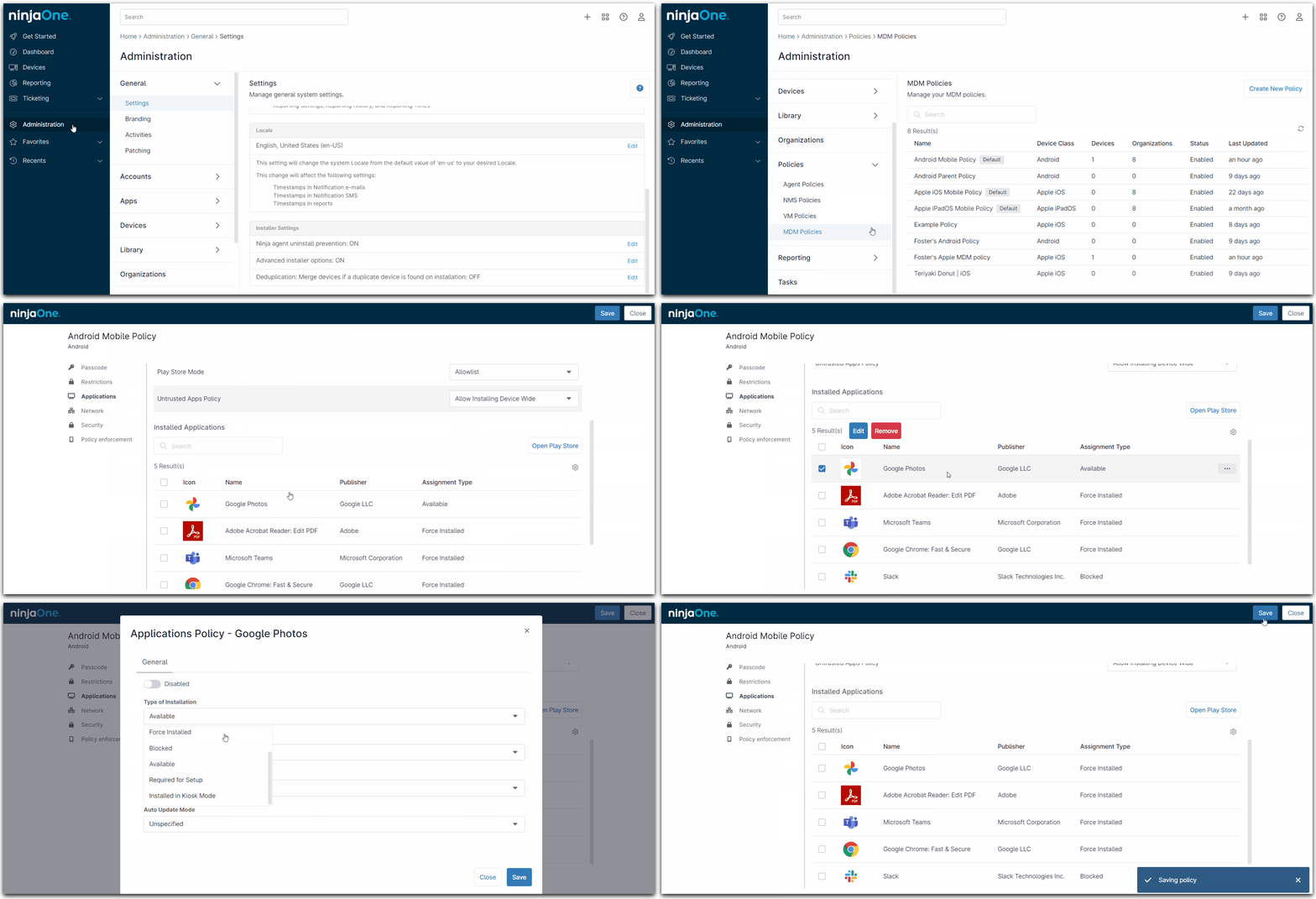
Check the application assignment type at Administration > Policies > MDM Policies > Applications > Assignment Types.
To change the assignment type (i.e., type of installation):
- Hover your cursor over the app details and click the ellipsis button, or
- Select the checkbox and click Edit.
Solution 2
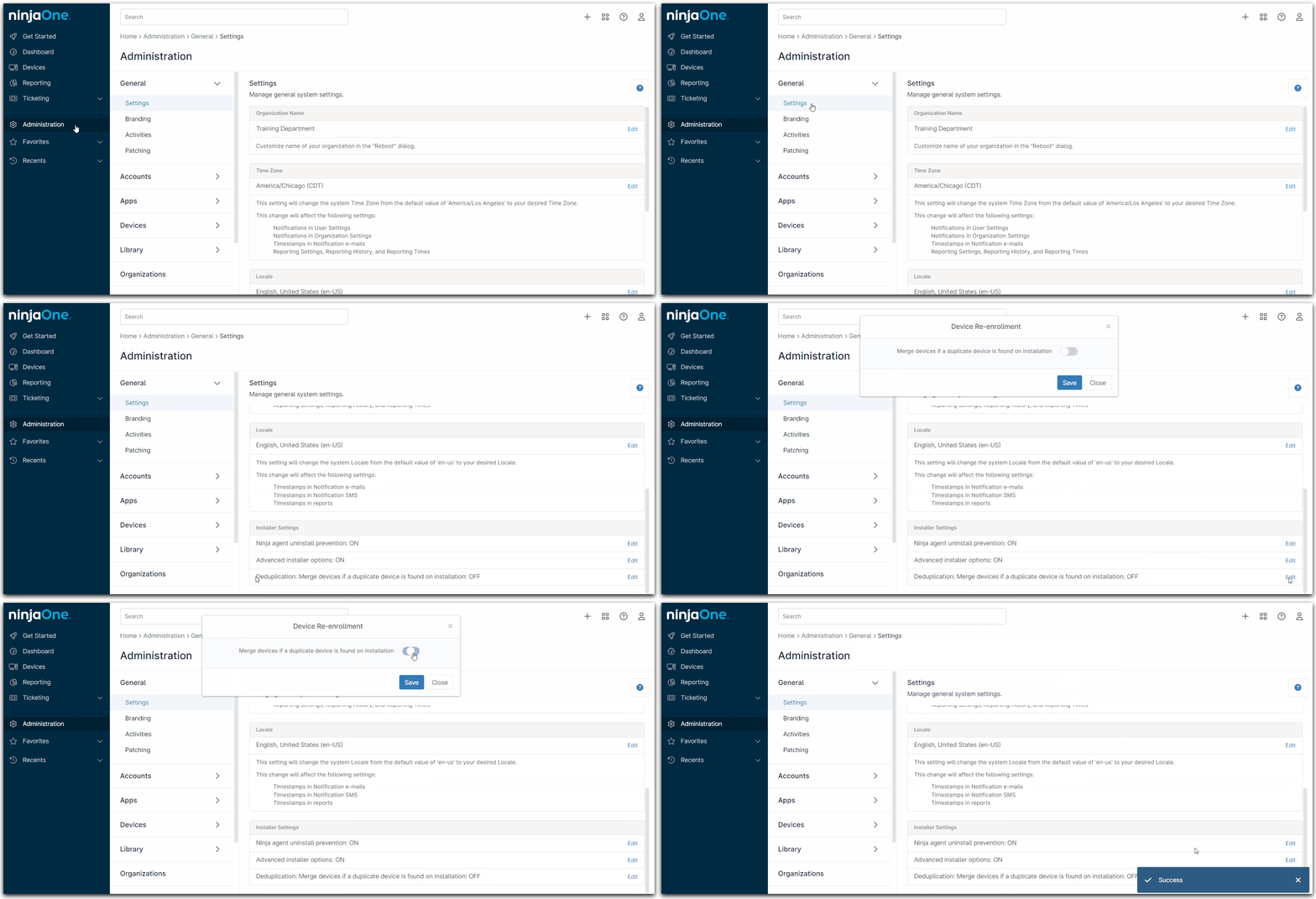
Check the Deduplication settings under Administration > General > Installer Settings.
To change the settings: Click Edit and then click the toggle switch in the resulting Device Re-enrollment modal.