
Topic
This article explains how to customize the health statuses that identify what actions occur on devices.
Environment
NinjaOne Endpoint Management
Description
NinjaOne gives you the ability to customize the health statuses for a number of device events. Customizing health statuses affects how devices with these events appear on your dashboards.
Select a category to learn more about each topic:
Health Status Options
The Device health summary widget on the system and organization dashboard shows the number of devices affected by a certain health indicator when you move your cursor over the color bar.
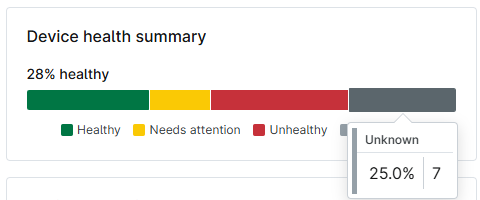
Figure 1: System dashboard device health summary (click to enlarge)
In NinjaOne, there are four options for health status indicators. The health status indicator has different meanings depending on whether it's reporting on a mobile device (MDM) or all other devices (laptops, virtual machines, or servers).
By default, the definition for each indicator is as follows:
| Color | Definition for MDM Devices | Definition for all Other Devices |
|---|---|---|
Red  | Device data: Offline or has not reported back to MDM after 3 days. Apps and Books certificate: At least one asset with zero licenses is available for use. The Apps and Books content token is expiring in 7 days or less. The Apps and Books content token has expired. ABM Automated Device Enrollment (ADE) profile: The ADE token is about to expire or has expired. If expired, devices will fail to sync from ABM/ASM, and devices will be unable to enroll through ADE. | Offline or Unhealthy |
Yellow  | Device data: Needs Attention. Apps and Books certificate: There are assets with less than 10% of total licenses available for use. The Apps and Books content token is expiring in 30 days or less. ABM ADE profile: The ADE token will expire in less than 90 days. Once expired, devices will fail to sync from ABM/ASM, and devices will be unable to enroll through ADE. | Needs Attention |
Gray  | Device data: Erased. | Unknown |
Green  | Device data: Managed. Apps and Books certificate: All assets have more than 10% of total licenses available for use. ABM ADE profile: The ADE token is in good standing and has more than 90 days until it expires. | Healthy |
Customize Health Statuses
System administrators and technicians with System → Device Administration access permission can change the health status displayed for each health alert.
You can adjust your devices' vulnerability CVSS severity level to indicate if the device health should be impacted.
Important Notes:
- When placing a device "Under Active Maintenance," the health status set for this event overrides the statuses for any other active events on that device. For example, if a device is under maintenance mode and "Under Active Maintenance" is set to yellow-needs attention, but it is also an offline server and "Server Down" is set to red or unhealthy, NinjaOne will display the device as yellow in the dashboard.
- For mobile devices (MDM), you can only change the health indicator for "Mobile Device Unavailable," which defaults to Unhealthy.
- Navigate to Administration → Devices → Health Status.
- Move your cursor over the event whose status you would like to customize, and then click Edit.
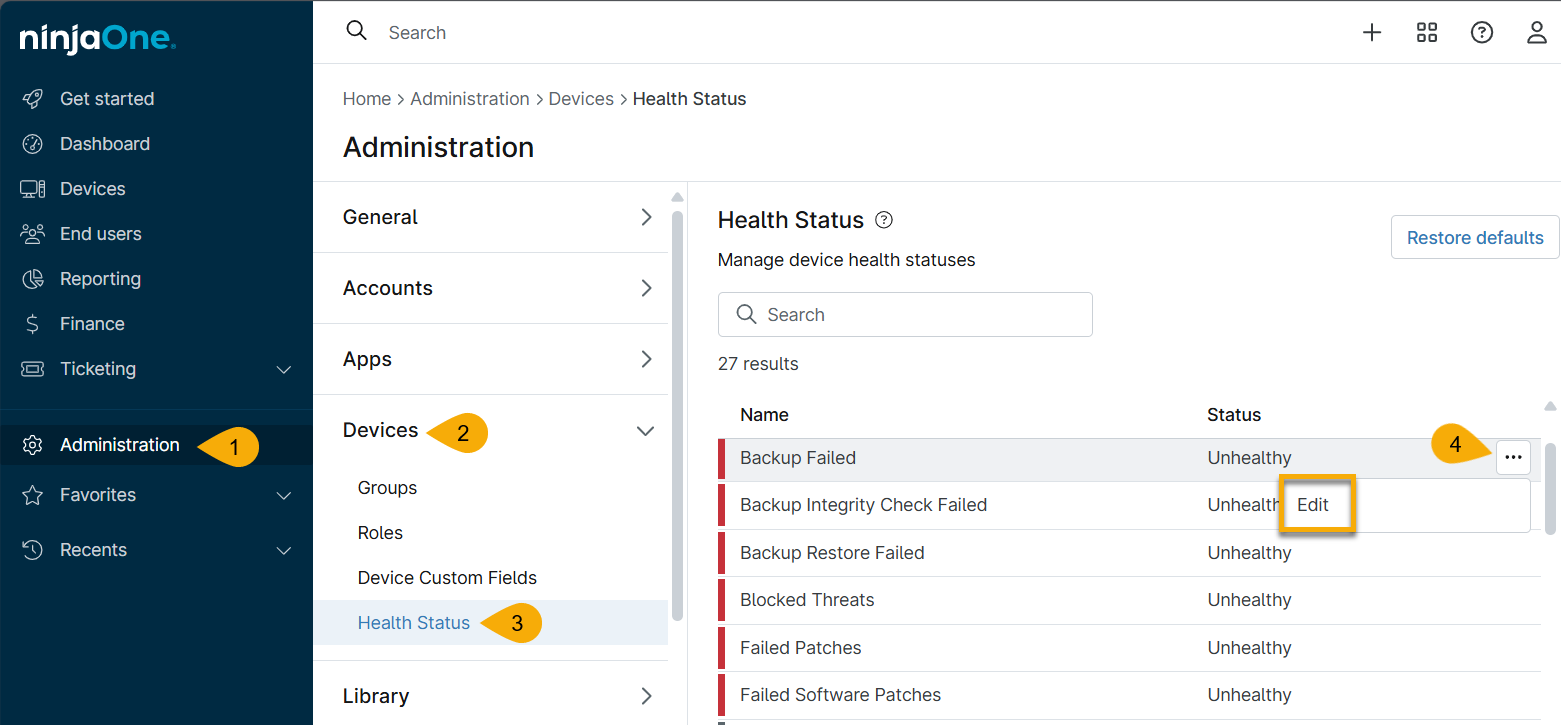
Figure 2: Edit a device health status in NinjaOne (click to enlarge)
- Choose the new status from the drop-down menu and then click Save.
NinjaOne will list any event with a non-default health status as Overridden.
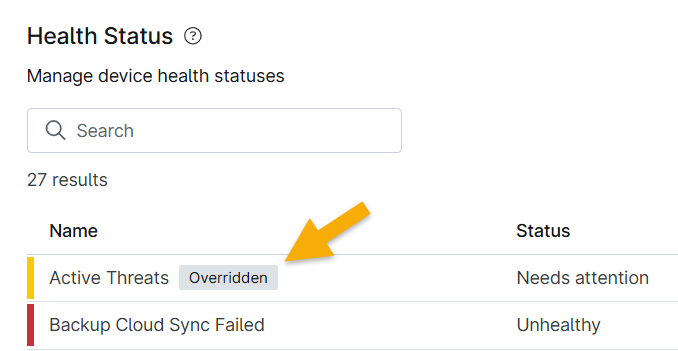
Figure 3: Example of an overridden health status in NinjaOne (click to enlarge)
Default Statuses
The default health statuses for the customizable events are as follows.
| Event | Default Status |
|---|---|
| Active Threats | Unhealthy |
| Backup Configuration Fail;ed | Unhealthy |
| Backup Failed | Unhealthy |
| Backup Install Failed | Unhealthy |
| Backup Integrity Check Failed | Unhealthy |
| Backup Restore Job Failed | Unhealthy |
| Backup Sync to Cloud Failed | Unhealthy |
| Blocked Threats | Unhealthy |
| Boot Verify Warning | Needs Attention |
| Failed Patches | Unhealthy |
| Failed Software Patches | Unhealthy |
| Hyper-V Guest Offline | Unknown |
| Hyper-V Host Offline | Unhealthy |
| Installation Issues | Needs Attention |
| Mobile Device Unavailable | Unhealthy |
| NMS Server Offline | Unhealthy |
| NMS Target Offline | Unhealthy |
| Needs reboot | Needs Attention |
| Sync to Cloud Failed | Unhealthy |
| Backup Failed | Unhealthy |
| Backup Integrity Check Failed | Unhealthy |
| Restore Job Failed | Unhealthy |
| Pending Patches | Needs Attention |
| Pending Software Patches | Needs Attention |
| Quarantined Threats | Needs Attention |
| Server Down | Unhealthy |
| Triggered Conditions | Needs Attention |
| Under Active Maintenance | Needs Attention |
| VMware Guest Offline | Unknown |
| VMware Host Offline | Unhealthy |
To return all statuses to their default setting, click Restore Defaults in the Device Health configuration page.

Figure 4: Revert overridden health statuses in NinjaOne (click to enlarge)
Additional Resources
For a list of frequently asked questions about health statuses, refer to Health Statuses: FAQ.