
Topic
This article explains how to enable and manage location tracking on your managed mobile devices in NinjaOne.
Environment
NinjaOne Mobile Device Management (MDM)
Description
NinjaOne MDM allows users to track the detailed location of mobile devices and any other device type that can provide their Global Positioning System (GPS) information. This feature helps track inventory assets and supports loss prevention.
Before you can use NinjaOne's MDM location tracking feature, you must install the NinjaOne Assist app and ensure it is active (running in the background) on the device. Refer to NinjaOne Assist Mobile Application for more information.
Additionally, Location Services must be activated (you can do this in the device settings). For Apple iOS devices, we suggest selecting "Always Allow" when prompted to use location services for NinjaOne.
- For Android devices, NinjaOne automates the deployment of the NinjaOne Assist app with all necessary permissions when you enroll the device in the console.
- For iOS devices, you must add the NinjaOne Assist app to the applications section of the policy in NinjaOne to make use of the location tracking feature. Refer to NinjaOne Apple MDM: Application (App) Management for more information.
Select a category to learn more:
Important Considerations
Make note of the following information:
- The Activities log will store up to 7 days of historical points.
- If the device is not online, NinjaOne will capture the data and store locations that cannot be sent. Stored locations will send the next time the device connects to a network.
- If the NinjaOne Assist app stops running in the background, NinjaOne will stop reporting location data.
- For Apple MDM:
- Device owners have full control of location services within that device. The device's owner has ultimate control over location services and can inactivate it whenever they want; no MDM provider can prevent that (this is an Apple limitation and does not extend to Android devices). However, you can define screen time or parental control settings to restrict this; it does require manual intervention on the device. Technicians can manually adjust Content & Privacy restrictions per Apple documentation: Use parental controls on your child's iPhone and iPad - Apple Support (external).
The iOS and iPadOS operating systems do not allow background services to run after an app is forced closed. This means that if an end user force-closes the NinjaOne Assist app, the app will no longer report locations to the NinjaOne console. In an effort to reduce this risk and issue, the NinjaOne Assist app will automatically reopen and begin tracking locations closed once the device has moved 500 meters. This ensures the app can run again and report locations as needed. The distance of 500 meters is not adjustable and is limited by Apple operating system rules.
Device owners must still manually open the NinjaOne Assist app daily or on restart to initiate location tracking services.
- For Android MDM:
- Devices may not report exactly at the interval specified in the policy due to power management restrictions that they enact when running on battery power.
- If you enable location tracking in the policy, Location mode will be set to "Enable location setting on the device," which cannot be modified within the Restrictions section of the policy. This ensures that location services are enabled and functional for location tracking to operate as intended.
Enable Location Tracking
To activate location tracking for your managed devices, perform the following steps:
- Open any MDM policy (Administration → Policies → MDM Policies). If you need instructions to create a new policy, refer to NinjaOne Mobile Device Management (MDM): Apple Policy Management.
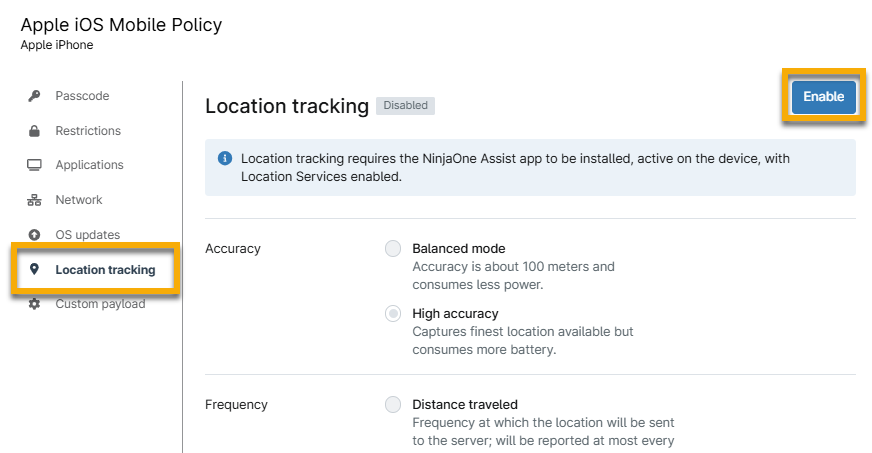
- From the policy configuration page, open the Location tracking section and click Enable.
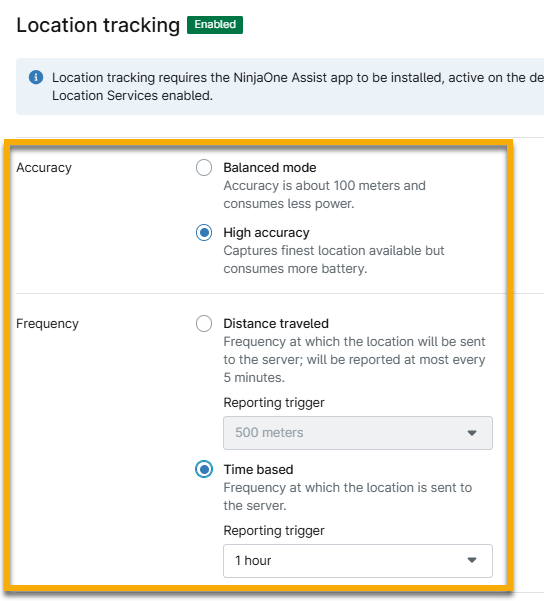
Use the following table to help configure your preferences for Accuracy and Frequency.
Location tracking stores up to 7 days of locations, and that number is determined by the Frequency configuration.Service Option Description or Purpose Accuracy Balanced mode Balanced mode uses best effort measurements from the device. High accuracy High accuracy mode uses precise measurements. Frequency Distance traveled Distance-based tracking triggers when a device travels to or beyond the distance specified in the Reporting trigger drop-down menu and will report any time the device moves more than the defined distance. Using this method, a device will not report more often than every 5 minutes. Time based Time-based tracking reports at every interval defined by the Reporting trigger drop-down menu selection.
- Click Save in the top right corner of the policy editor page to set the changes.
Device Dashboard Location Tracking
Location tracking information is visible from the device dashboard in NinjaOne. The History widget shows whether the feature is enabled with the last checked in time. Device coordinates are available in the Location activity widget.
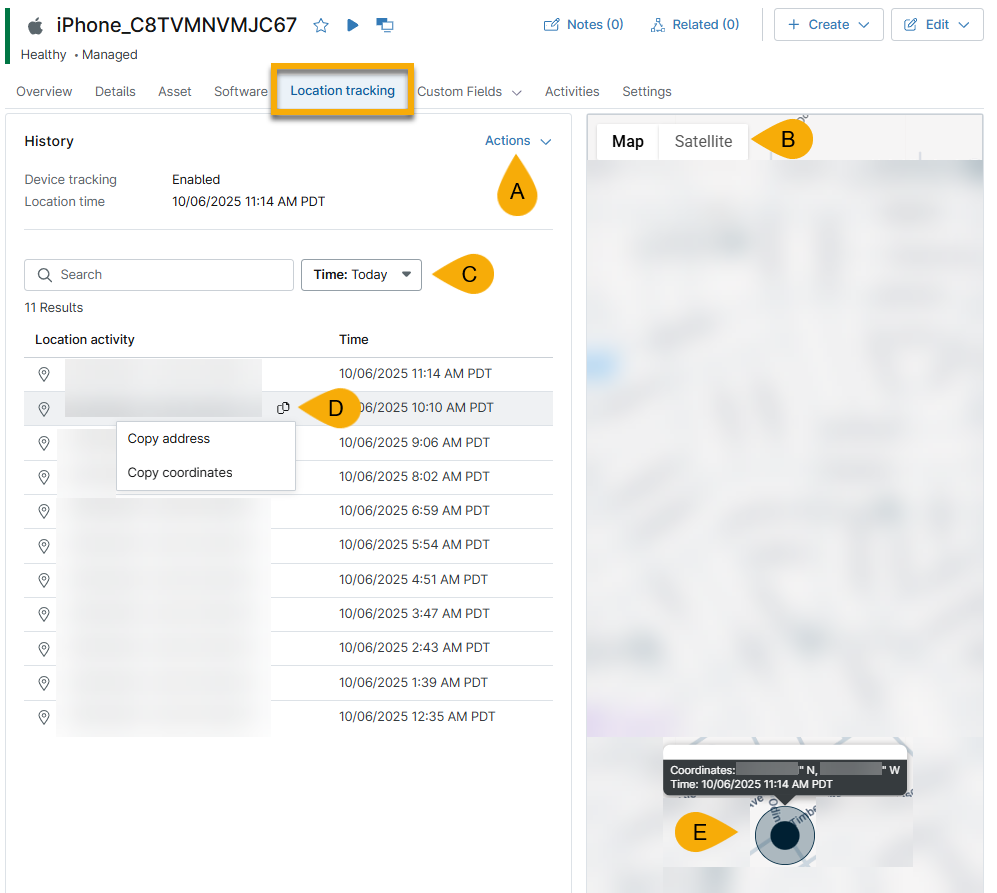
Refer to the following table for an overview of the Location tracking page and a description of Figure 3:
| Figure 3 | Description |
|---|---|
| A | Click Actions to request location, which sends a prompt to the device for new data, or clear location history. |
| B | Switch between map and satellite view on the map. |
| C | Change the location activity displayed for the selected time range. |
| D | Move your cursor over the location activity and click the paper icon to copy the address or longitude and latitude coordinates. |
| E | The black circle indicates the device's approximate location on the map. Click the circle to view the most recent longitude and latitude coordinates and time reported from the device. |
Manually Request Current Location
To pull instant location information for a device, open the Location Tracking tab. When location tracking is first enabled, this tab may not show tracking history (depending on triggers selected at the policy level and current device location). To manually fetch this data, system administrators and technicians with the appropriate permissions can click Actions → Request location to view the current location of the device.
If location tracking has not been enabled at the policy level, the actions will not be accessible from the device dashboard. Technicians will not be able to request location or clear history data.
Additional Resources
Refer to the following resource to learn more about NinjaOne MDM: NinjaOne Mobile Device Management (MDM): Resource Catalog.