
Topic
This article discusses policy management for NinjaOne Network Management System (NMS).
Environment
- NinjaOne NMS
- NinjaOne Endpoint Management
Description
You can assign roles to NMS-discovered devices that dictate the policy through which NinjaOne manages them. You must install the NMS Agent on the device for policy management to take effect.
Select a topic to continue:
- Prerequisites
- How NMS Determines Device Online/Offline Status
- Create a New NMS Policy
- Copy Existing NMS Policies
- NMS Policy Settings and Configuration
- Additional NMS Policy Condition Settings
- Assign Default NMS Policies For an Organization
- Network Performance
Prerequisites
You must set up monitoring for configuration backup, SNMP traps, Syslog, or NetFlow locally on your devices. Configuration steps differ depending on your device's vendor and model, so we recommend referring to your manufacturer's documentation for assistance with setup.
- NinjaOne supports configuration backup monitoring on Hewlett-Packard (HP) and Cisco devices.
- NinjaOne supports NetFlow/jFlow/sFlow/IPFIX monitoring.
- SonicWall requires App Visualization licensing to use flow reporting.
- You can create NMS policies from custom device roles. When you create the new policy, the configuration modal allows you to select the custom role. For more information, refer to NinjaOne Endpoint Management: Device Roles.
How NMS Determines Device Online/Offline Status
The NMS service determines whether a device is online or offline by evaluating data from the following monitors, which you can activate on the NMS policy's configuration page:
- Ping
- Port
- HTTP
- SNMP Monitoring (SNMP Traps)
- Syslogs
- NetFlow
Status Determination Logic
- Find the shortest monitoring interval. NinjaOne identifies the shortest monitoring interval among all active monitors in the policy and multiplies it by 2. This becomes the threshold period.
- Check for recent data. If NinjaOne does not receive any monitor data within the threshold period, the device is marked offline.
- Ping-only exception. For devices using only Ping monitors, NinjaOne does not mark the device offline until the second consecutive missed interval. This prevents false offline readings in unstable network environments.
Create a New NMS Policy
Follow these steps to create a new NMS policy:
- In NinjaOne, navigate to Administration → Policies → NMS Policies, then click Create New Policy.
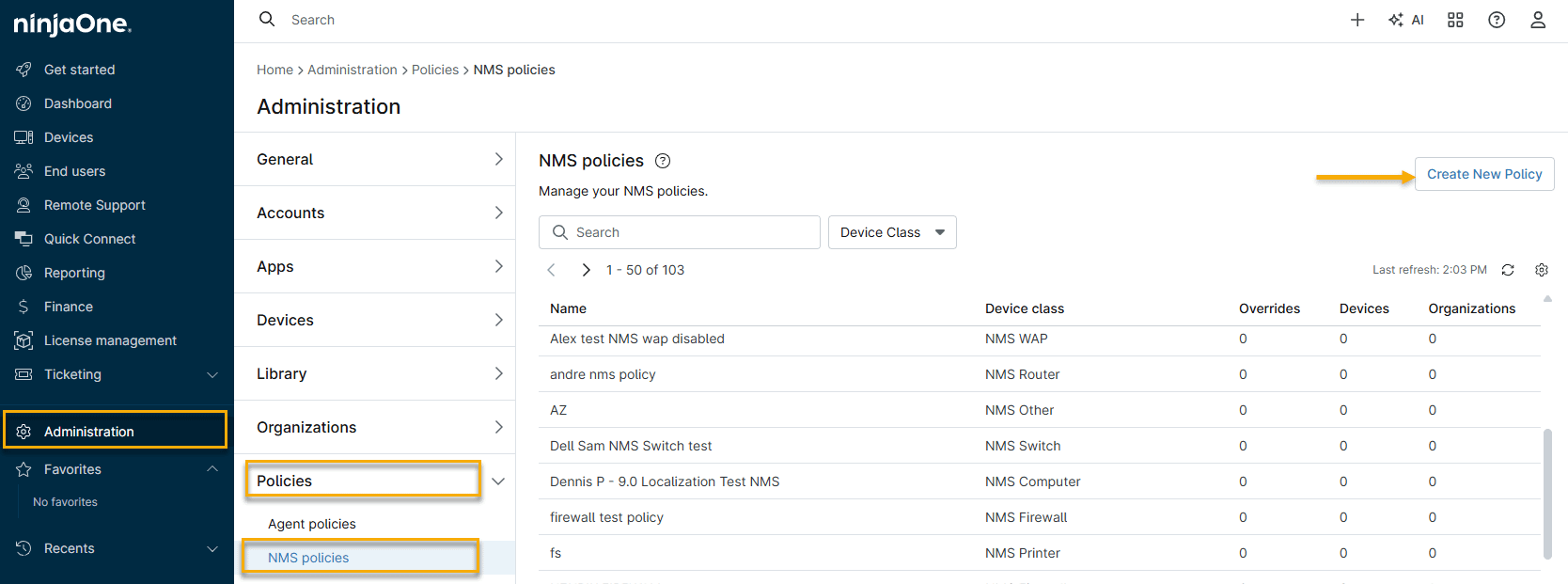
- Assign the new policy a name and an optional description, then click the Role drop-down menu and select NMS. A new drop-down labeled NMS Role will appear. Select the device role and click Create.

- Click Save to complete the new policy creation and assign policy settings.
Copy Existing NMS Policies
- To make a copy of an existing policy, place your cursor over the policy, click the ellipsis (three dots) icon, and select Copy.
- Name the policy and click Save. Then, make any necessary changes to the configured settings.
NMS Policy Settings and Configuration
This section discusses each tab in the NMS policy and the available settings for configuration.
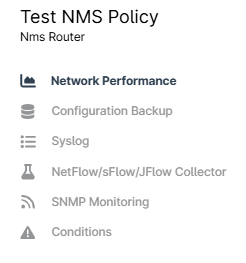
Network Performance
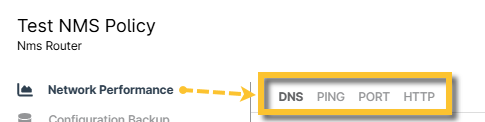
These settings allow you to monitor network performance using any of the following methods:
| Tab name | Description |
|---|---|
| DNS | Monitor the Domain Name System (DNS) at a specified interval and timeout (in milliseconds) as well as the DNS NetBIOS Name, LMHost, Host, or Forwarded DNS resolution. These policy settings are hard-coded in the NMS delegate and cannot be changed. |
| Ping | Monitor pings at a specified interval and timeout (in seconds). You can also monitor the packet TTL, pings per node, and the delay between pings (in milliseconds). |
| Port | Monitor selected ports at a specified interval and timeout (in milliseconds). |
| HTTP | Monitor HTTP (Hypertext Transfer Protocol) or HTTPS (Hypertext Transfer Protocol Secure) for selected port at a specified interval and timeout (in seconds). |
Configuration Backup
These settings let you manage the configuration backup for HP or Cisco devices. You can perform the configuration backup at a specified interval and timeout (in seconds), specify a file transfer timeout to monitor (in seconds), and choose whether to monitor the running configuration or the startup configuration.
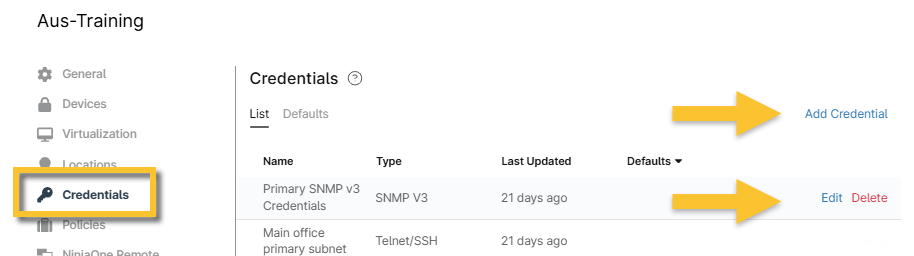
For configuration backup to work, you must ensure the Telnet/SSH credentials are set up properly. To do so, navigate to any organization configuration page and add or edit the data in the Credentials section. The Edit and Delete options only appear when you move your cursor over the row.
Syslog
These settings allow you to choose different monitoring facilities and severities within the syslog on the device. NinjaOne will not take into account any facilities and severities you clear in the conditions.
NinjaOne discards the following syslog activities by default:
- Facility: User
- Severity: Debug, Info, Notice
To receive messages or alerts for the above, you must manually configure the alert in the Conditions section of the NMS policy. Select the Syslog condition and then select which messages you want to receive from the Facilities or Severities fields.
NetFlow/sFlow/JFlow Collector
These settings govern the type of NetFlow traffic you'd like to monitor, any IP (Internet Protocol) addresses from which you'd like to discard data, and the flow noise configuration.
NinjaOne supports several different traffic protocols:
- NetFlow (NetFlow 5, NetFlow 9) on the following systems:
- Cisco
- SonicWall
- J-Flow
- sFlow (sFlow 2, sFlow 5)
- IPFIX (NetFlow 10)
SNMP Monitoring
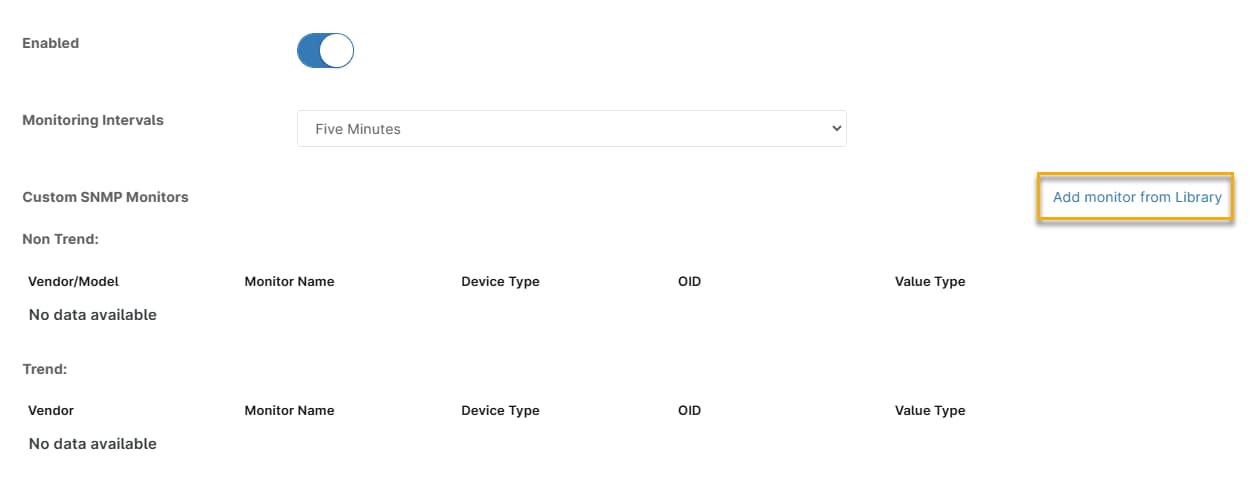
These settings allow you to monitor basic Simple Network Management Protocol (SNMP) data (like CPU, Memory, Disk, or Network Adapter activity). When adding a monitor, NinjaOne presents the options obtained from the SNMP Library. Refer to NMS: Custom SNMP for more information.
Conditions
Choose from any of the following available conditions to monitor with this policy:
| Condition | Description |
|---|---|
| Processor | Trigger if the processor utilization is greater than, less than, or equal to a threshold percent defined in the condition dialog box. You can choose between hit count or duration for the type. |
| Memory | Activate if the memory utilization is greater than, less than, or equal to a threshold percent defined in the condition dialog box. You can choose between hit count or duration for the type. |
| Disk Usage | This condition is a firewall and VM host policy only, and triggers if the processor utilization is greater than, less than, or equal to a threshold percent defined in the condition dialog box. |
| Network Adapter Traffic | Trigger if the ingoing or outgoing network adapter traffic is greater than, less than, or equal to a threshold, which you can specify in numerous units. You can choose between hit count or duration for the type. |
| Network Adapter Traffic Percent | Activate if the incoming or outgoing network adapter traffic is greater than, less than, or equal to a specified threshold percentage. You can choose between hit count or duration for the type. |
| Network Adapter Status | Monitor whether a network adapter is in a specified status. |
| Network Adapter Status Change | Monitor when a network adapter changes to or from a specified status. |
| Ping Latency | Trigger if the ping latency is greater than, less than, or equal to a certain threshold percent. You can choose between hit count or duration for the type. |
| Ping Packet Loss | Trigger if the ping packet loss is greater than, less than, or equal to a certain threshold percent for a specified duration of time. |
| Ping Response | Monitor if a ping receives a response after a specified number of attempts. |
| Http | Monitor for selected status codes, as well as the presence of specified content text. |
| Ports | Monitor the status of specified ports. |
| Syslog | Monitor the syslog for the specified logic type (and/or), message, facilities, and severities. Important Note: The last three options in Severities could result in a large number of alerts. |
| Device Down | Trigger if the device goes down for the duration of time specified in the condition dialog box. |
| Configuration File | Monitor for changes to the configuration file. Specify whether you'd like to monitor for content being added or removed, specific text to monitor for, or specific text to ignore. Important Note: In the NMS policy's Configuration Backup tab, you can specify the type of configuration you want to monitor. You can choose between Startup-config and Running-config. |
| SNMP Trap | Monitor if the system receives any trap, a trap containing a specific OID, or a trap value containing a specific target string. |
NMS Condition Interval Dependency
The following conditions depend on the SNMP monitoring Interval:
- Custom SNMP
- Device Down
- Memory
- All network adapter conditions
- Processor
- System Uptime
Additional NMS Policy Condition Settings
This section contains additional configuration options.
Reset interval
When creating conditions in your NMS policies, you can specify a reset interval that dictates the amount of time that will pass until the condition automatically resets (the alert will be cleared from the device).

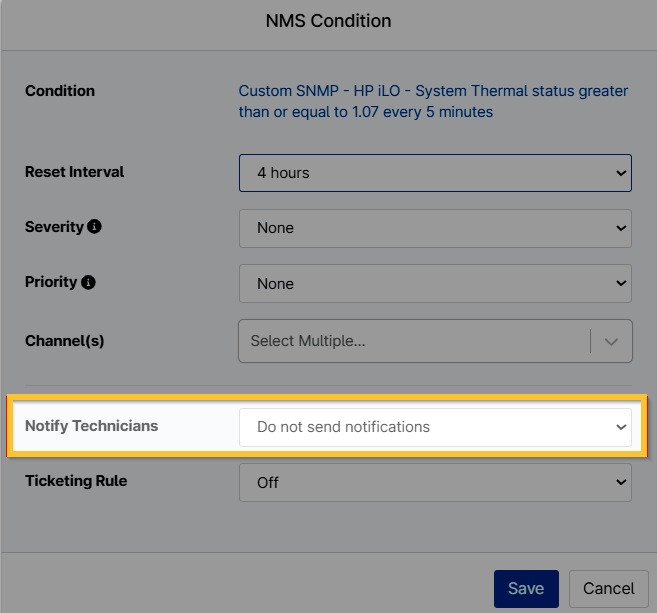
Notify Technicians
You can send notifications to all technicians when a condition is triggered.
Assign Default NMS Policies For an Organization
Follow these steps to assign default policies that apply across the entire organization:
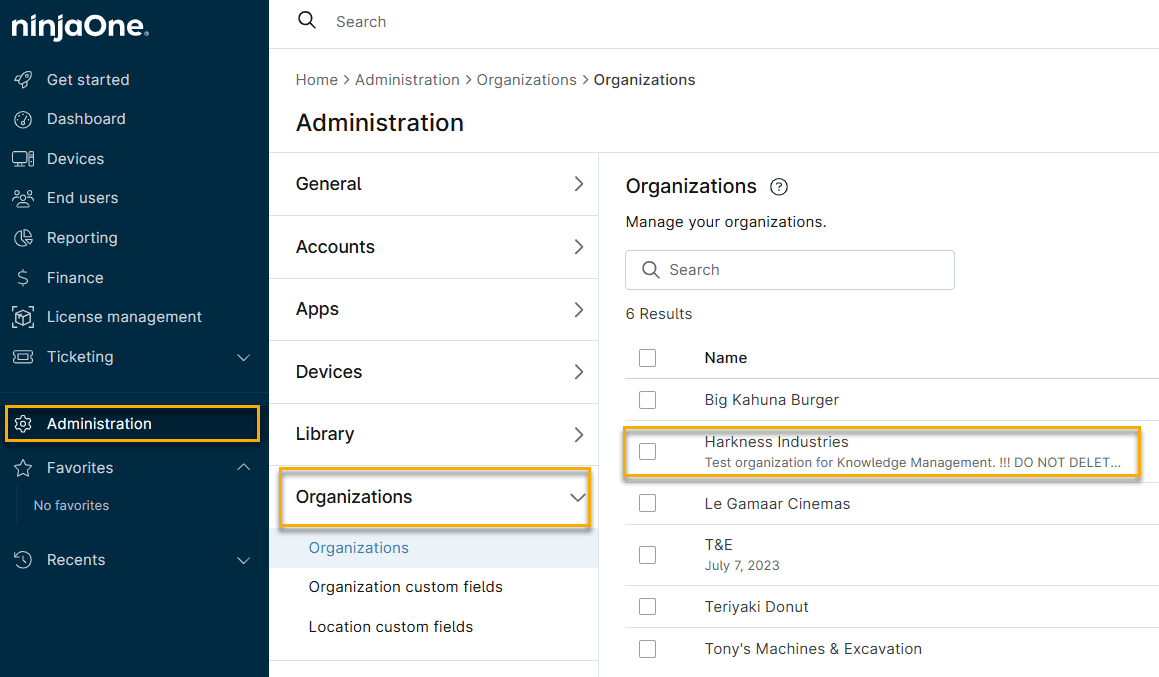
- Navigate to Administration → Organizations and select an organization from the list.
- On the organization's configuration screen, select Policies, then open the NMS Policies tab.
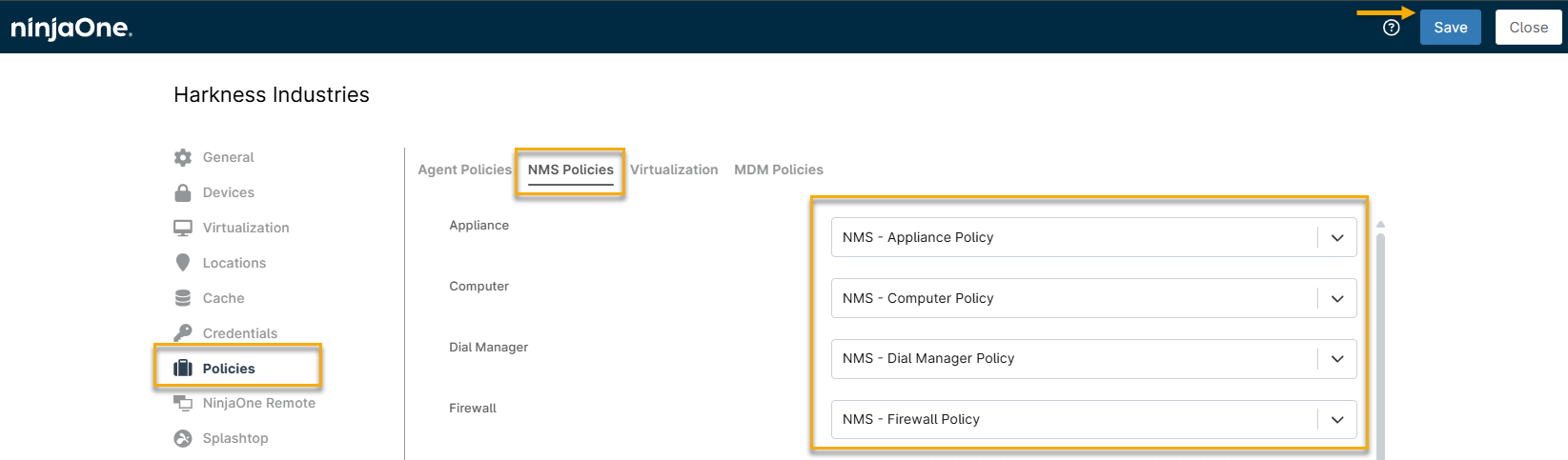
- Select the desired default policies from the drop-down menus, then click Save.
After you save, policies are automatically assigned to NMS devices in the organization according to their assigned role.